Manage your organization’s password settings
To open password settings:
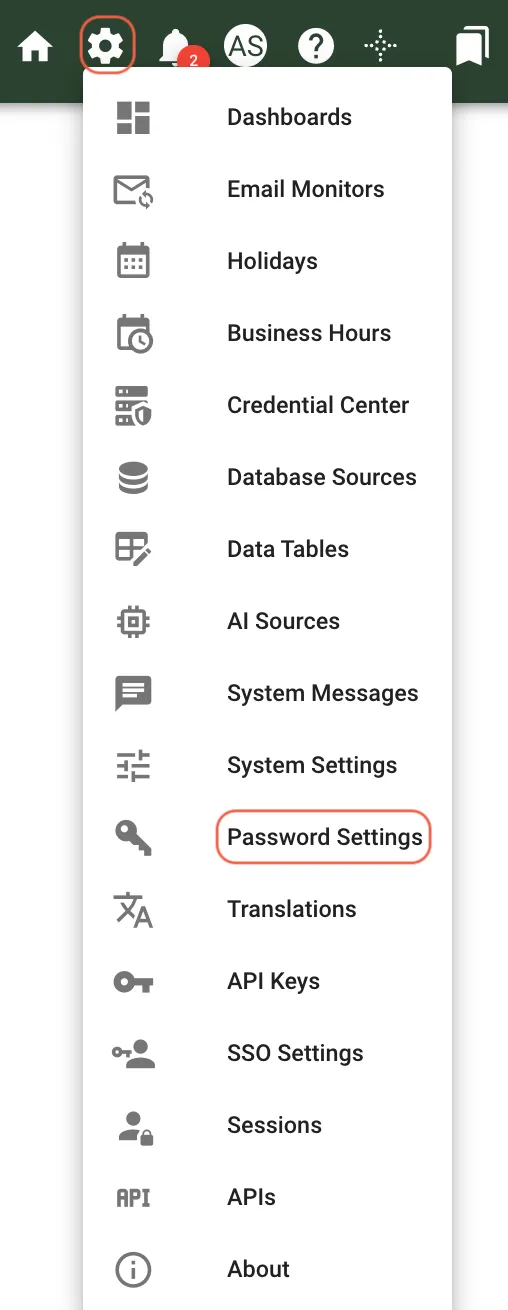
- In the upper-right corner, hover over the Settings icon.
- Select Password Settings.
This opens the window where you configure password policies for your organization.
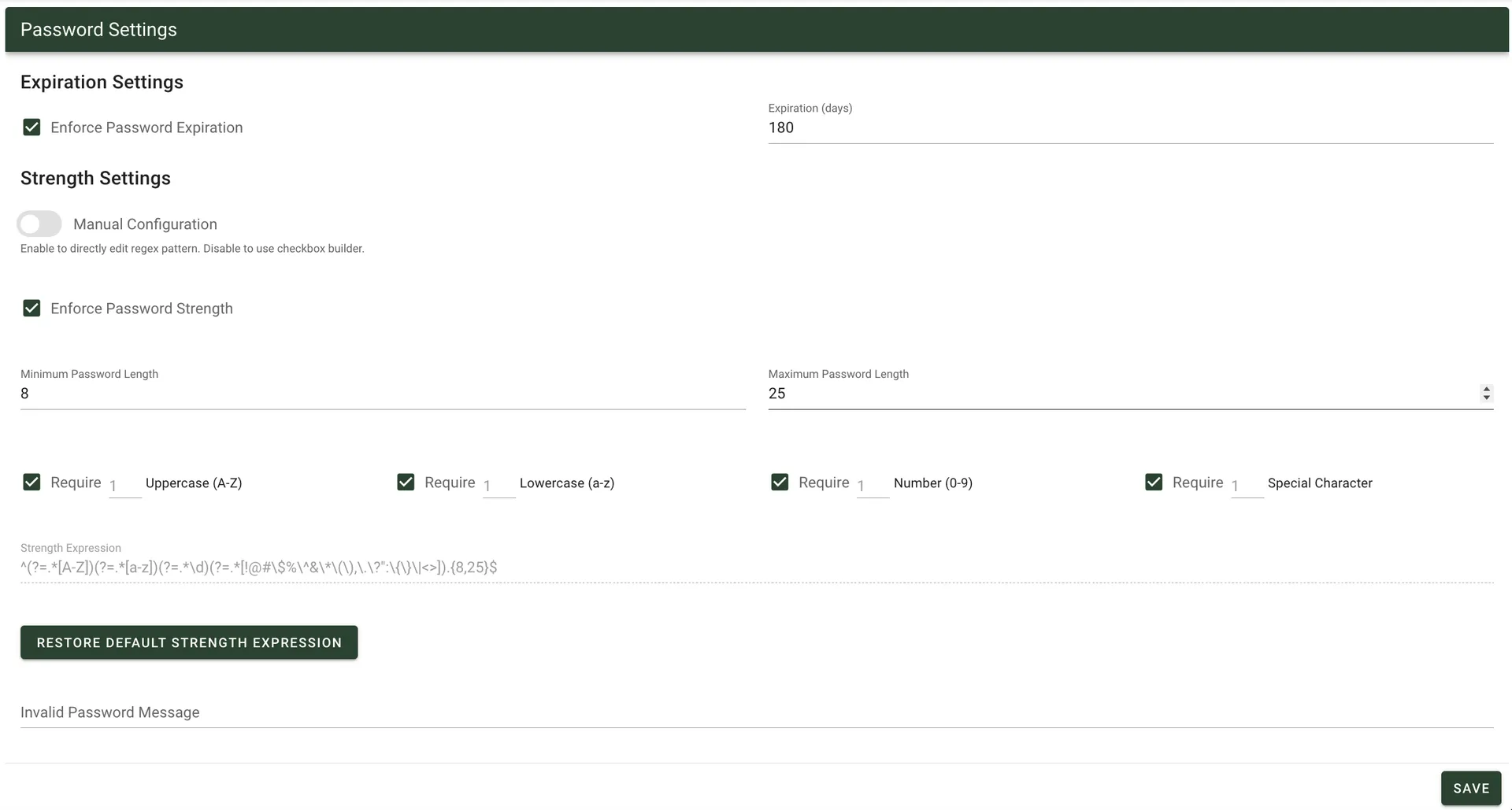
From this window, you can manage password expiration settings and password strength settings.
Configuring password expiration settings
To configure password expiration:
- Select Enforce Password Expiration.
- In Expiration (days), enter the number of days before a user’s password expires.
Configuring password strength settings
To configure password strength:
- Select Enforce Password Strength.
- Enter a minimum password length.
- Enter a maximum password length.
- Define the required password values with a regular expression.
To restore the default password strength expression, click RESTORE DEFAULT STRENGTH EXPRESSION.
Understanding policy enforcement
When enabled, Nutrient Workflow applies password policies to all password operations, including:
- Initial password creation
- Password changes started by users
- Password resets, including self-service resets and administrator-initiated resets
This keeps password requirements consistent across your organization.
Reviewing account lockout notifications
When a user account is locked out because of failed login attempts:
- The login screen displays lockout messages
- The user interface notifies users of their lockout status
These messages explain why users can’t access their accounts when lockout occurs.
Configuring inactivity logout and redirect
Nutrient Workflow can sign users out automatically after a period of inactivity. When the timeout expires:
- The system redirects users to the login screen.
- The logout flow starts when the configured inactivity threshold is reached.
- The behavior applies to both standard user accounts and guest sessions.
Configure inactivity timeout settings in system configuration to match your security requirements. For more information, refer to the system settings reference guide.
Reviewing the inactivity warning dialog
Before automatic logout starts, Nutrient Workflow shows a warning dialog so users can stay signed in. The dialog shows a countdown to logout and enables users to extend the session or sign out immediately.
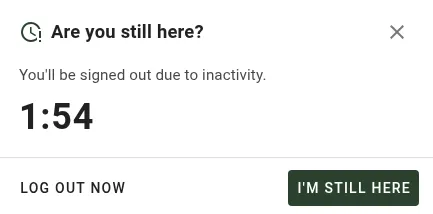
- I’m still here — Extends the session. The inactivity window restarts when the user clicks the button.
- Log out now — Signs the user out immediately and returns them to the login screen.
- Close (X) or Esc — Dismisses the dialog without extending the session. Automatic logout still occurs at the original time.
The dialog stays open until the user acts on it. Clicking outside the dialog doesn’t dismiss it. If the user resumes activity in another tab or inside an embedded form, the dialog closes on its own and the session stays active.
Active sessions also recover more reliably during token refresh, silent SSO reauthentication, embedded integration authentication, and temporary backend interruptions, so active users aren’t signed out unexpectedly.
When users sign out through SAML Single Logout, the current session record is cleared shortly after logout. This keeps Active Sessions counts aligned with signed-in users instead of waiting for the inactivity timeout.
Two system settings control inactivity logout behavior:
InactivityLogoutMinutes— Minutes of inactivity before automatic logout.InactivityWarningMinutes— Minutes of warning before automatic logout. The dialog appears atInactivityLogoutMinutesminusInactivityWarningMinutes. The default is2.
For example, if InactivityLogoutMinutes = 15 and InactivityWarningMinutes = 2, an idle user sees the warning dialog at the 13-minute mark. If the user doesn’t act, the system signs them out at the 15-minute mark.
Related information
- For information on forcing a user to change their password at the next login, refer to the force password change guide.
- For information about configuring account lockout rules, refer to the configure account lockout rules FAQ.