Optimize report limits for effective data management
Use Limits to set the report’s maximum date range and restrict results to the current user’s requests and tasks. You can also control which date filters report users can select. A date filter you expose to users can’t expand beyond the limit you set here.
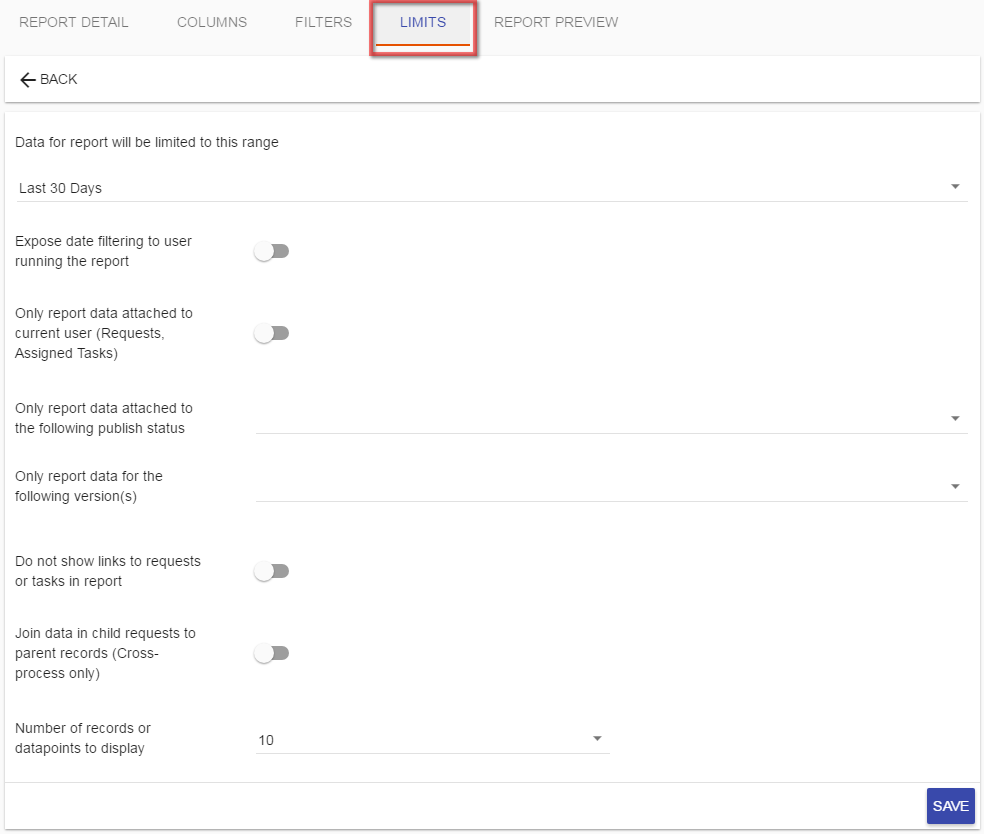
Each of the options is discussed below.
Date ranges
There are several predefined date ranges that may be used to define limits on the report. These limits are based on the Start Date of requests for the process you specified when creating the report:
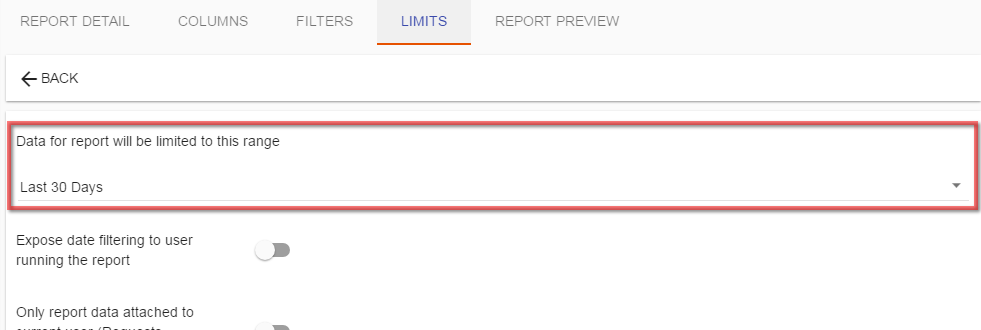
For instance, if you were to select Last 30 Days as the default date range, the report will only retrieve requests that have started in the last 30 days based on the time the report is executed.
If you would like to specify a specific date range, you may do so by selecting the (Date Range) option:
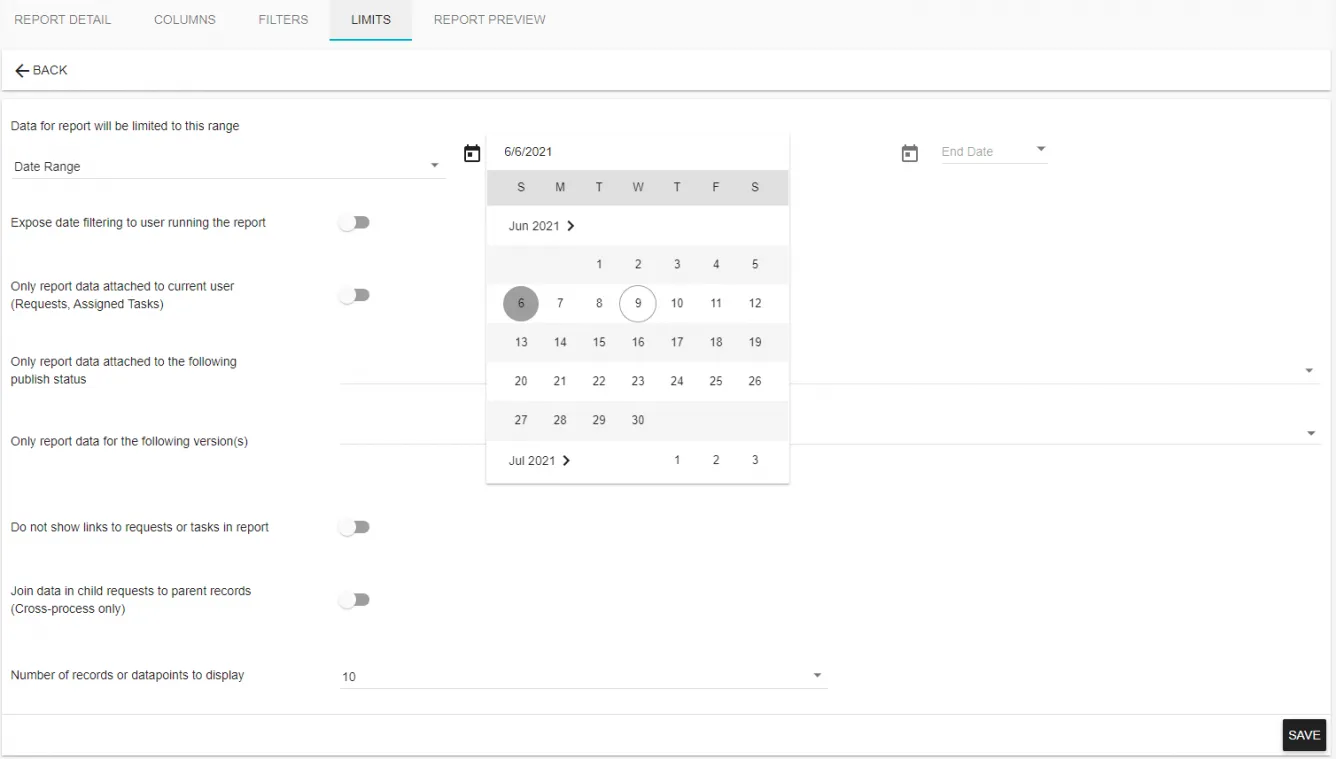
At a minimum, when using the Date Range option, you’ll need to add a date in the Start Range option. In the example above, the report will never retrieve request data for requests that were started prior to 6 June 2021. Even if the report date filters are exposed to the end user, they will still be restricted to any requests that start after 6 June 2021.
Exposing date range filters
By default, no report limits are exposed to the end user running the report. If you would like to do so, select the option Expose date filtering to the user running the report:
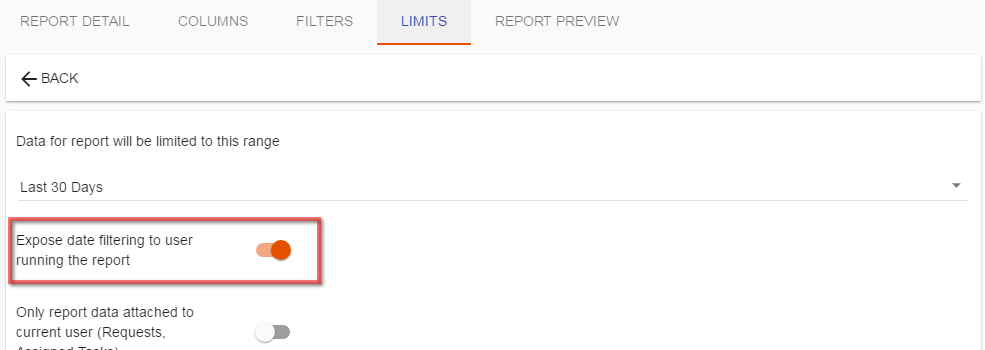
By selecting this option, the user will be offered the opportunity to select any of the available date ranges when executing the report. Be aware that the results returned by the date range that the user selects when executing the report will never extend past the date range set here. For example, if you select Last 30 Days when configuring your report, and the user selects Last 60 Days when executing the report, the data returned will only be for the Last 30 Days.
Limiting report data
The default behavior for all reports is to retrieve data without any security restrictions with regard to tasks or participation in a request by the end user executing the report. This means that regardless of the user’s participation with a request(s) for the process you are reporting against, they will be able to view all data even if the data returned is on a task that they were not originally granted to see or even a request they have taken part in.
For a report that contains sensitive request or task data, review the default before granting Run permission to more users. To restrict the output to data attached to the person running it, select Only report data attached to the current user (Requests, Assigned Tasks). Run the report as one of the intended users to confirm the results match that scope:

Publish status filter
Since Workflow Automation has the capabilities to be a standalone development, testing, and production environment, all of your development and testing request data is intermingled with the production-level request data.
At times, it’s advantageous to filter process data based on the Publish Status of a given process, especially if you are building reports in parallel with your process development. To alter the scope of that data retrieval, you may filter on any of the available publish statuses:
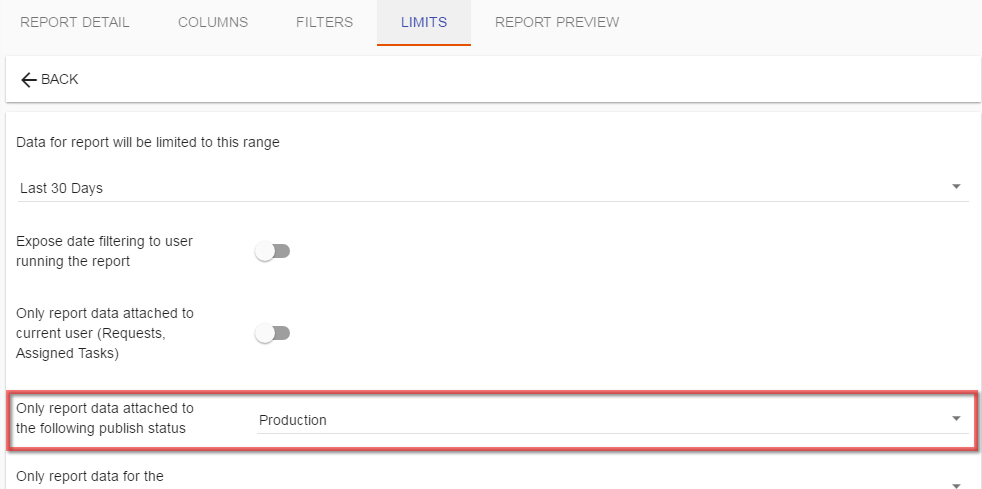
In most scenarios, when your process is in production, you’ll want to set this filter to be Production.
Process version filter
Since Workflow Automation allows for process versioning, you can optionally define the version of the process you are reporting against. If left undefined, the default will be the current version. When comparing an old process and its replacement, select the intended version and publish status explicitly. Then run the report to confirm its scope.
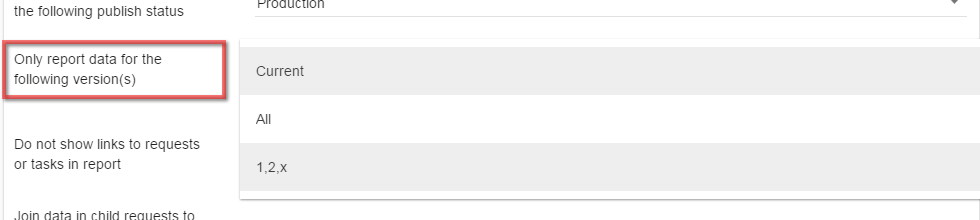
Do not show links to requests or tasks in the report
This option controls whether users can link to the underlying request or task data in the report. By default, the report allows links to the requests or tasks.

Records per page
You may limit or increase the default result set viewed by your user by selecting one of the available record thresholds:

If any of these thresholds are met with the number of records returned, Workflow Automation will provide the user with paging controls to view the rest of the records returned for the report.
For custom reports, the Date Range on the FILTERS tab can be accessed by built-in parameters:
When working with custom reports based on your own SQL query, there are a few built-in parameters that can be used to qualify the data returned on your report:
@user_sid allows you to access the SID associated with the user who is running the report.
@date_limit_start and @date_limit_end access the corresponding date values stored in the report’s LIMITS tab.
Here’s an example use:
select
INSTANCE_GUID “REQUEST_LINK”,
INSTANCE_ID “ID”
from
(select
INSTANCE_ID,
INSTANCE_GUID,
REQUESTER_GUID
from
INSTANCE
where INSTANCE.CREATED_BY = @user_sid
and CREATE_DATE >= @date_limit_start
and CREATE_DATE <= @date_limit_end
and INSTANCE.DELETED_DATE is null
) derived
order by
derived.INSTANCE_GUID