Master report filters for data analysis
Report Filters are filters that may be applied to specific attributes within a process that limit the amount of data to be returned. The filter may be applied to key attributes of a given task such as an answer to a question on a form, the current status of a request (Last Milestone), the status of a task, or even on a recipient of a given task.
For example, a compliance report can filter requests by Last Milestone and a date range. Add each filter on the Filters tab. Then test the result with a request that should match and one that should not. If the report includes canceled requests unexpectedly, see the canceled-request filter.
This section covers:
- Adding filters to a report
- Exposing filters
- Bitwise operators (and/or)
- Grouping filters
Adding filters
To add a new filter to your report, navigate to the Filters tab. You’ll be presented with a list of all filters currently saved for that particular report:
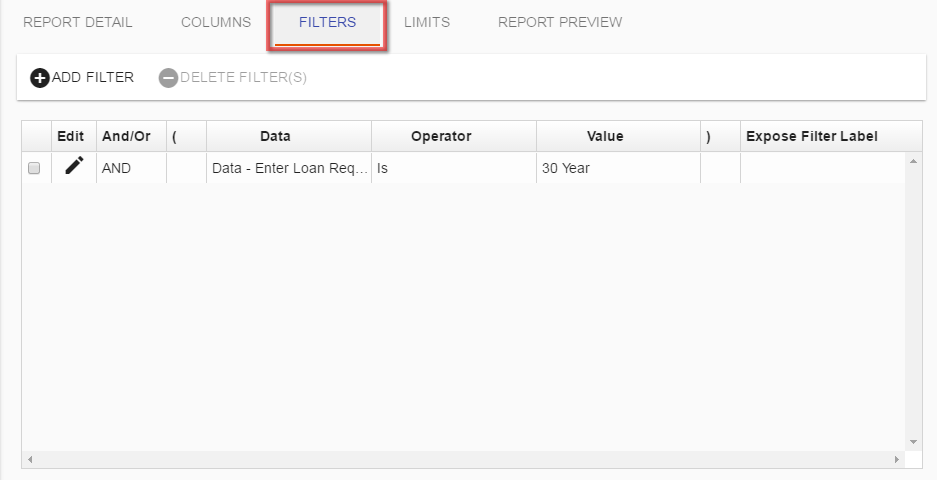
To add a new filter to a report, select the Add Filter button and you’ll be presented with the following dialog:
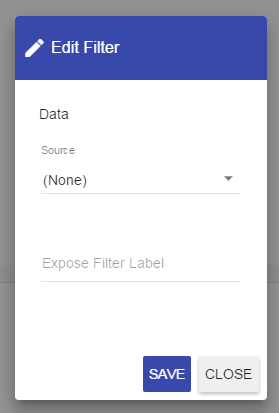
Similar to adding columns, you’ll have various options with which to select Source data from within the process to filter on.
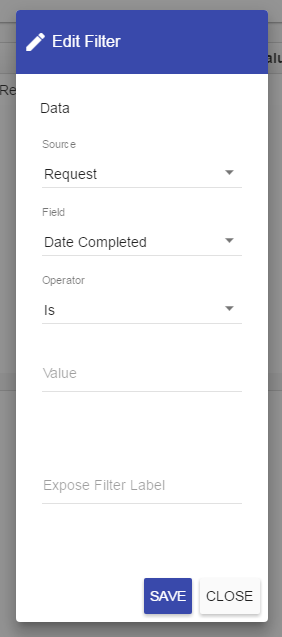
The dialog will be dynamic based on the Source option you select. For instance, if you were to select Request as the source, then the dialog will change and present you with a list of available attributes about a Request:
The following is a high-level breakdown of each available Source:
| Source | Description |
|---|---|
| Data | The Data option will enable you to select any data associated with a given task. |
| When the Data option is selected, a secondary dropdown list of available tasks will be presented. | |
| Depending on the type of task selected, the available data elements will vary. For a Form task, it’s possible to select data from the questions submitted on a form; for an Approval task you may retrieve the approval option a user selected when the task was completed, etc. | |
| Requester | Profile information associated with the Requester of the process such as name, division, cost center, location, etc. |
| Client | Profile information associated with the Client of the process such as name, division, cost center, location, etc. |
| Task Completer | Profile information associated with the person who completed a specific task within the process. You’ll need to select both the task and the profile attribute you would like displayed. |
| Task Recipient | Profile information associated with the person who was a recipient of a specific task within the process. You’ll need to select both the task and the profile attribute you would like displayed. |
| Requesters Manager | Profile information associated with the Requester’s Manager of the process such as name, division, cost center, location, etc. |
| Client’s Manager | Profile information associated with the Client’s Manager of the process such as name, division, cost center, location, etc. |
| Task Completers Manager | Profile information associated with the manager of a person who completed a specific task within the process. You’ll need to select both the task and the profile attribute you would like displayed. |
| Task Recipients Manager | Profile information associated with the manager of a person who was a recipient of a specific task within the process. You’ll need to select both the task and the profile attribute you would like displayed. |
| Request | High-level data associated with an overall request such as the request ID, the date started, date completed, last milestone, last milestone date, etc. |
| Task | |
| (for Task reports only) | High-level data associated with a specific task in the process such as the task name, date started or completed, and task status. |
| Any Data | |
| (for Task reports only) | Option to get to data via a generic identifier (Label, ID, Property). If you want to pull back any data associated with the known ID (e.g. question ID or form ID), then you can use this. |
By nature, Any Data queries are non-indexed, full table scans. Use Any Data thoughtfully as it can result in poor performance.
Current Task
(for Task reports only) | Option to define the attributes for the current task. Commonly used to view how many tasks are assigned to users, total counts of tasks, time between task assignments and completions, etc.
Once you have selected the item from the Field list, defined the Operator, and entered a Value, press the Save button, and the new filter will be added to the filter list:
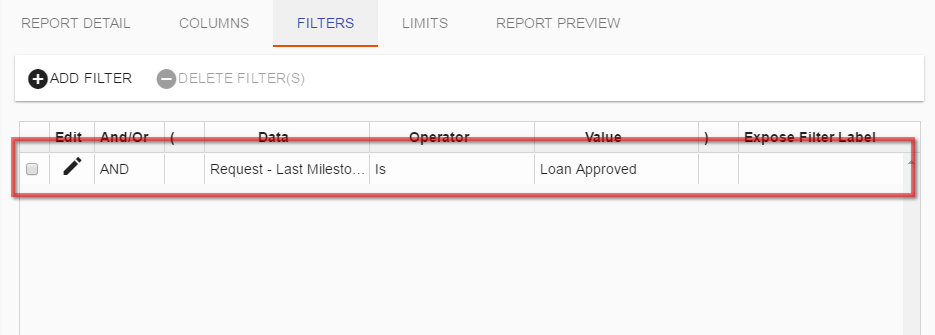
In the example above, we are restricting the results of the report to retrieve data only from requests where the Last Milestone is equal to the value Loan Approved.
Report operators
| Operator | Usage | Wildcards Available |
|---|---|---|
| Is | Any text value | % |
| Is Not | Any text value | % |
| Contains | Any text value | % |
| Does Not Contain | Any text value | |
| Starts With | Any text value | |
| Is Greater Than | Numeric fields only | None |
| Is Greater Than or Equal To | Numeric fields only | None |
| Ends With | Any text value | None |
| Is Less Than | Numeric fields only | None |
| Is Less Than Or Equal To | Numeric fields only | None |
| Is Empty | Any text value | |
| Is Not Empty | Any text value | |
| Is in Date Range | Calendar questions, fields containing dates | |
Expose filter labels
If you want the user who runs the report to have the ability to define the filter, select the Expose Filter Label field for the filter you want to expose and give it a name (label).
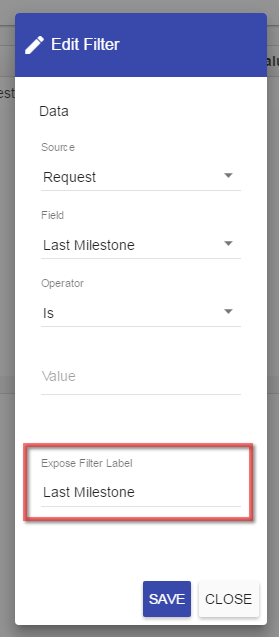
When running the report, the exposed filter will enable the user to edit the filter. In this example, we are allowing the user to change the ‘Last Milestone’ field to get the view they want:
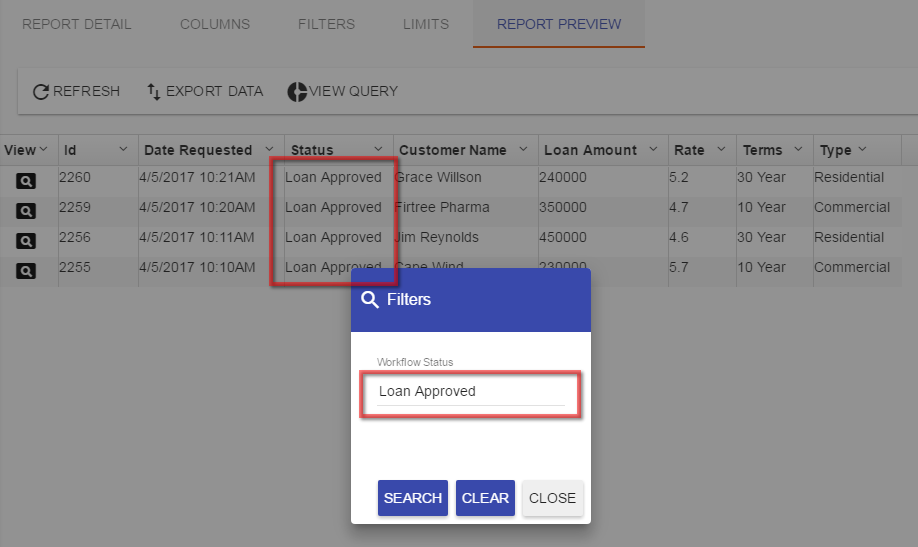
If you blank out an exposed filter at runtime, the provided default value will be used.
Bitwise operators (and/or)
It’s possible to create a report that will retrieve various elements of process data based on multiple types of filters. When this happens, it’s often necessary to employ the bitwise operators to restrict or open the range of data you would like to retrieve.
To change the bitwise operator, add more than one filter to your report and double-click the And/Or column next to a filter:
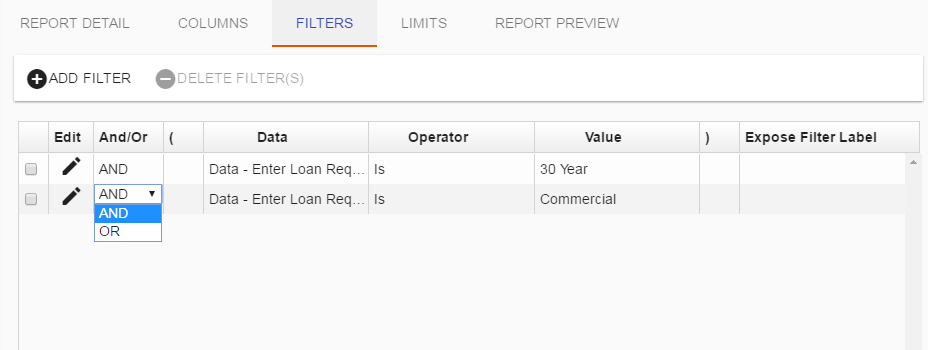
The default operator is AND: All connected conditions must match. Change it to OR when either condition is sufficient. For mixed conditions, use parentheses to group related filters, and run the report with matching and nonmatching requests to confirm the intended grouping.
Grouping conditions
For complex filtering scenarios, it’s possible to group a series of filters to evaluate together when the report is executing.
To group a series of filters, click in the column marked with an open parenthesis where you would like to start the filter and add an open parenthesis.
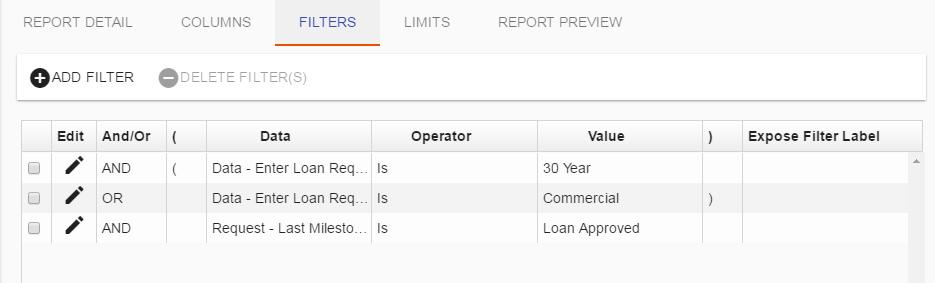
To end your grouping, simply click in the closed parenthesis column to the right of a filter and add a closing parenthesis.
For custom reports, there are some built-in parameters that can function like report filters
When working with custom reports based on your own SQL query, there are a few built-in parameters that can be used to qualify the data returned on your report:
@user_sid allows you to access the SID associated with the user who is running the report.
@date_limit_start and @date_limit_end access the corresponding date values stored in the report’s LIMITS tab.
Here’s an example use:
select
INSTANCE_GUID “REQUEST_LINK”,
INSTANCE_ID “ID”
from
(select
INSTANCE_ID,
INSTANCE_GUID,
REQUESTER_GUID
from
INSTANCE
where INSTANCE.CREATED_BY = @user_sid
and CREATE_DATE >= @date_limit_start
and CREATE_DATE <= @date_limit_end
and INSTANCE.DELETED_DATE is null
) derived
order by
derived.INSTANCE_GUID