Form task configuration
The Form task presents a form to users during process execution.
Use this task to:
- Collect user input
- Capture approvals
- Gather data at specific stages in a process
Use a Form task once or multiple times in the same process.
Prerequisites
To configure a Form task, you need:
- Administrative access to Nutrient Workflow Automation Platform
- Permission to access the Process Builder
- Access to the forms library
- A form created in the forms designer
Use cases
Common Form task use cases include:
- Collecting user information for requests
- Gathering approvals with custom fields
- Capturing task-specific data
- Creating multistep data collection processes
Task configuration
Use the following sections to configure and refine Form task behavior.
Access task configuration
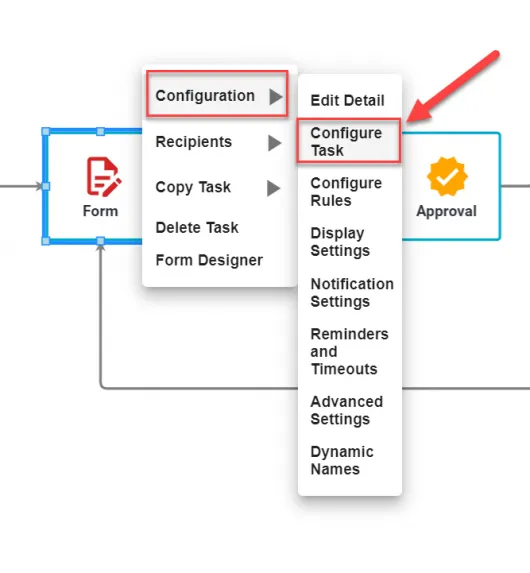
To open Form task configuration, complete these steps:
- Right-click the task in the process.
- Select Configuration > Configure Task.
Configure general settings
Use the General Settings tab to select a form and configure prefill options.
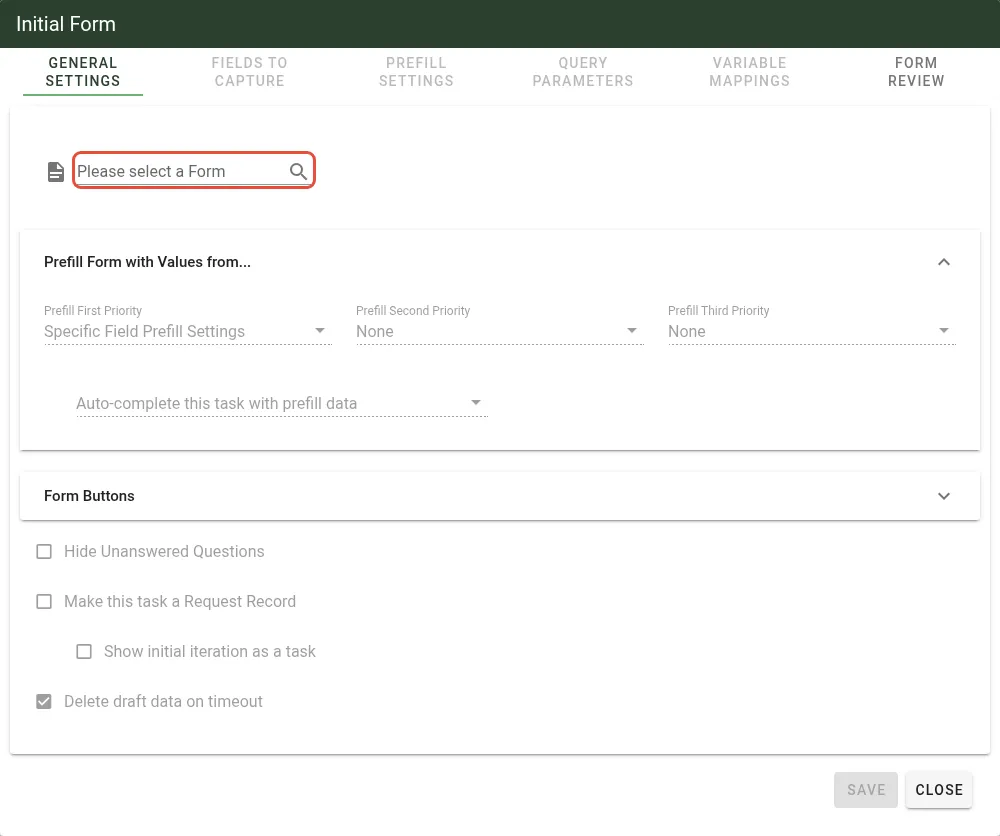
For the Form task to run, select the form shown to the assignee.
After you add a Form task and select Configure Task, the following screen opens.
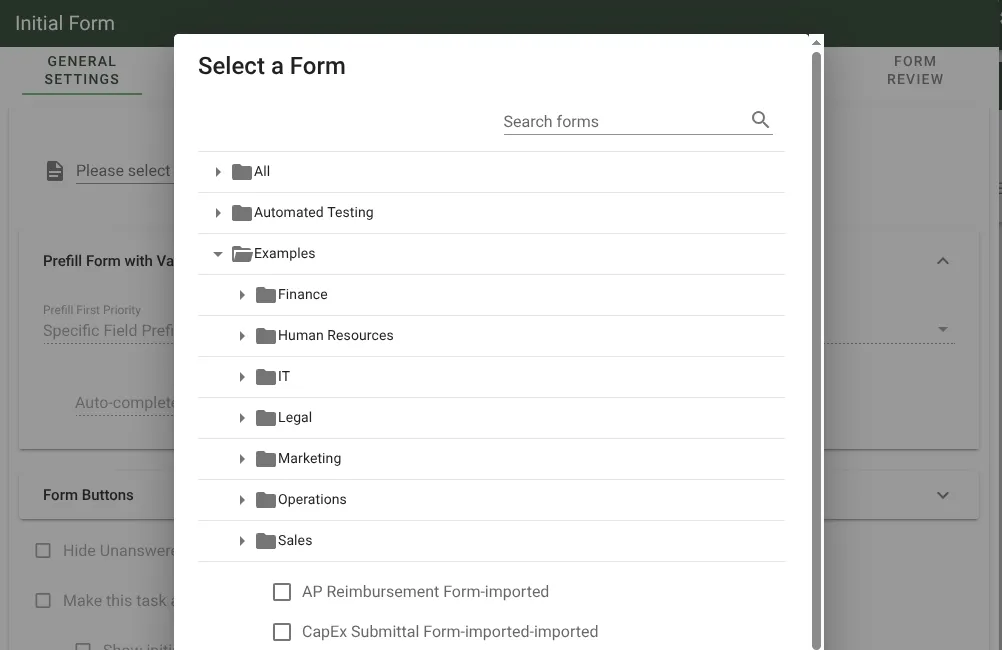
To complete basic setup, follow these steps.
Select a form in Selected Form.
Click Save.
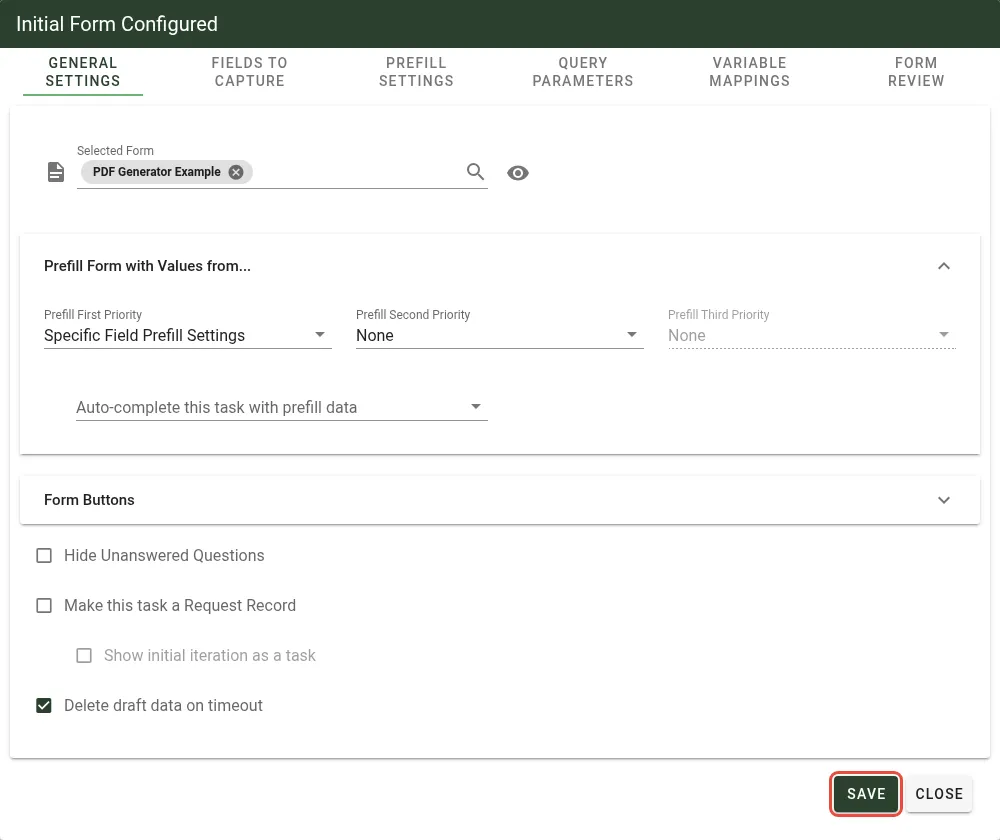
After you save, the task is ready to run. When a user is assigned to the task, they can open the selected form.
Optional: Select Preview Form to confirm you selected the correct form.

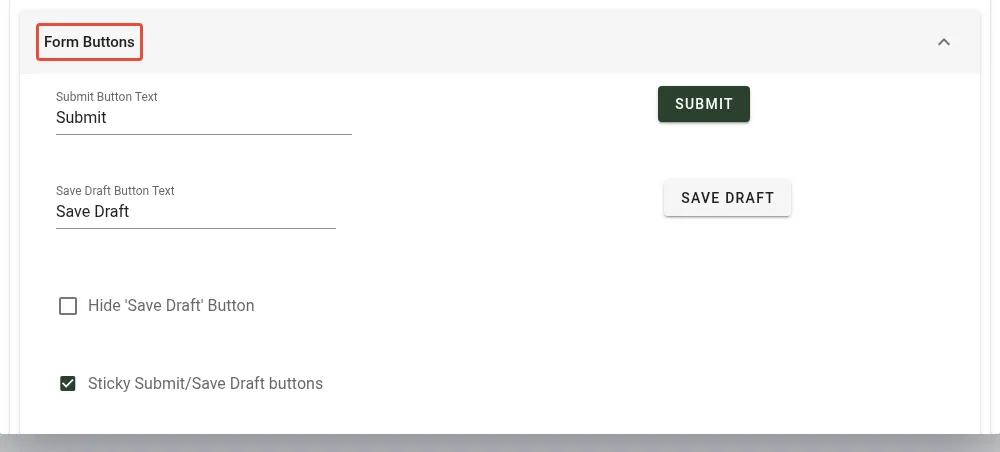
Configure form buttons
Define custom text for form action buttons, including submit and draft actions.
You can also hide the Save Draft button.
Configure optional settings
- Hide Unanswered Questions — Unanswered questions won’t appear in request detail.
- Make this task a Request Record — Converts the task to a request record instead of a standard form task.
- Delete draft data on timeout — Marks saved draft data as deleted if the task times out. The process won’t use deleted draft data for prefills. This is the default for newly created tasks.
- Sticky Submit/Save Draft buttons — Pins form action buttons to the bottom of the viewport. These buttons include Submit, Save Draft, and Review if AI review is enabled. This setting is enabled by default for new tasks. Turn it off to let the buttons scroll with the form.
Configure the Form task
After you associate a form with the task, the following tabs become available:
- Fields to Capture
- Prefill Settings
- Query Parameters
- Variable Mappings
- Form Review — Configures the AI-powered presubmission review agent. The agent adds a Review button to the runtime form and analyzes requester input. It compares the input against policy documents, field quality criteria, and historical patterns. The tab is always visible. If the
AgenticFormReviewlicense module isn’t enabled, the settings are disabled and a license notice appears.

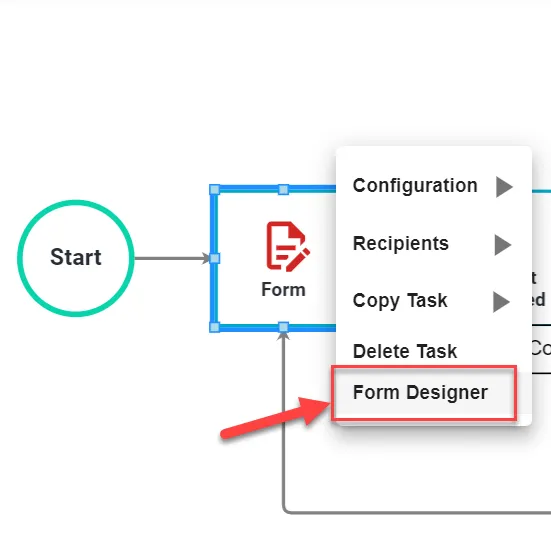
You can also open the form from the Form task menu by selecting Form Designer.
Fields to Capture tab
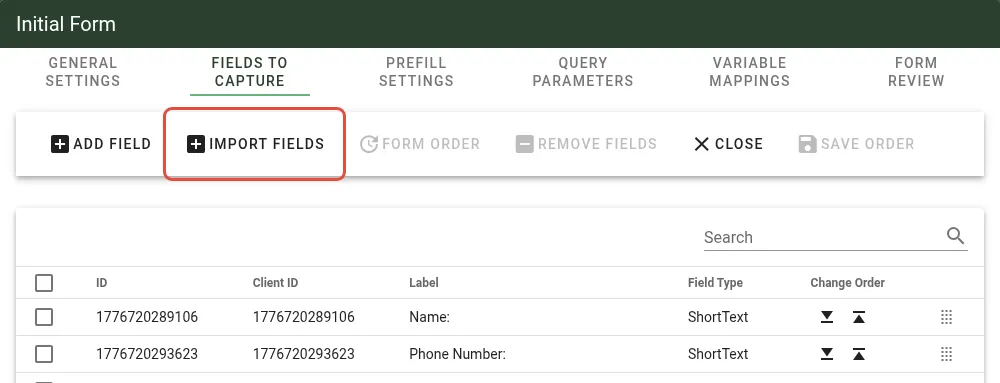
Use the Fields to Capture tab to define which fields the task stores when a user submits the form.
The process can then use those fields in rules, prefills, and reports.
If a user opens a form in read-only mode, you can choose not to capture the same values again in task history.
If you add or remove form questions after configuring the task, the Fields to Capture list won’t update automatically. Select Import Fields to refresh the list.
Fast Forms fields
If your tenant includes the Fast Forms module, you can configure a Form task for bulk entry from the Fast Forms tab in My Tasks.
Fast Forms supports two kinds of columns:
- Fillable questions — Editable columns users can complete and submit in bulk. A task must have at least one fillable question to appear in Fast Forms.
- Read-only informational questions — Display-only columns that provide context for each open request. Users can view these values beside fillable fields. They can’t edit or submit them from the Fast Forms table.
Informational columns use the same value resolution path as the form runtime. Each row shows the current stored or prefilled value for that request. If a value isn’t available, the cell is empty.
Informational fields don’t change existing Fast Forms behavior. Existing tasks continue to work without read-only columns. Read-only fields by themselves don’t enable Fast Forms for a task.
Don’t configure the same question as both fillable and read-only. When a question appears in both sets, Fast Forms treats the fillable configuration as the source of truth.
Prefill settings
You can prefill form fields with previous form data or system data. For more information, refer to the form prefills guide.
Restrict view to role column
By default, users associated with the request (for example, users assigned to request tasks) can view Request Detail and submitted data.
Use Restrict View To Role to restrict visibility of specific question values in Request Detail.
To apply a restriction, complete these steps.
Select the Prefill Settings tab.
Find the question in the Restrict View To Role column.
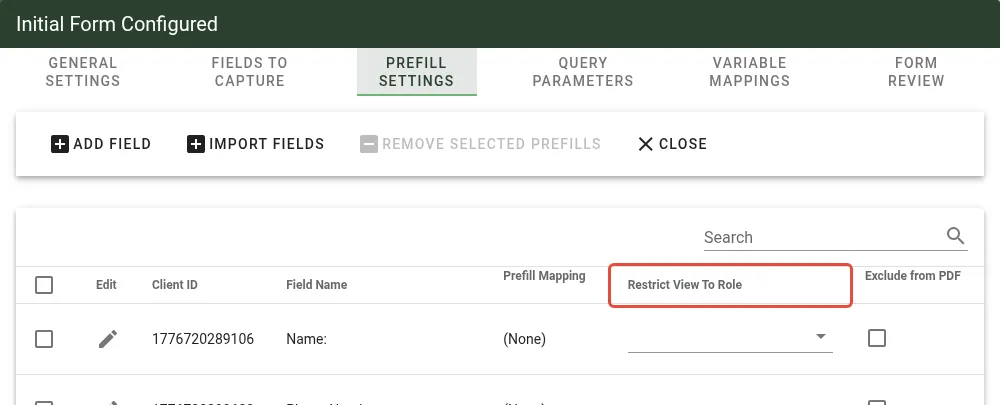
Open the role selection menu for that field.

Select one role in Restrict View To Role.
Only users in that role can view the question value in Request Detail. Other users see a blank value.
Query parameters
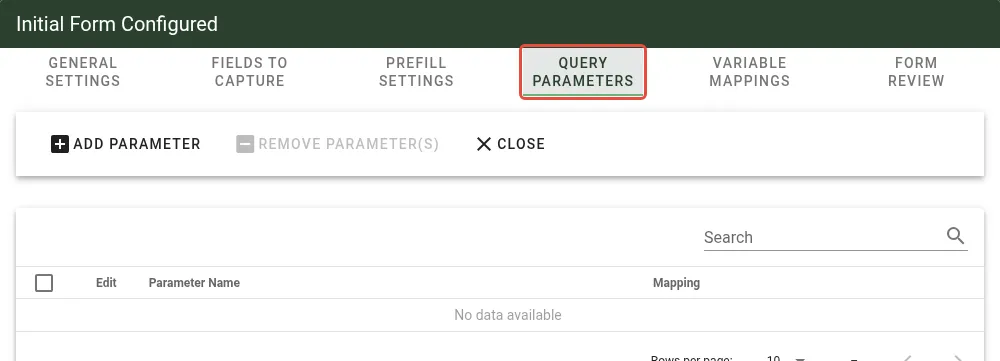
If the form assigned to this task includes parameterized questions, prefill those parameters in the Query Parameters tab.
All parameterized questions require prefills and appear automatically in this tab.
Any source supported by Individual Question Prefill Options also works for parameterized question prefills.
Variable mappings
If JavaScript in this task needs request data or fixed values, define variables in Variable Mappings.
Any source supported by Individual Question Prefill Options also works for JavaScript variable prefills.
Access variables in code through the zero-based intForm.prefills.variables array.
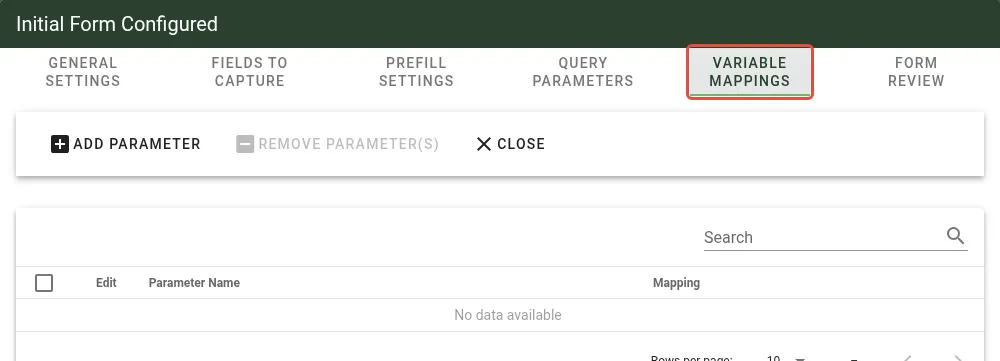
This line accesses the value of the first item, which is the first parameter defined on the Form task: intForm.prefills.variables[0].Value;
To use this option, configure the related Prefill Settings on the Form task. Otherwise, variable values won’t populate correctly.
To view examples for Query Parameters and Variable Mappings, download the process ZIP file. For more information, refer to the importing processes guide.
Processes are downloaded as ZIP files. For details on working with ZIP files, refer to the Microsoft zip and unzip files(opens in a new tab) documentation.
Searching configuration tables
Each configuration table includes a Search field at the top. Use it to filter entries by keyword. If the table has many entries, search instead of scrolling. Click X to clear the filter.
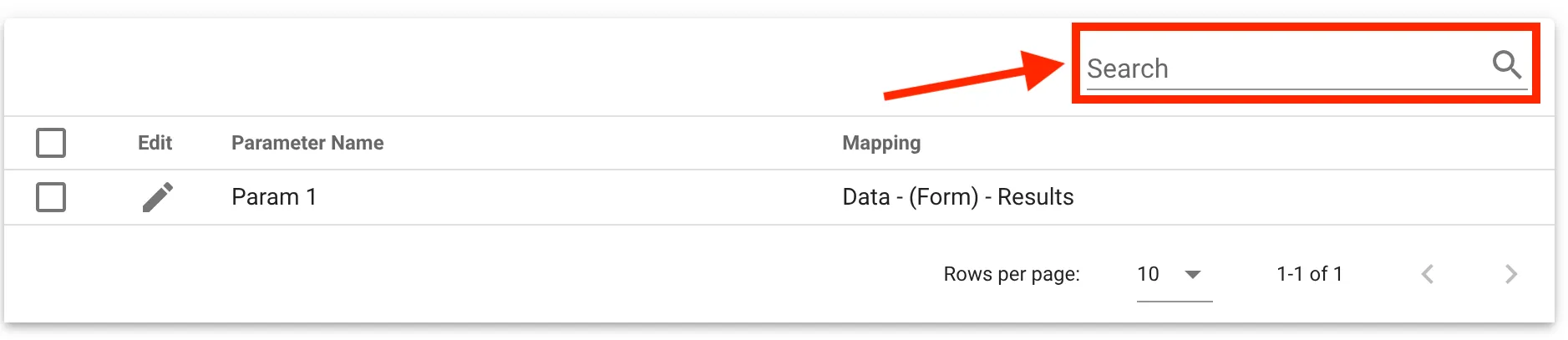
The following table lists which columns are searchable in each tab:
| Tab | Searchable columns |
|---|---|
| Fields to Capture | ID, Client ID, Label, Field Type |
| Prefill Settings | Client ID, Field Name, Prefill Mapping, Restrict View To Role |
| Query Parameters | Parameter Name, Mapping |
| Variable Mappings | Parameter Name, Mapping |
In the Fields to Capture tab, drag-and-drop reordering is disabled while a search filter is active. The Form Order and Save Order buttons are also disabled. Clear the search to reorder fields.
Troubleshooting
Review these issues if task setup or runtime behavior doesn’t work as expected.
Common configuration issues
- Form not appearing in dropdown — Confirm the form exists in the forms library. Verify you have permission to view and use it.
- Prefill data not working — Check the Form task’s Prefill Settings. Variable values populate only when the correct settings are enabled.
- Fields not updating after form changes — Click Import Fields to update the Fields to Capture list.
Use this fix after you add or remove questions from a form.
Form execution issues
- User can’t access form — Verify the user is assigned to the task and has permission to access the form.
- Draft data not saving — Check Delete draft data on timeout. Confirm users save drafts before the task times out.