Optimize task assignment with assignment settings
The Assignment Settings area provides additional control over what a given recipient or set of recipients can do once they have been assigned to a task.
These settings only impact what a user can do after a task has been assigned to a user.
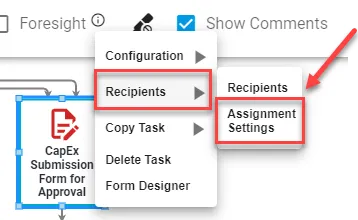
To access the Assignment Settings for a task, right-click on the task, hover over Reipients, and select Assignment Settings.
You will then be presented with the following menu: (Based on the task type, the last option may or may not be present. See below for details)
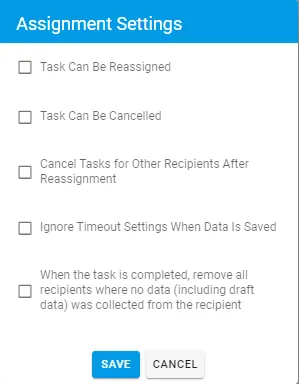
Task can be reassigned
If selected, any user assigned to this task will have an option made available for him/her to search and assign the task to another user in Integrify.
To allow end users to have the option to Reassign a specific task, it has to be turned on in each task in the process.
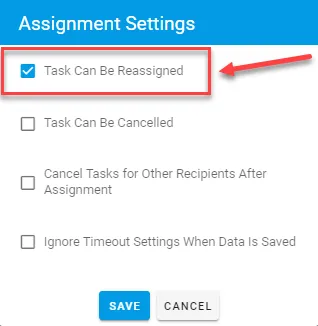
Now, users will be able to see the option to Reassign a task they are assigned. Below is an example of what the end user will see.
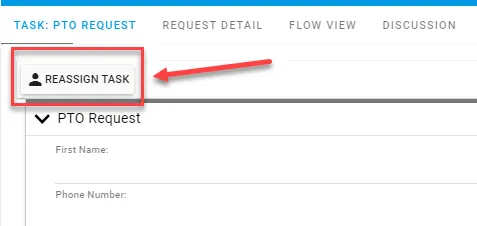
If they click Reassign Task, they will be able to choose and Integrify user to Reassign the task to.
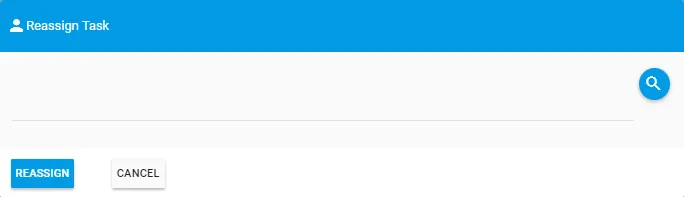
The request detail for the task will then have the status Reassigned.

Task can be cancelled
If selected, any user assigned to the task will be able to cancel the task. You will have to account for a canceled task status in your transitions for this behavior.
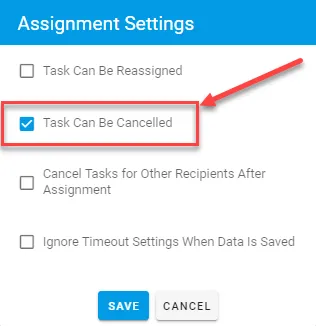
Below is an example of what an end-user would see on the task if this setting is turned on:
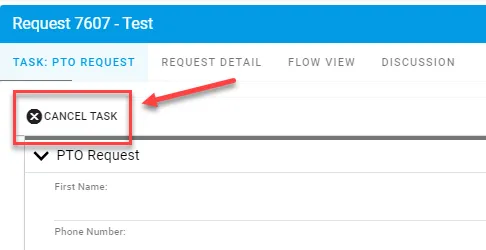
If the user selects to cancel, the request detail will show the status for the task as Cancelled.
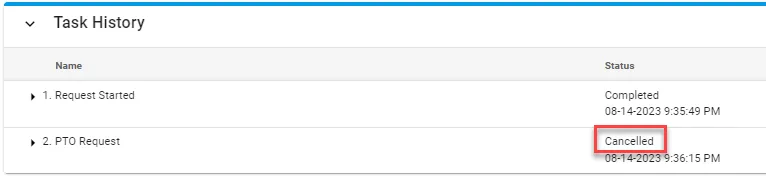
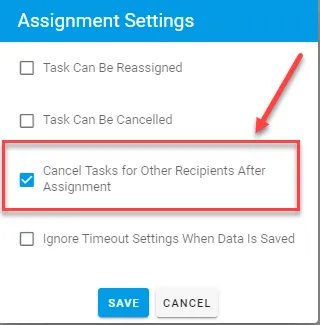
Cancel tasks for other recipients after reassignment
If a task is reassigned by a user and multiple people are assigned to the task to complete, once the reassignment is complete all of the other recipients of the task will no longer be required to complete the task.
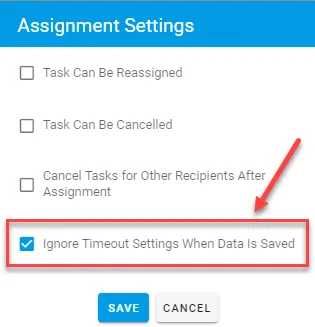
Ignore timeout settings when data is saved
If time-based settings are defined for a task and timeouts are set, if a user uses the “save draft” option for a form task, the Integrify Task Processor service will ignore the time-based settings to allow the user to come back to the task and complete it as needed.
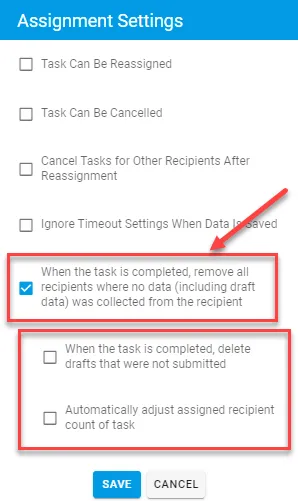
When the task is completed, remove all recipients where no data (including draft data) was collected from the recipient
When a task is set up for multiple potential recipients, Workflow Automation creates recipient task records for each possible assignee. When this setting is enabled, the platform removes recipient records where no data, including draft data, was collected after the task is completed.
This cleanup applies to task types that support multiple user assignments. For form tasks, you can also remove saved drafts that weren’t submitted.
Administrators can also run a retroactive cleanup for a selected process task to remove unused recipient records from tasks that completed before this setting was enabled. The cleanup previews affected task and recipient counts before confirmation, records an audit trail before deleting data, and reports results in the Notification Center.