Schedule recurring workflow processes
Process schedules start a workflow process on a recurring cadence. For example, you can start a payroll process every other Monday or a quarterly evaluation on the first day of each quarter.
Manage process schedules from the Process tab on the Schedulers page. This guide covers the steps and detail page information that are specific to process schedules. For shared concepts — including permissions, the list view, the Schedule and History detail tabs, auto-disable behavior, and concurrency — refer to the schedulers overview guide.
Create a process schedule
From the Process tab, select New Schedule in the page toolbar. The wizard includes four steps.
Step one — Basic information
Use this step to name the schedule and choose whether to send notifications.
| Attribute | Required | Description |
|---|---|---|
| Schedule Name | Yes | A descriptive name for this scheduled job. |
| Send notifications | No | When enabled, recipients receive a process job summary on completion. Failures are also routed to system administrators via the Notification Center. |
Step two — Select process
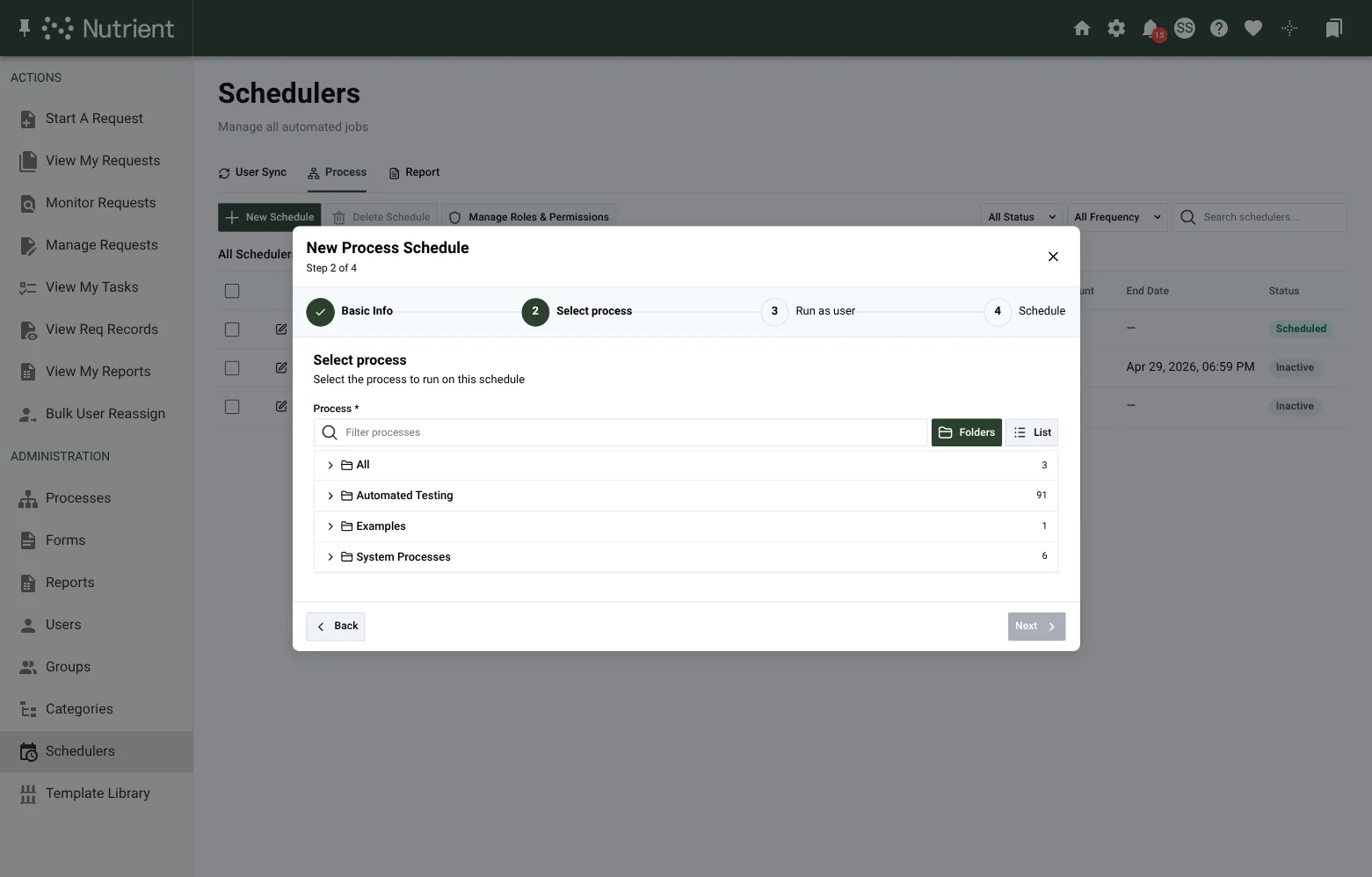
Use this step to select the workflow process the schedule starts.
The process picker shows a folder tree of all processes visible to you. It opens in the Folders view by default. Switch to List view to search across all processes without folder navigation. Expand a folder to show the processes inside, and select a process with its radio button.
Each schedule can start one process. To run multiple processes on the same cadence, create one schedule for each process.
Step three — Run as user
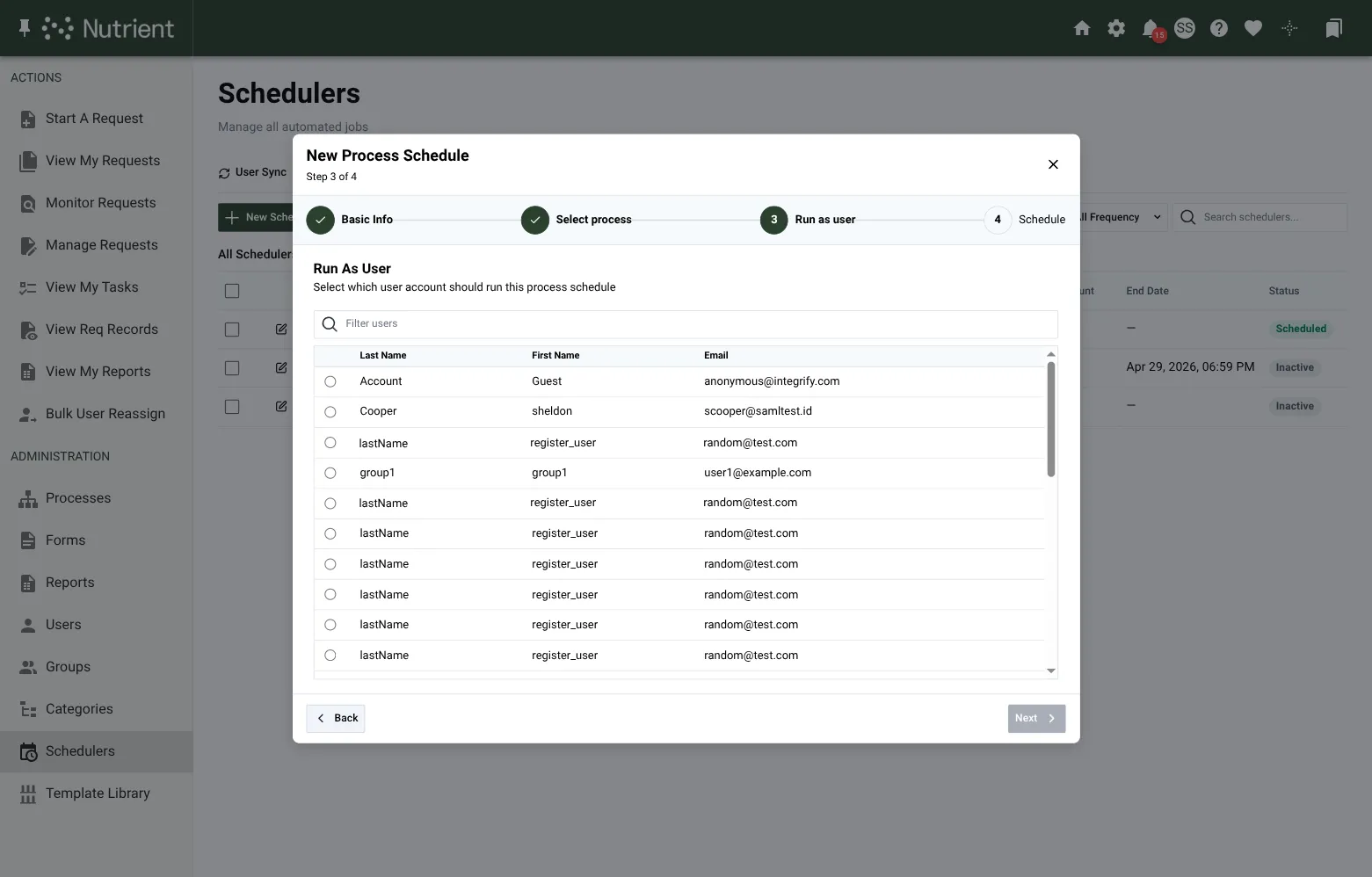
Use this step to select the user account the schedule runs as.
The schedule runs with the selected user’s permissions. Only processes that the Run As user can start will run successfully.
The picker is a searchable table with Last Name, First Name, and Email columns. Select a row’s radio button to choose the Run As user.
Nutrient Workflow Automation captures the Run As user at create time. If that user is later deactivated or loses Run permission on the underlying process, the schedule’s runs fail and count toward the auto-disable threshold.
Step four — Schedule
Use this step to set the schedule cadence, start date and time, and optional end date.
You can choose One time or Recurring. For full field descriptions, refer to the schedule section in the Schedulers overview guide.
Detail page
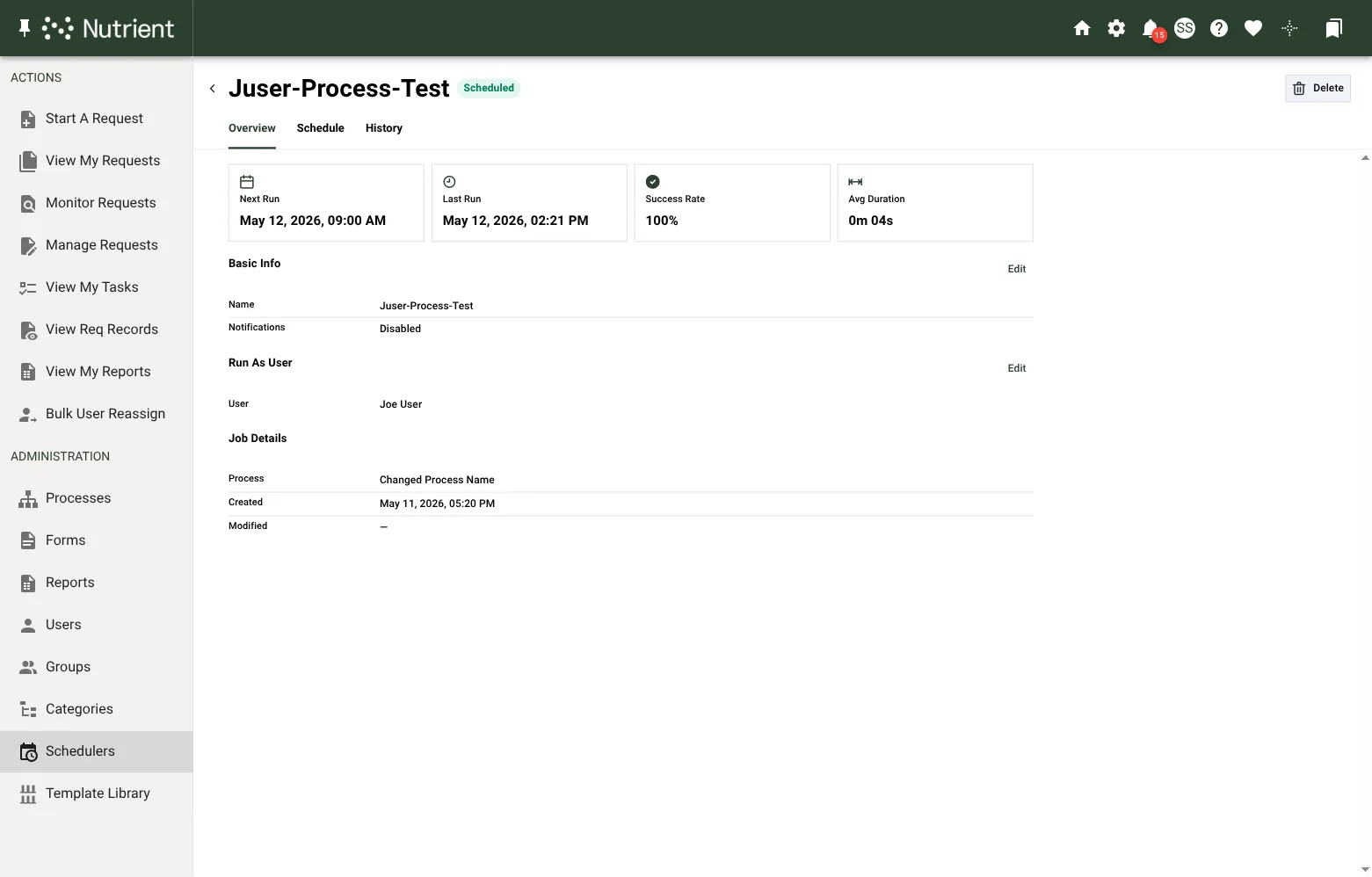
The process schedule detail page shows the standard four stat cards: Next Run, Last Run, Success Rate, and Avg Duration. It also shows three information cards specific to process schedules.
| Card | Contents |
|---|---|
| Basic Info | Schedule name and notifications setting. Edit action available. |
| Run As User | The user account the schedule runs as. Edit action available. |
| Job Details | Process (the workflow process name), Created, and Modified dates. |
The Schedule and History tabs are the same across all scheduler types. Refer to the schedule section and history section in the Schedulers overview guide.
For process schedules, a successful run’s History entry summary links to the workflow instance that the scheduled run launched.