Edit table schema
Use the Edit Columns dialog to modify the column structure of a registered table. The platform stages additions, renames, type changes, and removals in a single form and applies them together when you save. These changes apply directly to the table in the database.
Schema management requires system administrator privileges.
Opening the Edit Columns dialog
- Open the table detail page by clicking the Browse icon next to a table on the Data Tables page.
- Click the Edit Columns (gear) icon in the upper-left corner.
The dialog displays each column as an editable row with Column Name, Data Type, Max Length, Nullable, PK, Auto Inc, and Remove controls.
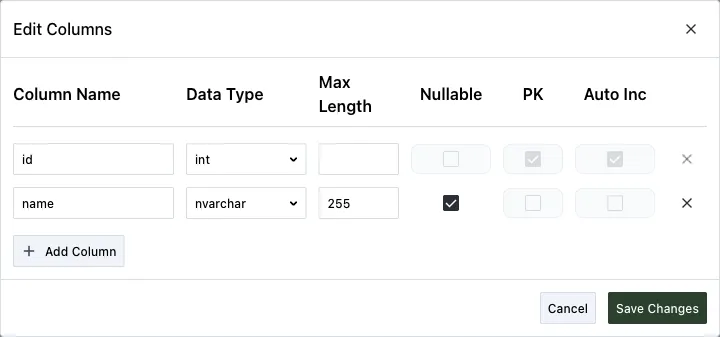
Adding a column
- In the Edit Columns dialog, click Add Column at the bottom of the column list. The platform adds a new editable row.
- Fill in the column details:
- Column Name — Use letters, numbers, underscores, and spaces. The name must start with a letter or underscore.
- Data Type — Choose from:
varchar,nvarchar,int,bigint,decimal,numeric,bit,datetime,date,text,ntext,float,real,uniqueidentifier,money. - Max Length — Only applies to
varcharandnvarchartypes. - Nullable — Whether the column accepts empty values. New columns added to tables with existing data should generally be nullable.
- Click Save Changes to apply.
Renaming a column
- In the Edit Columns dialog, edit the Column Name cell on the row you want to rename.
- Click Save Changes to apply.
If you rename a primary key column, the platform automatically updates the primary key metadata on the table registration.
Altering a column
To change a column’s data type, max length, or nullable setting:
- In the Edit Columns dialog, edit the Data Type, Max Length, or Nullable cells on the row you want to alter.
- Click Save Changes to apply.
The platform rejects changes that are incompatible with existing data. For example, it rejects converting a text column with non-numeric values to int, or changing a column from nullable to non-nullable when the column contains null values.
Altering a column’s data type can cause data loss if existing values are incompatible with the new type. Verify your data before making type changes.
Removing a column
- In the Edit Columns dialog, click Remove on the row you want to delete.
- Click Save Changes to apply.
Removing a column is irreversible. All data stored in the column is permanently deleted when you save.
Primary key columns can’t be removed. The Remove button is disabled for any column designated as the primary key.
How changes are saved
When you click Save Changes, the platform applies all staged changes together. If it can’t apply any change, none of the changes are saved. For example, this can happen when a type conversion is incompatible with existing data. The dialog stays open so you can correct the issue.
Schema change audit
All schema operations are recorded in the changelog with specific operation types:
| Operation | Changelog entry |
|---|---|
| Add a column | Add Column |
| Remove a column | Drop Column |
| Rename a column | Rename Column |
| Alter a column | Alter Column |
| Create a new table | Create Table |