Catch submission issues before they reach the approver
Agentic form review adds a Review button to Form tasks at runtime. When a requester clicks it, the agent saves the draft; analyzes the submission across policy, field quality, and historical patterns; and then shows advisory findings in a side panel.
Findings are advisory only. Requesters can still submit regardless of review results.
This feature helps teams catch preventable issues earlier. Instead of sending a request back later for weak justification or policy conflicts, approvers can review stronger submissions.
Prerequisites
Before configuring agentic form review, ensure you have:
- The
AgenticFormReviewlicense module — Contact our Sales team to enable this feature. This module is independent ofAgenticApproval. - An active AI connection — Configure it in Settings > AI sources. Refer to the automatically populate forms using AI guide.
- Use a connection that’s enabled for your environment and accessible to process designers.
- If the selected connection is unavailable at runtime, the review won’t return findings.
- A Form task in your process — Agentic form review extends an existing Form task and doesn’t replace it.
How it works
When a requester clicks Review, the system:
- Saves the current form input as a draft.
- Runs up to four analyzers in parallel:
- Policy Compliance
- Field Quality
- Historical Statistics
- Historical Insights
- Shows findings as cards in a side panel.
- Keeps Submit enabled, because review never blocks submission.
If the requester clicks Review again, the system replaces the previous findings instead of appending to them.
Configure the Form Review tab
Configure agentic form review per Form task on the Form Review tab.
Open the Form Review tab
- Right-click the Form task in the process.
- Select Configuration > Configure Task.
- Click the Form Review tab.
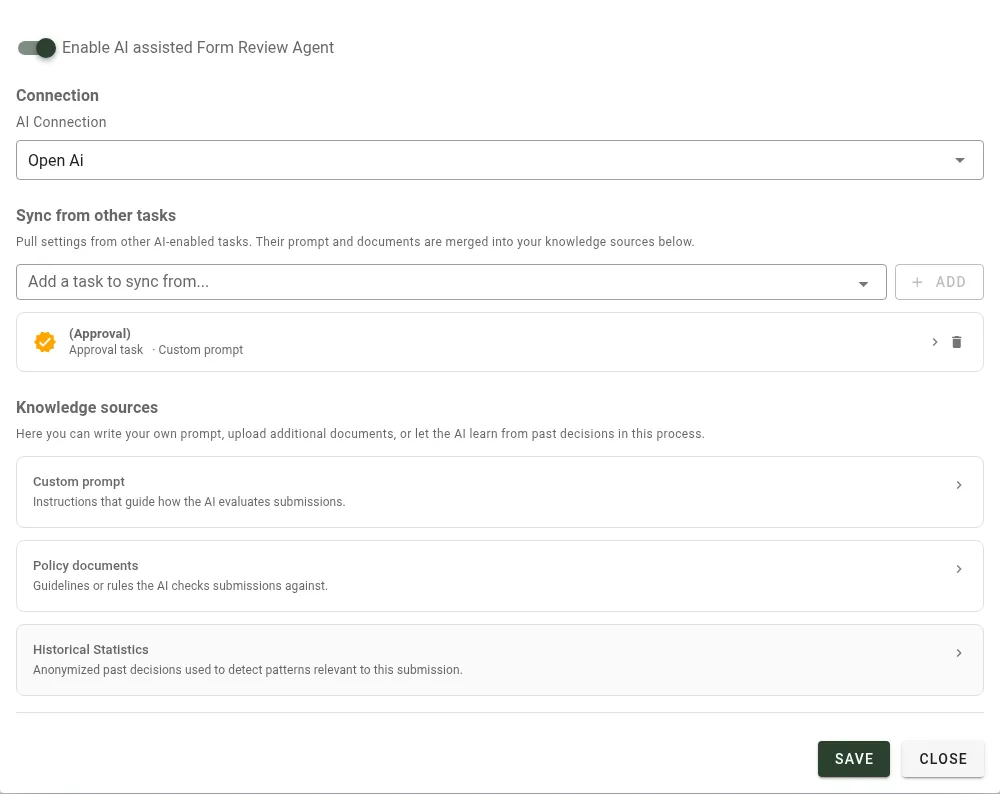
- Turn on Enable AI assisted Form Review Agent.
If your tenant doesn’t have the AgenticFormReview module enabled, you’ll still see the Form Review tab. The settings stay disabled, and the UI prompts you to contact your account manager.
Select an AI connection
Under Connection, select the AI connection from the AI Connection dropdown. For setup details, refer to the automatically populate forms using AI guide.
Understand data handling during review
When a requester clicks Review, the system sends the current draft data and configured knowledge sources to the selected AI connection for analysis. The system then:
- Analyzes draft values at runtime
- Uses uploaded policy documents as review context
- Uses configured historical mapping to compute insights
For provider setup context, refer to the automatically populate forms using AI guide. For data residency, retention, and provider-level handling details, refer to the policies for your configured AI provider.
Sync settings from other tasks
If another task in the same process already has AI settings, sync those settings into this Form task.
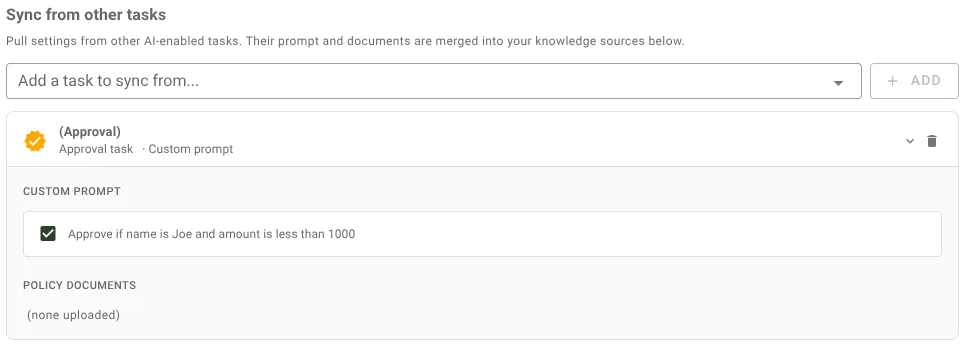
Under Sync from other tasks:
- Select a task from the dropdown.
- Click Add.
- Expand the synced card.
- Choose what to sync:
- Custom prompt
- Policy documents
- Both
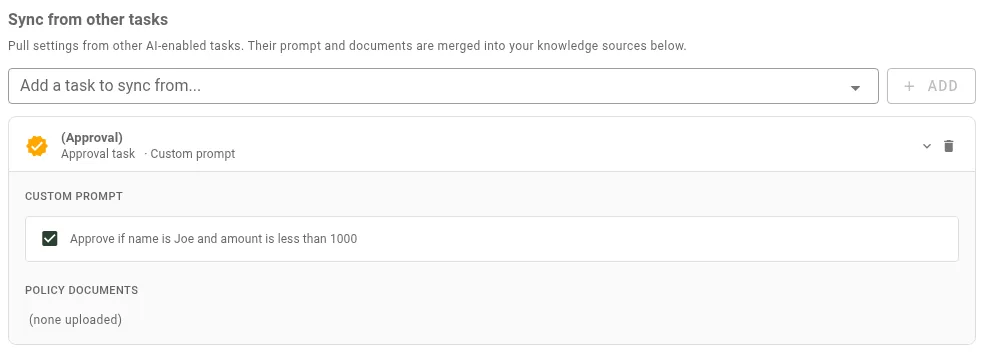
Only AI-enabled tasks in the same process appear in this dropdown.
Syncing is one way and resolves at review time. If you update the source task later, future reviews use those updates.
Sync behavior:
- If you keep both local and synced prompt content, the agent evaluates both.
- If you remove synced policies from the source task, future reviews no longer use those policies.
- If you disable a synced component checkbox, this task stops consuming that component.
Configure knowledge sources
In Knowledge sources, configure one or more independent inputs.
Custom prompt
Use Custom prompt to define how the AI should evaluate submissions. For example, specify suspicious conditions, required thresholds, or what a strong justification should include.
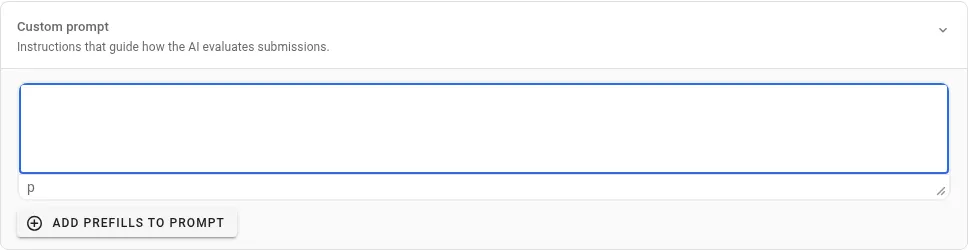
To reference a specific form field:
- Click Add Prefills to Prompt.
- Select the field.
- Insert it inline in the prompt.
At review time, the agent substitutes the current draft value.
For a complete prefill example, refer to the AI data extraction task configuration guide.
Policy documents
Use Policy documents to upload rules, policies, and procedures. Drag and drop files or select files from the upload area.
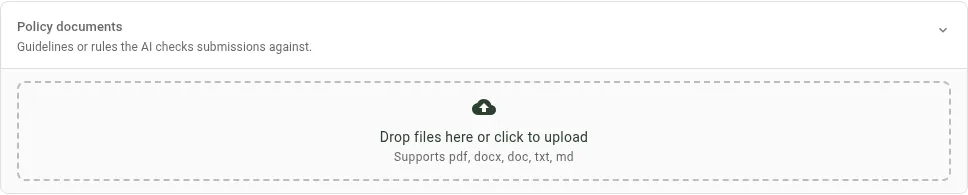
Supported formats:
- DOCX
- DOC
- TXT
- MD
If you don’t configure policies, the Policy based analysis card shows a No policies configured state.
Historical statistics
Use Historical Statistics to define what “accepted” means in this process, based on past instances.
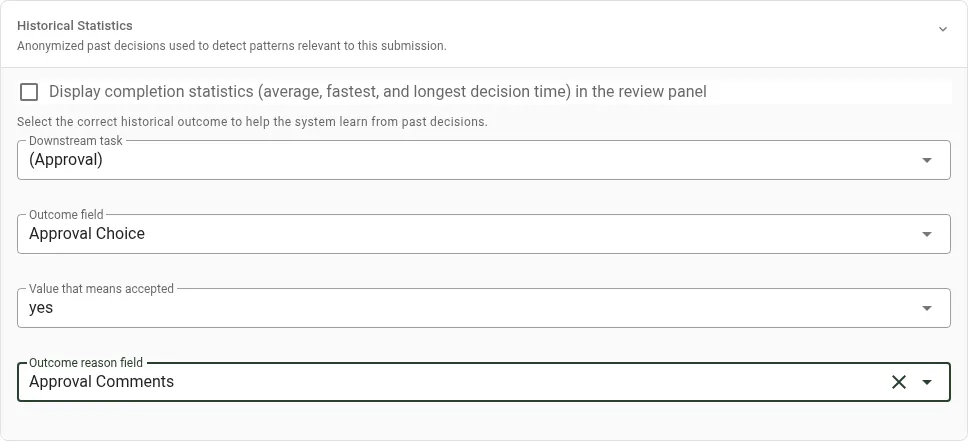
Configure fields in this order:
- Downstream task — The task whose outcome determines acceptance.
- Outcome field — The field that stores the decision.
- Value that means accepted — The exact value that represents acceptance.
- Outcome reason field — The field that stores the reason or comments.
Common mapping examples:
- Boolean outcome field — Set accepted value to
true. - Choice outcome field — Set accepted value to
Approved. - Localized choice field — Set accepted value to the exact stored value used by the task.
Display completion statistics is optional:
- On — The panel shows average, fastest, and longest approval time.
- Off — The panel hides those stats, but the system still uses Historical Insights internally.
If no completed instances match your criteria, the card shows Not enough historical data yet.
Analysis cards
The review panel shows up to four cards based on your configuration. Each card provides different insights to help the requester strengthen their submission before approval.
Which cards appear
The panel output depends on the knowledge sources you configure:
| Configured source | Card shown |
|---|---|
| Custom prompt only | Field Quality Assessment |
| Policy documents (with or without custom prompt) | Policy based analysis |
| Historical Statistics mapping | Historical Insights |
| Historical Statistics mapping + Display completion statistics on | Historical Context |
Card meanings and severity
Based on configuration, the panel shows up to four cards:
- Policy based analysis — Checks form input against policy documents and prompt rules. It flags violations with severity, field name, policy reference, and a suggested fix.
- High — Strong policy conflict that likely leads to rejection.
- Medium — Partial mismatch or missing support that may require revision.
- Low — Minor quality or policy-alignment concern.
- Field Quality Assessment — Checks whether explanations and reasoning are strong enough for approver review.
- Historical Insights — Summarizes approval and denial patterns from completed instances and suggests how to strengthen the request.
- Historical Context — Optional statistics card shown only if Display completion statistics is on.
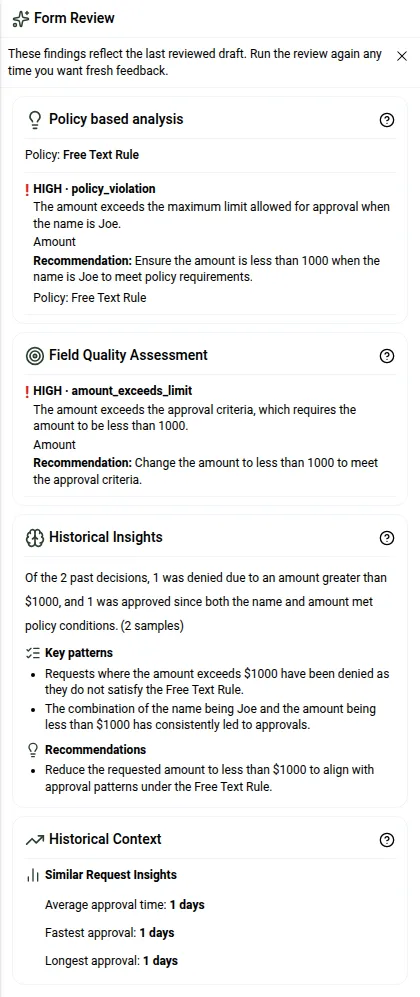
Requester experience
When a requester opens a Form task with agentic form review enabled, the button bar includes Review between Save Draft and Submit. For base Form task behavior, refer to the Form task configuration guide.

When the requester clicks Review, the system saves a draft, runs analysis, and opens the review panel.
Requester actions:
- Edit fields and run Review again.
- Close the panel and keep editing.
- Submit at any time.
If the requester changes fields after review, existing findings stay visible until the next review run. The panel notes that the findings reflect the last reviewed draft.
The UI doesn’t keep a card-by-card run history in the panel. If your team needs audit trails, capture workflow events through your standard process reporting.
The following example uses a Form task with two fields: Name and Amount. The downstream Approval task has one synced rule: Approve if name is Joe and amount is less than 1,000. No policy document is uploaded.
Example: Pass vs. fail side by side
| Analysis aspect | Review that passes | Review that finds issues |
|---|---|---|
| Input | Name Joe, Amount 100 | Name Joe, Amount 10000 |
| Policy based analysis | Both clauses are satisfied, so no findings are returned. | High-severity policy_violation on the Amount field, citing the “less than 1,000” clause. |
| Field Quality Assessment | Nothing is flagged. | amount_exceeds_limit is flagged on the Amount field. |
| Historical Insights | Summarizes past approvals with this combination. | Confirms that past requests above $1,000 were denied and recommends reducing the amount. |
| Panel | 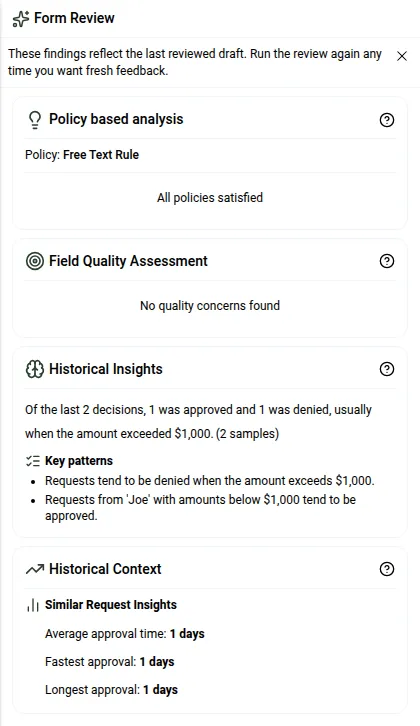 | |
Each new review run replaces the previous findings.
Example use cases
Below are example use cases that benefit from presubmission review. In each case, the team can configure a custom prompt and upload relevant policy documents to guide requesters toward stronger submissions before approvers see them.
Purchase requests
- Upload procurement policies with spending tiers.
- Add a custom prompt that checks whether the requester explains why the purchase is necessary.
- Use findings to improve submissions before approval.
Travel requests
- Upload travel policies for booking windows, per-diem limits, and approval rules.
- Use historical statistics to show patterns, such as high denial rates for short-notice bookings.
- Ask requesters to add stronger justification when needed.
Contract reviews
- Configure agentic form review on a contract metadata form task.
- Upload legal policy documents for standard terms.
- Flag non-standard clauses, missing compliance fields, and multiyear commitments that need extra signoff.
Best practices
Below are best practices to get the most out of agentic form review.
Write a strong custom prompt
- Define clear thresholds.
- Describe what a strong justification includes.
- Name the exact conditions that should trigger findings.
- For prompt and prefill patterns, refer to the AI data extraction task configuration guide.
Configure Historical Statistics carefully
- Pick the downstream task that truly represents accepted outcomes.
- Collect sufficient volume before relying on trend-level patterns.
- Update mapping if field names or accepted values change.
Sync from other tasks selectively
- Use syncing to reduce duplicate configuration.
- Sync only prompt or policy content that applies to this Form task.
- Keep task-specific additions in this task’s own knowledge sources.
Troubleshooting
If you run into issues, check the following:
- Form Review tab is visible but disabled —
AgenticFormReviewisn’t enabled on your tenant. - Review button doesn’t appear at runtime — Confirm Enable AI assisted Form Review Agent is on and an AI connection is selected.
- Analysis is empty or generic — Configure at least one knowledge source.
- “Not enough historical data yet” appears — No completed instance matches your accepted-value criteria yet.
- Synced task settings don’t appear in output — Confirm the sync checkboxes for prompt and Policy documents are selected.
- AI service unavailable or timed out — Retry the review. If the issue persists, verify provider health and connection credentials.
- Policy document upload fails — Confirm the file type is supported and the file isn’t corrupted.
- Permission error when saving Form Review settings — Confirm your role has permission to configure process tasks and AI settings.
If you need help answering questions about forms, processes, requests, tasks, files, or users while configuring this feature, refer to the Workflow Assistant guide.
Roles and governance
- Process designers and administrators configure Form Review settings.
- Requesters use the Review button at runtime.
- Review findings are advisory and don’t block submission.
If your process requires strict enforcement, combine this feature with downstream approval controls and policy-driven decision logic. For approval-stage patterns, refer to the AI-powered approval recommendations with agentic approval guide.
Performance expectations
- Review time varies by prompt size, policy document size, and provider latency.
- Large or multiple documents may increase response time.
- Ask requesters to click Review after meaningful edits instead of after every keystroke.
Related guides
Recommended reading order:
- Refer to the Form task configuration guide for base Form task setup.
- Refer to the AI data extraction task configuration guide for prefill insertion in rich-text prompts.
- Refer to the AI-powered approval recommendations with agentic approval guide for approval-task AI recommendations.