Generate forms using AI
Use the AI form generator to create forms by describing what you need in natural language. Tell the AI what fields your form should contain, and it will generate the form structure for you. This licensed feature supports both Anthropic (Claude) and OpenAI as AI providers.
Prerequisites
Before beginning, ensure you have:
- An account with an AI provider (OpenAI or Anthropic).
- A valid API key from your AI provider.
- Administrative access to Nutrient Workflow Automation.
- At least one configured AI source in Nutrient Workflow Automation (using OpenAI or Anthropic).
If you haven’t set up an AI source yet, refer to the automatically populate forms using AI guide for instructions on creating and configuring AI sources.
Using the AI form generator
Follow the steps below to generate a form.
Navigate to the Forms page
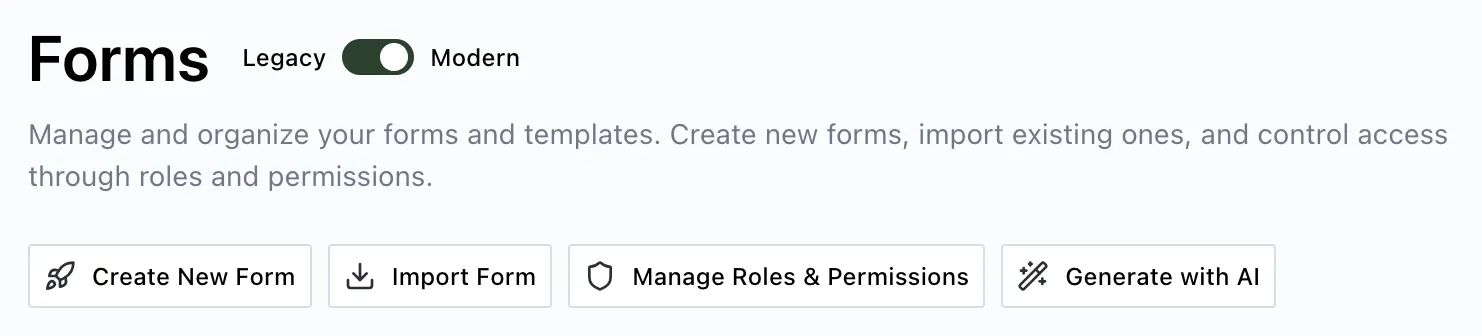
- Navigate to Forms in Nutrient Workflow Automation.
- Either click Create New Form to create a new form, or select an existing form to edit.
Access the AI form generator and select your AI source
Click Generate with AI.
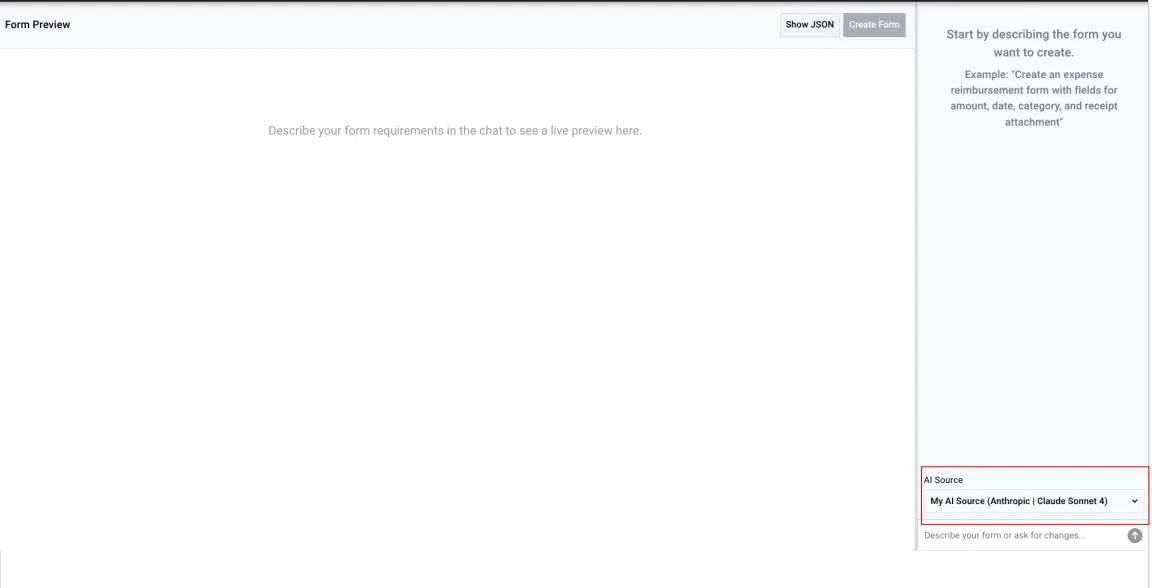
The AI form generator page opens. In the top-right corner, click the AI Source dropdown.
Select the AI connection you want to use. Each option shows the provider (Anthropic or OpenAI) and the model.
If a connection is marked as using a deprecated model, update that connection in AI Sources to a supported model before continuing.
Describe your form in natural language
In the text field, describe what form you want to create. You can enter detailed requirements and resize the field as needed.
The following elements help the AI generate better results:
- The purpose of the form
- What fields or information the form should collect
- Any specific field types you prefer
Example prompts
Below are some example prompts you can use to describe your form. You can customize these examples to fit your specific needs.
Example 1 — Brief use case
I need a form to collect customer feedback on our products.
Example 2 — Conversational style
We’re creating an onboarding process for new employees and need to gather their onboarding information. We need to know their name, their hire date, which department they’re joining, their manager’s name, and whether they need IT equipment.
Example 3 — Detailed specification
Create a purchase request form with fields for requester name, department, item description, quantity, estimated cost, and a date field for when the item is needed.
Generate the form
- Click the Send button in the text editor to generate the form. The AI creates the form based on your prompt.
- The form preview on the left updates to show the generated fields when generation completes.
Review and refine the generated form
After the AI generates your form, review the questions and structure:
- Check that all expected fields are present.
- Verify field types match your needs.
- Confirm field labels are clear and correct.
- Look for any fields the AI added that weren’t in your description.
You can continue refining the form through conversation. Send additional messages to the AI to request changes, add fields, or adjust the structure. This approach lets you refine the form without starting over.
When the form meets your requirements, click Create Form to save it to your Nutrient Workflow Automation instance. After creating the form, you can make additional adjustments:
- Edit field labels or settings by clicking the pencil icon on each question.
- Delete unnecessary questions by clicking the delete icon.
- Reorder questions by dragging them.
- Add questions manually.
Next steps
Explore these related guides to further enhance your forms:
- Create and edit form questions — Learn how to manually add and configure form questions.
- Automatically populate forms using AI — Extract data from documents into your form fields.
- Workflow Assistant — Ask questions about forms, processes, requests, tasks, files, and users by using live workflow data.
- Form rules and show/hide logic — Add conditional logic to your forms.
- Add calculations to forms — Use formulas to calculate values based on user input.