Credential Center
Use the Credential Center to store, manage, and apply credentials across Nutrient Workflow Automation tasks.
What is the Credential Center?
The Credential Center is a central console where system administrators store system-level credentials.
Why use the Credential Center?
Use the Credential Center to keep credentials out of plain text. Only system administrators can access stored credentials.
The Credential Center also keeps credentials in one place instead of across multiple workflow areas.
Access the Credential Center
Open the Credential Center from the admin menu.
- Select the gear icon in the upper-right corner.
- Select Credential Center from the list.
Add a credential
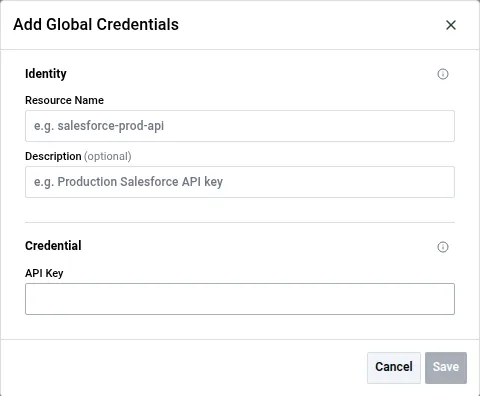
Create a credential resource before you use it in tasks.
- Select Add Credentials.
- Enter Resource Name.
- Enter Description if needed.
- Select Credential Type.
- Select Save.
You can create these credential types:
- Bearer Token and API Key — Use these for REST Client or Web Service API requests.
- Username/Password — Use this for Database Sources, REST Client tasks, or Web Service tasks.
- Access/Secret key pair — Use this to call AWS Lambda functions.
- Token-Based Authentication — Use this for OAuth 1.0a APIs and compatible services.
- Signed JWT — Use this to mint a signed JSON Web Token (JWT) for each request.
For existing customers, the system converted existing Database Sources and Lambda credentials into resources.
Use credentials in tasks
You can use stored credentials in multiple task types across Nutrient Workflow Automation.
Database source
Select a stored credential when you create a database connection.
- Add a database connection.
- Enter the required database connection details.
- Select a database credential from the list.
- Test the connection.
- Select Save.
AI source
An AI source connection that requires authentication uses a Credential Center credential.
In the connection dialog, select an existing credential from the Credential list. You can also select Create New… to add a credential without leaving the dialog. Nutrient Workflow Automation selects the new credential after you save it.
Create New… appears only after you select an AI provider. Until then, the connection doesn’t know the required credential type.
The connection sets the credential type. This prevents you from creating a credential the provider can’t use.
| Connection | Credential type |
|---|---|
| AWS Bedrock | Access/Secret key pair |
| Any other standard provider, such as OpenAI or Anthropic | API Key |
| Custom endpoint | Determined by the selected authentication method |
When only one credential type applies, Nutrient Workflow Automation omits the Credential Type field. The value fields for that type appear directly.
For a custom endpoint, the authentication method determines the credential type. Bearer Token, API Key, and Query Parameter each use one type, so the Credential Type field is omitted.
Custom Header supports API Key and Bearer Token credentials, so the field appears with both choices. None doesn’t require a credential.
Creating a credential from the connection dialog requires permission to create credentials. Without it, select an existing credential from the Credential list instead.
AWS Lambda task
Select an AWS key in the task settings.
- Open the Settings tab in your AWS Lambda task.
- Select an AWS key you created in the Credential Center.
This AWS key is for your custom Lambda functions. You can’t store personal credentials for some Nutrient Workflow Automation public Lambda functions, such as Push a File to SharePoint.
REST Client task
Select a stored credential in the request parameters.
- Open the Request Parameters tab in your REST Client task.
- Select Credential Center as the source.
- Select the credential required by the API authentication method.
Use the authentication method to choose an API Key, Bearer Token, Username/Password, Token-Based Authentication, or Signed JWT credential.
RESTful Data Element
Use a stored credential in the authorization settings.
In a RESTful Data Element, use Authorization to select a stored Credential Center credential. Choose a Signed JWT credential when the external API requires a signed JSON Web Token.
In query parameters, headers, environment variables, and request body mappings, Signed JWT credentials expose JWT Token and JWT Basic fields.
Web service task
Select a stored credential when you map values for the target service.
In a Web Service task, select a stored credential when you map values into the request template or custom headers. Choose a Signed JWT credential when the service requires signed JWT authentication.
Nutrient Workflow Automation mints the JWT at runtime and applies it to the outbound request.
Signed JWT credentials
Use Signed JWT credentials for APIs that require Nutrient Workflow Automation to generate a signed token at request time.
When you create a Signed JWT credential, provide the private key and JWT settings required by the target service. These settings can include subject, key ID, algorithm, and token lifetime.
After you create the credential in the Credential Center, select it in supported integration configurations:
- REST Client task request parameters.
- RESTful Data Element authorization settings and mappings.
- Web Service task request templates and custom headers.
Use the built-in test option after selecting the credential. The test confirms that Nutrient Workflow Automation can generate the token and the target service accepts it.
When you edit an existing Signed JWT credential, leave the private key field blank to keep the stored key. This enables you to update non-secret JWT settings without reentering the key.
If you work with exported or imported configuration data, JWT credential settings may appear in a jwtBasic field. This field stores the JWT credential configuration used by supported REST-based integrations. Don’t edit this field manually unless Nutrient Support(opens in a new tab) instructs you to do so.
Token-based authentication (OAuth 1.0a)
Token-Based Authentication (TBA) supports API authentication for services that use OAuth 1.0a with hash-based message authentication code (HMAC) signatures.
Create TBA credentials
Create a TBA credential from the Credential Center.
- Select Add Credentials.
- Enter a descriptive Resource Name, such as “Production API”.
- Select Token-Based Authentication (OAuth 1.0a) as the Credential Type.
- Fill in the required OAuth 1.0a credentials.
- Select Save.
Enter these OAuth 1.0a values:
- Consumer Key — Enter the OAuth consumer key from your API provider.
- Consumer Secret — Enter the OAuth consumer secret.
- Token — Enter the OAuth access token ID.
- Token Secret — Enter the OAuth access token secret.
- Realm — Enter the realm value if your API provider requires it.
Leave Realm empty if your API provider doesn’t require it.
All TBA credential fields are encrypted and stored. The Consumer Secret and Token Secret are never displayed after creation.
Use TBA credentials in REST Client tasks
Select the TBA credential in the REST Client task.
- Open the Request Parameters tab.
- Select Credential Center as the source.
- Select your TBA credential from the list.
The REST Client then handles OAuth 1.0a authentication at runtime:
- It generates a unique OAuth 1.0a signature for each request.
- It adds the Authorization header with the signature.
- It includes timestamp and nonce values.
- It uses HMAC-SHA256 encryption, or HMAC-SHA1 for legacy APIs.
You don’t need additional configuration.