Master task management with reminders and timeouts
The Reminders and Timeouts task setting allows you to specify specific time-based criteria when a task should be completed, send reminders on a specific interval, or time a task out if it is not completed in a specific time period.
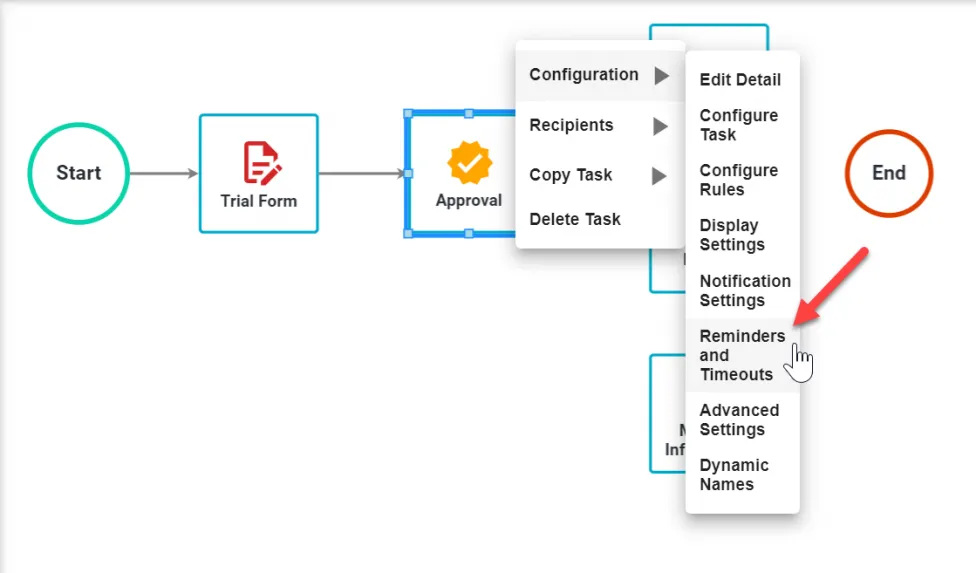
To enable these settings for a task, right-click on the task, hover over Configuration, and select the Reminders and Timeouts.
After you have selected Reminders and Timeouts, you will be presented with the following dialog:
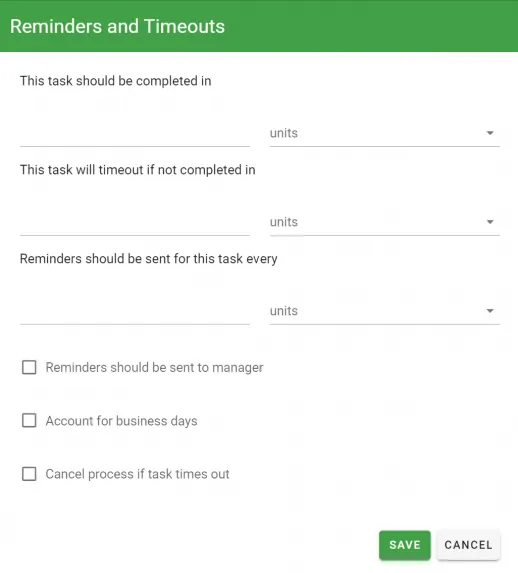
To activate any of these settings, add a numeric value to the first text box (5, 10, 60, etc), and select an interval of minutes, hours, or days.
Each setting controls a different part of the task’s timeline:
- This task should be completed in… — Set a number of minutes, hours, or days after task start to calculate the Due Date shown in open task lists. For example, a task starting on 1 July with a two-day interval is due on 3 July.
- This task will timeout if not completed in… — Set the interval after which an unfinished task enters Timed Out status. Add a path for Timed Out in the process flow and configure the tasks that follow it.
- Reminders should be sent for this task every… — Set a reminder interval in minutes, hours, or days. Reminders start after the defined due date, not when the task starts, and continue until the task is completed.
- Reminders should be sent to manager — With a reminder interval configured, send the same reminder to the recipient’s manager. First check that the manager is set on the recipient’s contact profile.
- Account for Business Days — Apply configured business hours and holidays to reminders and timeouts. A one-day interval means 24 business hours, not one eight-hour workday. The system ignores this option when the task starts outside normal business hours.
Before enabling a timeout on a live task, test the due date, reminder timing, and Timed Out path with a sample request. Check business-hours settings if the calculated date differs from the expected date.