Configure dynamic email notifications seamlessly
The Dynamic Notification task allows email notifications to be sent to a dynamic list of recipients based on email addresses provided in a form.
The key to this task is the ability to send an email notification (and subsequently request data or related information) to interested parties regardless of whether they have login access to the Nutrient Workflow Automation system.
Task configuration
To configure the Dynamic Notification task, select it from the Task options and drag it to your process canvas.
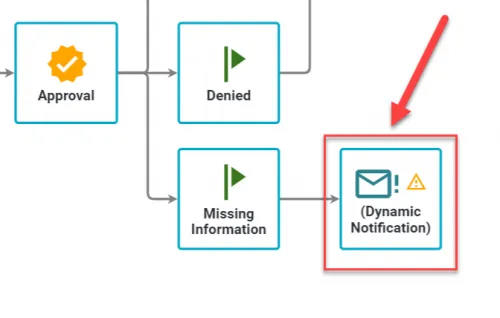
Select Configuration > Configure Task
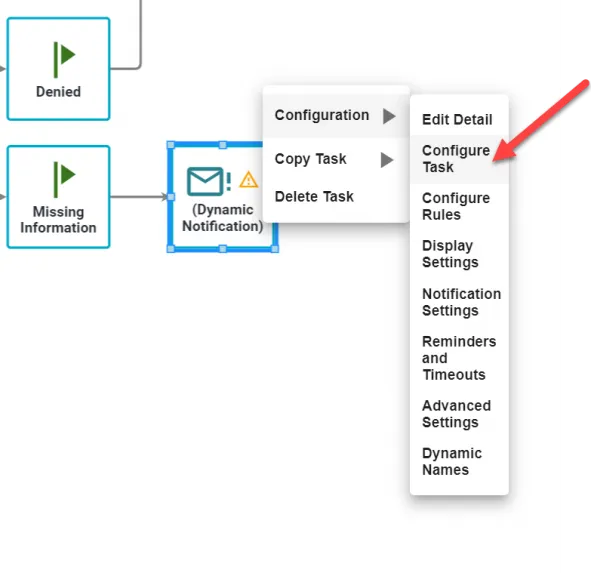
to access the window below:
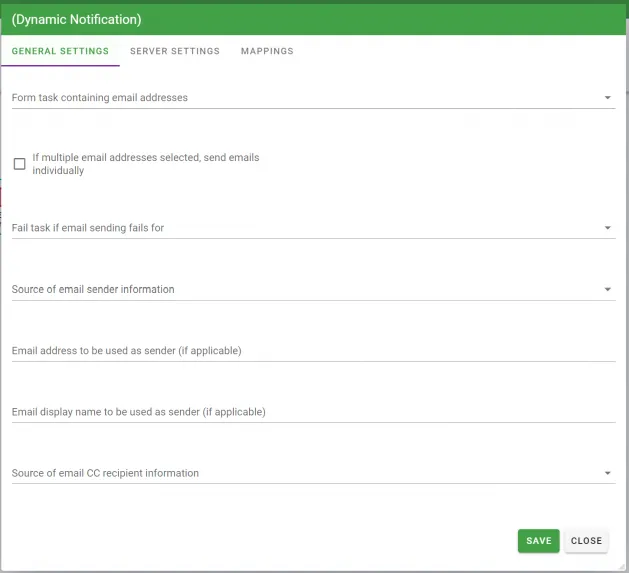
To configure the Dynamic Notification task you must define the following, located on the General Settings tab.
- Form Containing Email Addresses: This is the form in the process where the recipients of the notification are inputted.
- Fail task if email sending fails for: Any Address, All Addresses, Never Fail. This is used to determine error handling if one of the inputted emails isn’t correct. In the case of more than one recipient, this will determine if the entire task will fail in addition to the email notification not making it to that recipient.\
- Any Address would fail the task for any and all recipients\
- All Addresses would only fail the task if all recipients were incorrect\
- Never Fail will push the task to a Completed state regardless of email receipt.
- Source of email sender information: This gives the administrator the option to set a static email address as the sender (from address) of the email notification.\
- Fixed Value is the default setting and allows the Sender to be a defined, static value regardless of other data or factors\
- Form allows the use of inputted data, mapped as a parameter, to be the Sender of the email\
- Requester will make the person initiating the request itself the sender of the notification\
- Client will assign the client of the request the sender of the notification\
- Form Task Completer will refer to the person that completed the form task itself and make that person the Sender of the email
Optional settings
- If multiple email addresses are selected, send emails individually. The system defaults to unchecked for this question. You can check this option should you want the recipients to be segregated from one another.
- Email Address to be used as Sender: If Fixed email sender information is selected, this field should be completed to set that information.
- Email Display Name to be used as Sender: If Fixed email sender information is selected and you wish to have a separate Display Name show as part of the email, that information can be entered in this field.
- Source of email CC recipient information: Dropdown. If you would like to CC multiple email addresses, select Fixed Value and type the email addresses in the “Email CC recipient (if applicable)” field. To separate email addresses, use a ;
To continue to configure this task, click Save then select the Server Settings tab. This Slide Button will allow you to select and set an alternate server should you wish to send this notification from an address other than your default Nutrient Workflow Automation email. You can then define the alternate server settings as shown below:
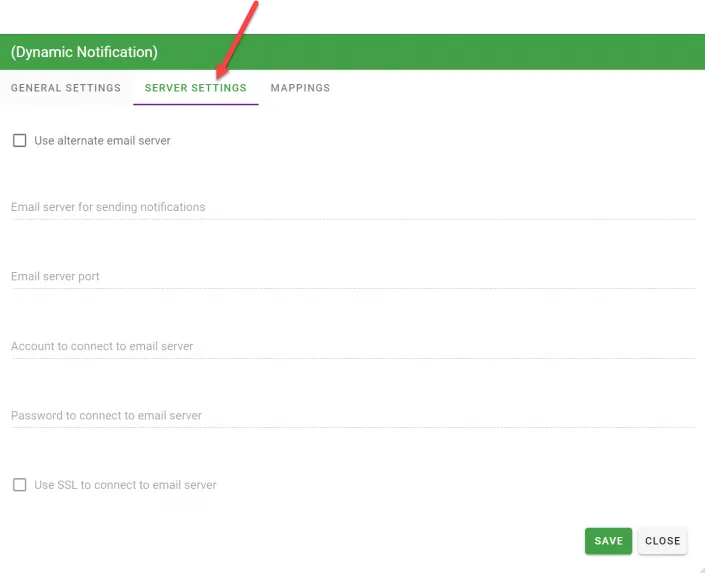
To complete the configuration of this task, click Save and then select the Mappings tab.
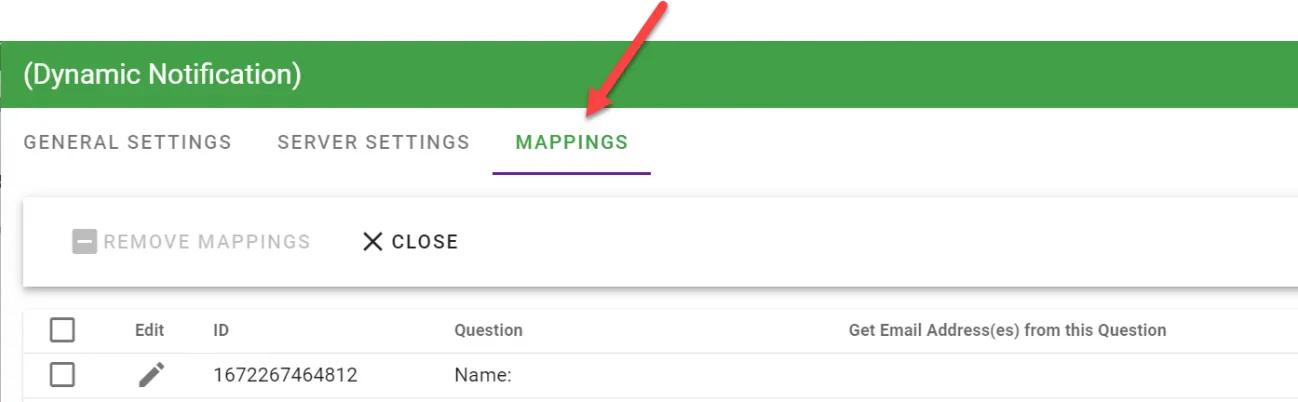
Here you’ll see each of the fields contained in the form that you mapped on the General Settings tab.
To set a question as a parameter for the notification, click on the Edit icon and select the Email Address that you want to map to the form data. Dynamic recipients can be set for the Email Recipient Address, Email Sender Address, Email Sender Name, and Email CC Address.
Click Save and Close to continue.
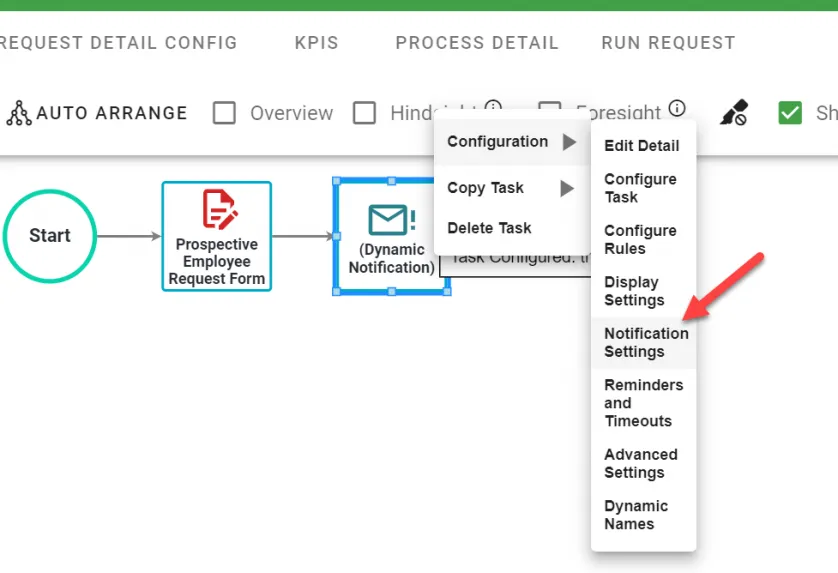
To configure and customize the content of the email notification itself, follow the instructions provided under the task menu of the Dynamic Notification task -> Configuration -> Notification Settings.
Training example
As a training example, we’ll be using a “Prospective Employee Request Form” designed to capture the email address of someone that might be interested in employment or job information. After the form is completed, the Dynamic Notification task will send them an email, with a CC to the requester.
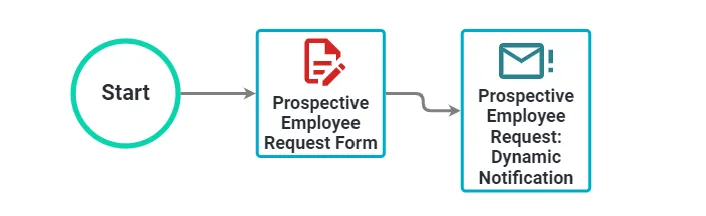
The General Settings configuration for this task would be filled out as follows:

The Mappings would be mapped as follows:

Additional modifications can be made to the notification itself to customize the email that’s sent to the prospect.

When this process is run, the request detail will show the email, and other information entered in the form as well as provide confirmation of the action.

And the email sent via the system features the custom Sender information as well as other dynamic details as configured.

