Configure your approval task for better feedback
When configuring an Approval task, you can configure comment settings for each individual approval option. This enables granular control over the feedback process, ensuring that approvers are prompted for comments only when necessary based on the specific approval path selected.
Users can add comments by selecting the task from their open tasks when logged into the portal, or if you enable approval by email, they can add comments in the browser confirmation page after selecting an option from the email notification.
Configuring comments for approval options
Starting with version 8.11.0, comment settings are configured individually for each approval option rather than globally for the entire task. This enables you to conditionally show comments as optional, required, or hidden based on the specific approval path selected.
To configure comments for an approval option:
- Select Configure Task from the task menu of the Approval task.
- Navigate to the Approval Options section.
- For each approval option, you’ll see an Allow users to enter comments setting.
For each approval option, you can choose:
- No — No comments box will appear when this option is selected
- Optional — Comments box that’s optional when completing the task with this option
- Required — Comments box that must contain text to complete the task with this option
Use cases for conditional comments
This per-option configuration enables several useful scenarios:
- Rejection paths — Require comments when an approval is denied (e.g. Reject option requires comments, but Approve makes them optional)
- Rework requests — Mandate detailed feedback when asking for revisions (e.g. Request Changes requires comments)
- Fast approvals — Allow approval without comments for routine approvals while requiring explanations for special cases
- Audit requirements — Enforce comment requirements only on specific approval paths that need documentation
How comments appear to users
Below, you can see how the Comments box appears to a user completing an approval task where comments have been configured:
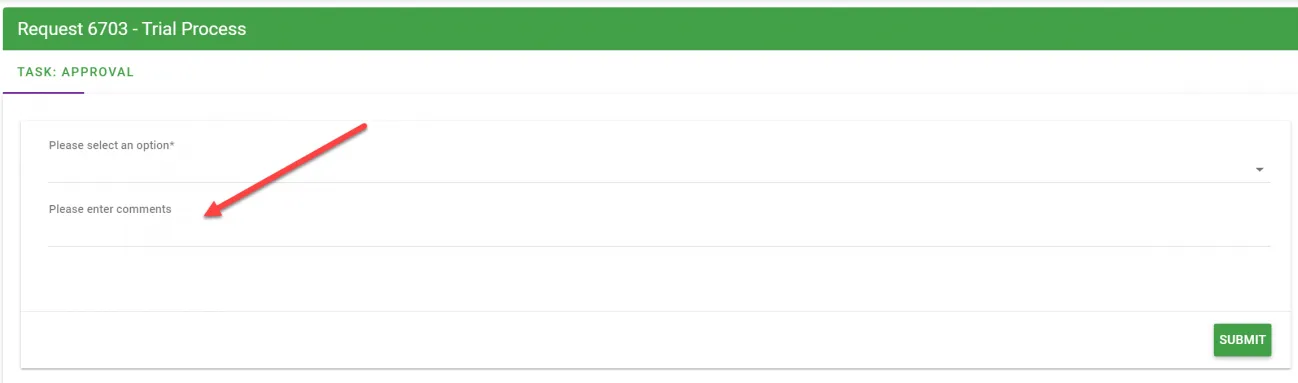
Whether the comment field appears and whether it’s required depends on the selected approval option. Before you publish a process, test each option. An Optional option should accept an empty comment, and a Required option should prevent completion without one. A No option should hide the field. When approval by email is enabled, test the browser confirmation page as well as the portal task.