Workflow Automation API for automation tasks
The Nutrient Workflow Automation API manages processes, requests, tasks, reports, users, and file attachments in a Workflow Automation instance.
Generate an API key
Create an API key before you authenticate API requests. The following steps show how to create and store a key.
Select the Settings (gear) icon in the top-right corner of the portal. Then choose API Keys.
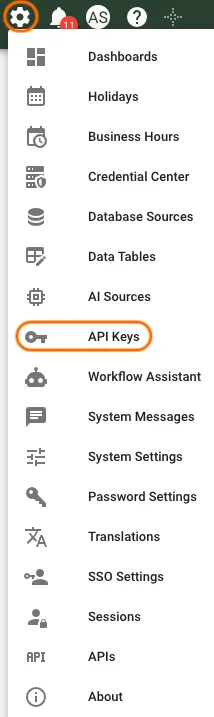
Select Add API Key.

Under Identity, add a Description if needed.
Under Expiration, set Expires if needed.
Under Owning user, choose who the key acts as.
- If User appears, select the person the key should act as.
- Leave User empty to create a system key.
- If User doesn’t appear, the key uses your account automatically.
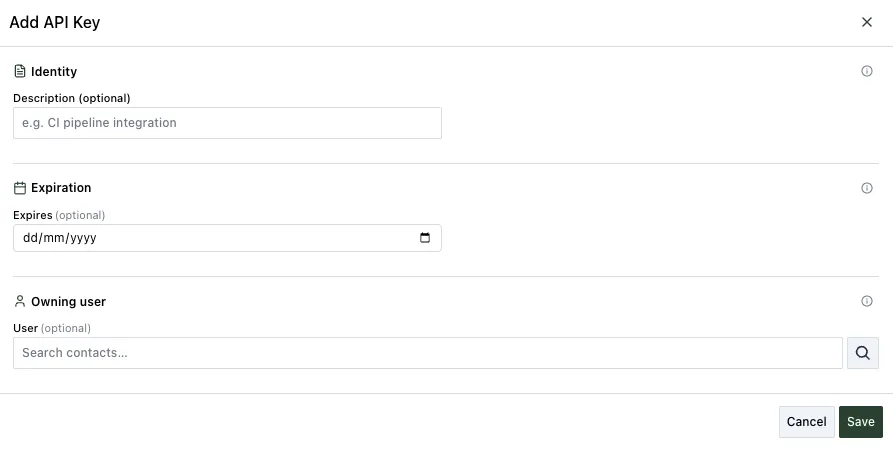
Select Save.
In the API key created dialog, select Copy key and store the key somewhere safe.
Select Close.
Nutrient Workflow Automation shows the key only once. If you don’t copy it, you’ll have to create a new key. Treat the key like a password. Anyone who has it can do everything its user can do in Nutrient Workflow Automation.
Manage API key security and usage
API keys use the role-based permission model. Administrators can grant key access by role instead of tying access to system administration. Use the API Keys admin interface to review keys, manage ownership, assign access, and create keys.
Nutrient Workflow Automation migrates existing API keys into this security model. After migration, administrators can manage each key with the same role-based approach used for other secured items.
Use the API Keys usage report to audit integrations that use keys, and review API key ownership and access to keep control fine-grained and auditable.
The API Keys administration page uses the modern administration interface to create, review, and manage keys, and the About page displays version and build information.
When an integration runs reports through API key authentication, report audit logs record a non-sensitive API key identifier. The audit log doesn’t store the raw API key or the underlying user security identifier (SID).
Only grant API key access to roles that need it, and review usage regularly to confirm keys still match active integrations.
While Nutrient Workflow Automation documents newer functions in the application, refer to legacy API documentation(opens in a new tab) for legacy API information.
Use the Workflow Automation API
Use the Nutrient Workflow Automation API from the application documentation. This section shows how to complete these tasks:
- Identify your host and tenant name.
- Access the API documentation.
- Authenticate and get your access token.
Identify the host and tenant
Find the host header value on the main screen under Settings > System Settings.
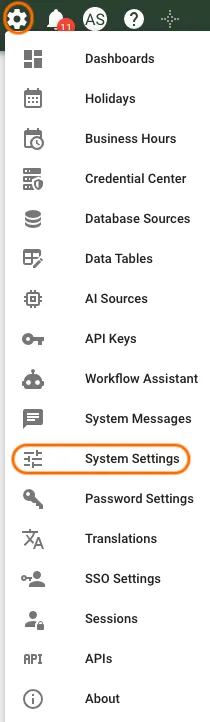
On the System Settings page, copy and save these values:
- ID — yourtenant
- HostHeader — baseurl.integrify.com

Access the API documentation
Find the API documentation under System > APIs.
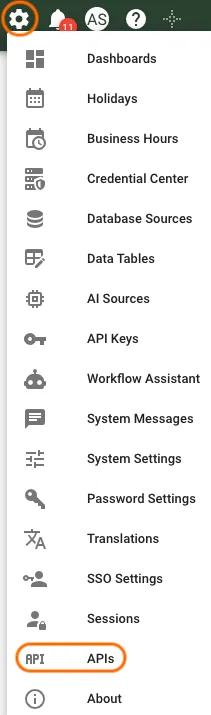
The APIs page groups endpoints by section, and you can click the box with the arrow icon to open a topic.
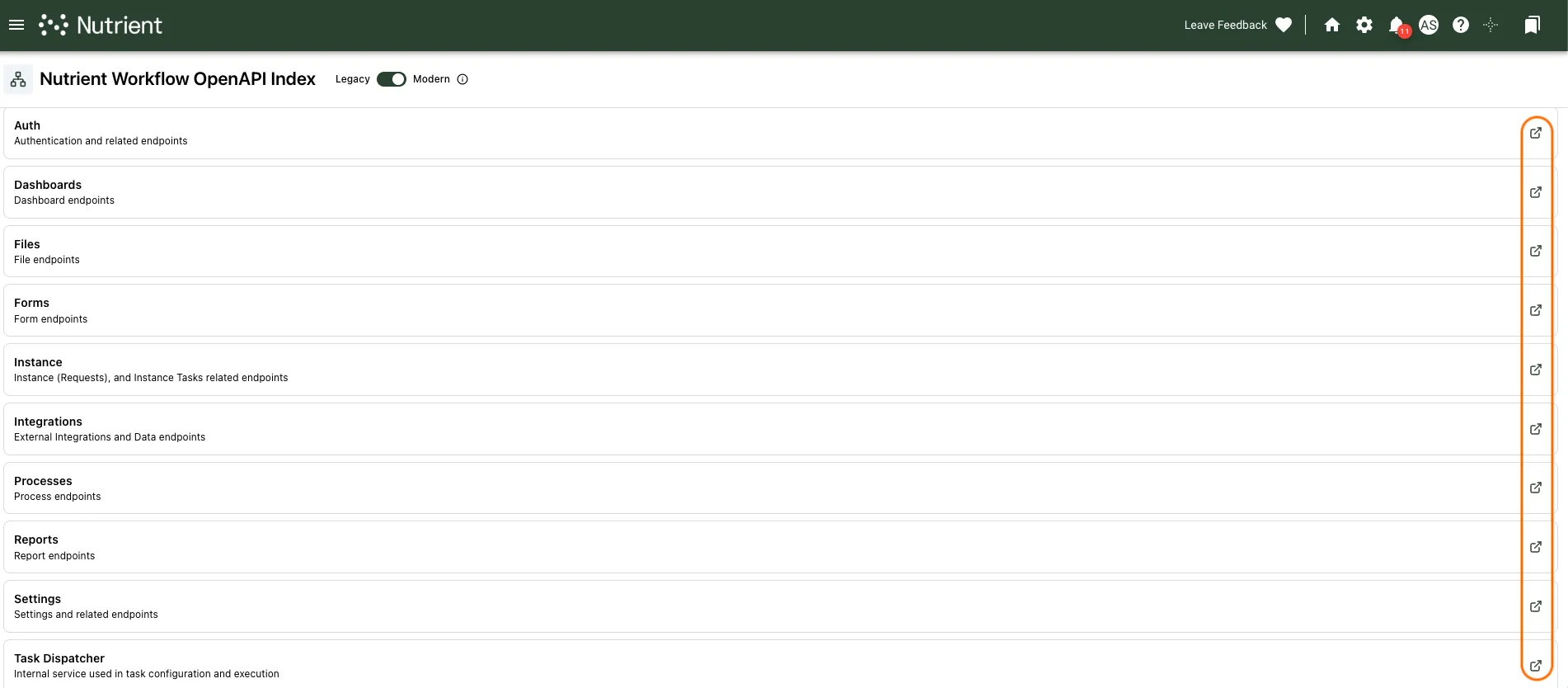
The API documentation opens in the browser. Each colored button represents a method in the Nutrient Workflow Automation API.
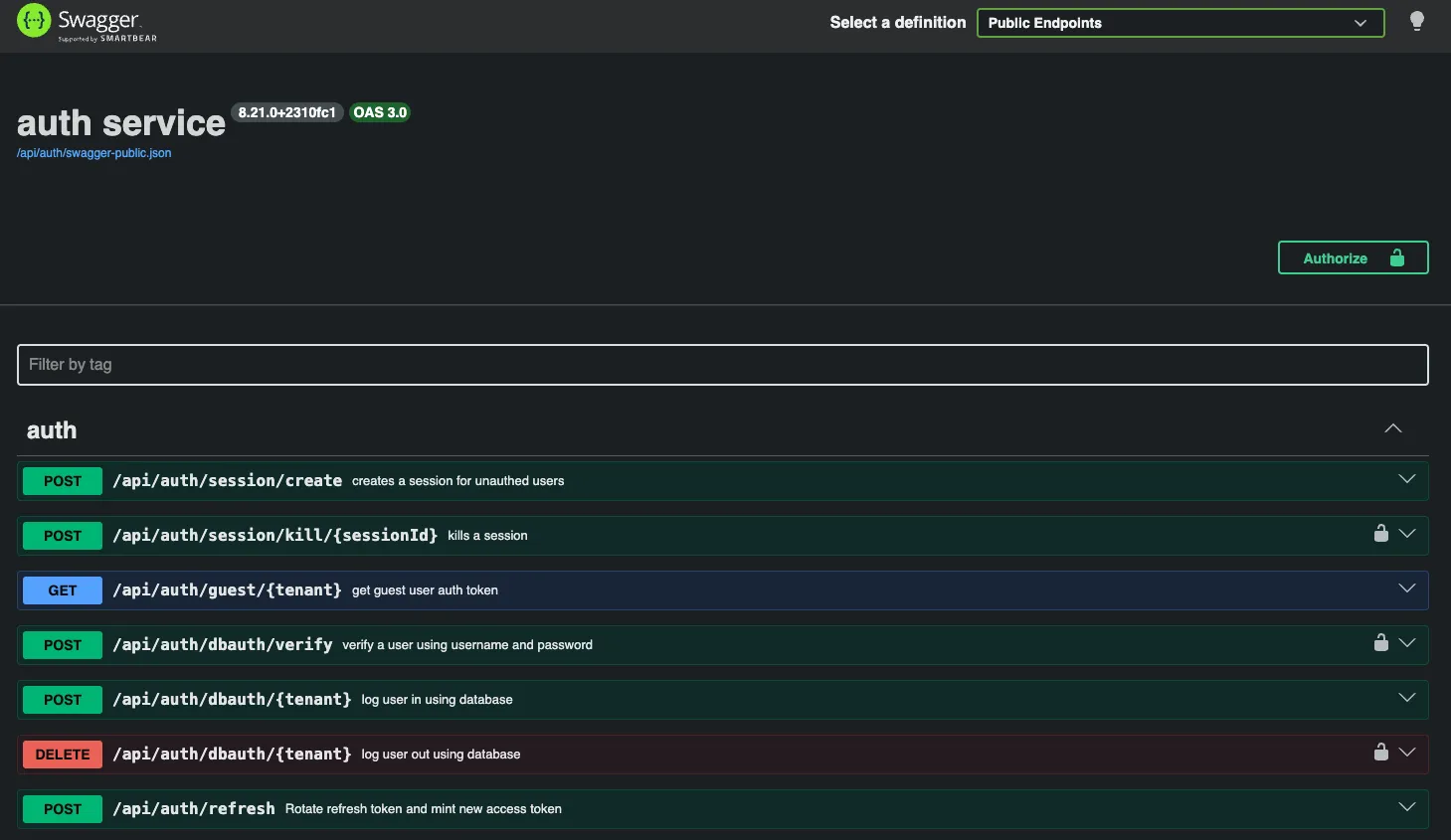
This example shows authentication methods. Click a function listing to expand it.
Use the in-app API documentation as the source of truth for supported endpoints. Don’t build integrations against internal, unused, or undocumented endpoints. Those routes may change or be removed without notice. Supported endpoints follow the platform authorization model and support production integrations.
Click Try it out to test the function on the page. Provide any required parameter values. When the function completes, you’ll receive a success or failure message and any return values.
This public guide doesn’t list the authentication endpoint path, request fields, or token response schema. Before writing an integration, open the authentication operation in your instance’s in-app API documentation. Record its method and path, required headers and body, response fields, and error responses. Use those documented details rather than inferring an endpoint from a screenshot or a legacy example.
If your integration team needs a copyable schema, export or copy the OpenAPI definition from the in-app API documentation for your tenant. Endpoint paths and request schemas can differ by version and deployment.
Authenticate requests
Most Nutrient Workflow Automation API tasks require a JSON Web Token (JWT) in the method call header.
Only system functions use IntegrifyEnv (“Env”) tokens. External systems can’t use them to authenticate to Nutrient Workflow Automation.
Some internal platform routes and central integration functions require tenant and environment context. When that context is unavailable, those system-managed routes fail safely instead of exposing unintended behavior.
For external integrations, retrieve a JWT with an API key that you created in the system settings area.
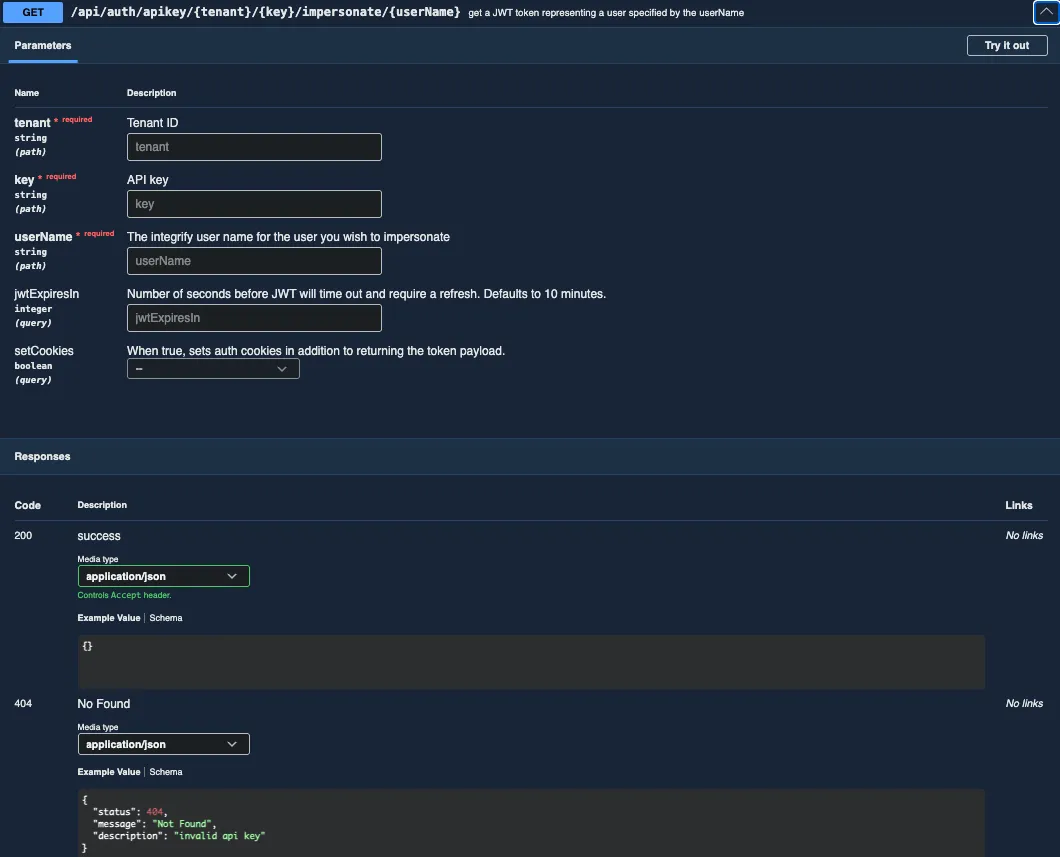
Get a JWT with an API key
The in-app API documentation lists the API key endpoints under System > APIs, in the apiKeys section. Both endpoints use GET and take the tenant and key in the path:
- System API key —
GET /api/auth/apikey/{tenant}/{key}/impersonate/{userName}returns a JWT for the user named inuserName. - User-based API key —
GET /api/auth/apikey/{tenant}/{personalKey}/impersonatereturns a JWT for the user who owns the key.
Use this template to get a JWT with a system API key:
curl --request GET "https://<HostHeader>/api/auth/apikey/<ID>/<API_KEY>/impersonate/<USER_NAME>" \ --header "Accept: application/json"Replace the placeholders with these values:
<HostHeader>— The host value from System Settings — for example,baseurl.integrify.com.<ID>— The tenant ID from System Settings.<API_KEY>— The API key copied from API Keys. Store this value in a secret manager or environment variable.<USER_NAME>— The user name of the account the JWT represents. For a user-based API key, remove/<USER_NAME>from the path.
A successful response returns the user record. Copy its token value into later Authorization headers. If the API key or tenant ID is invalid, the response is an error instead of a token. The error code is 10421, or 10473 for a user-based API key.
Use the JWT
Place the JWT in the header of each method call, and use the JWT as a bearer authentication token. Nutrient Workflow Automation uses the JWT as proof of privileges.
curl --request GET "https://<HostHeader>/<supported-read-endpoint-path>" \ --header "Authorization: Bearer <JWT>" \ --header "Accept: application/json"Choose a supported read-only endpoint from the in-app API documentation for <supported-read-endpoint-path>. Don’t use internal routes that aren’t listed there.
User-based API key authentication
As of version 8.11.0, an API endpoint enables access tokens from user-based API keys. Integrated services can use this authentication method to access the API with user-specific permissions.
How user-based API keys work
User-based API key authentication works like the impersonation endpoint, but it fixes the identity to the user associated with the API key:
- Each API key belongs to a specific user account.
- The access token reflects that user’s permissions and roles.
- API calls made with this token use the same privileges as the associated user.
This authentication method provides authorization checks and audit trails for API operations.
Use cases for user-based API keys
Use this authentication method for these cases:
- Service integrations — External services perform actions on behalf of specific users.
- Automated workflows — Scheduled tasks run with specific user permissions.
- Third-party applications — Integrated applications require user-specific API access.
- Audit compliance — Audit logs attribute API actions to specific user accounts.
Get an access token with a user-based API key
To authenticate with a user-based API key, complete these steps:
- Generate a user-based API key through the API Keys settings.
- In System > APIs, open the documented user-based API key authentication operation. Follow its request schema to exchange the key for an access token. Keep the key out of logs and source files.
- Include the returned access token as a bearer authentication token in later API requests. Check that the user associated with the key has permission for the operation you call.
The endpoint returns an access token for the user associated with the API key, and integrated services can use that token for user-specific API authentication.
User-based API keys grant access with the full permissions of the associated user account. Store API keys securely, and use them only in authorized applications.
Permission-scoped API results
Some API endpoints support permission-scoped results based on the authenticated user. For example, process search endpoints can filter results by the requested permission scope. This helps ensure users retrieve only processes they’re authorized to access.
When an API call performs a workflow action, the request identifiers must belong to the same authorized context. For example, task, instance, recipient, process, and file-version identifiers should all refer to the task or request the caller can act on. Calls that mix identifiers from different tasks, requests, recipients, processes, or file versions may return 403, 404, or 405.
For integrations, treat those responses as possible permission, task-state, or identifier-mismatch failures. Verify that the task or request is still open. Confirm the recipient belongs to the task, the task type matches the endpoint, and all identifiers come from the same workflow item.
createInstanceWithTaskData response behavior
When you use createInstanceWithTaskData, the response returns instance tasks in a consistent order, so use this behavior when task sequencing matters for integration logic.