Viewing and managing your tasks
This guide provides an overview of how to view and manage your tasks.
Viewing tasks
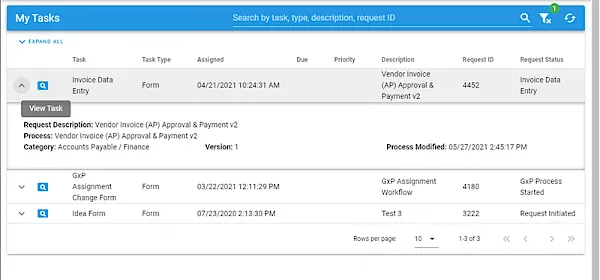
When you select Actions > View My Tasks in the left navigation menu of your portal, by default, you’ll see a list of your open tasks.
Sorting tasks
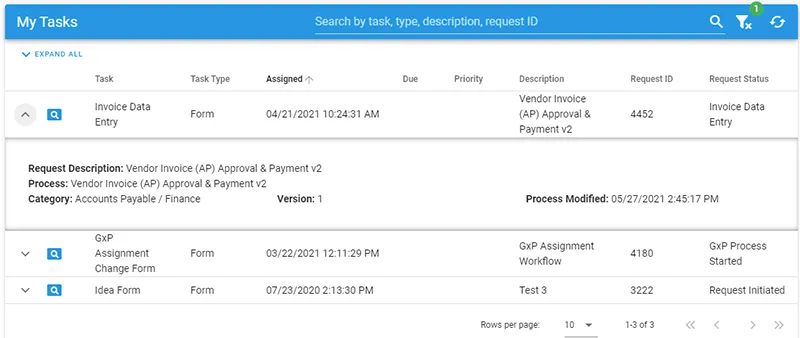
Once you’ve opened your task list, you can select any column header (Task, Task Type, Assigned, Due, Priority, Request ID, or Request Status) to sort in ascending or descending order.
Searching and filtering tasks
Use the filter above the list to filter based on Task Date, Task Type, Description, Request ID, Requester Name, or Date Range.

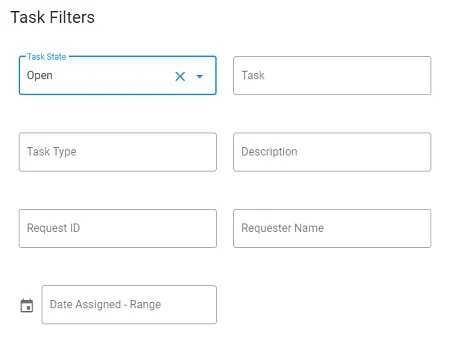
If you’d like to search for a number in the name or description, place % at the beginning of the search.
Opening and managing tasks
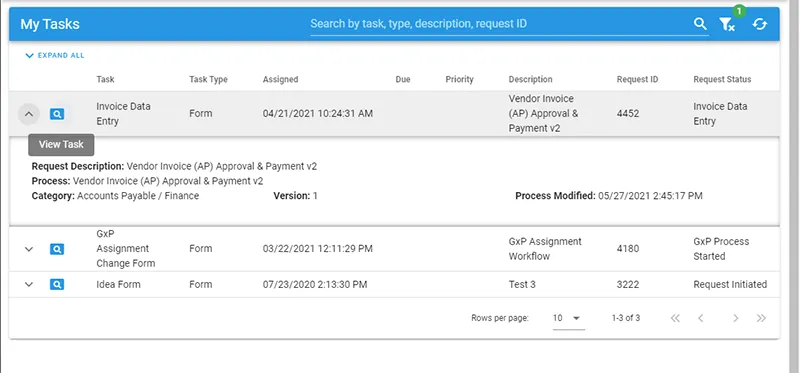
Select the magnifying glass icon next to a task to open it.
Starting with 8.24.0, tasks can open in the modern Request Detail experience. Available tabs and actions depend on your permissions and the request context. Use the Legacy/Modern switch to choose a view; Workflow Automation remembers your selection. Switching views while a task is open keeps its task area available.
The underlying Power Form runtime is unchanged. The legacy screenshot below illustrates an approval task; its layout can differ from the modern interface. Review the task and select the required action, such as approval, denial, or a request for more information.

You can also view the original form that was submitted by clicking the link next to Please see this form for more information.
Before completing a task, review the original form, Request Detail, or Request Flow View to confirm the request context. Use Discussion to ask for more information when needed. After completion, find the task under Completed Tasks rather than the default open-task list.
For an open task that another person must handle, see reassigning tasks. For new assignments during an absence, see delegating your tasks; delegation doesn’t move tasks already in your queue.