Configure task assignment with Task Assigner
The Task Assigner task enables manual, ad hoc assignment of users or groups to another task in a process. Use it when the required assignees change often and someone must choose them during the workflow.
The Task Assigner runtime uses the modern Baseline interface. Completing the task requires the assigned open task and valid recipient selections.
The following example shows a Task Assigner task named Assign Approvers. The assigned user can search for users in the system and assign them to a later Approval task.
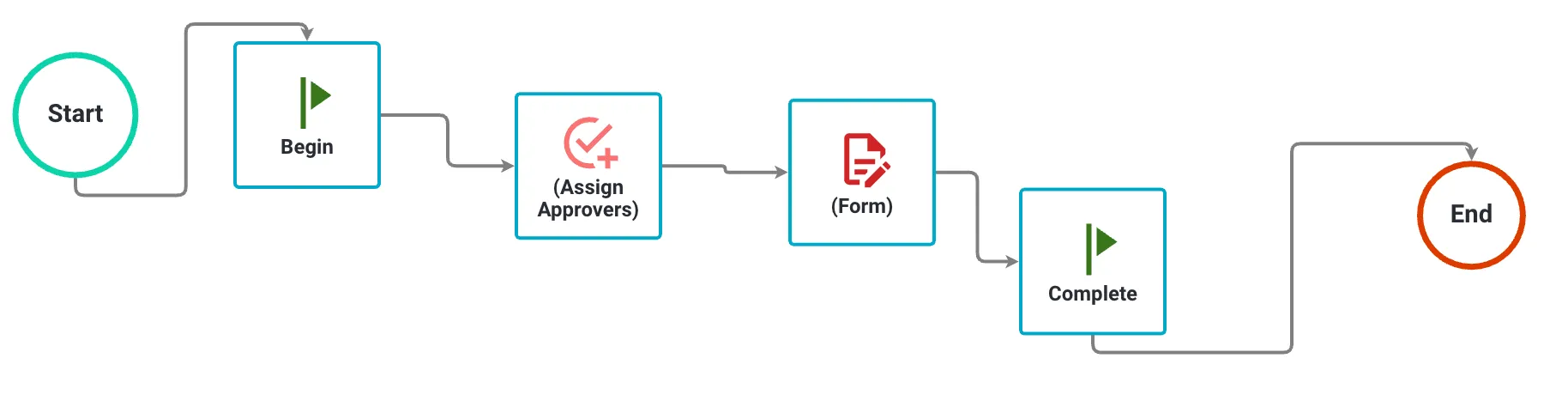
Configure later tasks before you configure the Task Assigner. Add the Task Assigner to the workflow, build the tasks it assigns, and then return to configure it.
Basic configuration
Use the task configuration dialog to choose the task that receives assigned users.
To configure the Task Assigner, hover over it and select Configure Task.
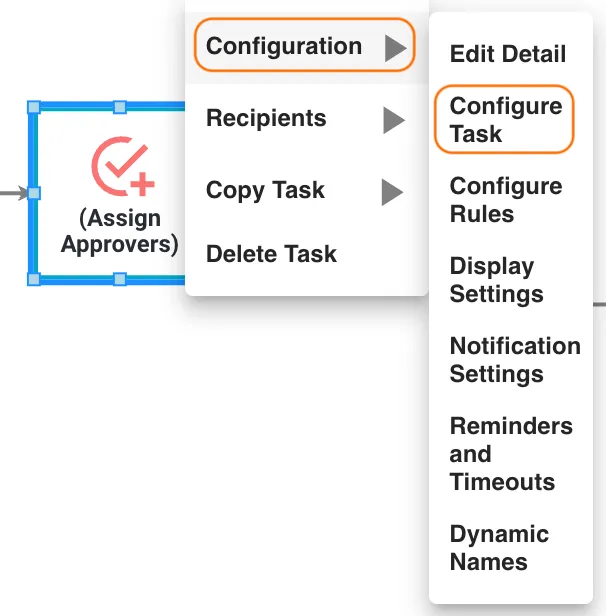
The configuration dialog opens.
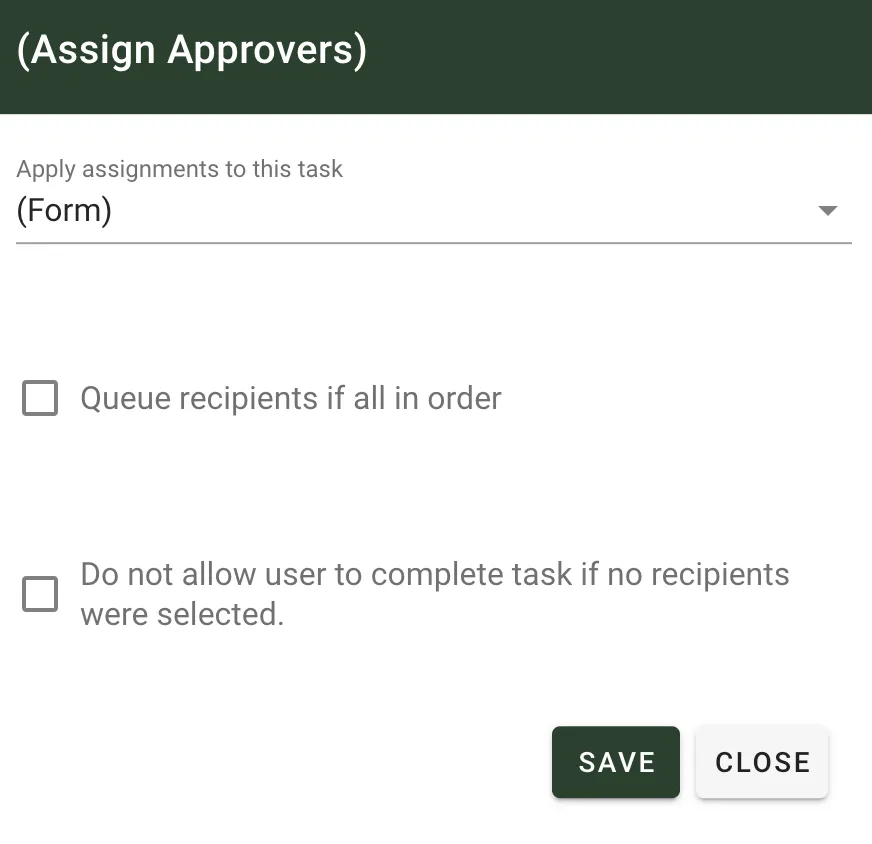
Use these settings to configure the assigned task.
| Attribute | Option | Required | Description |
|---|---|---|---|
| Apply Assignments to this task | Select List | Yes | Select the task that receives assigned recipients. |
| Queue recipients if all in order | Slide Button | No | Turn this on when recipients must complete the assigned task in order. In the Recipients dialog, select Each in Order and choose recipients in the order they should receive the task. |
| Do not allow user to complete task if no recipients were selected. | Slide Button | No | Turn this on to require at least one recipient before the Task Assigner can be completed. If this setting is off, the user can complete the task without selecting a recipient for the assigned task. |
After you configure the task, click Save.
Select recipients
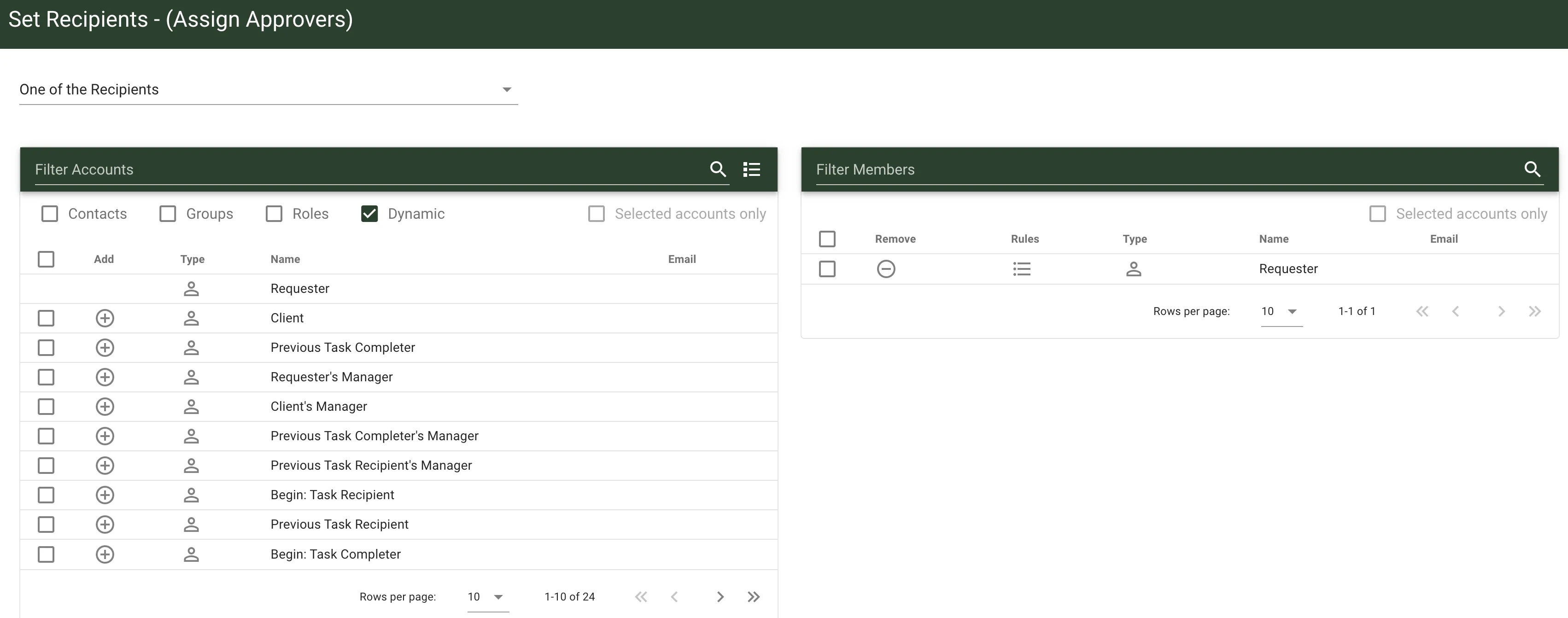
Use the Recipients option to choose who can receive the later task.
Hover over the Task Assigner and select Recipients. Then choose the users who will receive the later task.
This example selects Bob User and Bruce Smith as recipients, and they’ll complete the task in the selected order.
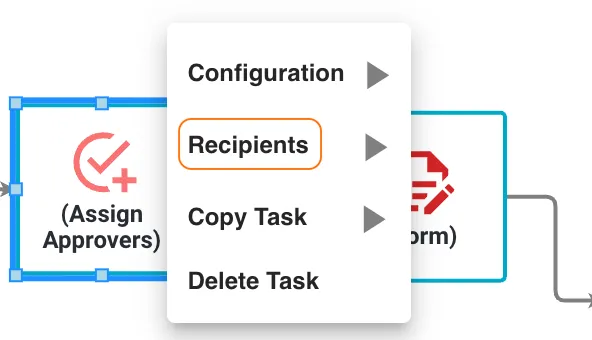
The recipients dialog opens with user and ordering options.
For ad hoc task assignments, refer to the form assigner guide. Form Assigner enables you to preset assignable users for a later task. Task Assigner doesn’t.