Report usage and audit activity
Report usage tracking shows administrators how teams use reports in Nutrient Workflow Automation. Enable tracking for individual reports to review execution history and monitor reporting activity across the system.
Use report usage tracking to:
- Review when users run a report.
- Identify who ran a report.
- Check whether a report ran from the user interface, an API call, a dashboard, or a schedule.
- Distinguish a report run from a data or attachment export.
- Monitor report activity trends, performance, and stale reports.
Your report and administration permissions determine whether you can access report audit data and usage views.
Enable usage tracking for a report
Enable usage tracking from the report details page.
- Navigate to Administration > Reports.
- Open the report you want to track.
- On the Report Detail tab, select Enable usage tracking.
- Enter a value in Audit log retention (days).
- Select Save.
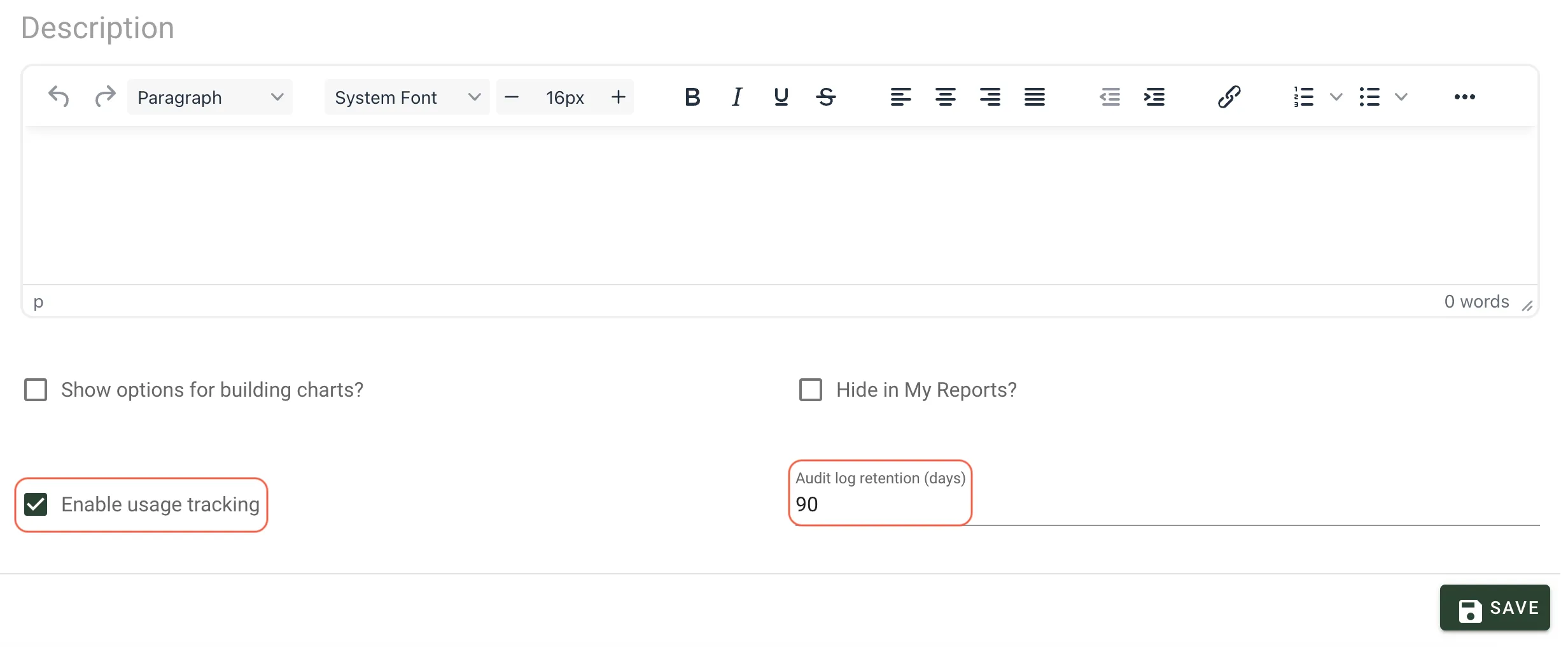
The retention value controls how long Nutrient Workflow Automation keeps audit records for that report. After the retention period ends, the system removes older audit entries.
Review a report’s audit log
After you enable usage tracking, open the report and select the Audit Log tab.
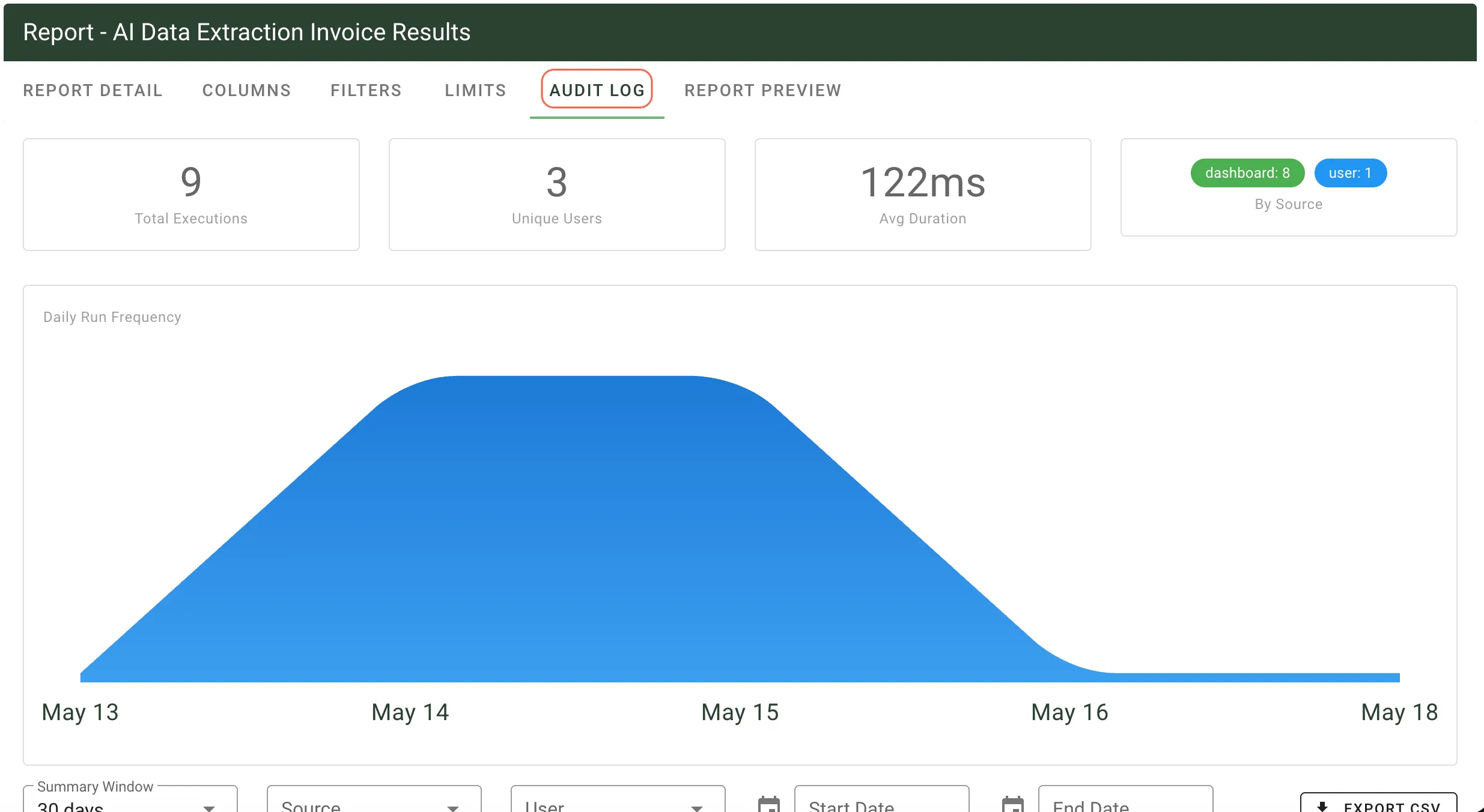
The Audit Log tab shows usage activity for the selected report. It includes summary cards for:
- Total Executions
- Unique Users
- Avg Duration
- By Source
When the report has enough history, the page also shows a Daily Run Frequency chart that helps you identify usage trends over time.
Filter and export audit data
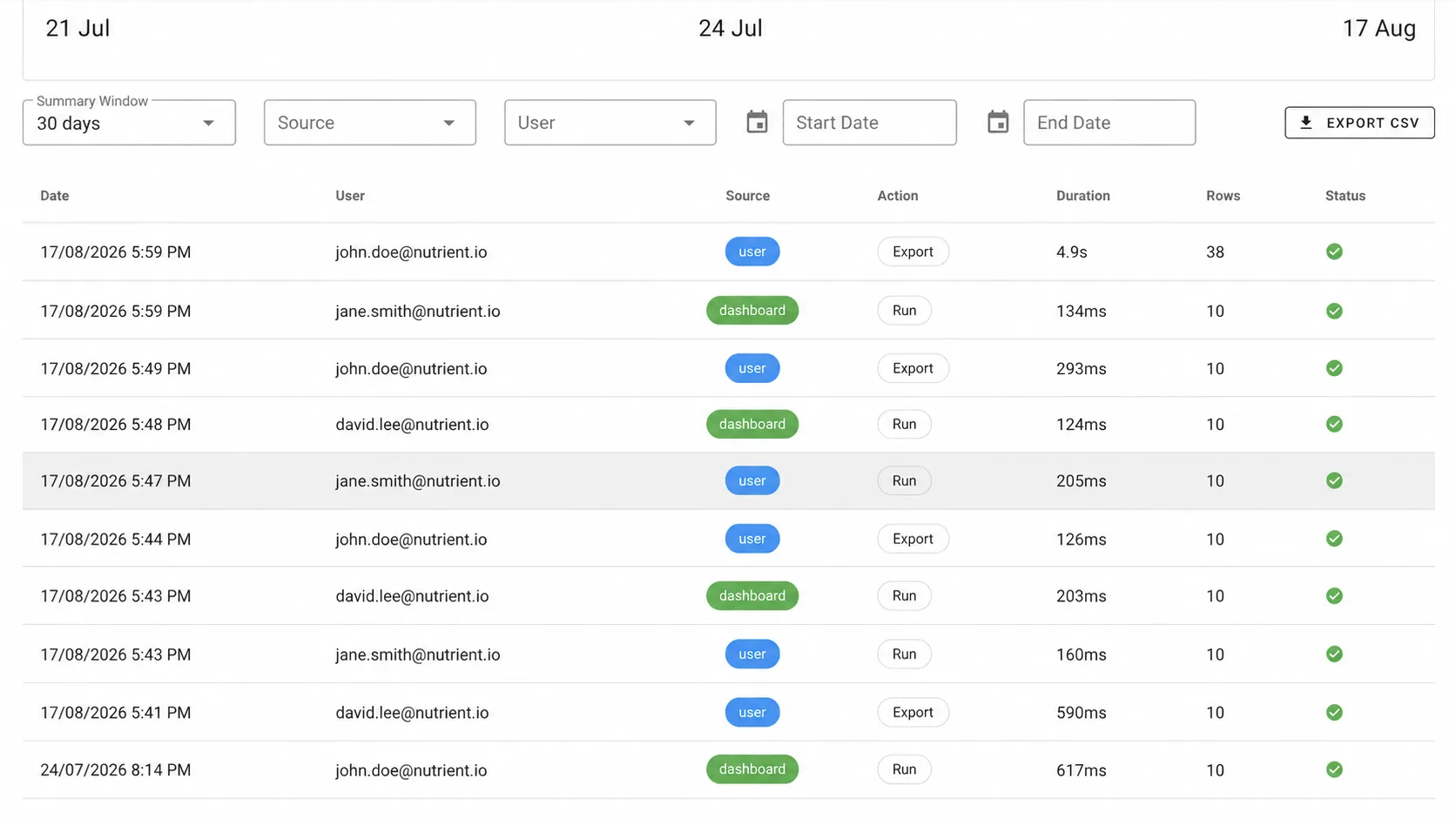
Use the filters on the Audit Log tab to narrow the results:
- Summary Window
- Source
- User
- Start Date
- End Date
The audit table shows details for each report run, including:
- Date
- User
- Source
- Action
- Duration
- Rows
- Status
Action distinguishes the two kinds of entry:
- Run — The report ran and returned its rows.
- Export — The report’s data or its attachments left the system as a file.
Attachment exports run in the background, so their audit log entry appears as soon as the export is queued. Then its status updates to Completed once the export finishes. Until then, the entry has no duration and its status remains Pending. For more information, refer to the exporting report data guide.
To download the filtered results, select Export CSV.
Review usage across all reports
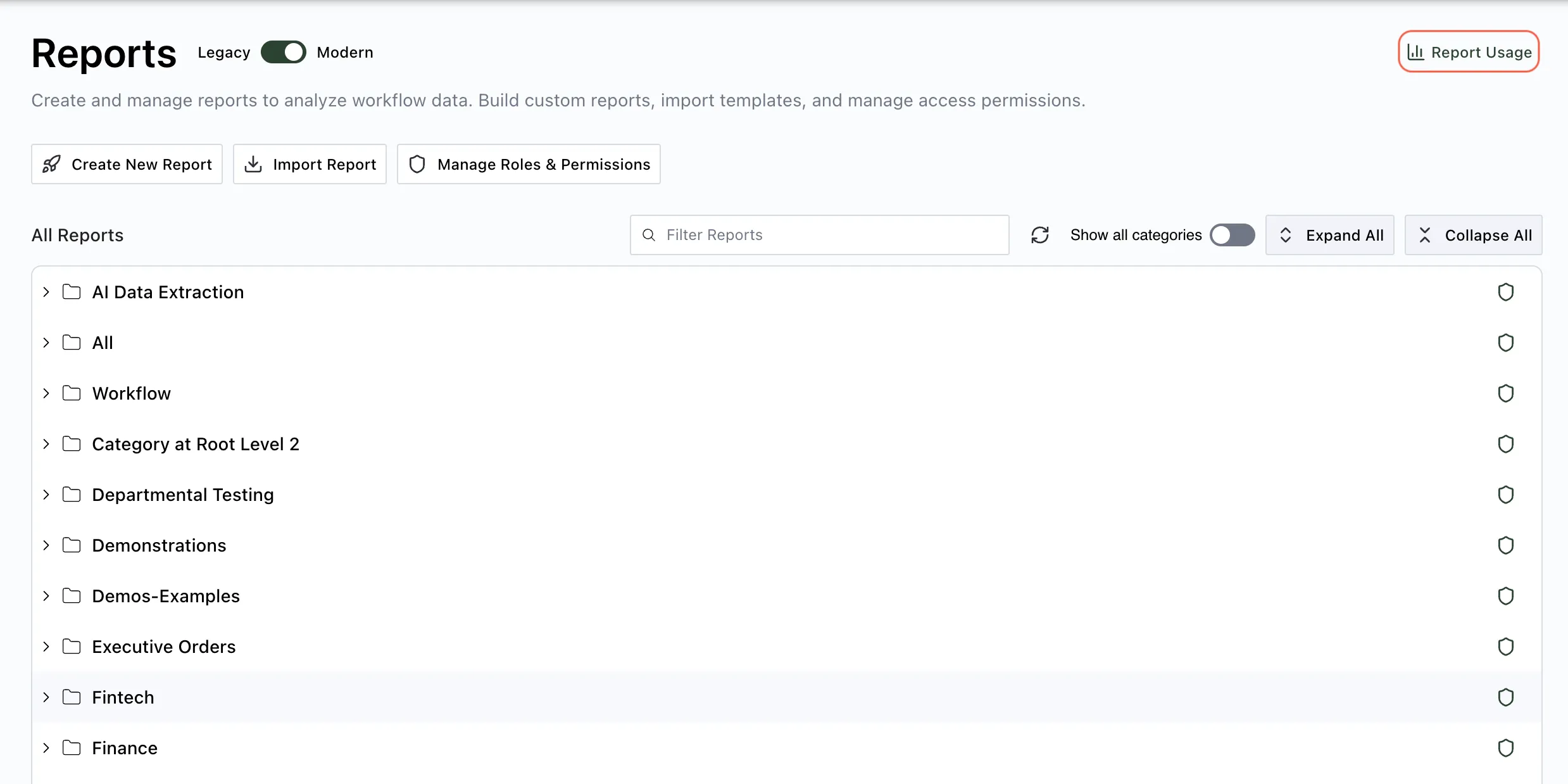
Review report activity across the system from the Reports page.
- Navigate to Administration > Reports.
- Select Report Usage in the upper-right corner.
The Report Usage Overview page shows the most-used and least-used reports.
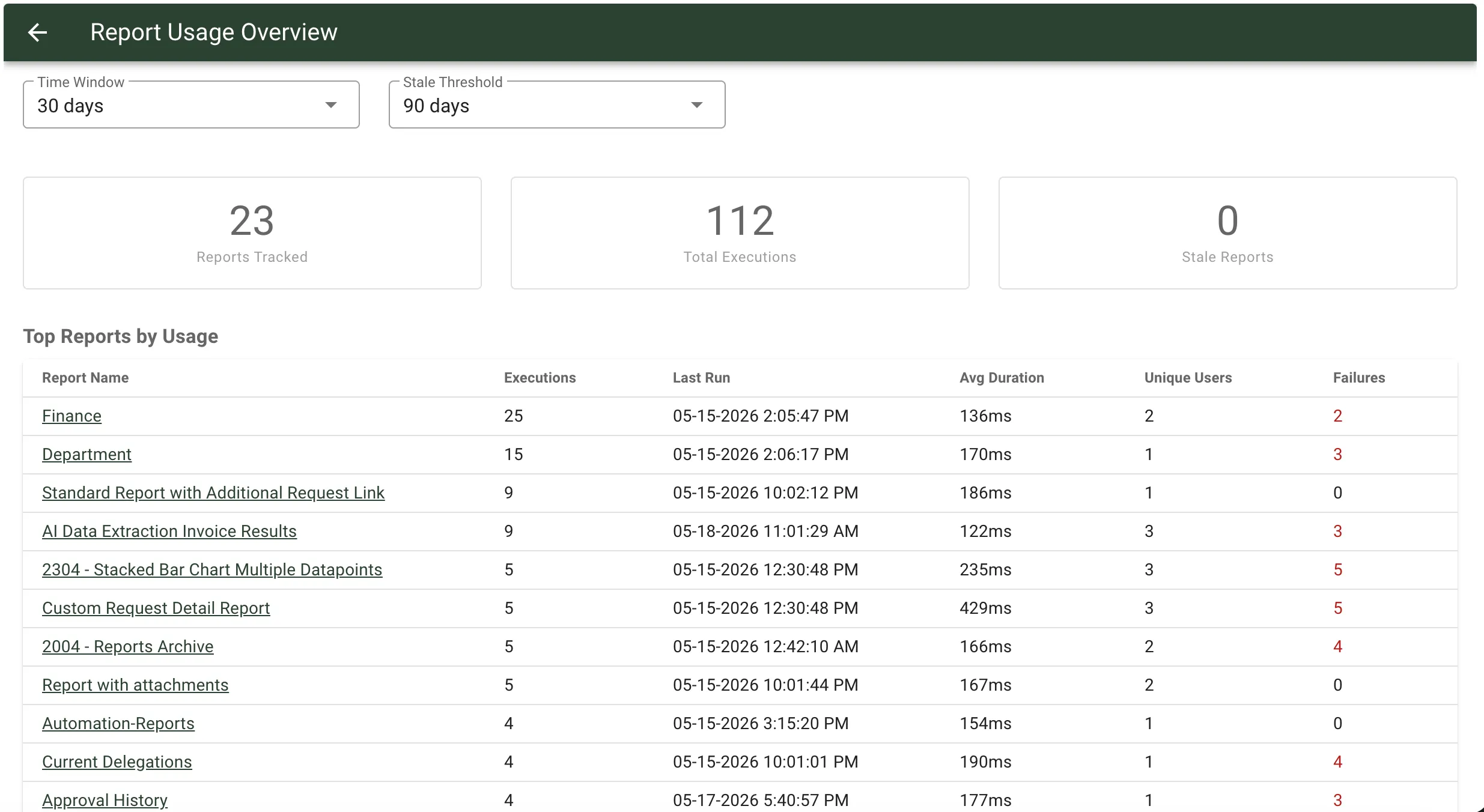
Use this page to:
- Adjust the Time Window for recent activity.
- Set the Stale Threshold used to identify inactive reports.
- Review summary cards for Reports Tracked, Total Executions, and Stale Reports.
- Review the Top Reports by Usage table.
- Review the Stale Reports table.
Select a report name in either table to open that report.
Understand report sources
Usage tracking groups report executions by source:
- User — A user ran the report directly.
- API — An API request ran the report. When the request uses an API key, the audit entry records the user associated with that API key and the API key prefix, which is the first six characters.
- Dashboard — A dashboard widget ran the report.
- Schedule — A scheduled job ran the report.
Use these source labels to understand how people and systems run reports across your environment.
For reports run with an API key, the audit log displays the user associated with the API key and the API key prefix, which is the first six characters. Nutrient Workflow Automation never stores the full API key.
For more information about creating and managing reports, refer to the reports library overview guide and the creating reports guide.