Process management: Copy, version, export

Use the Copy Process option to create a new process based on one that already exists when only small changes are needed.
Use the Version Process option to make changes to an existing process that’s currently in production.
Use the Export Process option to export a process as JSON.
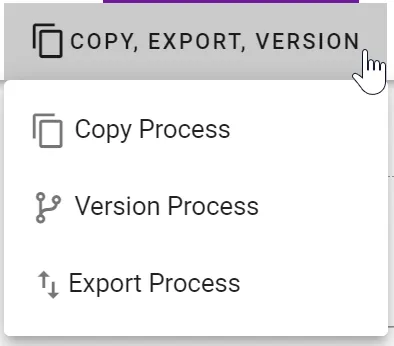
There’s a subtle distinction between the Copy Process and the Version Process options available on the Process Detail tab.
Copy Process — Will copy the entire process definition (tasks, business rules, recipients, etc.) and allocate a new unique process ID value. When you select Copy Process, you will notice that the ID value has incremented and the Name of the process will have changed to Copy of {Your Process Name}. The process will remain in the same category but you may change any of the Process Detail options at this time.
Version Process — Will copy the entire process definition (tasks, business rules, recipients, etc.), increment the Version value, and change the Publish Status to Development but leave the unique process ID value the same. When you select Version Process, you’ll notice that the version value has incremented and the Name of the process will have changed to Version of {Your Process Name}. The process will remain in the same category, but you may change any of the Process Detail options at this time.
Export a process for an earlier version
A process exported from version 8.21.0 or later includes rule data that earlier versions don’t recognize, so importing that file into an earlier version fails. Compatibility Export omits that data so the file can be imported.
To offer the choice at export time, set ShowProcessExportWarning to Yes in system settings. Export Process then opens a dialog with three options:
Standard Export — Downloads the standard process file. Use this when the file will be imported into version 8.21.0 or later.
Compatibility Export — Downloads the process file without the newer rule data. Use this when the file will be imported into a version earlier than 8.21.0.
Cancel — Closes the dialog without exporting.
Check the version of the target instance on its About screen.
When ShowProcessExportWarning is No, which is the default, Export Process downloads the file immediately with no prompt, and that file matches a Standard Export.
Note on multi-recipient handling — A Compatibility Export omits the Multi-recipient handling value from the process’s start rules and recipient rules. If a process uses that setting, reapply it after importing the file. For more information, refer to the rules editor guide.
Note on forms in a new version — When you version a process and then edit its forms, create copies of the existing forms and attach them to the form tasks in the new process. Otherwise, you’ll be editing the same forms in both the new and old versions of the process. Use the form’s References menu to see which other processes the form is used in.