Manage your database connections
Use database sources to save database connections in a reusable library. You can then select saved connections when you configure Database Push tasks, Database Pull tasks, or form field DB settings.
Add a database source
Open Database Sources from the settings menu, and then add a connection.
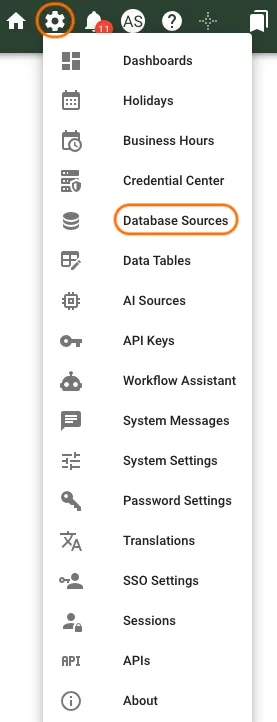
Hover over the Settings gear icon in the upper-right corner.
Select Database Sources.
Select Add Connection.
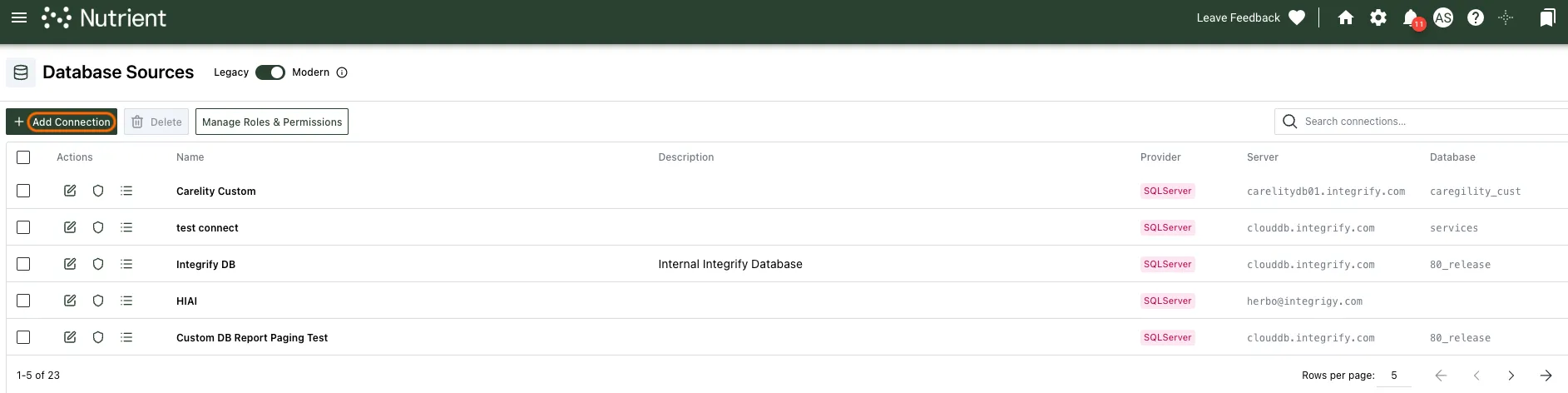
Nutrient Workflow Automation opens the Add Connection dialog.
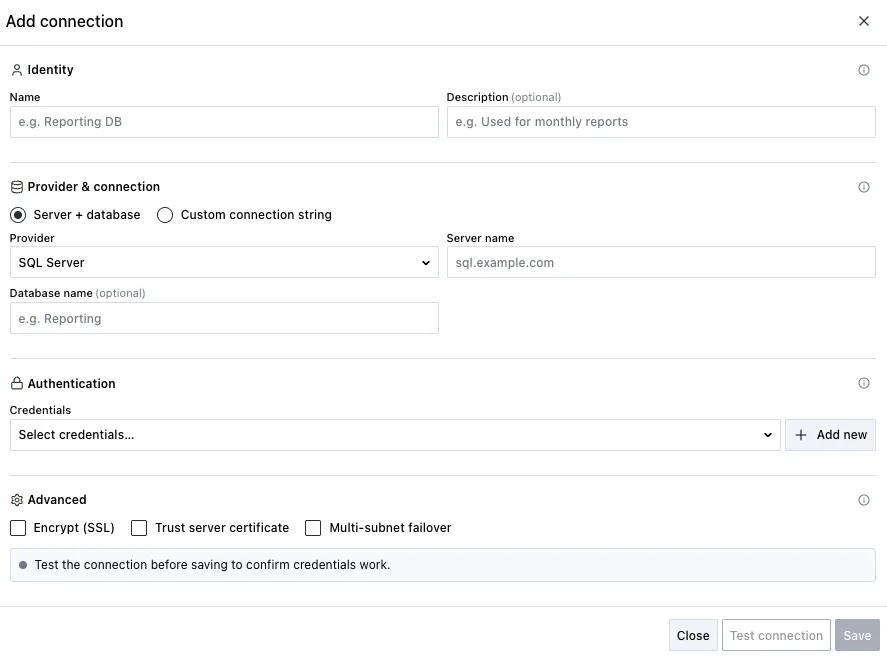
Configure the same database connection settings used by DB Push tasks, DB Pull tasks, and form field DB settings.
| Attribute | Option | Required | Description |
|---|---|---|---|
| Name | None | Yes | Enter the database connection name. |
| Description | None | No | Enter a database connection description. |
| Server | None | Yes | Enter the server or data source name for the connection. |
| Database Name | None | No | Enter the database name for the connection. |
| Username | None | Yes | Enter the username if the connection requires one. |
| Password | None | Yes | Enter the password if the connection requires one. |
| Provider | SQL Server, Oracle | No | Select the provider for your database environment. |
| Encrypt | Checkbox | No | For SQL Server connections, enable encryption when required by the database server. Runtime queries for Power Form database questions honor this setting. |
| Trust Server Certificate | Checkbox | No | For encrypted SQL Server connections, enable this option to trust the server certificate instead of validating it. |
| MultiSubnetFailover | Checkbox | No | For SQL Server connections, enable this option when connecting to a multisubnet availability group. |
| Use Custom Connection String | Checkbox | No | Select this option to use a custom connection string. |
| Custom Connection String | Appears when you select Use Custom Connection String | No | Enter the database connection string. If you don’t enter one, Nutrient Workflow Automation uses its internal database. To keep a saved connection string when you edit a connection, leave this field blank. Refer to update a saved connection string for more details. |
Use these examples when you enter a custom connection string.
For SQL Server, use this format:
Password=YourPassword;User ID=YourUserid;Initial Catalog=YourCatalog;Data Source=YourServerFor Oracle, use this format:
Password=YourPassword;User ID=YourUserID;Data Source=YourSchemaAfter you add the database details, select Test Connection to test the configuration. After a successful test, select Save.
Power Form database questions also use these saved connection options for runtime queries. They honor Encrypt, Trust Server Certificate, and MultiSubnetFailover, so an encrypted connection doesn’t need a custom connection string to work with a Power Form question.
Use a saved database source
Saved database sources appear anywhere Nutrient Workflow Automation needs a database connection.
For example, a Database Source named Integrify DB appears as a Connection option in DB Push and DB Pull task settings.
The same saved database source also appears in the DB settings tab for a form field.
Update a saved connection string
Nutrient Workflow Automation never returns a saved connection string to the browser, because it can contain the database password.
When you reopen a connection that has a saved connection string, the Custom Connection String field appears empty. The field shows a masked placeholder and a hint that confirms a stored value exists.
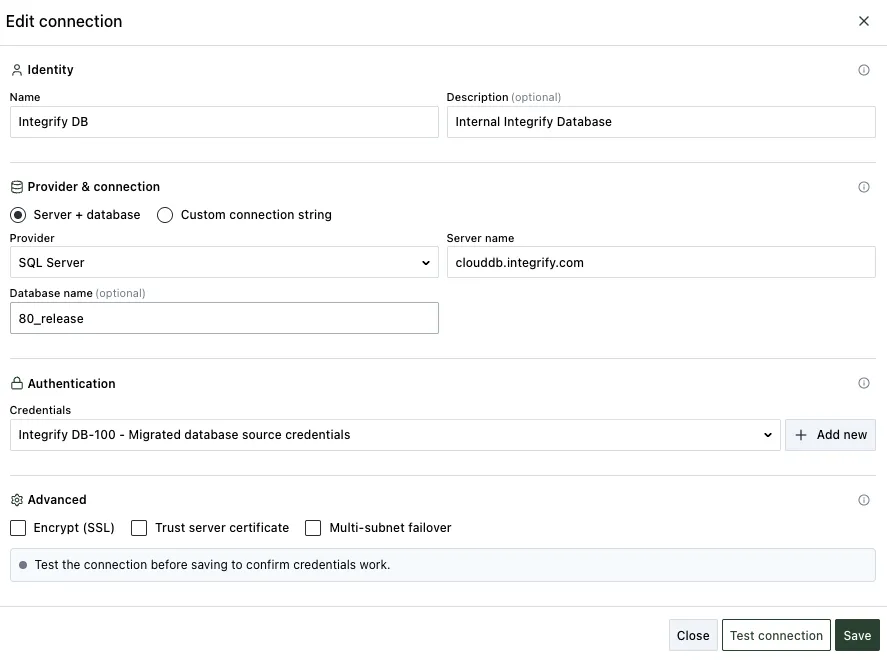
Use the field based on what you need to change:
- To keep the saved connection string, leave the field blank.
- To replace the saved connection string, enter the new value.
Test Connection and Save both work when you leave the field blank.
The dialog doesn’t include an option to clear a stored connection string. The stored value remains until you replace it.
When the hint says a connection string is stored, leave Custom Connection String blank to keep it. The hint distinguishes a stored value from a connection without one.
Nutrient Workflow Automation withholds saved database credentials in the same way. API responses that a user token can read omit connection strings, database usernames, and database passwords.