Add attachments to your forms
Use this procedure when users must download a provided document, complete it, and upload it with a form. It creates a download link in Form Text and a separate File Attachment question for the completed file. It doesn’t upload the completed file automatically.
Click the Process Detail tab of your process and upload the document you want to use in the attachments section.
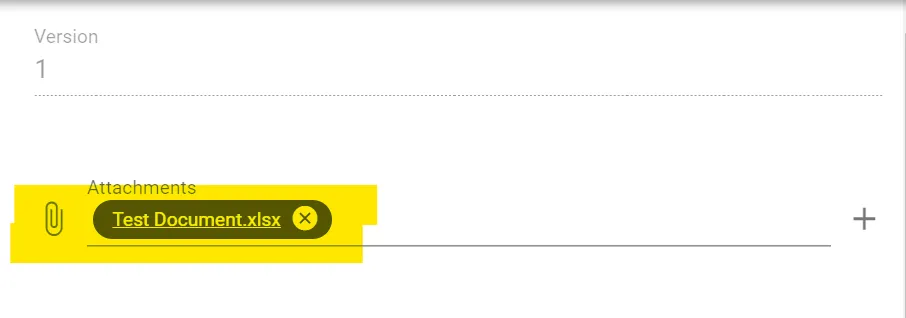
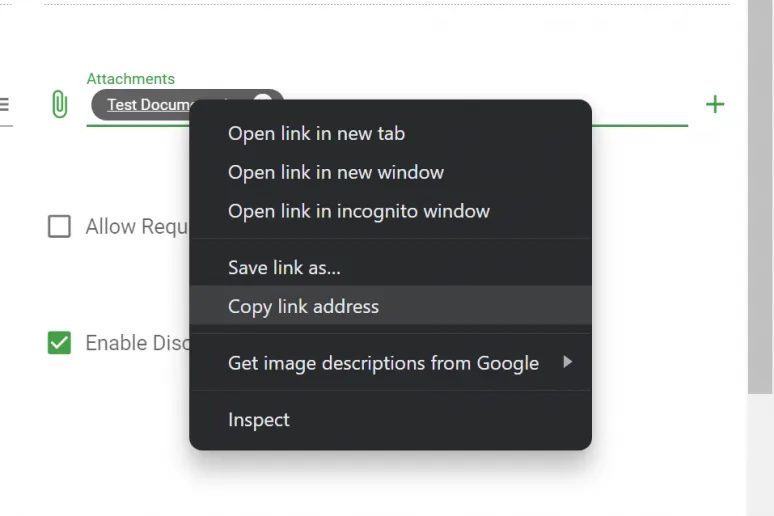
After the document is uploaded, right-click the name and select Copy link address.
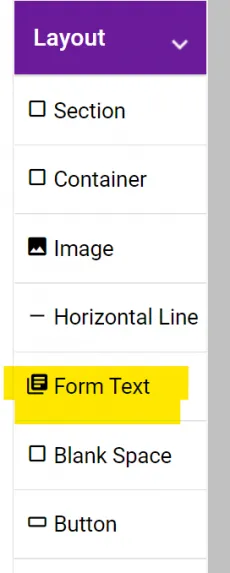
Go to the Form Designer portion of the form you want the attachment to show on. Go to Layout > Form Text on the left-hand side and drag it in.
After adding the form text, write the text the end user needs to click to download the file. Then, highlight the text you want to link, and click the link icon.
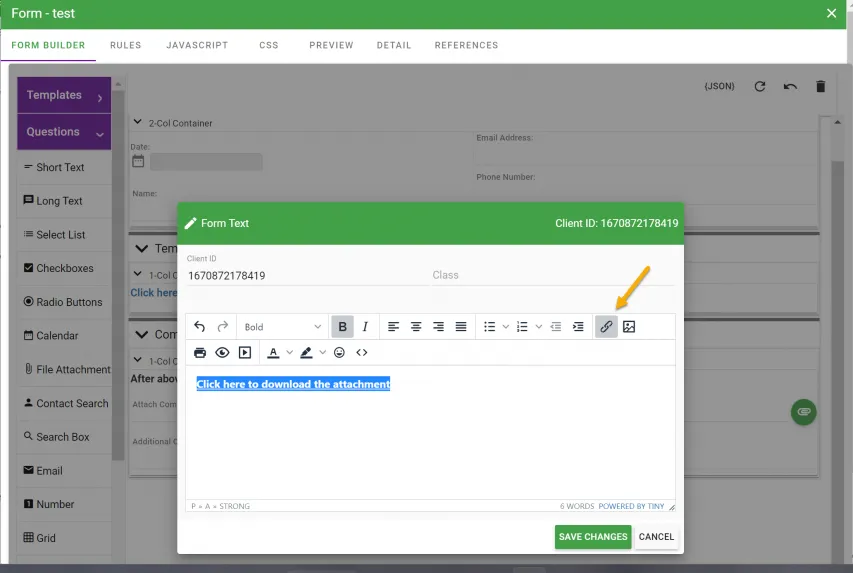
Paste the link in the URL section and save.
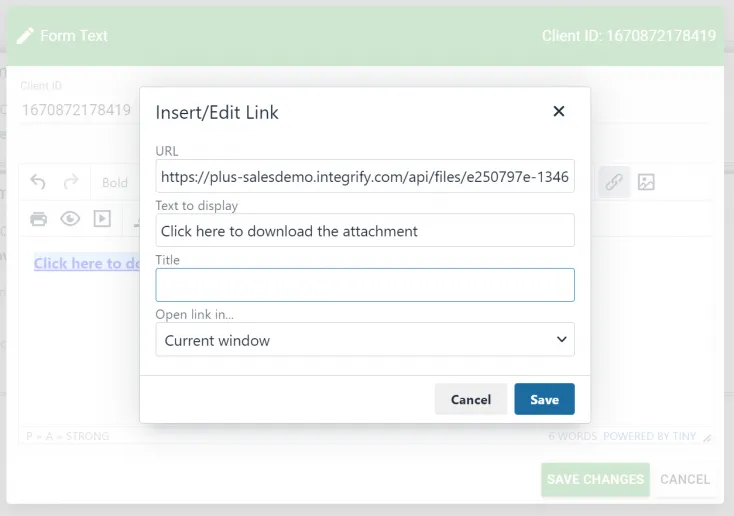
Tell the user to complete the downloaded document. Add a File Attachment question so the user can upload the completed file.
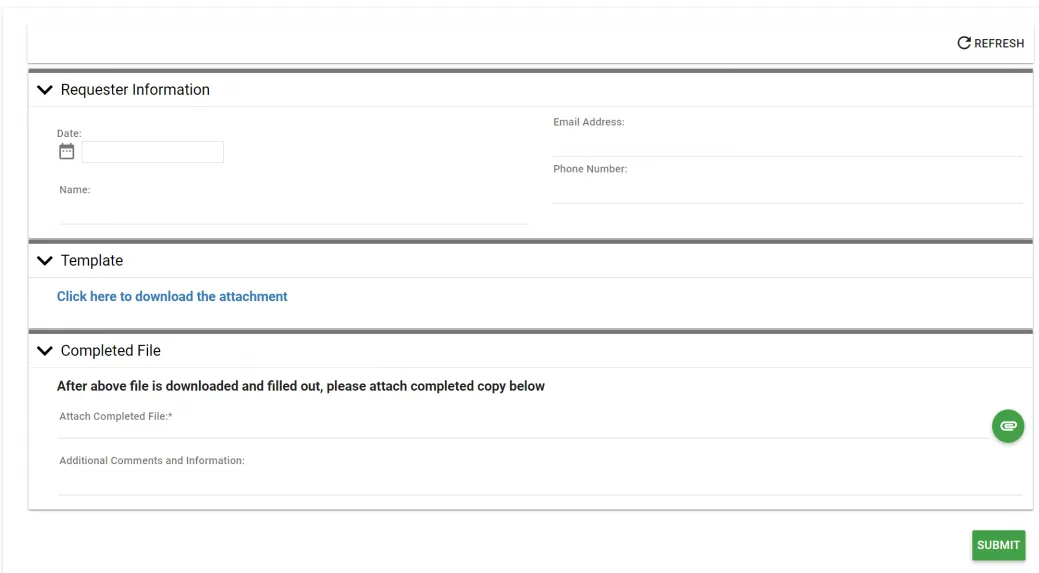
Use Preview to check the download link and the File Attachment question. Before you rely on the form in a process, test it with a sample request. Confirm that users can access the linked document and upload the completed copy.