Optimize your processes with AWS Lambda integration
AWS Lambda is a serverless compute service that runs your code in response to events and automatically manages the underlying compute resources for you.
We provide an AWS Lambda integration task that you can use in processes for a variety of functions based on your organization’s needs.
AWS Lambda tasks available in Nutrient Workflow Automation
The following table lists the publicly available Lambda functions and how to configure them.
| Function | Description | Use case example | Input parameters | Fields to capture |
|---|---|---|---|---|
| Get a CSV export of a Nutrient Workflow Automation report | Grab Nutrient Workflow Automation report data as part of a process. | Allow loan supervisors to request a list of recent loan applicants. | reportSid, csvFileName | fileKey, fileName |
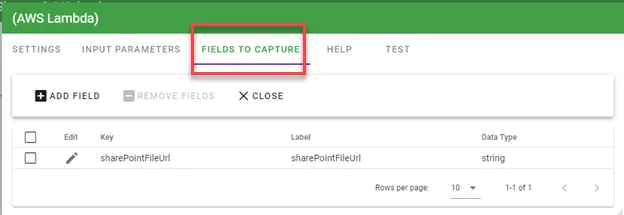
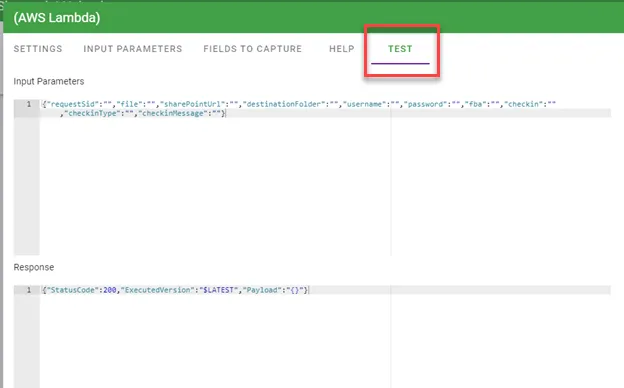
| Upload a Nutrient Workflow Automation file to a SharePoint folder | Push files attached in a process to SharePoint. | Store completed, approved expense request forms in a SharePoint folder. | requestSid, file, sharePointUrl, destinationFolder, username, password, fba, checkin, checkinType, checkinMessage | sharePointFileUrl |
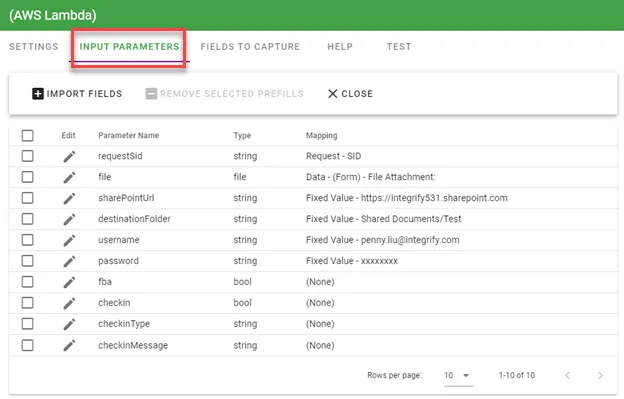
You can import the relevant parameters by clicking Import Parameters after selecting a Lambda task and saving it. See the example below.
Lambda task example – Push a file to SharePoint
In the following example, we use the AWS Lambda Task to push a file to SharePoint.
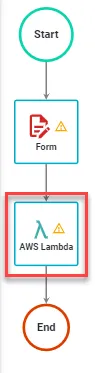
First, insert the AWS Lambda Task into your process. You can find the Lambda task under Integration task to the left of the process builder view.
In this case, we added the Lambda task after a Form Task, where the file is uploaded.
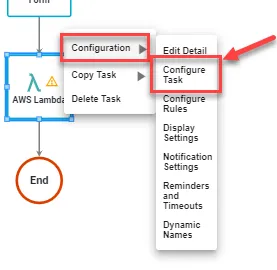
Then we configure the task by right-clicking the AWS Lambda task, hovering over Configuration, and selecting the Configure Task option.
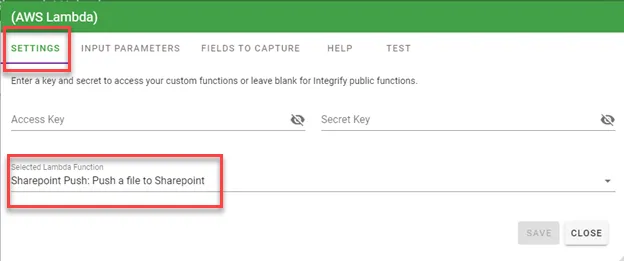
We selected the SETTINGS option on the top menu and selected the Lambda function: Sharepoint Push.
We then clicked on the Input Parameters tab, clicked Import Parameters, and entered the following.
Then we select Fields to Capture and add the sharePointFileUrl.
Lastly, we select the TEST option to confirm the connection, mappings, and response. The test sends the authenticated user’s access token, matching runtime execution for Lambda functions that require an accessToken.
Once the configuration is complete, the process is ready to execute.