Data table management
Use the Data Tables feature to create and manage custom database tables from the Workflow Automation UI. Use these tables to store list values, routing data, dropdown inputs, and other structured data for forms and workflows. You can also register supported existing tables from external database connections and manage them in Workflow.
Who is this for?
- Form owners, process owners, and workflow builders who need to keep forms and workflows aligned with changing data values.
- Administrators and system owners who manage structured data for routing, lookups, and configuration.
- Teams connecting external data who need to register and work with supported tables from external database connections.
What you can do
- Create and register tables — Create new database tables from scratch or register existing tables from an external database source.
- Manage table data — Add, edit, and delete rows. Import data from CSV files or export table contents.
- Edit table schema — Add, drop, rename, and alter columns on your tables.
- View the changelog — Review an audit trail of all changes, including who made each change and when.
Where to find it
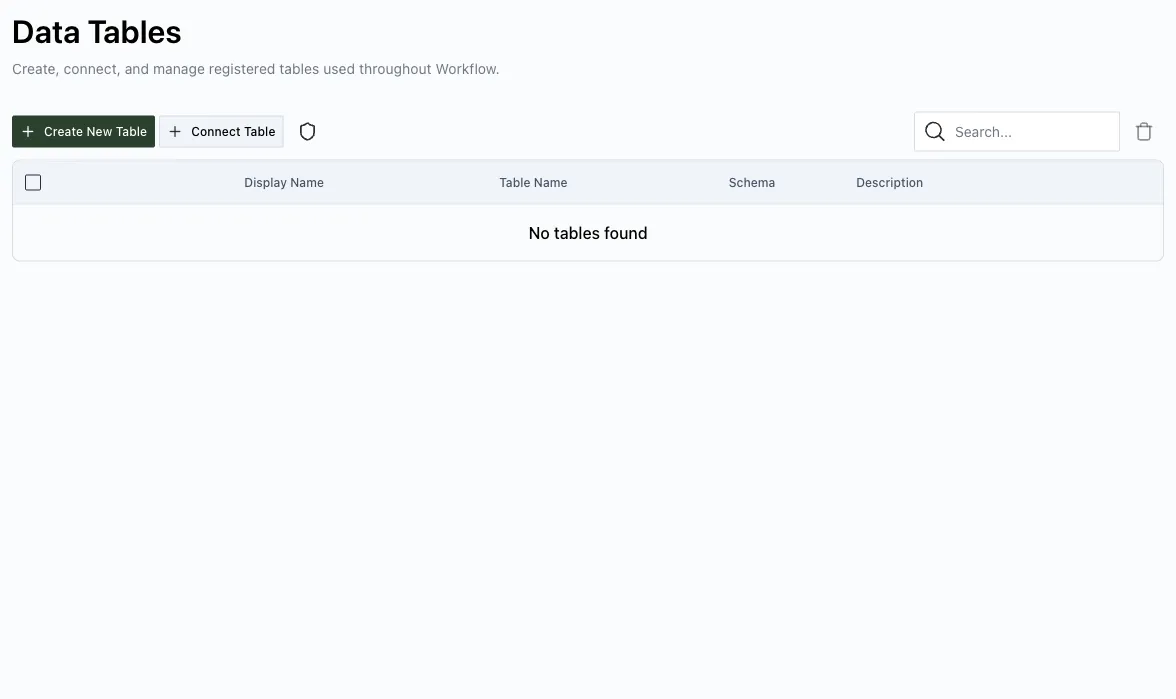
Navigate to Settings > Data Tables in the Workflow dashboard top toolbar.
Prerequisites
- This feature is available only in certain Workflow Automation deployment tiers: Enhanced Cloud, Self-Managed, and Private Cluster. It isn’t available in Standard Cloud.
- You need system administrator privileges to create and register tables and to manage table schemas. Row-level operations such as adding, editing, and deleting data require per-table permissions assigned by an administrator.
Permissions overview
Data tables use per-table access control. Each table has its own permissions.
| Permission | What it enables |
|---|---|
| View | See the table, its data, and its changelog |
| Create | Register or create new tables |
| Edit | Modify table schemas (add, rename, alter, drop columns) |
| Delete | Remove table registrations |
| Run | Insert, update, and delete rows; import CSV data |
| Grant | Manage permissions for a specific table |
When you create a table, the platform automatically grants you full admin access. Other users have no access until you explicitly grant it.