Monitor workflow requests
Administrators can give any user access to monitor requests for a particular process or at the system scope. Once a user has Monitor permission, they can view requests submitted to the processes they’re permitted to monitor, regardless of who submits the request.
System-scope Monitor permission is honored for non-administrator users, including on the Monitor and Manage Requests page.
The video below provides an overview of how to monitor and manage requests in the Workflow Automation platform. It covers the steps to access the monitoring features, filter requests, and view detailed information about specific requests.
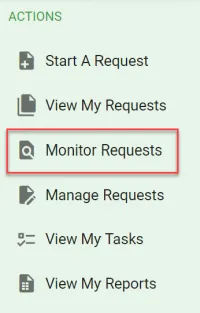
First, select Monitor Requests from your left-side navigation pane. This will display a new tab called Monitor Requests.
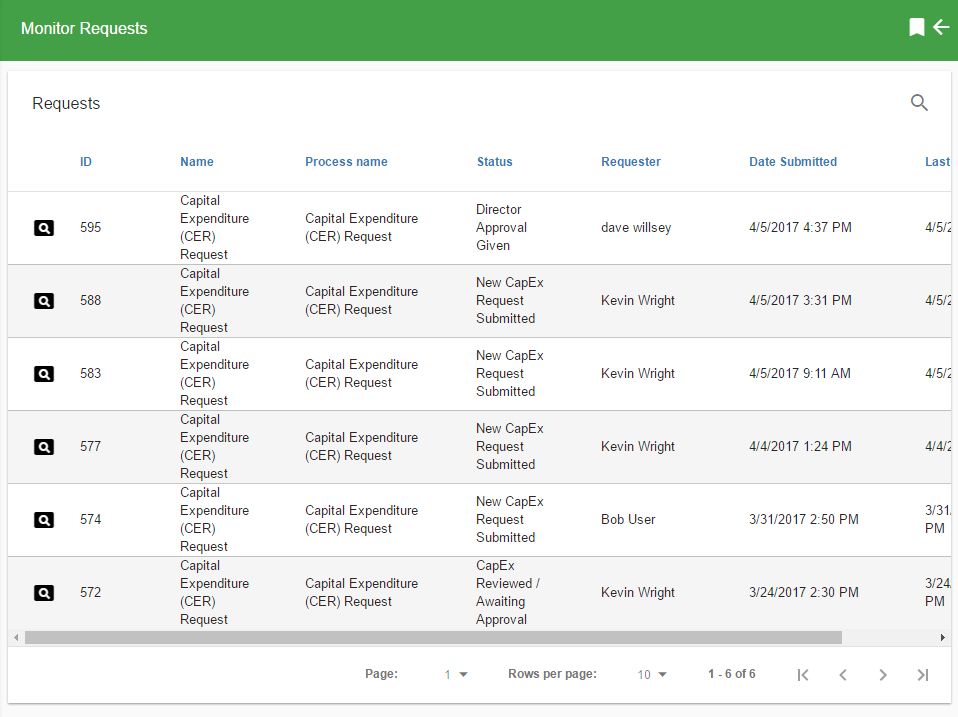
With this view, you can see all request activity from any user for the process(es) you’re a monitor for.
This view is read-only. Use Search to narrow the list by the relevant process or request before opening a request. Monitor permission alone doesn’t enable resetting tasks, changing recipients, or deleting requests. Those actions belong to Manage Requests and require manage access.

If you’d like to search for a number in the name or description, place % at the beginning of the search.
The example below shows a filter that renders the request activity for a capital expenditure request process.
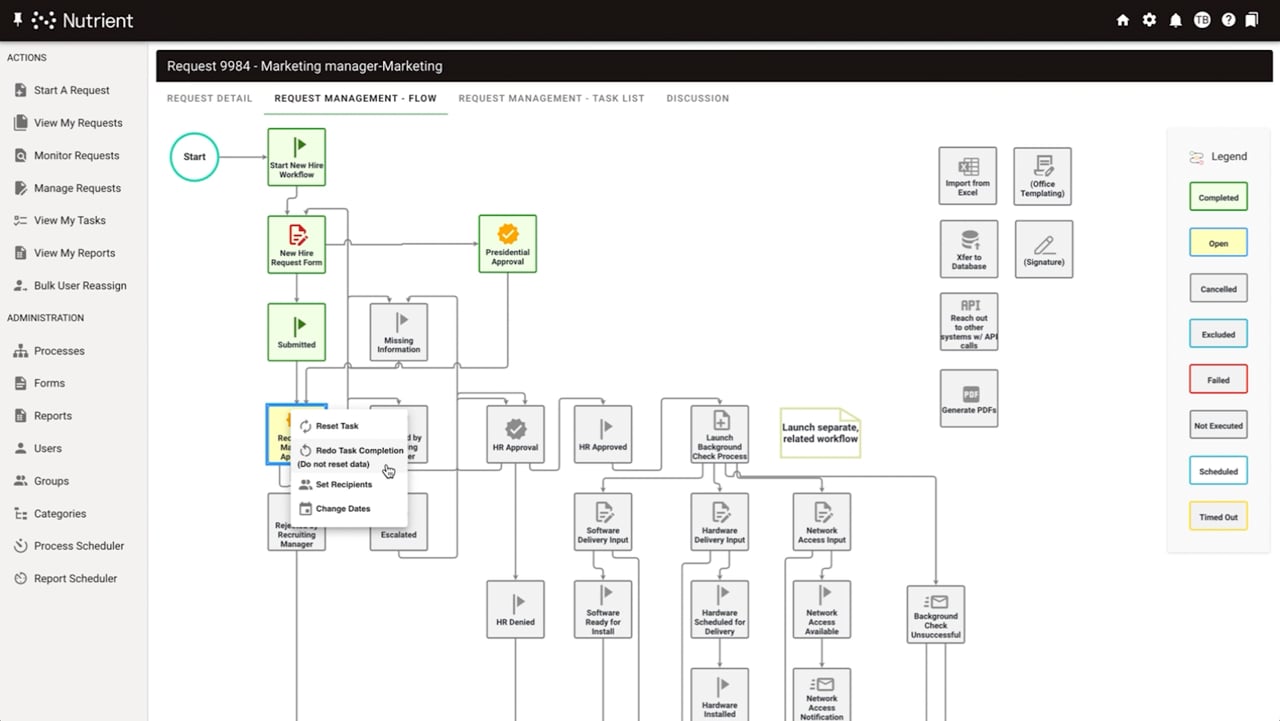
To investigate a request, select its view icon and check the request ID, status, and task history. If a task requires reassignment or a reset, contact someone with manage access instead of treating monitoring as an edit permission.