How to define key performance indicators for processes
A process designer can add KPIs (Key Performance Indicators) to a process by going to the KPIs tab while in Process Design and then clicking on the ADD NEW KPI button.
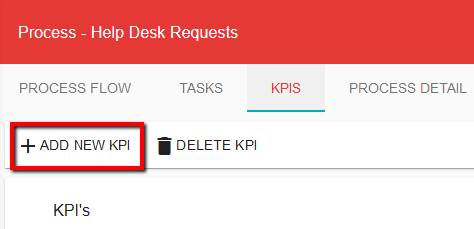
The Add KPI dialog box will appear. Enter an appropriate name that describes the KPI measurement that you are defining.
Next, enter the parameters that define the KPI.
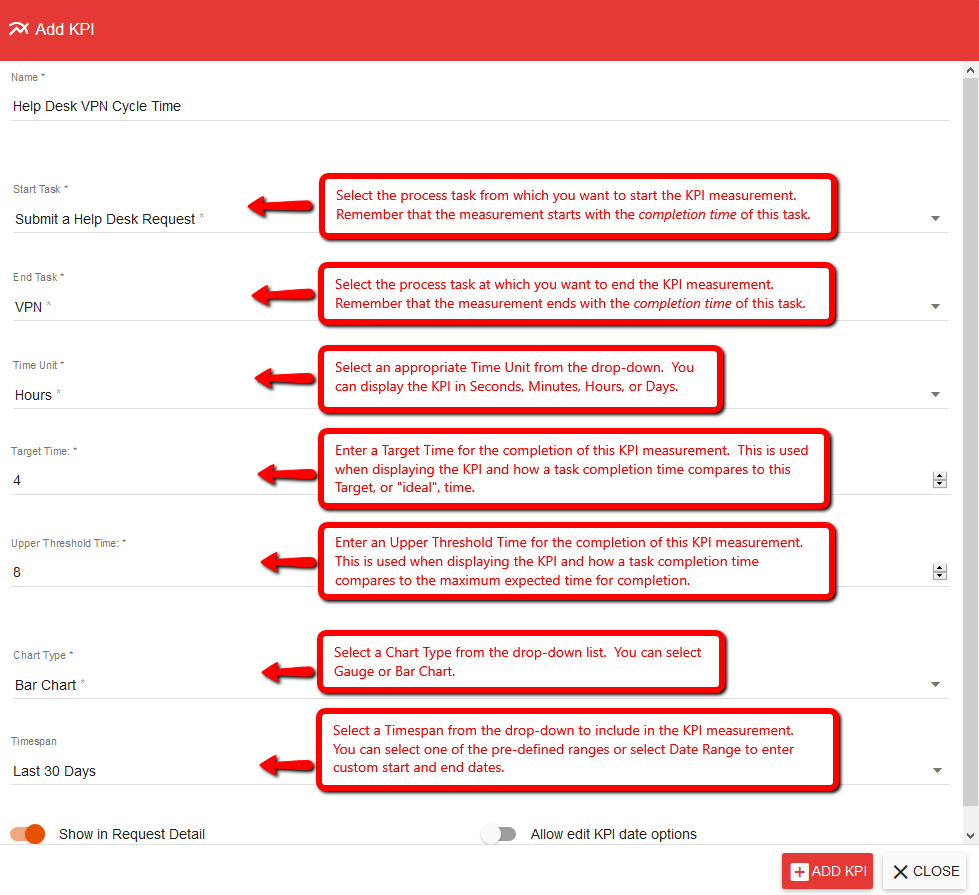
- To show the KPI for an individual request on the Request Details tab, toggle on the Show in Request Detail option. To not show the KPI on the Request Details tab, toggle off this option. If this option is toggled Off, the KPI will still be available in the KPI Widget when building Dashboards.
- To allow a user to change the KPI Timespan while viewing a KPI, toggle on the Allow edit KPI date options. To not allow entering alternate timespans, toggle this option off.
- Click the ADD KPI button (or UPDATE KPI button) to save your KPI definition.