Optimize task display settings for better efficiency
The Display Settings for any task impact either how the task is displayed as an open task to the end-user that the task has been assigned to.
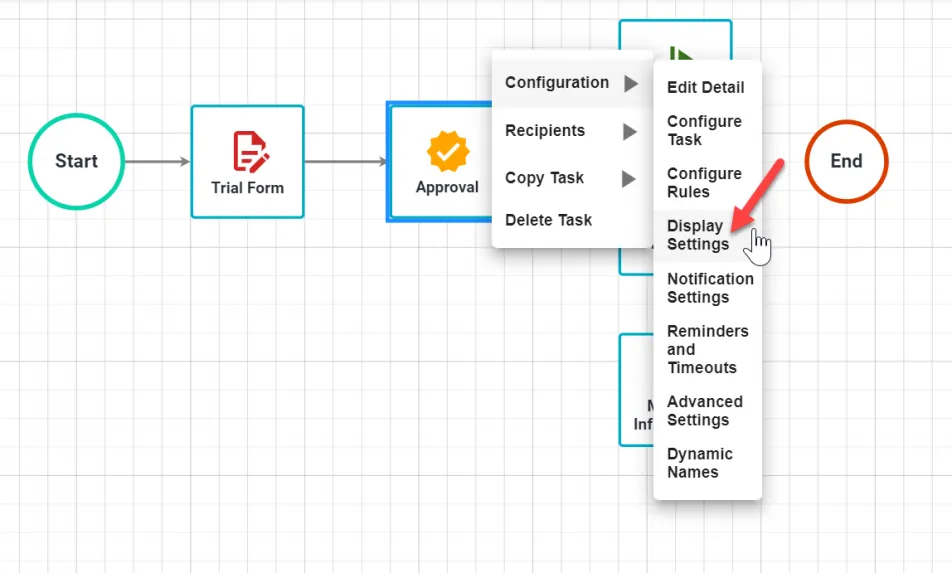
To edit the Display Settings, right-click on the task, hover over Configuration, and click Display Settings.
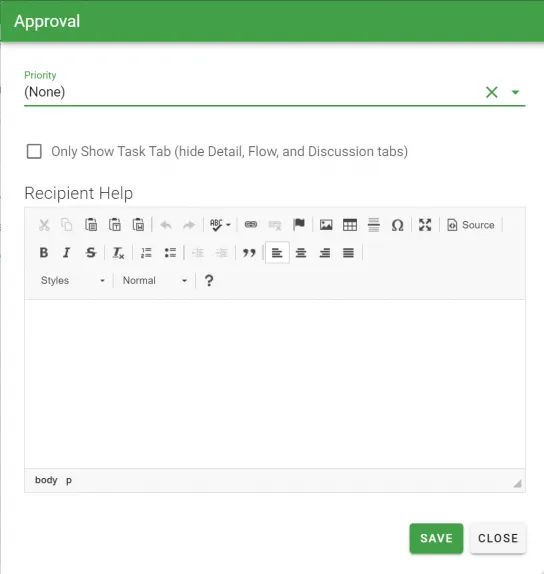
There are 3 items to manage:
- Priority Indicators
- Only show****task tab for the task recipient(s)
- Entering Recipient Help for their task
Priority Indicators
By assigning a priority to a task, it will display the priority text (High, Medium, Low) for the task to the end user on his/her for any widget that displays open tasks.

Note: A task can only have one priority associated with it.
To assign a priority to your task simply select on of the three priority values from the Priority list:
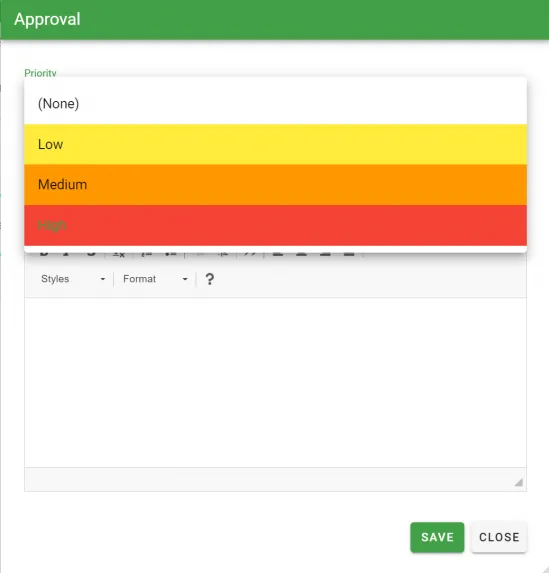
Select Save when complete.
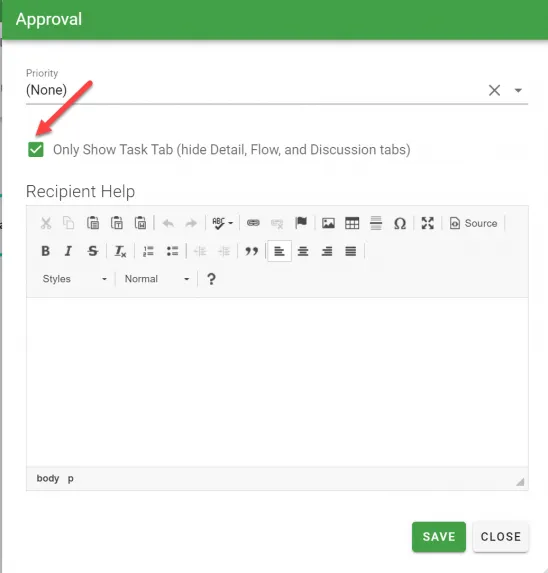
Only show task tab (hide detail, flow, and comment tabs)
By default, this will not be selected so every task will include tabs for the request’s Detail, the Flow View, and Comments tabs**** that the task recipient can access.
Check this option if you want the task recipient(s) to only see and complete the task without seeing the request’s details, flow view, or having the ability to see and add comments:
Recipient help
For any non-system task (such as a Form or Approval task) you may add additional help text. This help text will be display just above the task to be completed:
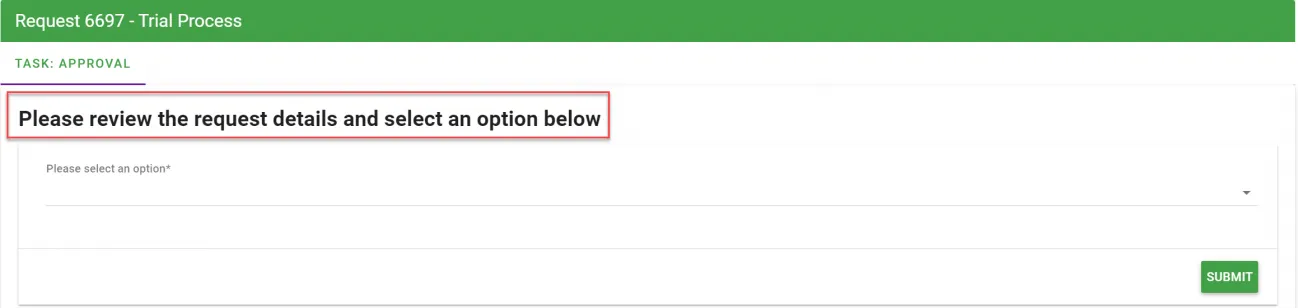
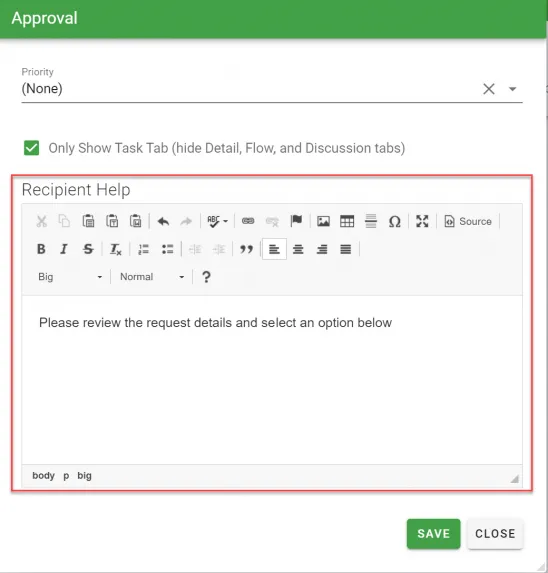
To add help text, just add the information in the Recipient Help editor and press Save when complete.
The help text will be displayed the next time that task executes.
Warning: The combination of raw text and HTML/formatting mark-up is limited to 800 total characters. To assess the same, you may view the help text ‘source’ (by using ’< >’ control in the menu). Attempts to save help text in excess of this limit will not replace existing help text and, as of this writing (2/6/2020), you will not be warned that your changes have not been saved. Integrify DB reference: PROCESS_TASK.HELP_NOTES (nvarchar(800),null)