Export report data
Any report you can run, you can export. There are two kinds:
| Export | What you get | How it arrives | Feature availability |
|---|---|---|---|
| Report rows | The report’s data as a spreadsheet or delimited file | Downloads to your device immediately | Always available |
| Report attachments | The files in the report’s attachment columns, as ZIP archives | Builds in the background; arrives by notification | Off by default; an administrator must enable it |
Don’t confuse either with COPY, EXPORT > Export Report on the Report Detail tab, shown below, which saves the report’s configuration for import elsewhere — no rows, no attachments. For more information, refer to the creating reports guide.

Export the report rows
- Open the report and select Export.
- If the report has filters applied, select Use Current Filters to export only the rows you’re currently looking at.
- Under Export Format, choose the file you want:
| Format | File |
|---|---|
| Comma Delimited | .csv |
| Tab Delimited | Tab-separated .txt |
| Excel | .xlsx workbook |
| Excel (Legacy) | .xls workbook, for older versions of Excel |
- Under Limit Results, choose how many rows to export — 100, 1000, or All.
- Select Export.
The file downloads to your device immediately, named after the report.
On a dashboard report widget, the same options are available from the widget’s export control. Charts add a PNG option that saves the chart as an image. For more information, refer to the adding a report to a dashboard guide.
Export report attachments
When a report shows file attachments, you can download all of those files at once instead of opening each row and saving attachments one at a time.
Use attachment exports to:
- Collect supporting documents for an audit or a customer request.
- Hand a filtered set of request files to someone outside the system.
- Archive the files behind a process without visiting each request.
Before you start
Attachment export requires all of the following:
- The system setting is on. An administrator must set
ReportAttachmentsExportto Yes. It’s No by default, and while it’s off, the Export Attachments options don’t appear. For more information, refer to the system settings guide. - The report has at least one attachment column. Set the column’s format to either Attachment or Attachment - Icon — both hold files, and you can export either one. For more information, refer to the report columns guide.
- The report identifies the request each row belongs to. Each attachment belongs to a specific request, so the report needs a column that makes that connection. Any one of these satisfies it:
| Column | How to add it |
|---|---|
| Request Link | A column with the Request Link format, or the Request > Request Link field |
| Intranet Request Link | The Request > Intranet Request Link field |
| Request ID | The Request > ID field |
Reports also include a built-in request link unless Hide Link is turned on for the report, which on its own is often enough. If nothing identifies the request, Nutrient Workflow Automation displays a Cannot export attachments message instead of starting the export.
- You can run the report. Anyone with permission to run a report can export its attachments — you don’t need administrator access. This feature doesn’t change report permissions. For more information, refer to the permissions overview guide.
Start the export
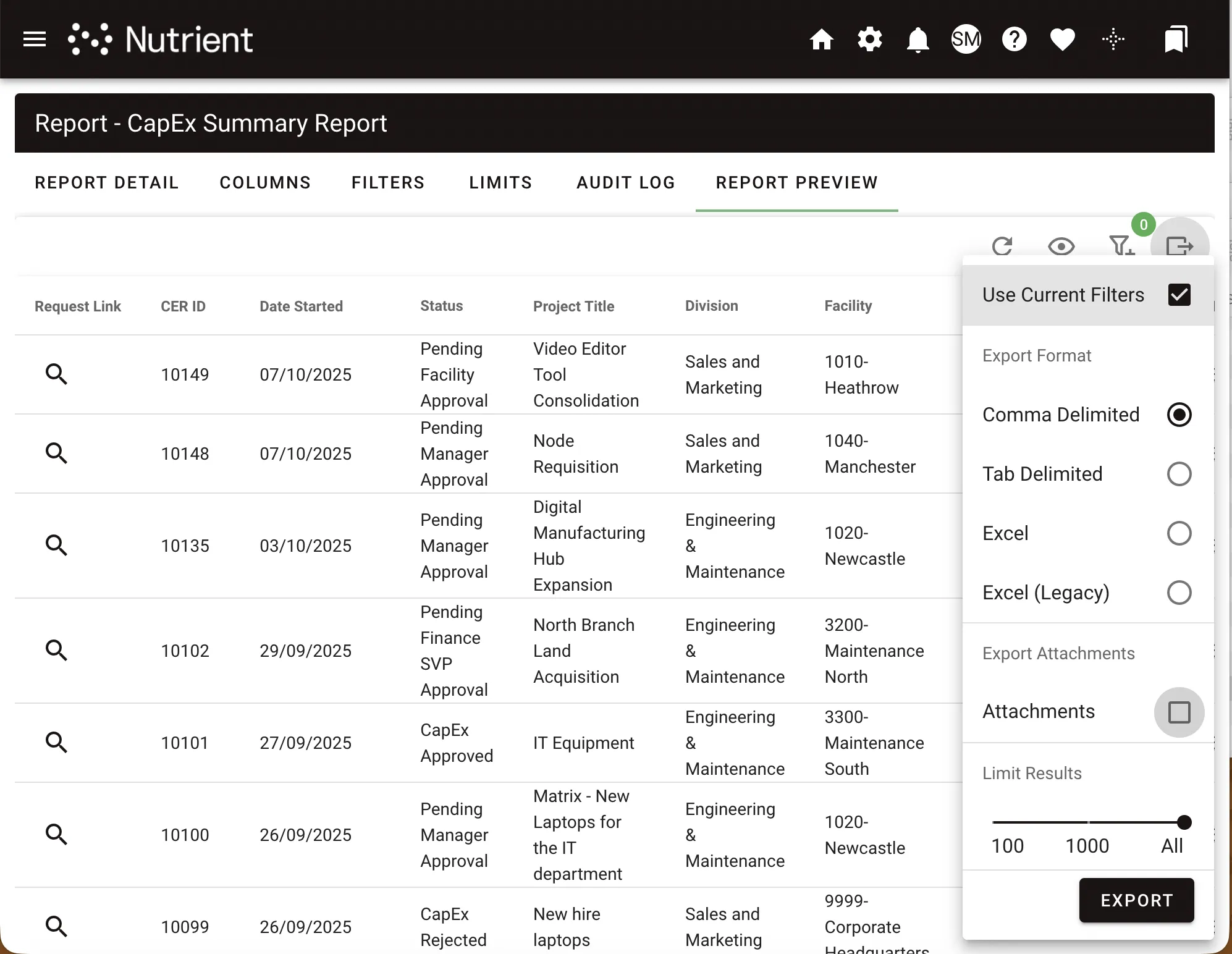
- Open the report and select Export.
- Under Export Format, choose the format for the report file the export delivers alongside the attachments.
- Under Export Attachments, select the fields whose files you want. Select Select all to include every one.
- Optionally, use Use Current Filters and Limit Results to narrow which rows the export scans for attachments.
- Select Export.
Export Attachments lists one choice per underlying field, not one per column. A report that shows the same field in two columns offers it once, labeled with both headings — for example, Signed contract File/Signed contract File Icon — and exports its files once instead of duplicating them.
Nutrient Workflow Automation confirms that the export has started and builds it in the background. You don’t have to keep the report open, and you don’t have to wait on the page.
Selecting anything under Export Attachments changes what Export does: Instead of downloading the report in your browser, it queues the report and its attachments together and delivers both by notification. To download the report data on its own, run the export with nothing selected there.
Collect the finished export
When the export is ready, a Reports notification arrives in your Notification Center. For more information, refer to the Notification Center guide.
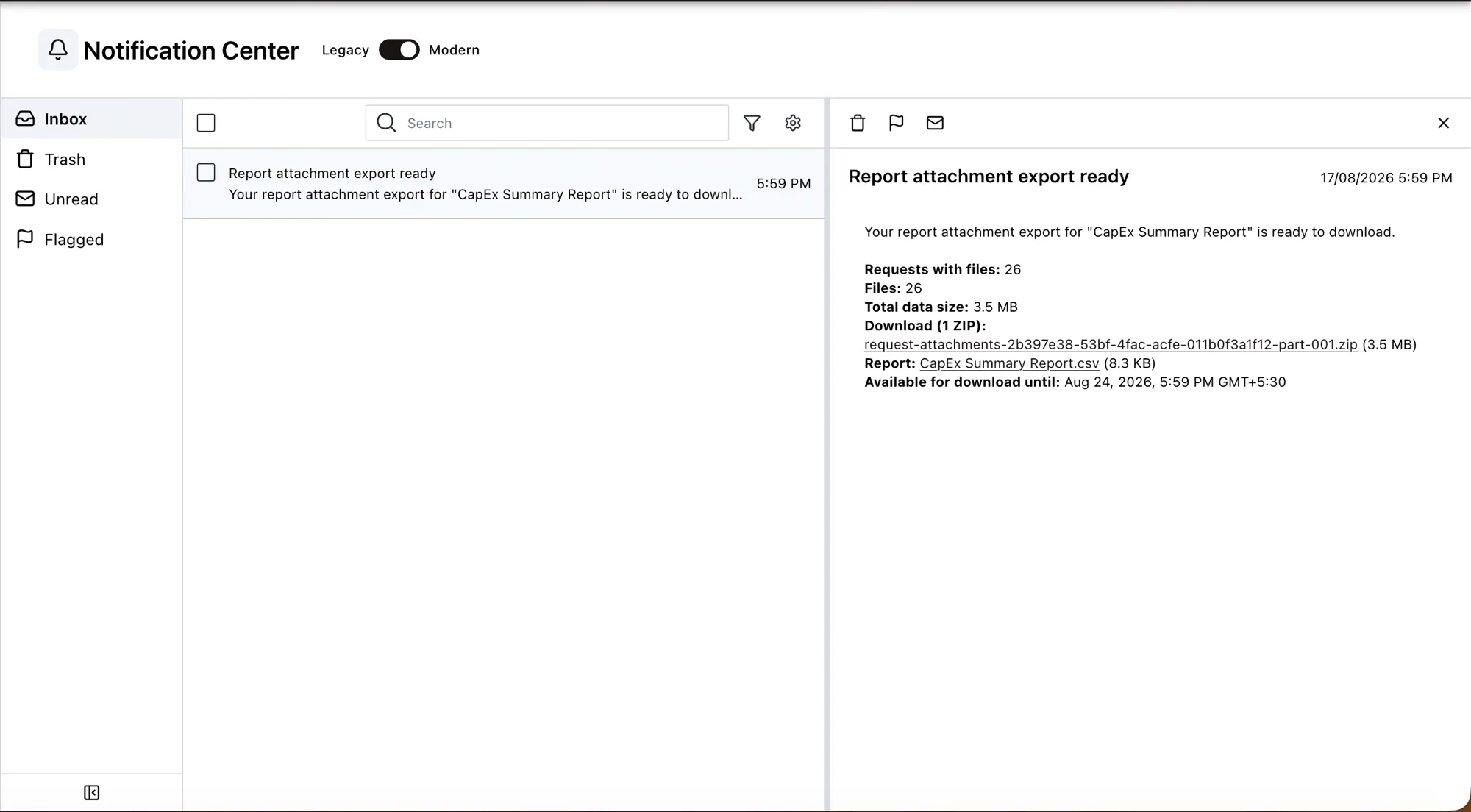
The notification lists:
- The number of requests with files, the number of files, and the total data size.
- A download link for each ZIP archive. Large exports span several archives.
- A download link for the report file, which lists only the requests whose attachments are in the archive, so the report and the files always agree.
- Any files that were left out, and why.
- The date and time the download links stop working, shown in your own timezone.
Only the person who started the export can download its files. Sharing a download link with someone else doesn’t give them access — Nutrient Workflow Automation asks them to sign in and then refuses the download.
How files are organized in the ZIP
The export tags every file with the request it came from, so files stay traceable after you unzip them, and files with the same name from different requests don’t overwrite each other.
| Fields exported | Layout in the ZIP | Example |
|---|---|---|
| One | Flat, prefixed with the request ID | 1042_signed-contract.pdf |
| More than one | One folder per request, files prefixed with the field’s heading | 1042/Contract_signed-contract.pdf |
If a single request has two attachments with the same filename, Nutrient Workflow Automation appends a counter — for example, scan (2).pdf.
Understand what was left out
An export can be complete without including everything. When something is left out, the notification says so in its subject line and lists the reason:
| Reason | What it means | What to do |
|---|---|---|
| Rows with no request identifier | The row doesn’t identify its request, so the export can’t link its attachments | Add a Request Link, Intranet Request Link, or Request ID column |
| Requests no longer available | The request was removed after the report ran | Nothing — the files are gone |
| Files unavailable at export time | The file couldn’t be read from storage | Retry the export; contact your administrator if it repeats |
| Files too large for the archive | The attachment exceeds what can be packed into a ZIP | Use the individual download links the notification provides for them |
| Report file missing | The report was too large to build in the chosen format | Rerun the export as Comma Delimited, which often succeeds where a spreadsheet format doesn’t |
Retention
Nutrient Workflow Automation keeps attachment exports for 7 days from the time they’re created. After that, Nutrient Workflow Automation deletes the archives, and their download links stop working. The notification states the exact expiry date and time in your timezone.
If you open an expired link, Nutrient Workflow Automation returns you to the Notification Center and explains that the export is no longer available. Run the export again to get a fresh copy.
Track exports in the audit log
When usage tracking is enabled for a report, the audit log records exports under the action Export, alongside the Run entries for the report itself. For more information, refer to the report usage tracking guide.