Optimize task management with recipient configurations
The Recipients configuration’s primary purpose is to assign specific user(s), group(s), or role(s) to a task. The individuals assigned, by whatever means, are those individuals who are requested to take action on the task to complete a form, approve a request, etc.
The Recipients configuration has two configuration areas:
- Recipients — Defining the individual(s) who will be assigned to complete the task
- Assignment Settings — Specific configurations that can impact how the user interacts with the task.
Each of these configurations is detailed below.
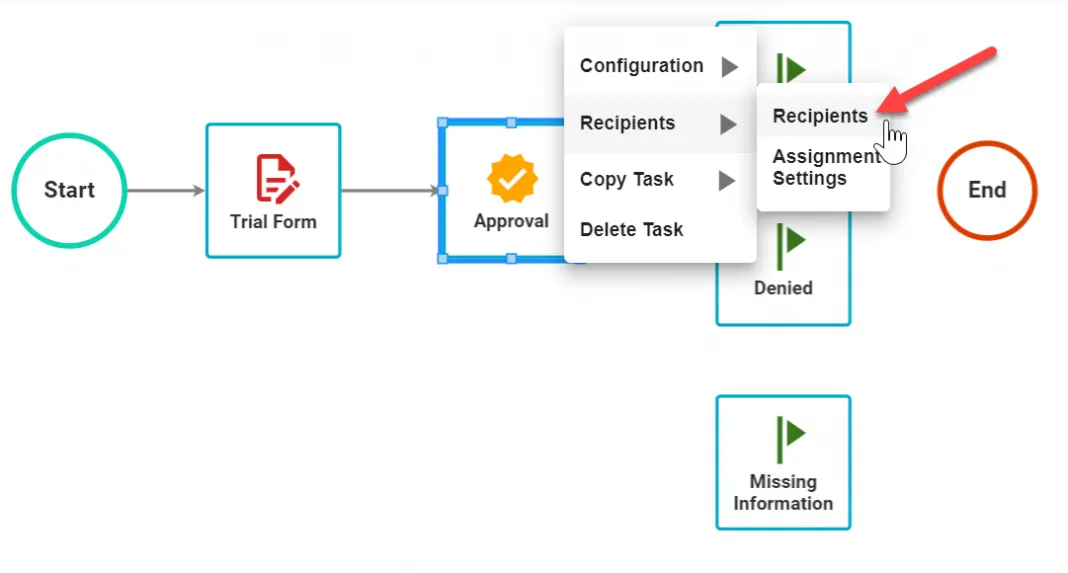
Assign recipients
Recipients are those individual(s), group(s), or role(s) that need to take action (to be assigned) on a task. The action could be completing a form, completing an approval, or uploading an Excel document.
Any non-system task will require the assignment of one or many Recipients. Non-system tasks are:
- Form
- Approval
- Task Assigner
- Form Assigner
- Milestone
- Excel Import
- Excel Batch
- Open URL
- PDF Generator
- PDF Merge
- Task Scheduler
- Developer Form
- FTP Push
- General Notification
Recipients are categorized as follows:
- Static — Any user, group of users, or role of users defined within Workflow Automation.
- Dynamic — Based on the scope of the existing process request. Dynamic Recipients are as follows:
- Requester — User who initiates a request.
- Client — User who a request is initiated on ‘behalf of’ by the requester.
- Previous Task Completer — The user who completes the previous task in a process.
- Previous Task Recipient — The user(s) who were assigned to complete the previous task in a process.
- Requester’s Manager — The manager of the user who initiated the process.
- Client’s Manager — The manager of the user who initiated the request.
- Previous Task Completer’s Manager — The manager of the users who completed the previous task in the process.
- Previous Recipient’s Manager — The manager of the users who were assigned to the previous task in the process.
For each task you add to your process, the same series of Dynamic Recipient recipients will be available for those tasks (except the Requester and Client).
Add static recipient
As mentioned earlier, a Static recipient can be any user, group of users, or role defined within Workflow Automation.
To add a Static recipient to a task, you may perform a partial first and last name search in the Filter Accounts box provided:

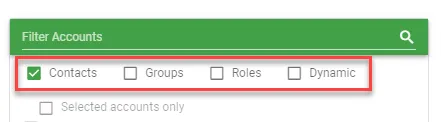
You may limit or increase the scope of your search by checking Contacts, Groups, Roles, and Dynamic checkboxes below the Filter Accounts field.
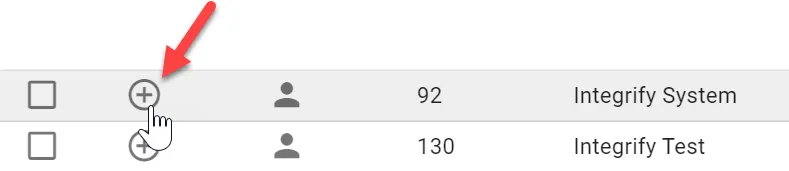
Your search results will be displayed directly below the Filter Accounts field. To add the user (or group) as a Recipient for the task, just click the add (+) icon:
Once a user/group has been added, the record will be displayed in the Recipients list:
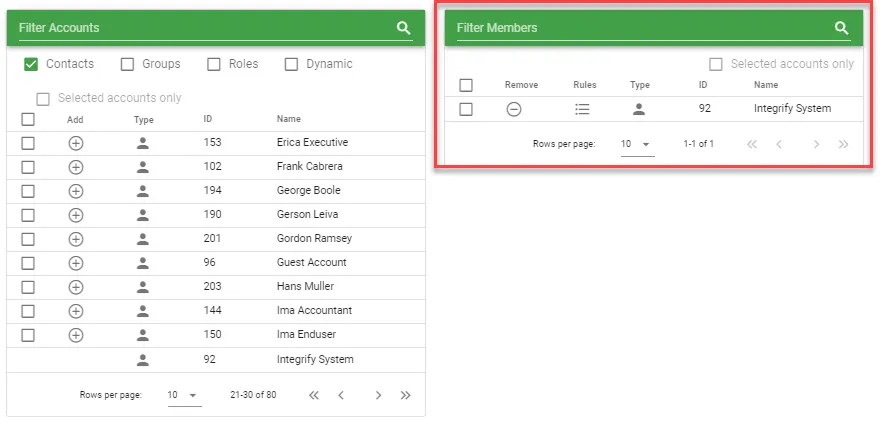
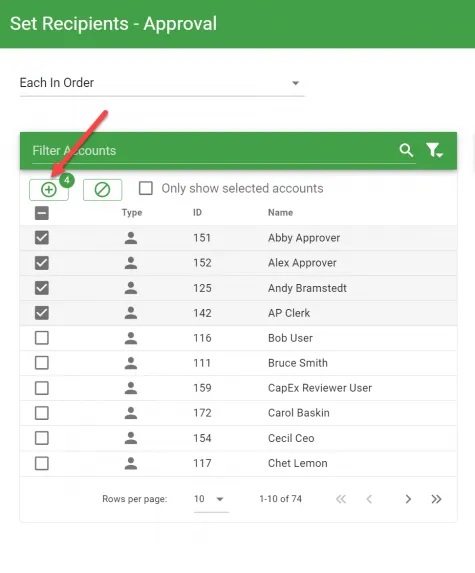
To add multiple recipients at once, use the checkbox on the far left and check all the recipients you’d like to add. You’ll notice that the badge at the top of the column will increment with each checked recipient. Once you have all your recipients checked, click the badge to add them all.
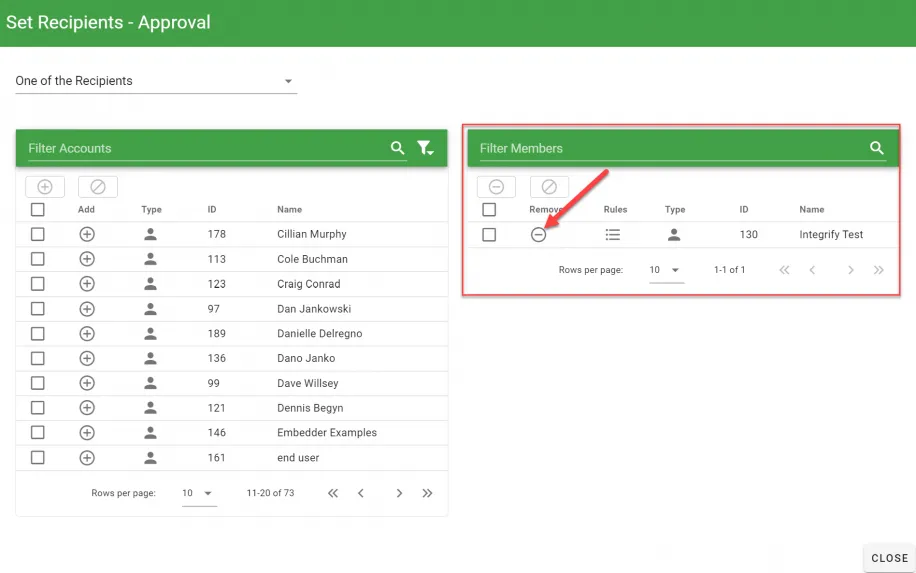
To remove a task recipient, just left-click the minus (-) icon next to the recipient.
Adding a Dynamic Recipient
Dynamic recipients are valid users within Workflow Automation. However, they are based on the scope of the process as it’s executing.
For instance, many processes have a form to be completed as the first task in the process. Rather than trying to figure out who that user might be when the request starts with business rules or other logic, you would use a Dynamic Recipient such as the Requester. This way, you are always guaranteed that whoever starts the process is the person who will be assigned to that first task in the process. For a closer look at how the requester and recipient roles relate, see the FAQ.
To add a Dynamic Recipient as a recipient for a task, enter a check mark in the Dynamic checkbox.
If you add no search criteria and a check is entered in the Dynamic checkbox, you’ll be presented with a list of all Dynamic Recipients available within this process:
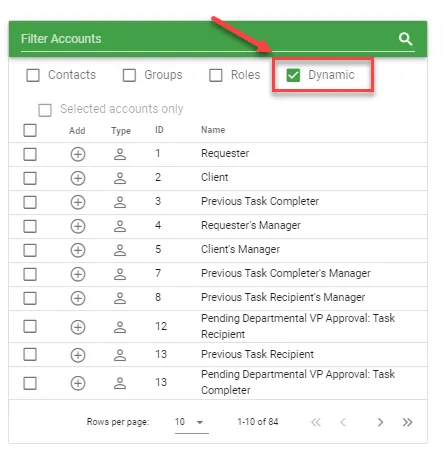
Like a Static recipient, just click the add (+) icon.
You’ll notice that as your process grows larger, your available list of Dynamic recipients also increases. For each task you add into your process, you’ll have a list of Dynamic recipients associated with the tasks.
When Client is the recipient of a Form task, don’t make that form the first task. Put a milestone before it, because the request doesn’t exist until its first task completes.
Before publishing, start a test request and confirm that each dynamic recipient resolves to the intended person. For tasks with multiple recipients, check the recipient processing rules as well as the recipient list.
To view information on Assignment Settings for recipients, refer to the guide on optimizing task assignment with assignment settings.