File attachments
View or work with an attachment directly in a request. Available actions depend on your role and where the request is in its workflow.
Before submitting a request or form, the person adding an attachment can use these actions:
- View
- Edit
- Delete
- Annotate
- Sign
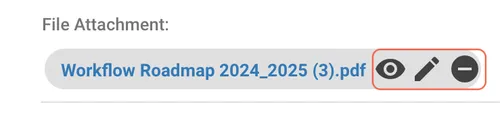
View a file attachment
Click the view  icon to preview an attachment and confirm it’s the correct file.
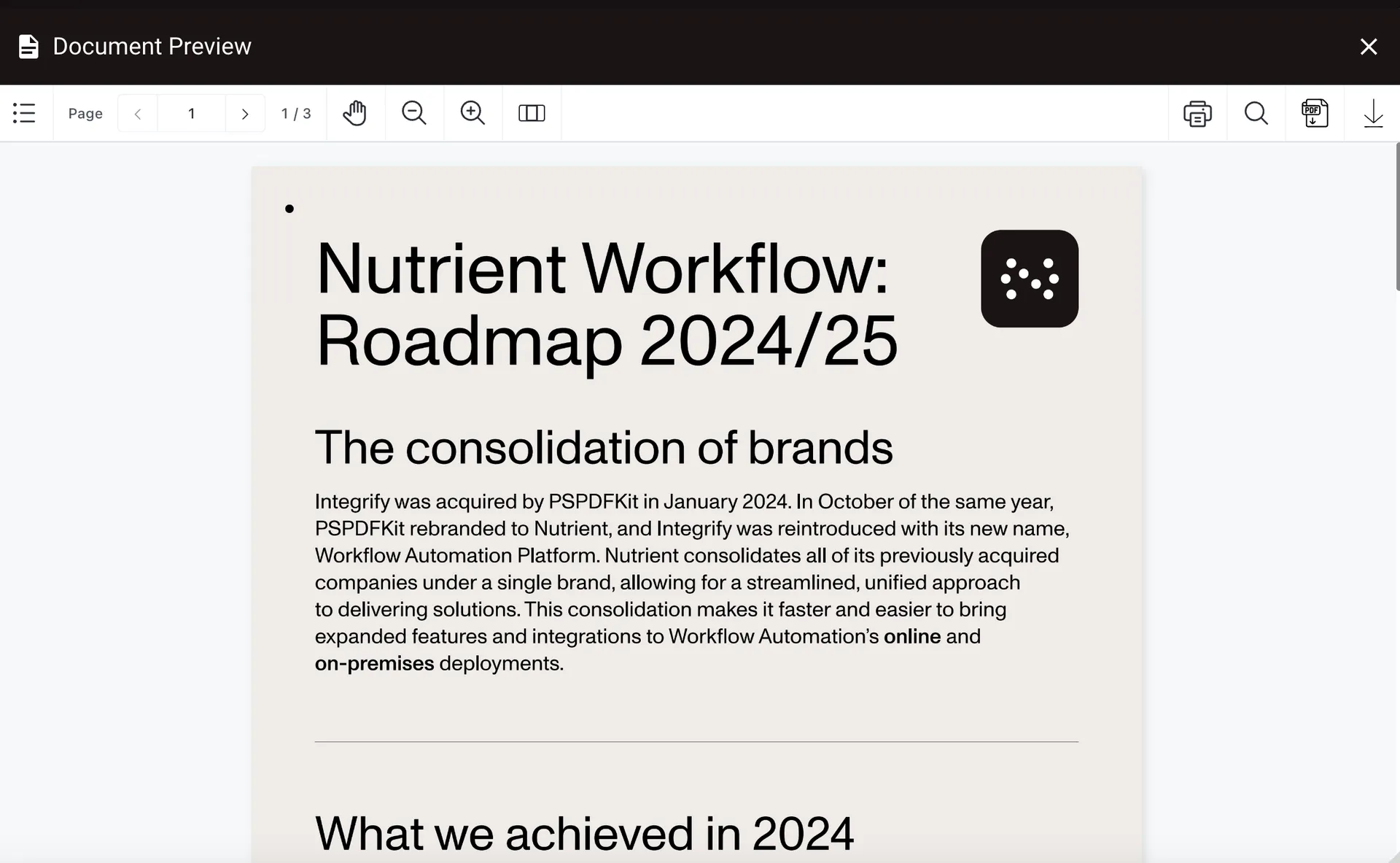
The document viewer provides these tools:
- Page navigation
- Scroll
- Pan mode
- Zoom in and out
- Fit page
- Print file
- Search within the file
- Export file as a PDF
- Download the file
When you preview a completed form, Download continues to download that form’s PDF after you scroll, zoom, or switch between pop-up and docked layouts. Preview downloads for regular file attachments continue to download the selected file.
Click the close  icon in the viewer’s upper-right corner to close the preview and return to the File Attachment screen.
The Search & Redact sidebar doesn’t appear in preview mode because redaction functionality doesn’t apply there.
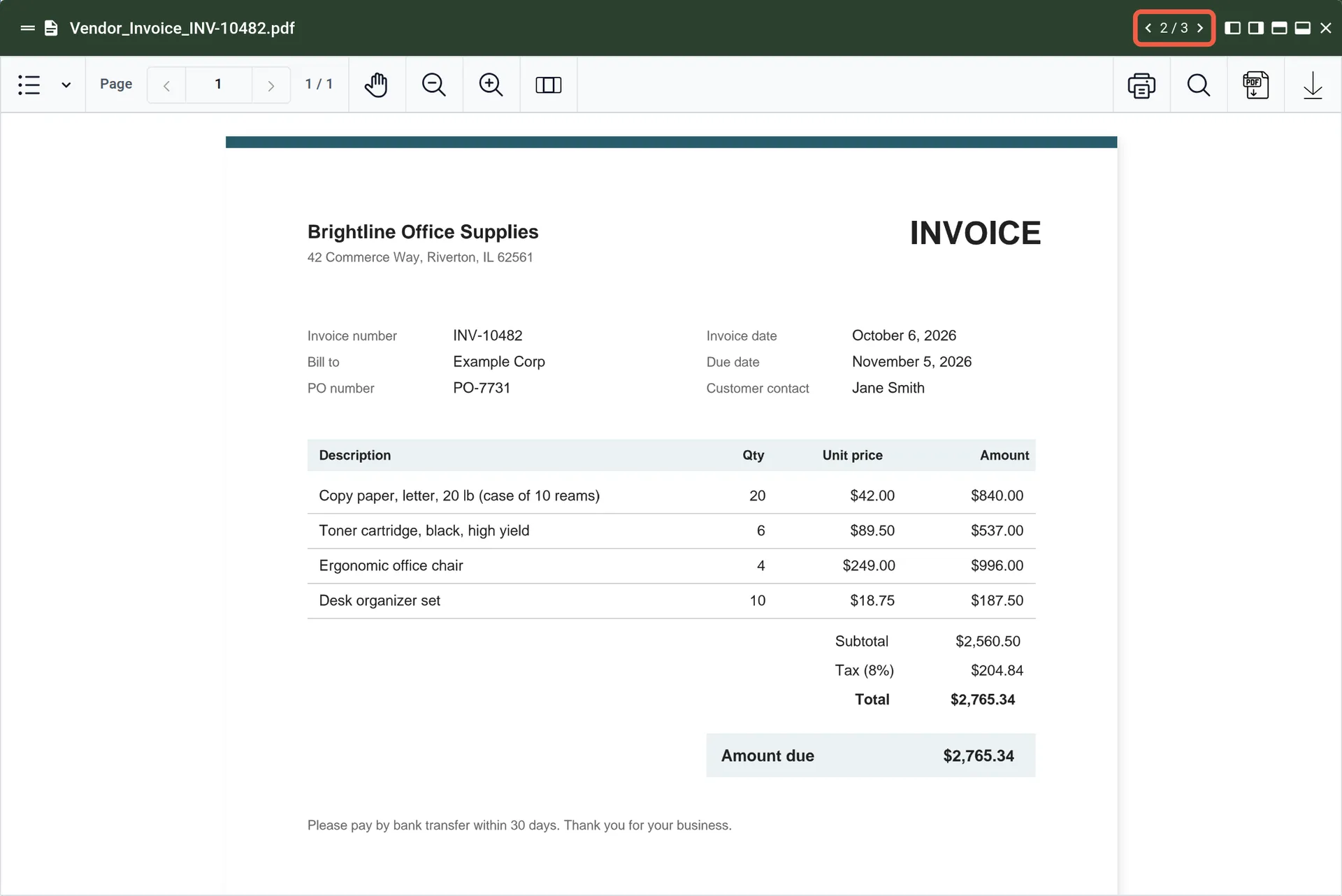
Move between attachments in Task History
A completed form in Task History can have multiple files for one question, and you can move between them without closing the preview. Click the view icon on any file. The preview toolbar shows the file name, navigation arrows, and a counter such as 2/3.
- Click the next arrow to open the next file or the previous arrow to open the previous one. The previous arrow is disabled on the first file; the next arrow is disabled on the last.
- Each file opens at its default zoom and on its first page.
- Moving between files preserves the preview’s position and size, whether it’s floating or docked.
The arrows navigate only among files attached to one question; a question with one attachment has no arrows. Files attached to other questions or grid cells aren’t linked.
Edit a file attachment before submission
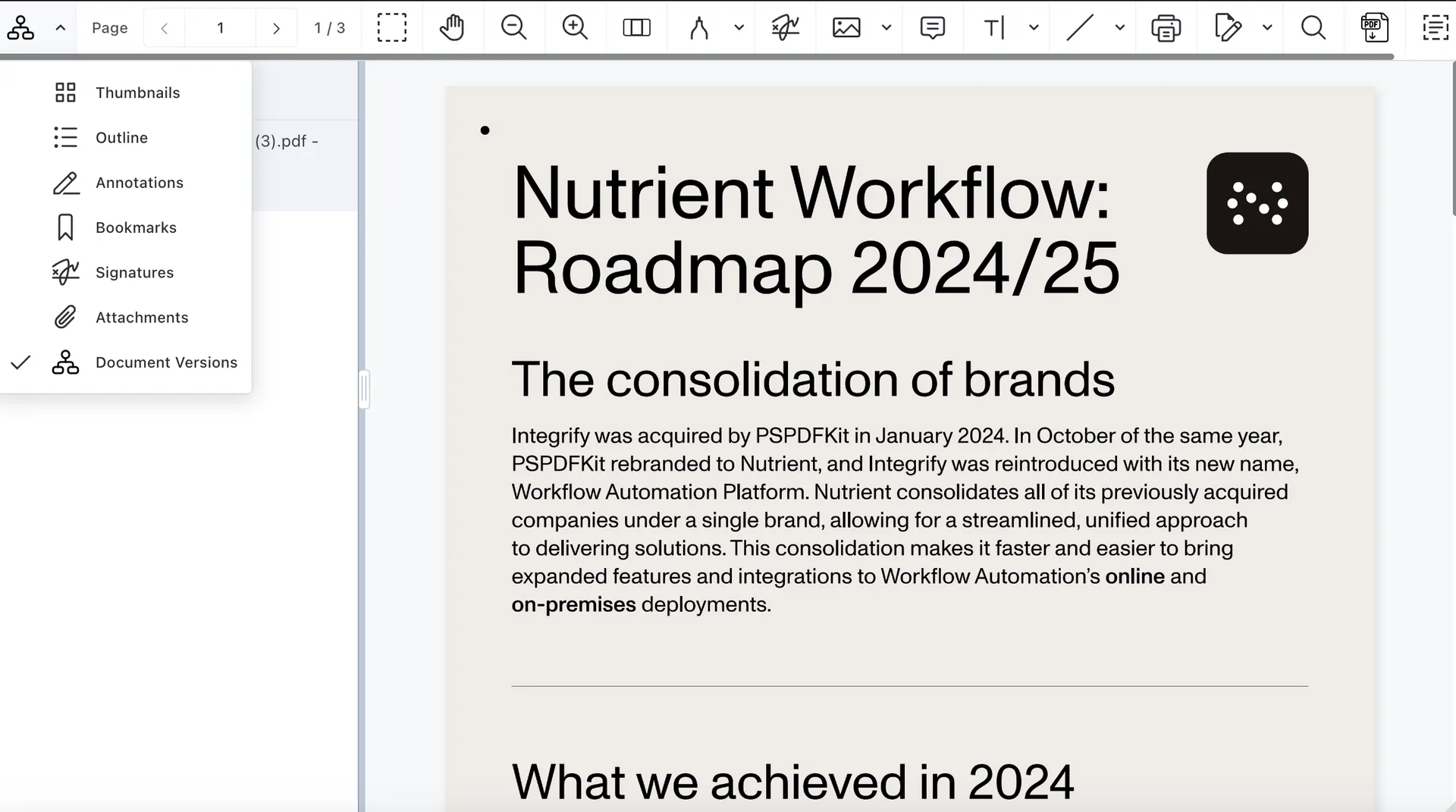
To change an attachment before submitting the request, click the edit  icon. On the page that appears, you can perform the following actions:
- Page navigation
- Scroll
- Pan mode
- Zoom in and out
- Fit page
- Drawing
- Freeform highlight
- Text highlighter
- Eraser
- Form creator (button, text, radio, checkbox, combo box, list box, signature, and date widgets)
- Sign
- Image
- Stamp
- Link
- Comments
- Text annotation (font color, fill color, opacity, change font, font size, text alignment)
- Line annotation (line, arrow, rectangle, ellipse, polygon, cloudy polygon, polyline)
- Document Editor (add new page, delete page, duplicate page, rotate pages, move pages)
- Document crop
- Search within the file
- Export file as a PDF
- Download the file
- Click the down arrow in the upper-left corner to switch the side navigation to:
- Page thumbnails
- Page outline
- Annotations
- Bookmarks
- Signatures
- Attachments
- Document versions
As an approver, you can view and collaborate by annotating the submitted attachment, or sign it. You can’t edit the file. Don’t use the presubmission edit instructions above as an approver.
Delete a file attachment before submission
While preparing the request, click the delete  icon to remove incorrect or outdated files.
Submit request or save as draft
After editing an attachment while preparing a request, select Submit to submit the request or Save Draft to continue later.
