Permissions overview
Use the permissions overview to audit effective permissions across Nutrient Workflow Automation. The report shows who can access processes, forms, reports, dashboards, and other items, and how they received access.
What the permissions overview shows
The permissions overview shows effective permissions for the item type you select, and it groups permissions by item, such as an individual process. Expand an item to view every user, role, and group with access.
It supports these item types:
- Process
- Category
- Form
- Report
- Group
- Contact
- Dashboard
- Business Hours
- Holiday
- Database Connection
- Email Monitor
- AI Connection
- AI Assistant
This guide uses process permissions as the main example, and the same workflow applies to all other item types.
How permissions are enforced
Nutrient Workflow Automation applies object-level permissions across the UI, supported API endpoints, and the Workflow Assistant. Users only see data and perform actions that their permissions enable.
Permission checks apply to areas such as:
- Task data
- Request comments
- Process diagrams
- Search
- Tasks
- PowerForm question lists
- Notification attachments, bypass-start settings, and task type standard inputs
- Request lists used by My Requests, Monitor Requests, Manage Requests, Related Requests, dashboard request-list widgets, and Workflow Assistant request search
- Read-only process and report data used by the Workflow Assistant
- Request operations, such as launching requests, completing task forms, reassigning recipients, resetting tasks, changing due dates, and deleting requests
Workflow Automation also validates that the identifiers used in an action belong to the same authorized workflow context. For example, task, instance, recipient, process, and file-version identifiers must match the task or request the user is allowed to act on. An action can fail even when the user can see a related object if one of those identifiers doesn’t match the authorized task or instance.
A 403, 404, or 405 response can indicate missing permissions, a closed task or request, the wrong recipient, or the wrong task type. The response can also indicate mismatched task, instance, process, recipient, or file identifiers.
Navigate to the permissions overview
Open the permissions overview from the administration page for the item type you want to review.
To open the permissions overview for processes:
- Click Administration in the left navigation panel.
- Click Processes.
- Click Manage Roles and Permissions.
- On the page that appears, click Permissions List in the upper-right corner.
- Review the permissions overview. It opens with all processes and their permission details.
The following images show the process permissions entry point and the permissions overview.
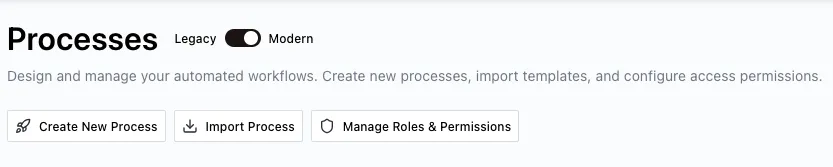

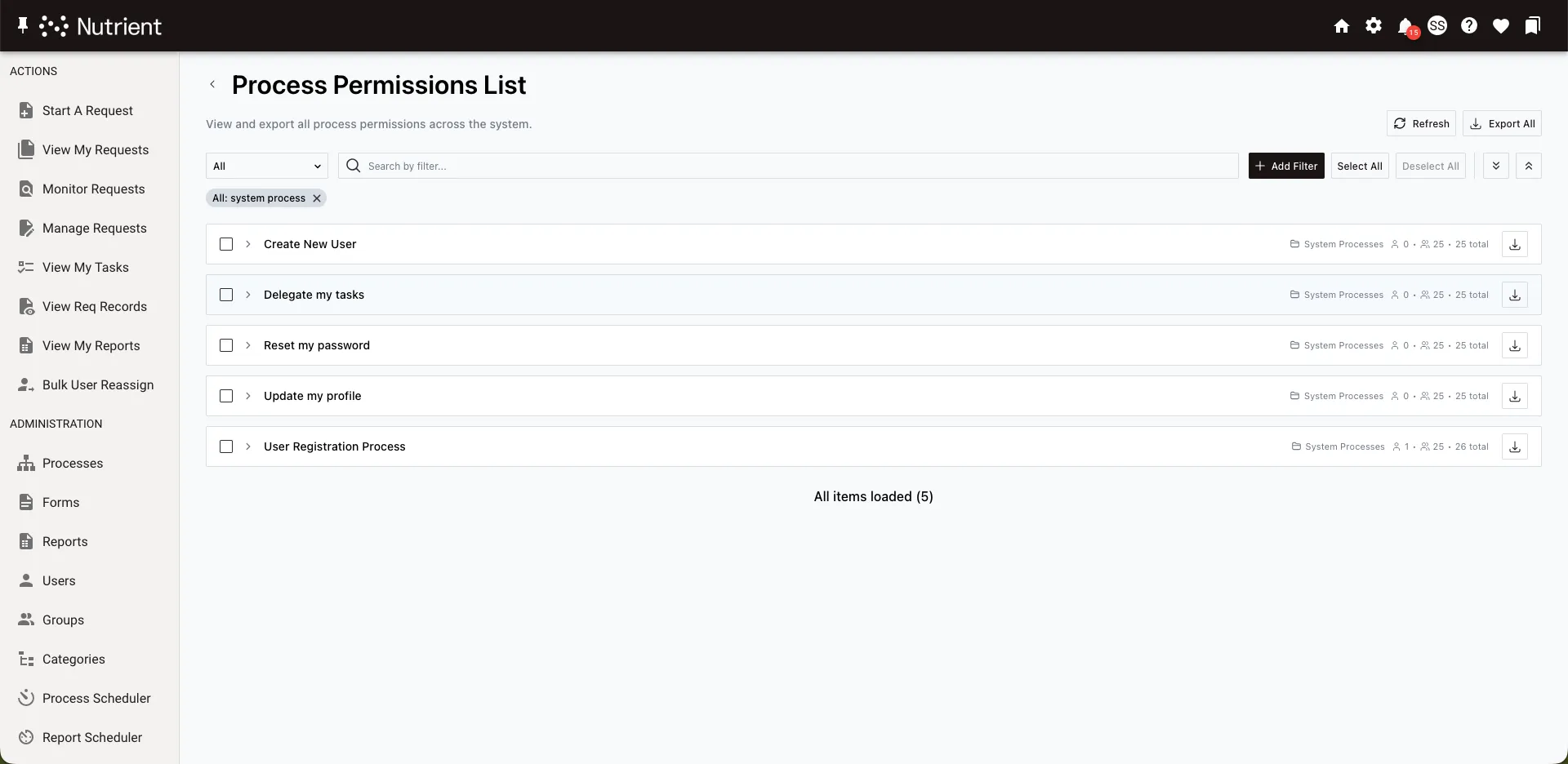
To view permissions for other item types, such as forms, reports, or dashboards, follow the same steps from that item type’s administration page. The report opens for the item type you launch.
Understand the permissions list
The permissions list groups items by name. Each row shows the item name and the number of users and groups with access.
Click a row to expand it. Each permission entry includes these fields:
| Field | Description |
|---|---|
| Role Mode | For processes, this is the publish status the role applies to (Production, Testing, Development, Inactive, or Any). For non-process items, this field is hidden. |
| Role Name | The role that grants the permission |
| Permissions | The granted permission types (for example, View Config, Edit, Run) |
| Role Level | The scope where the role is defined: System, Category, or a specific object type (for example, Process or Form) |
| Role Category | The role’s category path |
| Membership Type | How the user gets access: User (direct), Static Group, or Dynamic Group |
| Group Name | The group through which the user is a member of the role (blank for direct role membership) |
| User ID | The user’s numeric identifier. Use it to distinguish users who share the same name. |
| User Name | The user’s name for this permission |
The expanded item view shows the permission entries for the selected object.
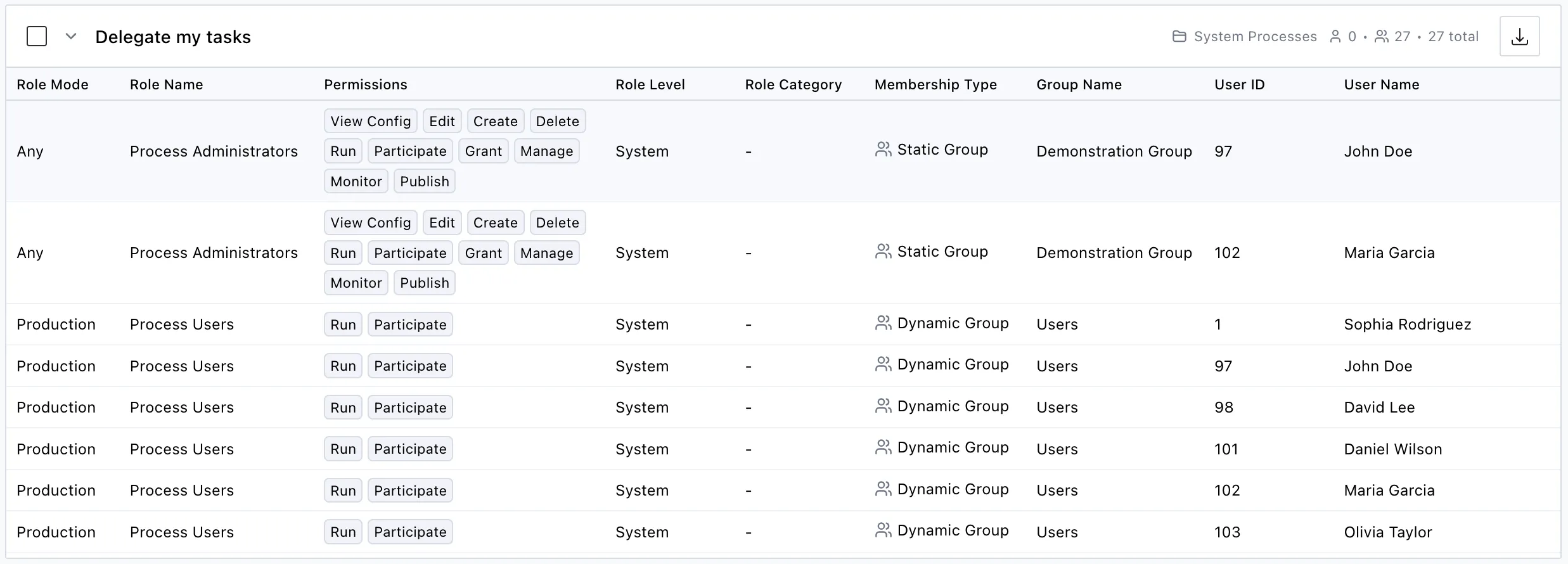
For a complete list of permission types and definitions, refer to the managing roles and permissions guide.
Filter permissions
Use filters to narrow the permissions list to specific users, roles, groups, or permission types.
The action bar includes the filter dropdown, search field, selection controls, expand and collapse controls, and active filter pills.

To add a filter:
- Select a filter field from the dropdown on the left side of the action bar. Examples include Permissions, User Name, and Membership Type. Select All to search across all fields.
- Enter a search term in the search field.
- Click Add Filter.
The filter appears as a pill below the action bar. Add multiple filters to combine criteria. All filters apply at the same time using AND logic.
To remove a filter, click the Close (X) icon on the filter pill.
The filter field dropdown lists the fields you can use to narrow results.
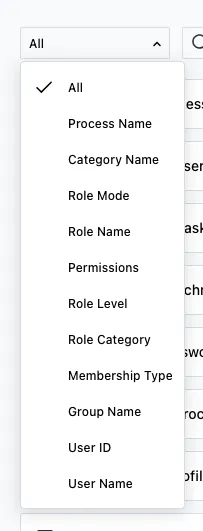
The system saves filters and restores them when you return. Each item type keeps its own filter set. For example, process permissions and form permissions keep separate filters.
Select and expand items
This section explains how each item type displays permissions and how to expand, collapse, and select items.
System-scoped vs. object-scoped item types
Item types with only system-level permissions show a flat permissions table without accordion grouping. These item types include Category, Contact, Business Hours, Holiday, Database Connection, Email Monitor, AI Connection, and AI Assistant.
Item types with per-object permissions show expandable accordion rows, with one row per object. These item types include Process, Report, Form, Dashboard, and Group.
Expand and collapse items
For object-scoped item types, use the row and toolbar controls to show or hide permission details:
- Click an item row to expand or collapse permission details.
- Click Expand All to expand every item in the current view.
- Click Collapse All to collapse all expanded items.
Select items
Use selection controls when you want to run bulk actions, such as exporting selected items:
- Click the checkbox on an item row to select it.
- Click Select All to select every item in the filtered view.
- Click Deselect All to clear the selection.
Investigate unexpected access
If a user can access a process unexpectedly, filter the process permissions list by User ID and the process name. Then expand the process. Compare Role Level, Role Category, Membership Type, Group Name, and Role Mode to identify where the access was granted and which publish status it covers. Removing someone from a process-level role won’t remove a membership inherited from a category or system level. After changing a role or group, select Refresh to recalculate the view before verifying the result.
Export permissions to CSV
Export permissions data to comma-separated values (CSV) for offline analysis, compliance reporting, or record keeping. The export contains user IDs, names, and access details, so share it only with people who need those details. Confirm active filters before using Export All, since that action exports every item in the filtered view.
You can choose from three export options:
- Export All — Exports every item in the current view. It respects active filters, so it exports only matching results. You’ll find this button in the header.
- Export Selected — Exports only the items you selected with checkboxes. This button appears in the header after you select at least one item.
- Export single item — Exports only one item’s permissions. Click the download icon on the item row.
The CSV includes the same fields as the permissions list, with one difference: Instead of one Permissions column, it includes one column per permission type:
- View Config
- Edit
- Create
- Delete
- Run
- Participate
- Grant
- Manage
- Monitor
- Publish
- Reassign
If an export exceeds 100,000 rows, the system shows a confirmation dialog before the download starts. Large exports take more time to process.
Refresh permissions data
After you modify roles, group memberships, or permission assignments, refresh the report to view the latest data.
Click Refresh in the header. This action clears the permissions report cache and the dynamic group membership cache. The next load recalculates all data.
View all permissions for a user or group
You can view all permissions for one user or one group in a single view instead of browsing by item type.
From the users list
Open the user permissions view from the users list.
To view permissions for a user:
- Click Administration > Users.
- Click View Permissions (Key icon) in the actions column for the user you want to inspect.
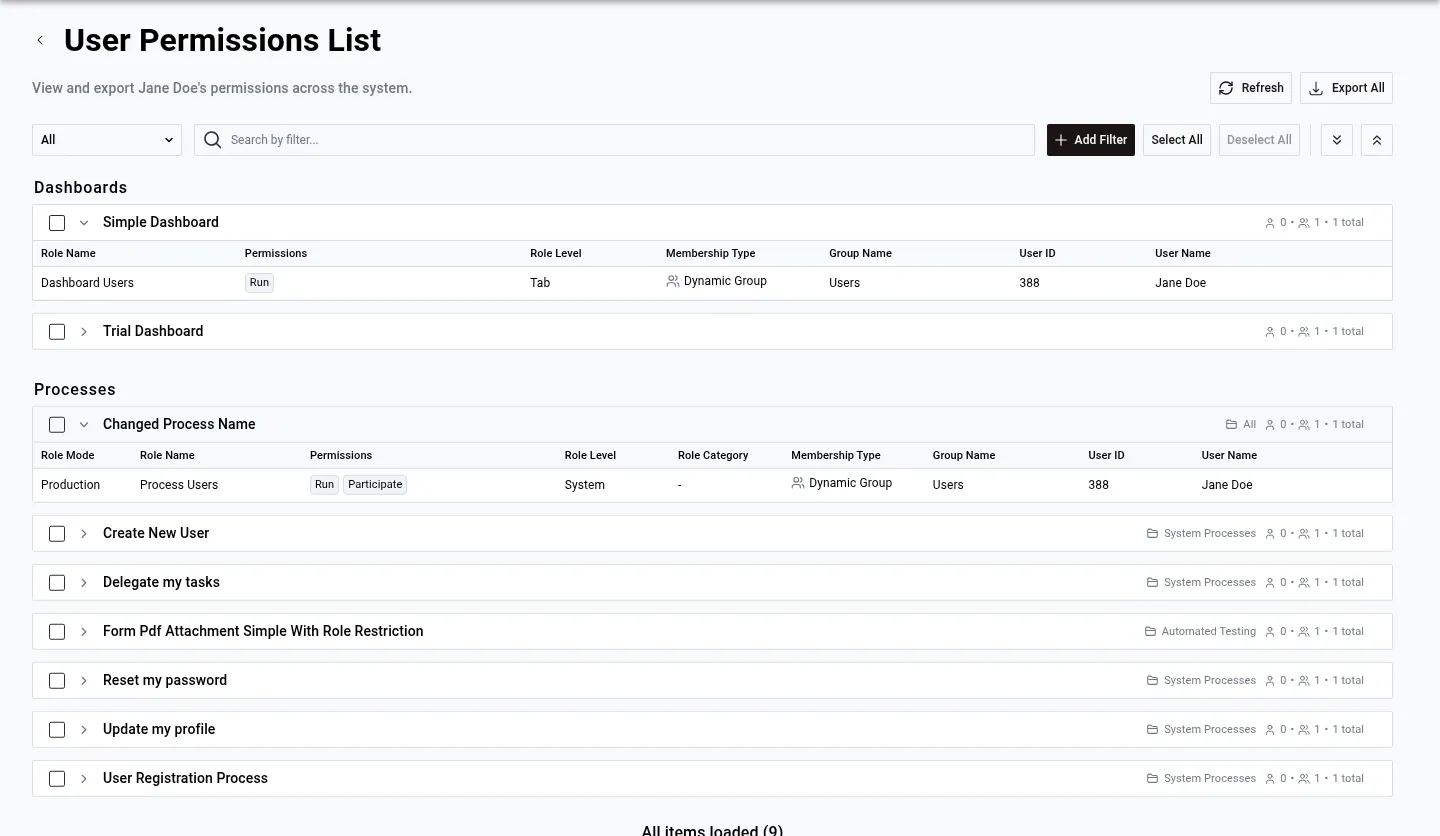
- Review the User Permissions List. The list shows every permission the user holds across item types, grouped by type.
The following images show the user permissions action and the resulting permissions list.

From the groups list
Open the group permissions view from the groups list.
To view permissions for a group:
- Click Administration > Groups.
- Click View Permissions (Key icon) in the actions column for the group you want to inspect.
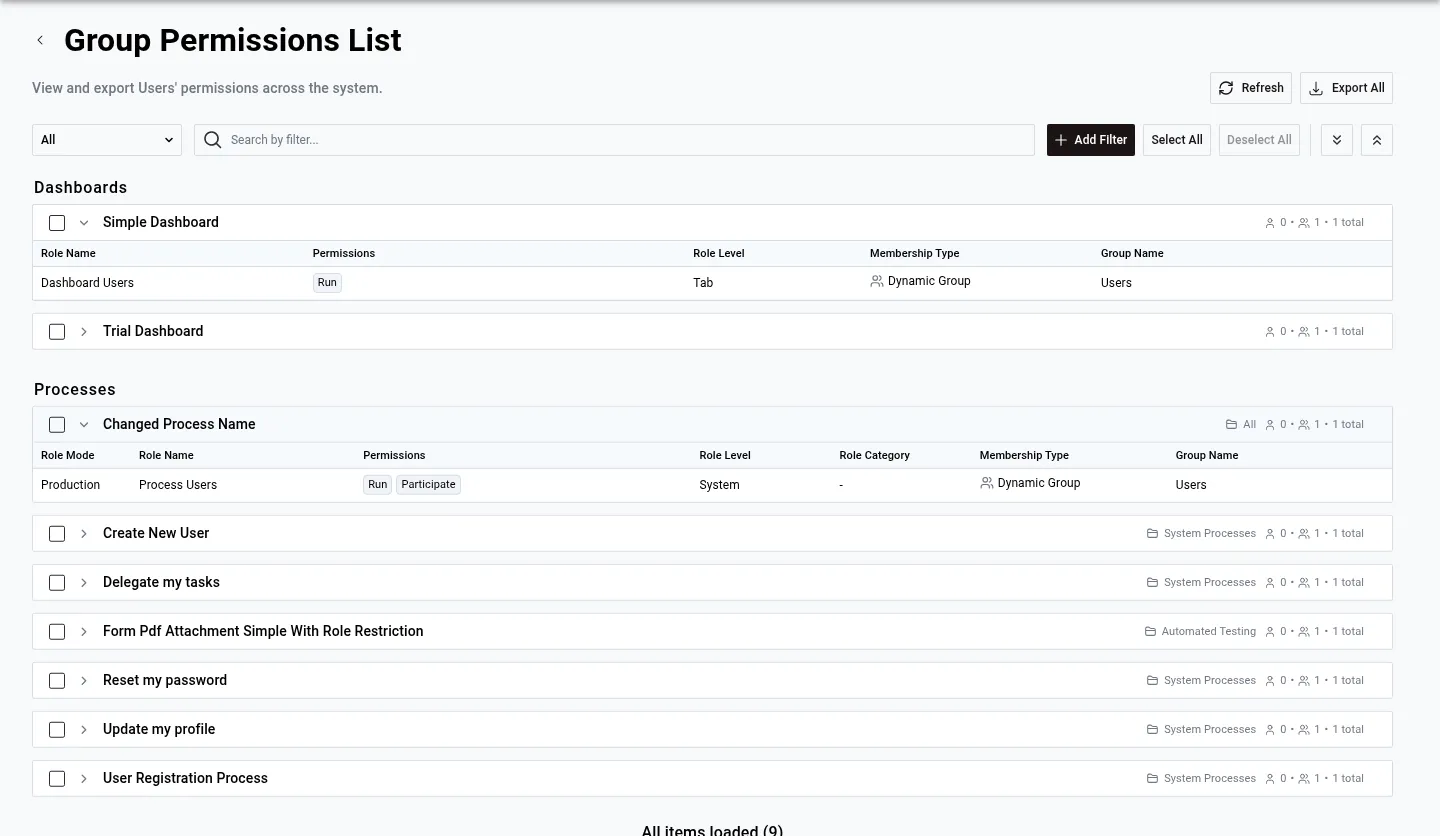
- Review the Group Permissions List. The list shows all permissions assigned to that group across item types.
The following images show the group permissions action and the resulting permissions list.

How the entity permissions view is organized
The entity permissions view groups permissions by item type. For example:
- AI Connections
- Business Hours
- Contacts
- Dashboards
- Forms
- Processes
Each type section uses one of these layouts:
- System-scoped types — Shows a flat permissions table because these types only have system-level permissions. Examples include AI Connections, Contacts, and Business Hours.
- Object-scoped types — Shows expandable accordion rows, one row per object. Each row includes the item name, category, and permission counts. Examples include Processes, Forms, and Dashboards. Click a row to expand details.
Filter and export from the entity view
The entity permissions view includes the same filtering and exporting features as the main permissions overview. Use the Object Type filter to show only one type section.
Inactive users show an empty permissions list with a message that says “Inactive users do not have any permissions.”
Next steps
Use these guides to configure roles and process-level permissions:
- To create roles and assign permissions, refer to the managing roles and permissions guide.
- For process-level role assignments, refer to the setting roles and permissions guide.