Communicate within requests using discussion tabs
The Discussion feature keeps request communication inside Nutrient Workflow Automation. Users can ask questions, post comments, attach files, and reduce requests sent back for clarification.
Key features of the discussion tab
Use the discussion tab to communicate without changing workflow routing.
- The discussion tab is enabled by default. You can disable it at the process level on the Process Detail tab.
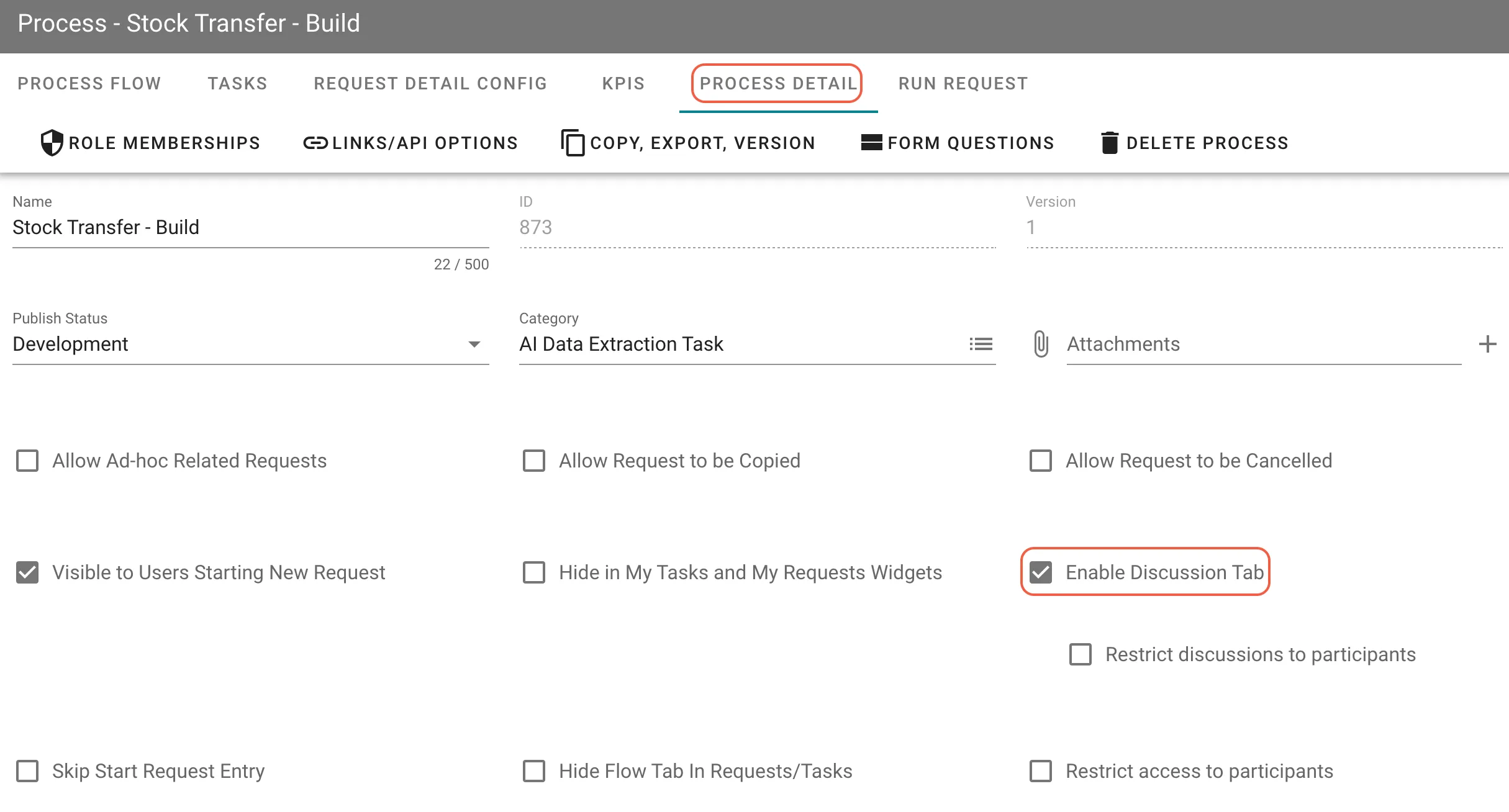
- Post comments and attach files outside the workflow route.
- Attach offline email discussions as files.
- Make posts private so only selected users and the sender can view them.
- Send email notifications to selected users when you post a private message.
- Include a request link in emailed discussion posts.
- Show discussion posts inline with task completions in task history.
To attach offline email discussions, save or export emails from your email client. Then attach those files to your comment.
Secure defaults for new processes
New processes use secure defaults for discussion settings that protect sensitive request information.
- Enable Discussion Tab — Checked by default.
- Restrict discussions to participants — Checked by default.
- Restrict access to participants — Checked by default.
Administrators can adjust these settings on the Process Detail tab when a workflow needs different access rules.
Existing processes keep their current settings, because these defaults don’t affect them.
Control discussion access
By default, all users who can view a request can also participate in discussions. Use discussion access settings to limit who can view and post comments.
Discussion security options
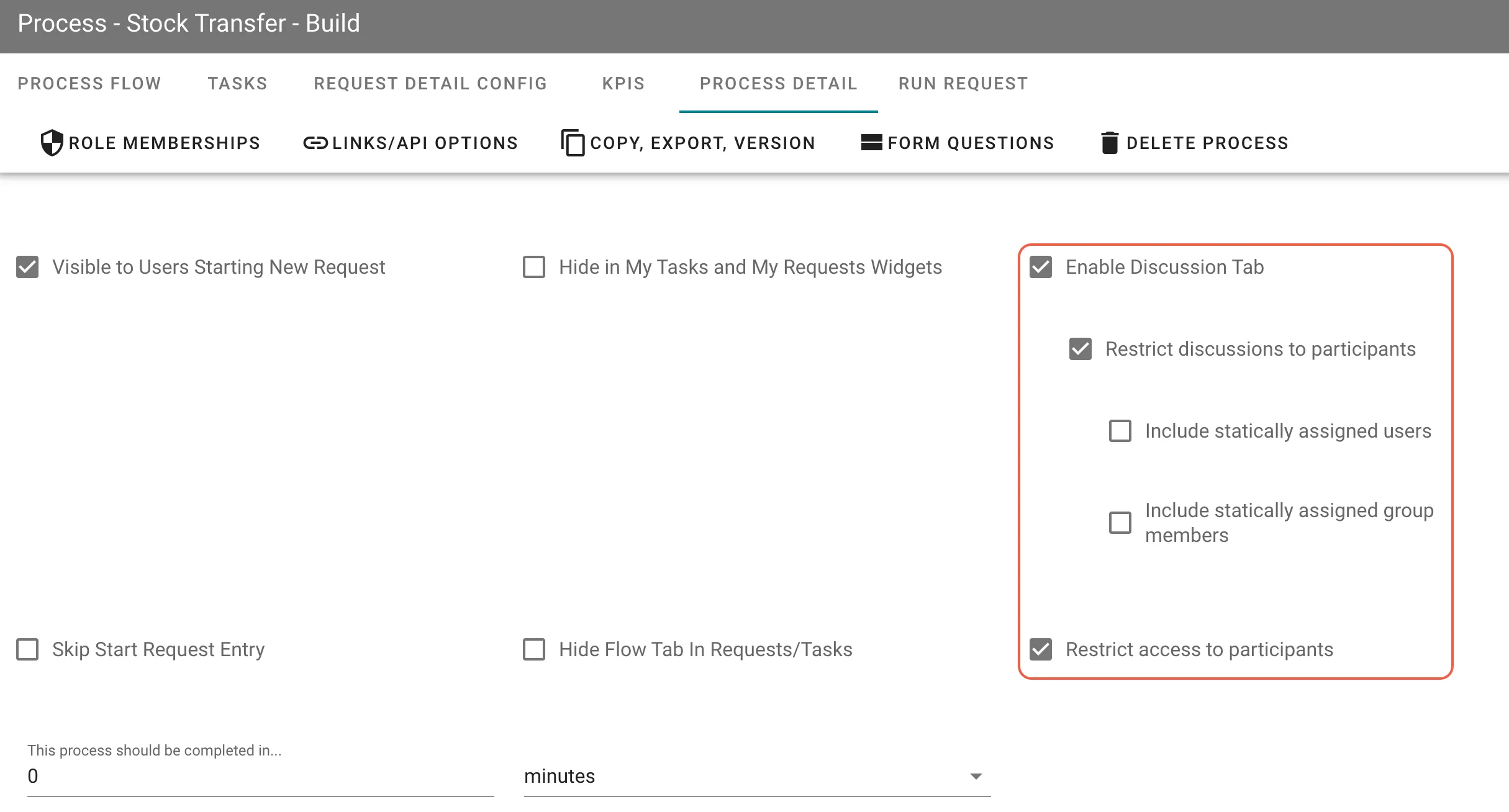
When you enable the discussion tab, configure these security options.
- Enable Discussion Tab — Activates the discussion tab for requests created from this process.
- Restrict discussions to participants — Limits discussion access to users directly involved in the request.
- Include statically assigned users — Gives access to users with static task assignments in the process definition.
- Include statically assigned group members — Gives access to group members with static task assignments.
- Restrict access to participants — Limits request detail access to participants.
Participant-based restrictions
Participant-based restrictions limit discussion access to users directly involved in the request.
- Restrict discussions to participants — Gives discussion tab access to the requester and users assigned to active request tasks.
- Include statically assigned users — Gives access to users with static assignment to any task in the process definition.
- Include statically assigned group members — Gives discussion access to all members of groups with static assignment to process tasks.
Group-based restrictions
Group-based restrictions limit discussion access to selected groups. This option provides more granular control than participant-based restrictions.
- Select one or more groups from the dropdown.
- Only selected group members see the discussion tab on requests.
- The Select Users dialog only shows members of authorized groups.
- This restriction applies to all requests created from this process.
Use group-based restrictions for these cases:
- Limit sensitive discussions to specific departments, such as HR, Finance, or Legal.
- Restrict communication to specialized teams, such as Security Team or Compliance Officers.
- Create process-specific communication channels for cross-functional projects.
Group-based restrictions work independently of participant-based restrictions. When you enable both, users must satisfy both conditions to access discussions.
System administrator access
System administrators always have full access to discussions, regardless of these settings.
How access works per request
The system copies discussion access settings to each request when you create it. Permission rules stay consistent throughout the request lifecycle, even if the process definition changes later.
If you remove group-based restrictions from the process definition later, existing requests still enforce the original group restrictions.
Example
Many workflows start with a form submission and include several approval steps. Approval tasks often link back to the original form when an approver needs more information.
When the requester resubmits the request, the request must go through all approval steps again. This cycle can repeat multiple times.
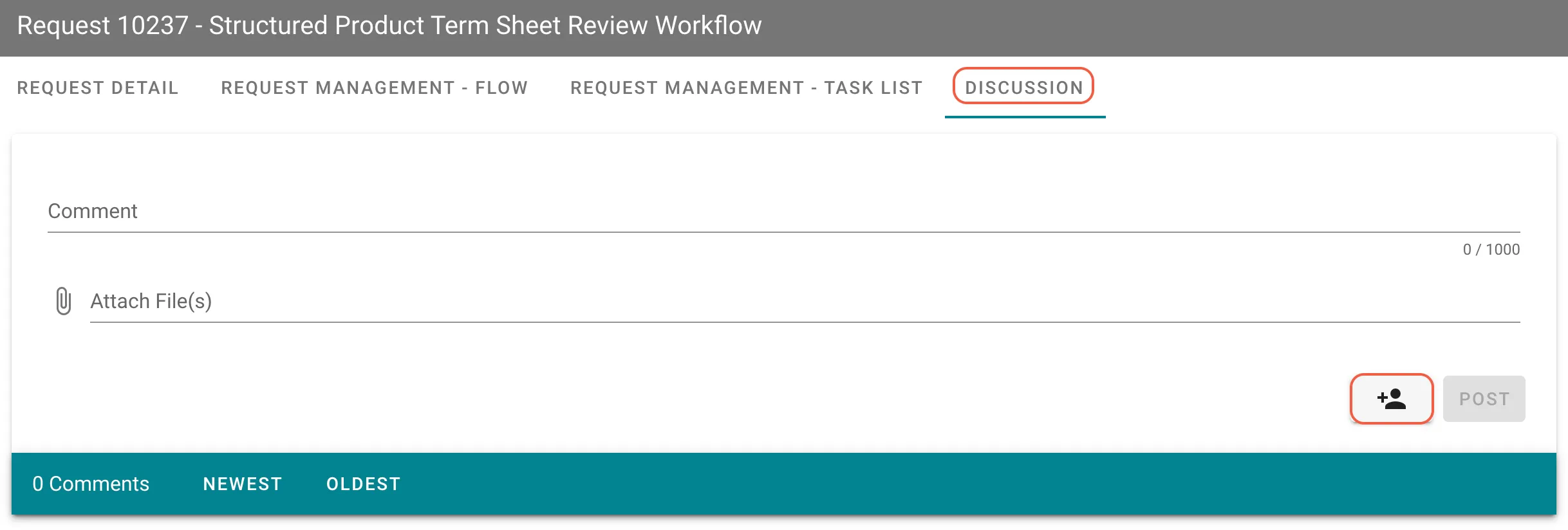
Instead, ask questions on the Discussion tab after you launch a request. The tab appears with the Request Detail and Flow View tabs.
Discussions work outside workflow routing. The system tracks discussions with the request and saves them with other request information.
To message specific users, click the User icon, and the Select Users dialog opens with these options:
- Email these users — Sends an email notification to selected users when you post the comment.
- Share only with these users — Makes the post private so only selected users can view it.
Select one or more users from the list. Then click Save to apply your selections before you post your comment.
Discussion history in task history
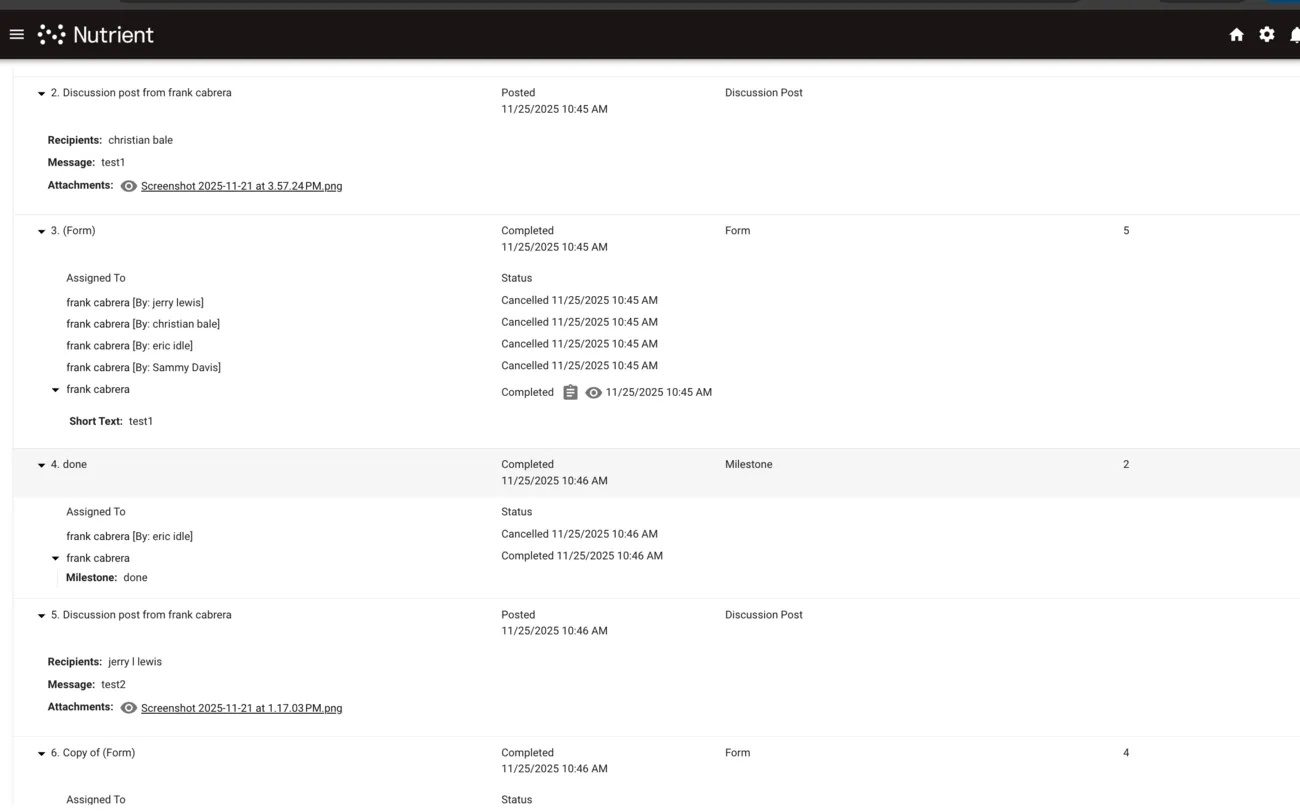
Discussion posts can appear inline with task completions in task history. This gives users a chronological view of request activity.
Enable task history integration
Use the process detail settings to show discussion posts in task history.
- Navigate to the Process Detail tab.
- Check Show discussion posts in Task History.
When enabled, discussion posts appear chronologically with task completions. When disabled, discussion posts only appear on the discussion tab.
This setting is independent of the discussion tab security options. You can restrict discussion access and still show discussion posts in task history.
Task history features
- Chronological ordering — The system mixes discussion posts with task completions based on timestamp.
- Visual differentiation — The system labels discussion posts with the “Discussion Post” type.
- Expandable content — Click a discussion post to view the full message and attached files.
- Attachment preview — File attachments show icons and truncated file names.
- Permission-based visibility — Users only see discussion posts they’re authorized to view.
Hover over a truncated file name to see the full file name.
Benefits of task history integration
- Complete audit trail — See all communication and task activity in one place.
- Context preservation — Understand discussion timing relative to workflow progress.
- Improved traceability — Track when users ask and answer questions during the workflow.
- Simplified navigation — Review the full request history without switching tabs.
Private messages appear in task history with content filtering based on authorization.
Private messages
The discussion tab supports private messages. Users can share sensitive information with specific people without showing it to all discussion participants.
Create a private message
Use private messages when only selected users should view a discussion post.
- Click New Post in the discussion tab.
- Check Share only with these users.
- Select one or more recipients from the user dialog.
- Compose your message.
- Attach files, if needed.
- Click Post.
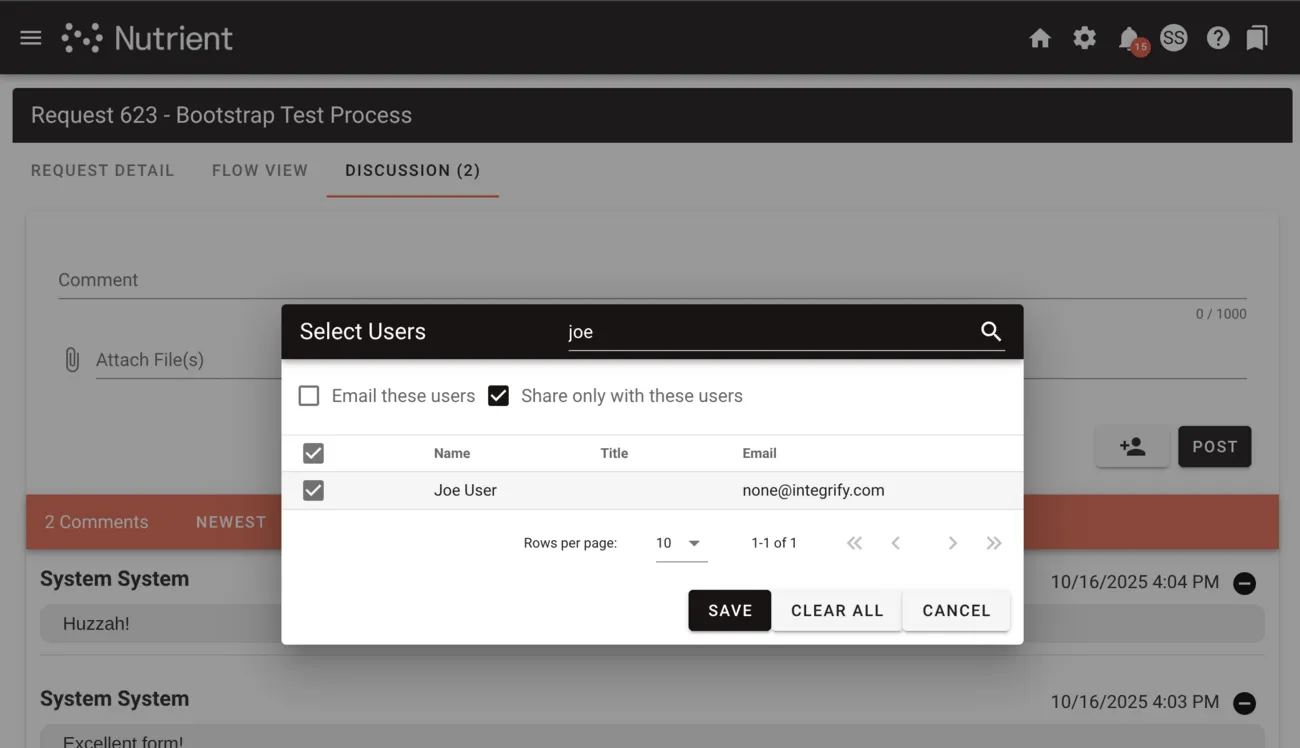
You must select at least one recipient for a private message. If you don’t select recipients, the system prompts you to select users.
View private messages
Private message visibility depends on the viewer.
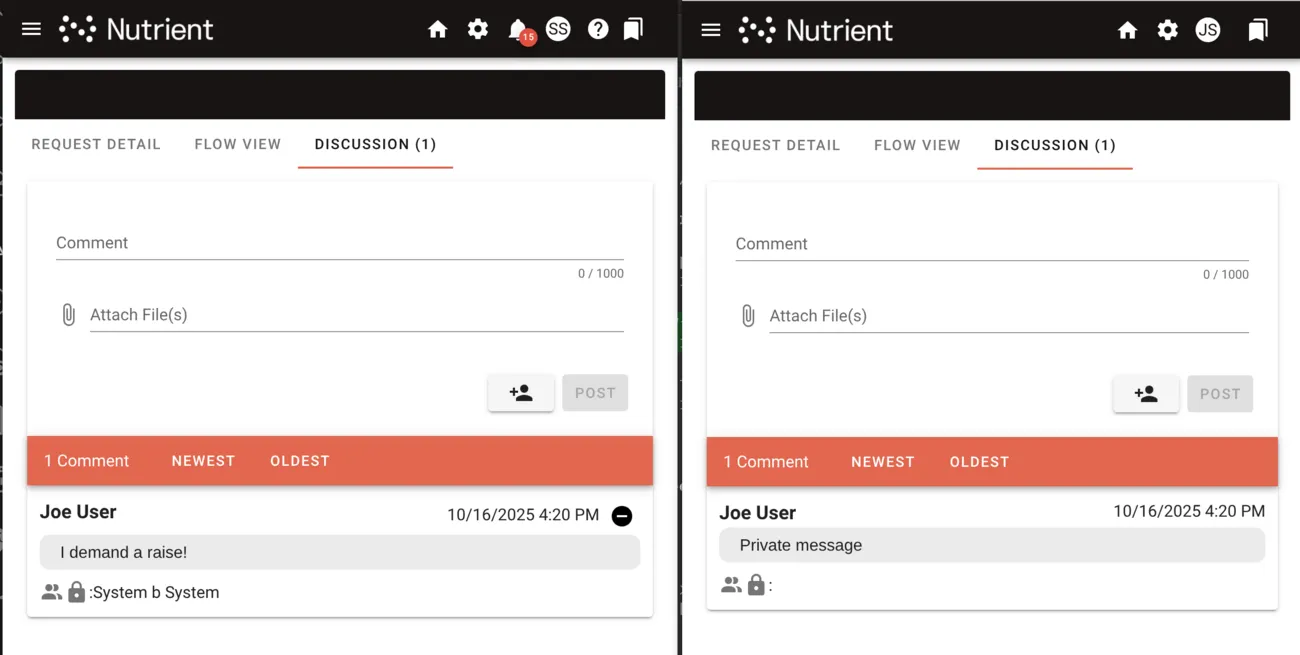
Authorized viewers, including the sender and selected recipients
- Can see the full comment text in the discussion tab.
- Can see the full comment text in task history.
- Can see the recipient list as “Shared with: User1, User2.”
- Can see the lock icon that indicates a private message.
Other users with discussion tab access
- See “Private message” placeholder text instead of the message content.
- Can see the message timestamp.
- Can see the lock icon that indicates a private message.
- Can’t see the message content, recipient list, or attached files.
Private message restrictions
- No replies — Users can’t reply directly to private messages.
- No recipient edits — Users can’t change the recipient list after posting.
- No administrator override — System administrators can’t view private messages unless users add them as recipients.
- No search for unauthorized users — The system excludes private message content from unauthorized users’ search results.
- Export handling — Private messages appear as “Private message” placeholders in exports for unauthorized users.
Permission requirements
- Creating private messages — Any user with permission to post in the discussion tab can create private messages.
- Viewing private messages — Only the sender and selected recipients can view the content.
- Deleting discussion comments — Comment deletion is limited to system administrators.
The administrator must still have access to the request discussion, and the comment must belong to that request.
If you enable group-based restrictions, the user selection dialog for private messages only shows members of authorized groups.
Best practices
Use these practices to configure discussion access and request communication.
Choose the right security model
- Use participant-based restrictions when only users working on requests should join discussions.
- Use group-based restrictions when specific departments or teams need discussion access.
- Combine both restriction types for processes that require both group membership and request participation.
Manage private messages
- Use private messages for sensitive information that doesn’t need to be visible to all discussion participants.
- Remember that administrators can’t view private messages unless users add them as recipients.
- Consider whether group-based restrictions should limit discussion access at the process level instead.
Use task history
- Review task history to understand discussion context and workflow progress.
- Use the chronological view to identify delays between task completions and related discussions.
- Use the audit trail for compliance and process improvement.
Process design considerations
- Review default security settings for new processes.
- Adjust defaults only when your workflow requires broader access.
- Enable security features for existing processes that handle sensitive information.
- Test discussion access with different user roles and group memberships before production deployment.