Configure Data Container tasks
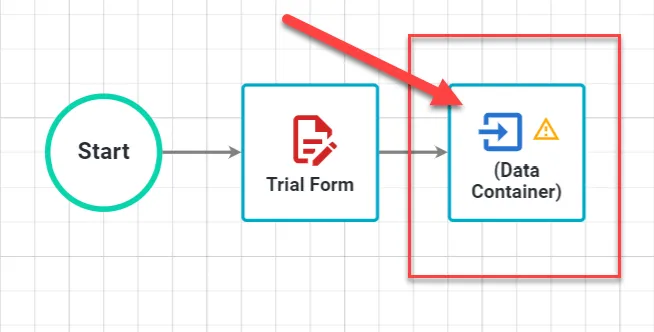
A Data Container task creates an endpoint that accepts JSON data and stores matching values as instance data in Nutrient Workflow Automation. When the workflow reaches the task, the endpoint waits for a request. A successful POST completes the task and advances the workflow.
Who can complete a Data Container task
Use this endpoint to complete a Data Container task:
POST /api/instance/tasktypes/dataContainer/{recipientTaskSid}
The caller must meet at least one of these conditions:
- Have Participate permission on the request. If the process restricts access to participants, the caller must also be an instance assignee.
- Have Manage permission on the request.
- Be an instance assignee, even without either permission.
The task must be open. The caller doesn’t need to be its assigned recipient. This exception applies only to Data Container tasks.
The endpoint can return 404 if it can’t resolve the recipient task and 403 if the caller fails the permission or participant check. It returns 400 for invalid input or task configuration.
Configure the task
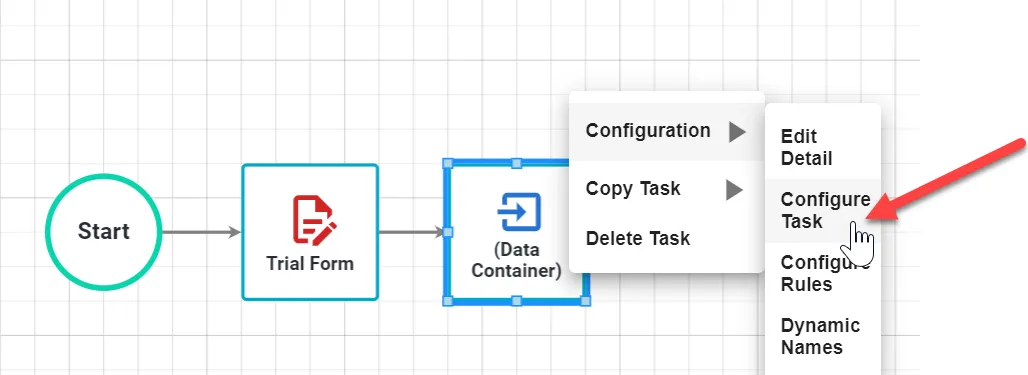
Add a Data Container task to your workflow. Then configure its fields and data types.
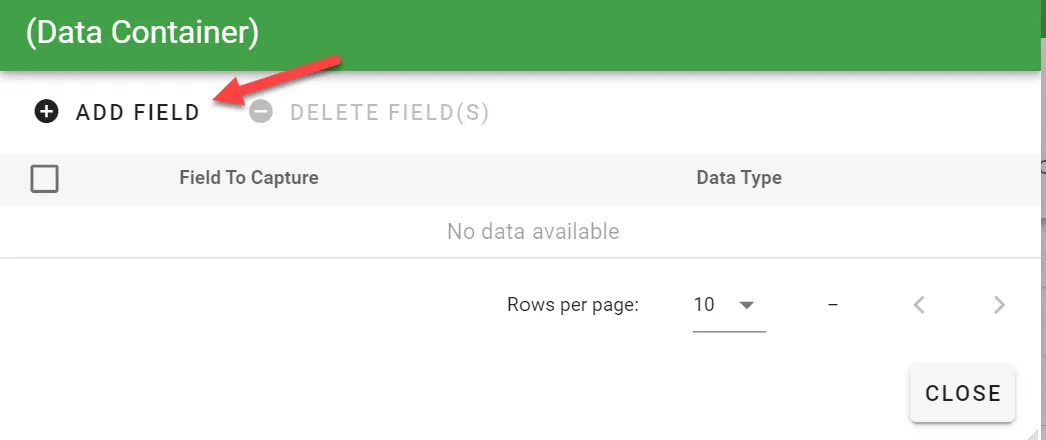
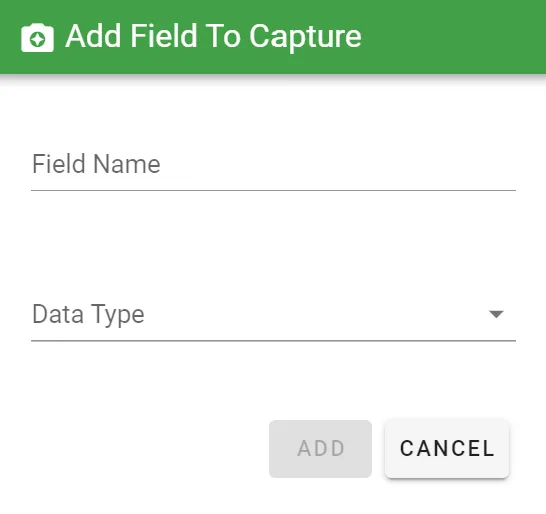
- Field Configuration — Lists the fields the task stores from the posted JSON. The task ignores other fields. Fields aren’t required in the request body.
- Data Types — Set each field’s expected data type, such as
string,numeric, ordate.
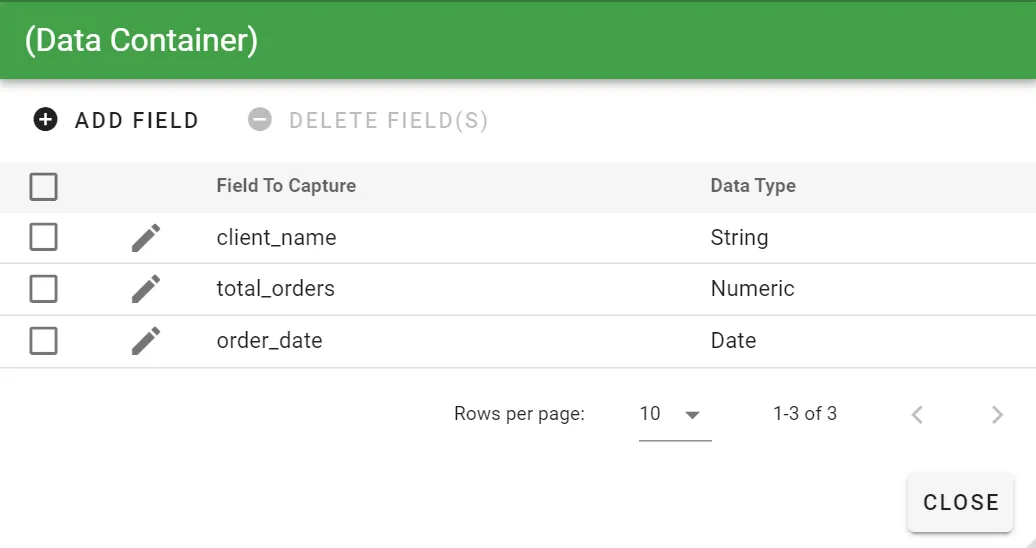
You need at least one active Data Container task in a request to use the endpoints below.
Find active endpoints
Send a GET request to /tasktypes/data-container/endpoints to list active Data Container endpoints. You can also find an endpoint in the request summary.
Filter the results by task name, instance ID, or instance SID. Refer to the endpoint filtering options(opens in a new tab) for the supported filters.
The following response shows two active endpoints:
{ endpoints: [ "/tasktypes/data-container/instances/tasks/reciptasks/d854f1fd-773d-4883-a2b7-0acc8c33d138?task_name=myTaskName", "/tasktypes/data-container/instances/tasks/reciptasks/d854f1fd-773d-4883-a2b7-0acc8c33d138?task_name=myOtherTaskName" ]}The response appends the task name to each endpoint for readability. The endpoint ignores the task_name query parameter in GET and POST requests.
If no Data Container tasks are active, the endpoint returns an empty list:
{ endpoints: [ ]}Get the field configuration
Send a GET request to the task endpoint to retrieve its field keys and data types. The following response shows an example configuration:
{ field_configuration: [ { key: "client_name", value_type: "string" }, { key: "client_number", value_type: "numeric" } ]}Refer to the Data Container GET endpoint documentation(opens in a new tab) for details.
Post data
Send a POST request to the task endpoint. The task stores the values for fields that match its field configuration. The POST then completes the task and advances the workflow.
The following request body contains two configured values:
{ "client_name": "John Doe", "client_number": 5}Send file attachments
Upload each file before sending its returned key in the Data Container request. Follow these two steps:
- Upload the file using the file upload endpoint(opens in a new tab).
- Add the returned key to the file field in the Data Container request body.
The following request body shows a file key:
{ "client_name": "John Doe", "file_attachment": "1a9dec20-3e93-11e5-8b58-7b9ee7d080f1"}