Understanding milestone tasks in workflow automation
Use the Milestone task to set the overall status for a process. Each time a request executes a Milestone, the task updates the request status.
The Milestone runtime uses the modern Baseline interface. Manual milestone completion requires the assigned open task and the matching milestone option.
Prerequisites
Before you configure milestone tasks, make sure you have these permissions and resources:
- Administrative permissions to create and configure process tasks.
- Access to the Process Builder in Nutrient Workflow Automation.
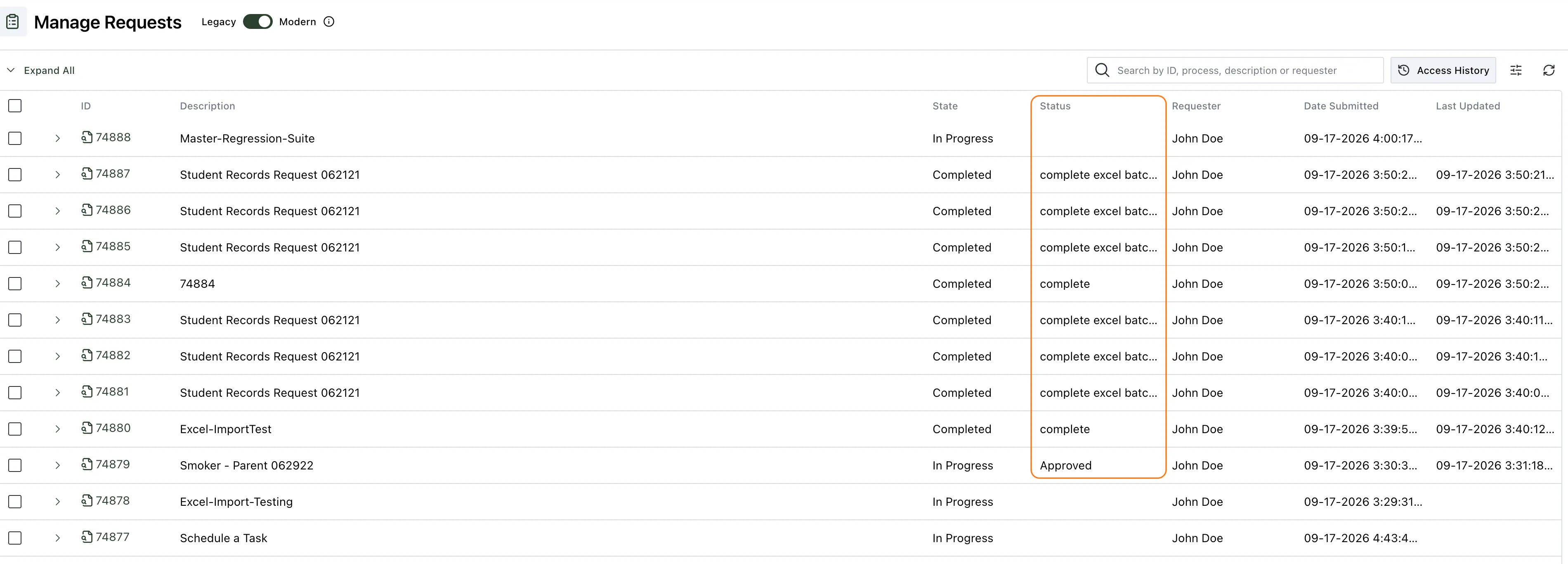
In most cases, you add a Milestone task between two tasks, and the milestone value indicates the current process status.
The following example uses Milestone tasks to set the status at each step of the process.
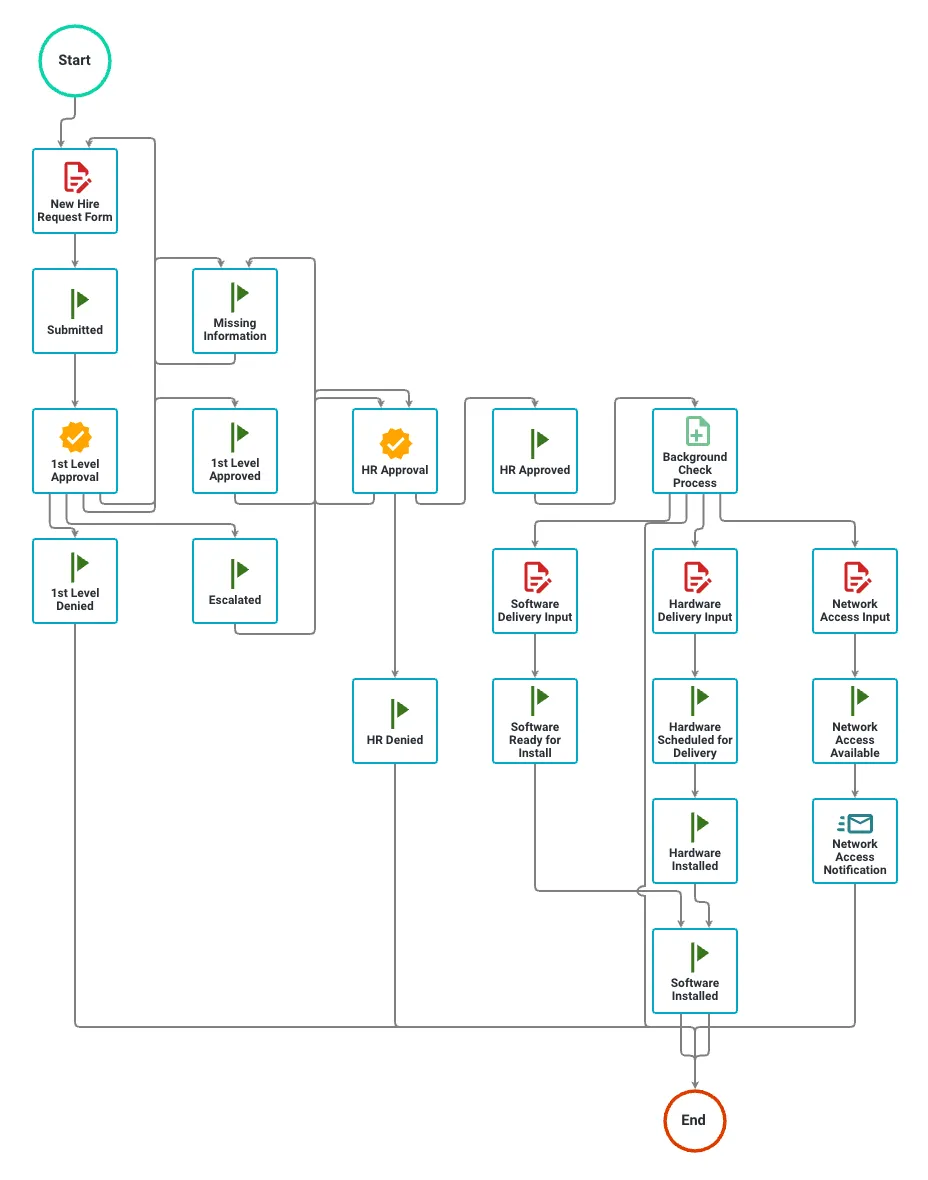
When this process runs, a user submits the New Hire Form. The Milestone then sets the request status to Initial Form Submitted. Next, Nutrient Workflow Automation starts an Approval task and assigns it to a recipient.
A Milestone task can run automatically or wait for user input. If you don’t add a recipient to the task, Nutrient Workflow Automation executes it automatically.
You can also assign a Milestone task to a user as a decision point. Add multiple milestone options so the user can select the current status, such as Pending Testing or Pending QA.
Basic configuration
When you add a Milestone task to a process, Nutrient Workflow Automation uses the task name as the default value. When the Milestone runs, that default value becomes the current request status.
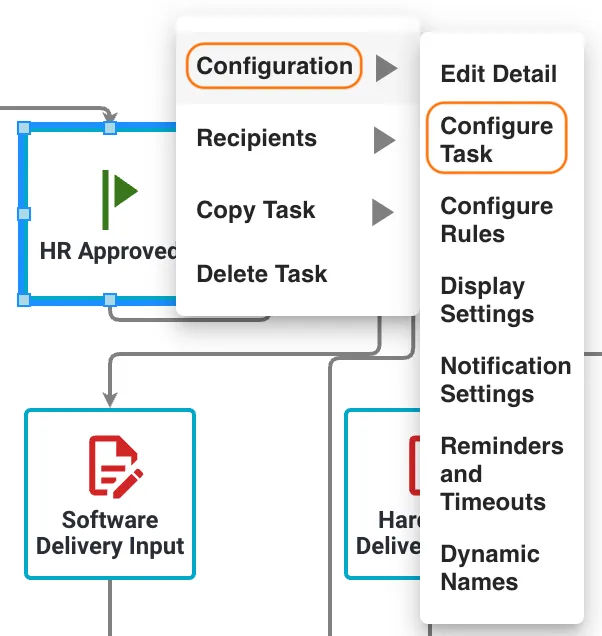
To view or change the default Milestone value, click the Milestone task and select Configure Task.
The configuration screen opens with the milestone options for the task.
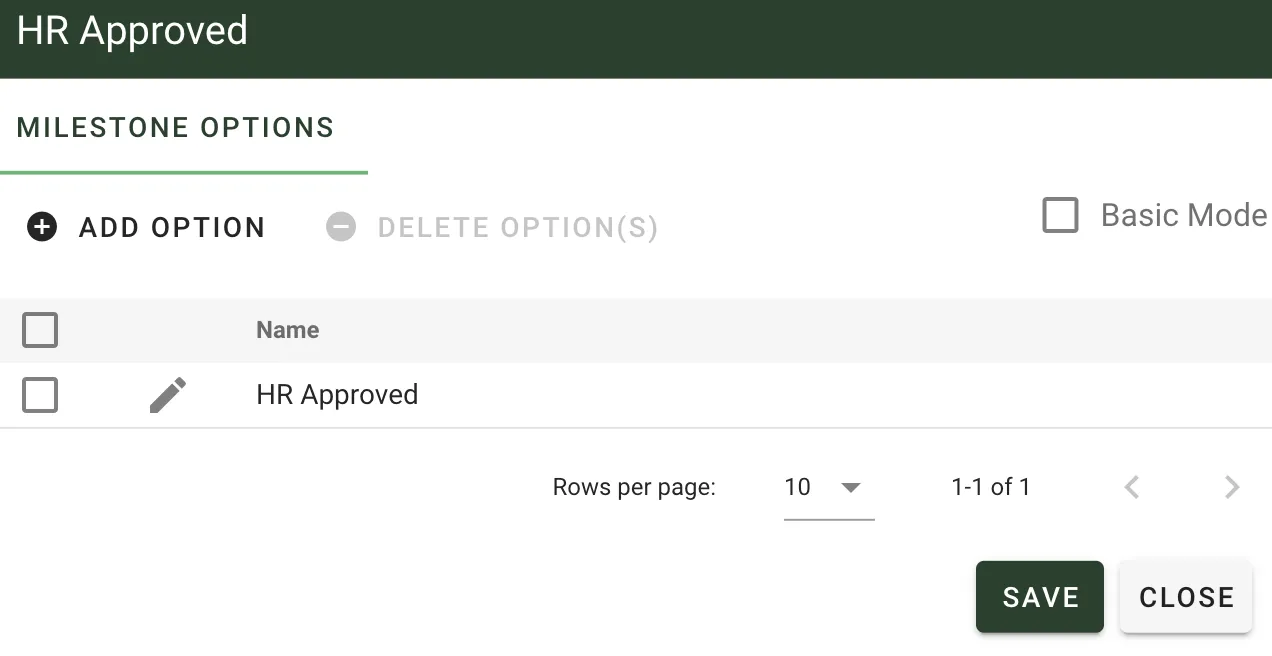
Keep the task name and default configured value the same for clarity, because basic mode syncs task name changes to the default option automatically.
You don’t need to add a recipient to the task. If you don’t add a recipient, Nutrient Workflow Automation executes the task automatically and uses the default value as the current status.
Advanced configuration
Use advanced configuration when a user must manually set the status of a request.
To configure a milestone task for manual selection, complete these steps:
- Add a new Milestone task to your process.
- Assign the task to a specific user or role.
- Click the Milestone task and select Configure Task.
- Switch from basic mode to advanced mode, if needed.
- Add the status values users can choose from.
- Configure routing based on the selected status option.
Each option represents a different status path for the request. When the process reaches this milestone, the assigned user chooses one option to continue the workflow.
This selection sets the request’s current status, and it also determines which path the process follows next.
Use cases for manual milestone selection
- Quality assurance workflows — QA manager selects Approved, Needs Revision, or Rejected.
- Project management — Project manager selects Ready for Development, Needs Clarification, or On Hold.
- Approval processes — Department head selects Approved, Conditionally Approved, or Denied.
Use manual milestone selection when a user, such as a project manager, needs to choose the process path. The selected milestone controls the status shown to the end user.
When to use milestone tasks
Choose milestone tasks when you need to:
- Track process progress — Provide status updates to stakeholders throughout the workflow.
- Create decision points — Enable users to choose the next steps in a process.
- Update request status — Set status values without requiring user input.
- Improve reporting — Generate status-based reports on workflow progress and bottlenecks.
- Enhance transparency — Show end users where their requests stand in the approval process.
Milestone tasks work well in multistep workflows where stakeholders need status visibility, and they also support workflows where users must choose the next step.
Troubleshooting common issues
- Milestone not executing — Confirm the milestone task is connected in the workflow and has no blocking conditions.
- Wrong status displayed — Check that the milestone task name matches the intended status value.
- Configured default value not applied — Verify the configured default value in basic mode.
- User can’t see milestone options — Confirm the milestone task is assigned to the correct user or group.
- User lacks milestone access — Confirm the user has the required permissions.
- Status not updating — Verify that the milestone task completes without errors or validation issues.
- Multiple milestones conflicting — Check whether milestone tasks override each other’s status values.