Configure REST client for web service integration
The REST Client task type enables you to configure processes to consume RESTful web services. Use this task to push or pull information from other systems that have a web service API.
The Web Service task posts data as Simple Object Access Protocol (SOAP) messages or parameterized query strings. The REST Client task instead provides full control over HTTP requests. It supports JSON payloads, custom headers, and authentication options, including credentials stored in Credential Center.
Previously, this task type used the Request Module(opens in a new tab) for Node. With the latest update, you can switch to the Node fetch API from the Request Configuration tab. New tasks will default to Node fetch API, while existing tasks will continue using request unless manually updated. Some complex configurations may require adjustments when transitioning to Node fetch API.
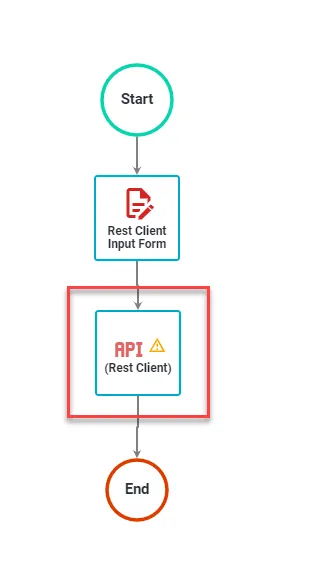
There are three configuration tabs for defining your attributes and one for testing your configuration:
Request configuration
This tab accepts either a single URL or uniform resource identifier (URI) string or a JSON configuration object with the following options:
uriorurl— Fully qualifiedurior a parsedurlobject fromurl.parse()qs— Object containing query string values that append to theurimethod— HTTP method (default:"GET"); supports all HTTP verbs (for example, GET, POST, PUT, DELETE)headers— HTTP headers (default: {})body— Entity body for PATCH, POST, and PUT requests; legacyrequestneedsjson: trueto serialize an object body as JSONform- When passed an object, this sets
bodyto a query string representation of the value and addsContent-Type: application/x-www-form-urlencoded; charset=utf-8header - When passed no options, this returns a FormData instance and pipes it to the request. This is the most common way to post a JSON object
- When passed an object, this sets
auth— A hash containing values:user,username,password,pass, andsendImmediately; this isn’t a hash in the cryptographic sensejson— Setsbodyto a JSON representation of the value and addsContent-type: application/jsonheader. Additionally, it parses the response body as JSON.followRedirect— Follow HTTP 3xx responses as redirects (default: true)followAllRedirects— Follow non-GET HTTP 3xx responses as redirects (default: false)maxRedirects— The maximum number of redirects to follow (default: 10)encoding— Encoding forsetEncodingof response data. If null, returns the body as a Buffer.timeout— Integer containing the number of milliseconds to wait for a request to respond before aborting the requestproxy— An HTTP proxy for requests; supports proxy authentication with Basic Authoauth— Options for OAuth HMAC-SHA1 signingstrictSSL— If true, requires Secure Sockets Layer (SSL) certificates to be validTo use your own Certificate Authority (CA), specify an agent that you created with that CA as an option.
jar— If true, remember cookies for future use (or define your custom cookie jar; see examples below)aws— Object containing AWS signing information. It should have the propertieskey,secret, andbucket, unless it’s specified in the path, or the request doesn’t use abucket(i.e. GET Services)httpSignature— Options for the HTTP Signature Scheme(opens in a new tab) using Joyent’s library(opens in a new tab); thekeyIdandkeyproperties must be specified
If you’re transitioning to Node fetch API, ensure your request configuration aligns with its syntax. Unlike request, Node fetch API doesn’t support options such as qs, form, and jar. You may need to make adjustments when transitioning.
Examples
Use the example that matches the REST Client implementation selected in the Request Configuration tab.
This legacy request configuration posts a JSON body to a supplier onboarding API. The __supplierName, __supplierType, and __contactEmail placeholders are request parameters. Select each value in the Request Parameters tab from the matching form answer.
{ "uri": "https://api.example.com/suppliers", "method": "POST", "headers": { "Accept": "application/json" }, "json": true, "body": { "supplierName": __supplierName, "supplierType": __supplierType, "contactEmail": __contactEmail, "active": true }}Leave placeholders unquoted so the task inserts each mapped value correctly. With json: true, the task serializes the object body as JSON, sets Content-Type: application/json, and parses a JSON response body.
This Node fetch API configuration sends the same POST request. Fetch doesn’t support legacy options such as form, qs, or jar. It serializes an object body as JSON and sets Content-Type: application/json.
{ "url": "https://api.example.com/suppliers", "method": "POST", "headers": { "Accept": "application/json", "Content-Type": "application/json" }, "body": { "supplierName": __supplierName, "supplierType": __supplierType, "contactEmail": __contactEmail, "active": true }}Don’t put placeholders inside quoted strings. Unquoted placeholders insert and escape mapped values correctly, including values containing quotes.
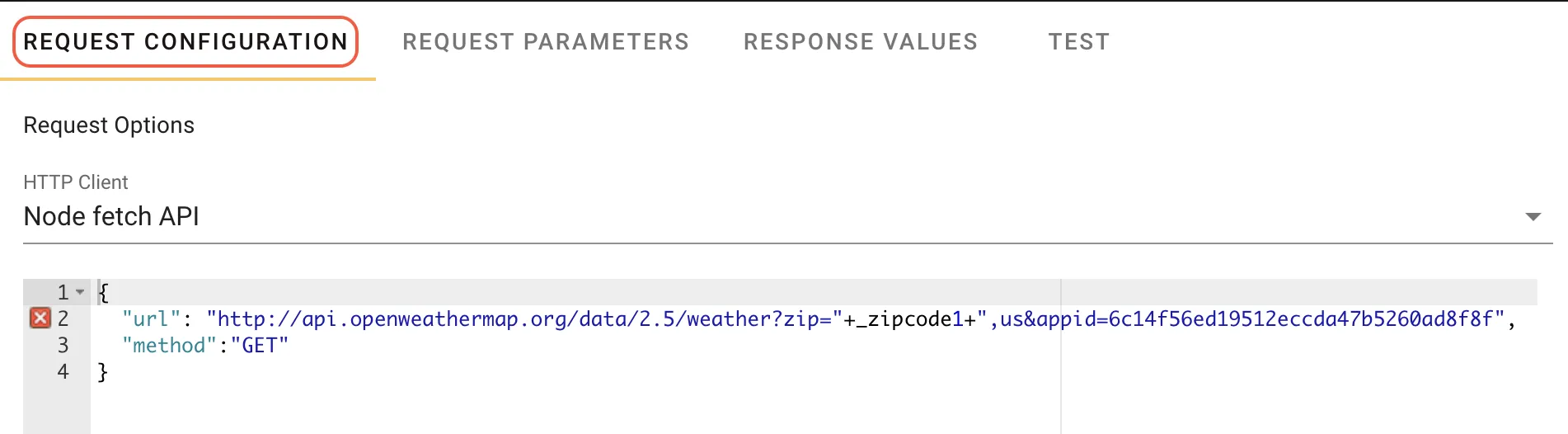
Request parameters
This tab enables you to configure request parameters to fill variables in your Request Configuration > Request Options settings. For example, in the supplier onboarding request configuration, map these placeholders to form answers:
__supplierName— Supplier name form answer.__supplierType— Supplier type form answer.__contactEmail— Contact email form answer.
During testing and runtime execution, Workflow Automation replaces each placeholder with the selected source value.
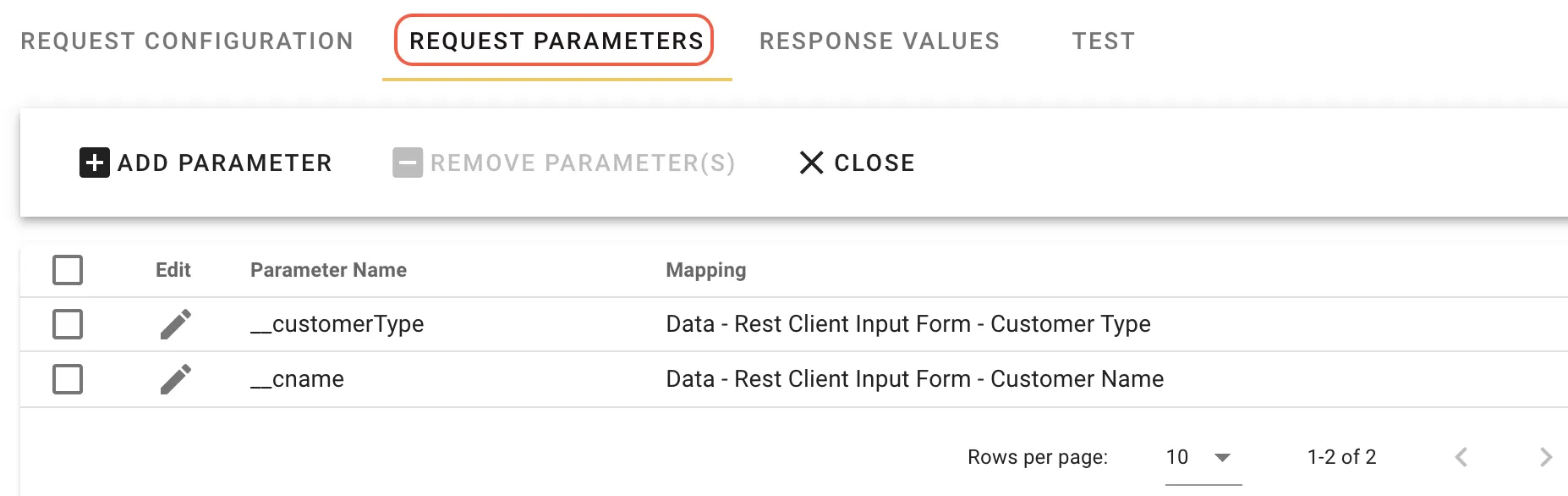
Use credentials from Credential Center
To authenticate the REST Client request with a stored credential, add a request parameter and select Credential Center as the source. Then select the credential that matches the API’s authentication requirements.
Supported Credential Center authentication options include:
- API Key
- Bearer Token
- Username/Password
- Token-Based Authentication (OAuth 1.0a)
- Signed JWT
Choose a Signed JWT credential when the target API requires a signed JSON Web Token (JWT) to be generated for the request. Signed JWT credentials must be selected explicitly in the REST Client task. They expose JWT Token and JWT Basic fields, so you can map the form the target API requires. Examples include a bearer token or a basic authentication value.
After selecting a Signed JWT credential, save the configuration. Then use the Test tab to confirm the token can be generated and the API accepts the request.
If you manage REST Client task configuration through exported or imported JSON, JWT credential configuration may be represented in a jwtBasic field. Don’t edit this field manually unless instructed by Nutrient Support(opens in a new tab).
Migrate a legacy request task to Node fetch
Use this checklist when you move a REST Client task from legacy request to Node fetch API.
| Legacy request configuration | Node fetch configuration |
|---|---|
qs object for query strings | Add query parameters to the URL — for example, https://api.example.com/suppliers?region=__region. |
form object | Serialize the form data yourself, and set the matching Content-Type header. |
json: true with an object body | Provide body as an object; Node fetch serializes it as JSON and sets Content-Type: application/json. |
jar cookie handling | Capture required cookies with Response Values, and send them explicitly in later requests. |
The following migration keeps the supplier onboarding example and adds bearer-token authentication through Credential Center.
In Request Configuration, select Node fetch API.
Paste this configuration:
{"url": "https://api.example.com/suppliers","method": "POST","headers": {"Accept": "application/json"},"body": {"supplierName": __supplierName,"supplierType": __supplierType,"contactEmail": __contactEmail,"active": true}}In Request Parameters, map these values:
__supplierApiToken— Select Credential Center, and choose the stored bearer token credential. The task adds theAuthorization: Bearer <token>header for you; don’t add it to the request configuration.__supplierName— Select the supplier name form answer.__supplierType— Select the supplier type form answer.__contactEmail— Select the contact email form answer.
In Response Values, add these mappings:
- Key —
supplierId; Data Type —string; Expression —body.id. - Key —
statusCode; Data Type —numeric; Expression —status.
- Key —
In Test, enter sample values for the form-answer parameters and run the task. A successful test returns a
2xxstatus code and stores the supplier identifier insupplierId.
If the target API returns a 4xx or 5xx status, the task fails and skips the response mappings above. It saves only Status_Code and Error_Message, so base error-handling rules on Status_Code. For an example, see REST error handling.
When a request parameter uses a Credential Center bearer token, the task adds the Authorization: Bearer <token> header and replaces any Authorization header in the request configuration. Don’t add the header manually.
To roll back, switch the task back to request, restore the previous legacy configuration, save each tab, and run the Test tab again.
Response values
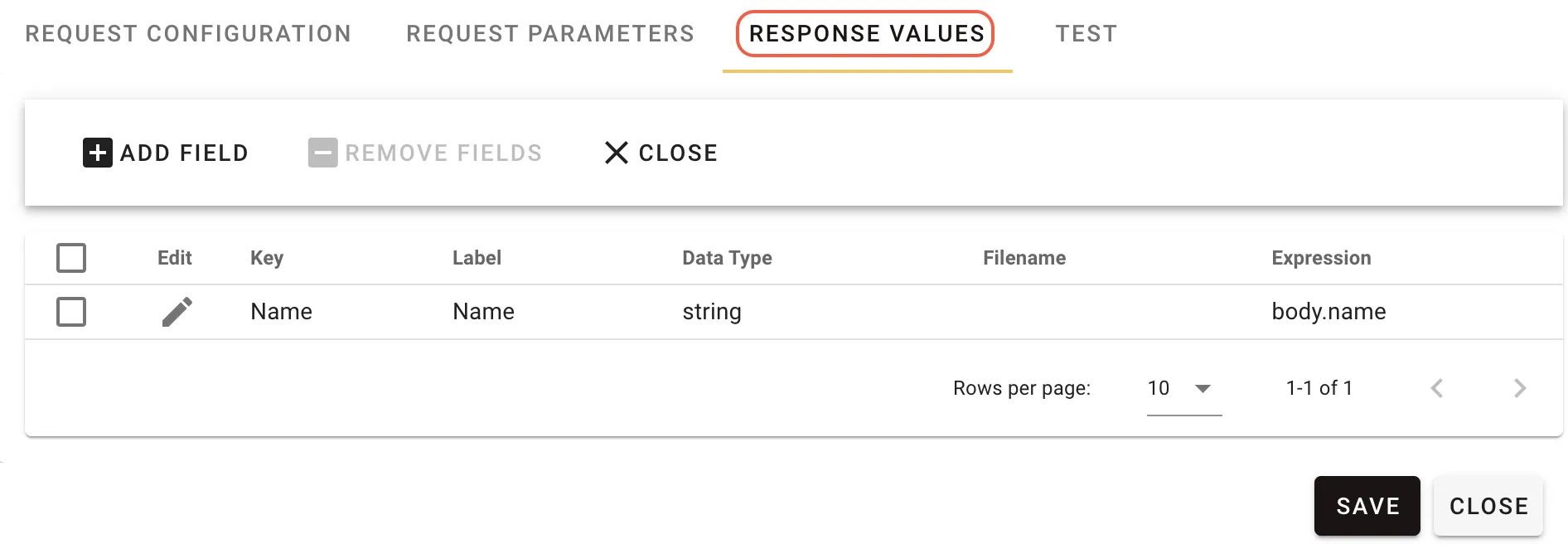
This tab enables you to map values returned from the request to task variables. Rules, prefill values, and reports can then access these variables. When the task executes, it saves the values to the database.
In the supplier onboarding example, the response can include the identifier returned by the API. If you want the entire body of the response, you can skip this tab. The task type enables you to create expressions based on the JSON-Query module for Node. The system sets the context to the response and parses response.body as JSON. For example, the POST request might return {"id":"sup_12345","status":"created"}.
If you want to retrieve the supplier identifier from the response, configure an expression to extract body.id. The full configuration includes:
- Key — A string that uniquely identifies the value for this task instance.
- Label — The label that displays the variable in the Request Detail, Rules, Prefills, and Reports.
- Data Type — The data type to capture.
- Expression — The
JSON-Queryexpression that parses the raw response and retrieves the value for this variable.
Extracting headers, cookies, and status codes
In addition to extracting values from the response body, you can also extract HTTP headers, cookies, and the status code from the REST client response. This is useful for capturing authentication tokens, session identifiers, tracking server-side state, and handling HTTP status codes in your workflow logic.
Response data prefixes
When configuring expressions in the Response Values tab, you can use prefixes to specify which part of the HTTP response to extract data from:
header.— Extract HTTP response headerscookie.— Extract and parse Set-Cookie headersstatus— Extract the HTTP status codebody.— Extract from response body (optional prefix for backward compatibility)
Expressions without a prefix default to extracting from the response body, maintaining backward compatibility with existing REST client tasks.
Extracting response headers
Use the header. prefix to extract values from HTTP response headers. Header names are case-insensitive.
Example: Extracting an authentication token from response headers
If your API returns an authentication token in the response headers:
HTTP/1.1 200 OKX-Auth-Token: bearer_xyz123abc456Content-Type: application/jsonConfigure your response value expression:
- Key —
authToken - Label —
Auth Token - Data Type —
string - Expression —
header.x-auth-token
This extracts the value bearer_xyz123abc456 and stores it in the task variable authToken.
Alternative bracket notation
You can also use bracket notation for header extraction:
headers["x-auth-token"]Both formats work identically and support case-insensitive header matching.
Extracting cookies from response
Use the cookie. prefix to extract cookies from Set-Cookie headers. The system parses cookies according to Request for Comments (RFC) 6265. It returns them as objects containing the cookie value and metadata (domain, path, expires, secure, httpOnly, sameSite).
Example: Extracting a session ID from a cookie
If your API returns a session cookie:
HTTP/1.1 200 OKSet-Cookie: JSESSIONID=abc123xyz789; Path=/; Secure; HttpOnlyConfigure your response value expression:
- Key —
sessionId - Label —
Session ID - Data Type —
string - Expression —
cookie.JSESSIONID.value
This extracts the value abc123xyz789 and stores it in the task variable sessionId.
Cookie object structure
The system parses each cookie into an object with the following properties:
{ "name": "JSESSIONID", "value": "abc123xyz789", "domain": ".example.com", "path": "/", "expires": "2024-12-31T23:59:59Z", "maxAge": 3600, "secure": true, "httpOnly": true, "sameSite": "Strict"}Extracting cookie properties
- Get just the cookie value (most common) —
cookie.JSESSIONID.value - Get the full cookie object —
cookie.JSESSIONID - Get specific cookie properties —
cookie.JSESSIONID.domain,cookie.JSESSIONID.expires,cookie.JSESSIONID.secure
Alternative bracket notation
You can also use bracket notation for cookie extraction:
cookies["JSESSIONID"].valueBoth formats work identically.
Unlike headers (which are simple strings), cookies are objects with multiple properties. Use .value to extract just the cookie value, or access other properties like .domain, .expires, or .secure as needed.
Extracting HTTP status code
Use the status expression (without a prefix) to extract the HTTP status code from the response.
Example: Capturing the status code for conditional logic
Configure your response value expression:
- Key —
statusCode - Label —
Status Code - Data Type —
numeric - Expression —
status
This extracts the HTTP status code (e.g. 200, 201, 404, 500) and stores it in the task variable statusCode. You can then use this variable in workflow rules to handle different response scenarios.
Backward compatibility
Existing REST client tasks continue to work without modification. Expressions without a prefix default to extracting from the response body, maintaining full backward compatibility with existing workflows.
REST error handling
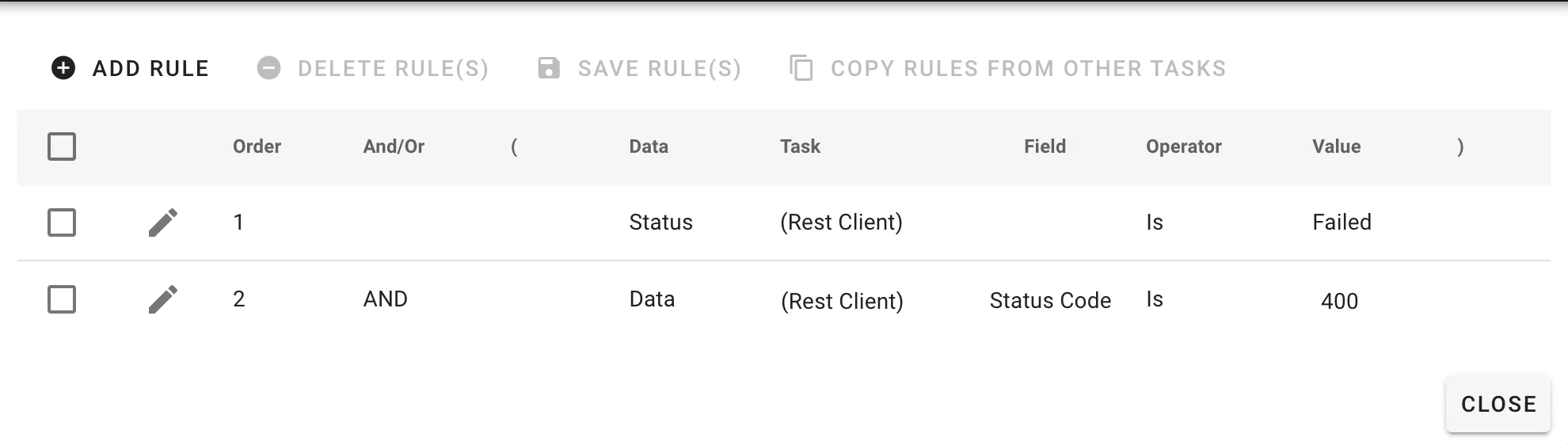
If the REST client fails, use the failure response codes provided to build appropriate handling rules. Below is a simplified example:
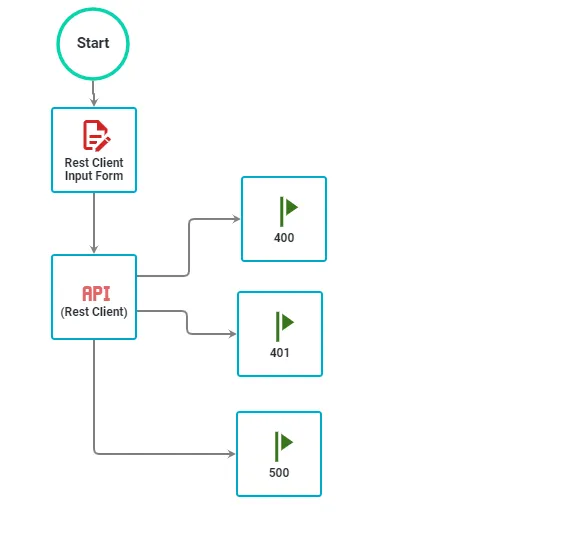
Configure the REST task as follows:
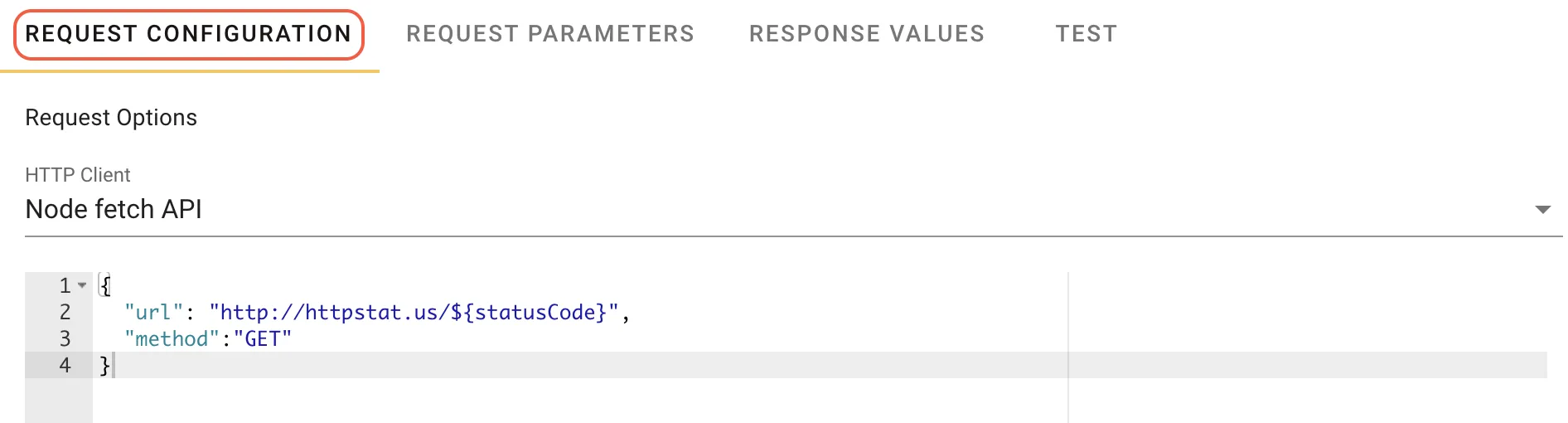
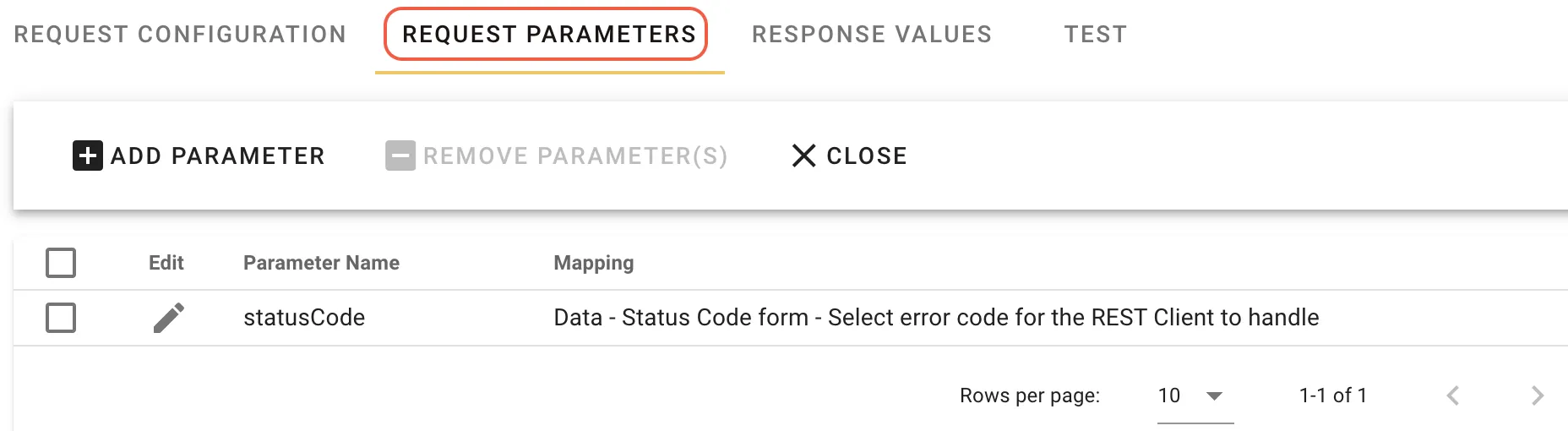
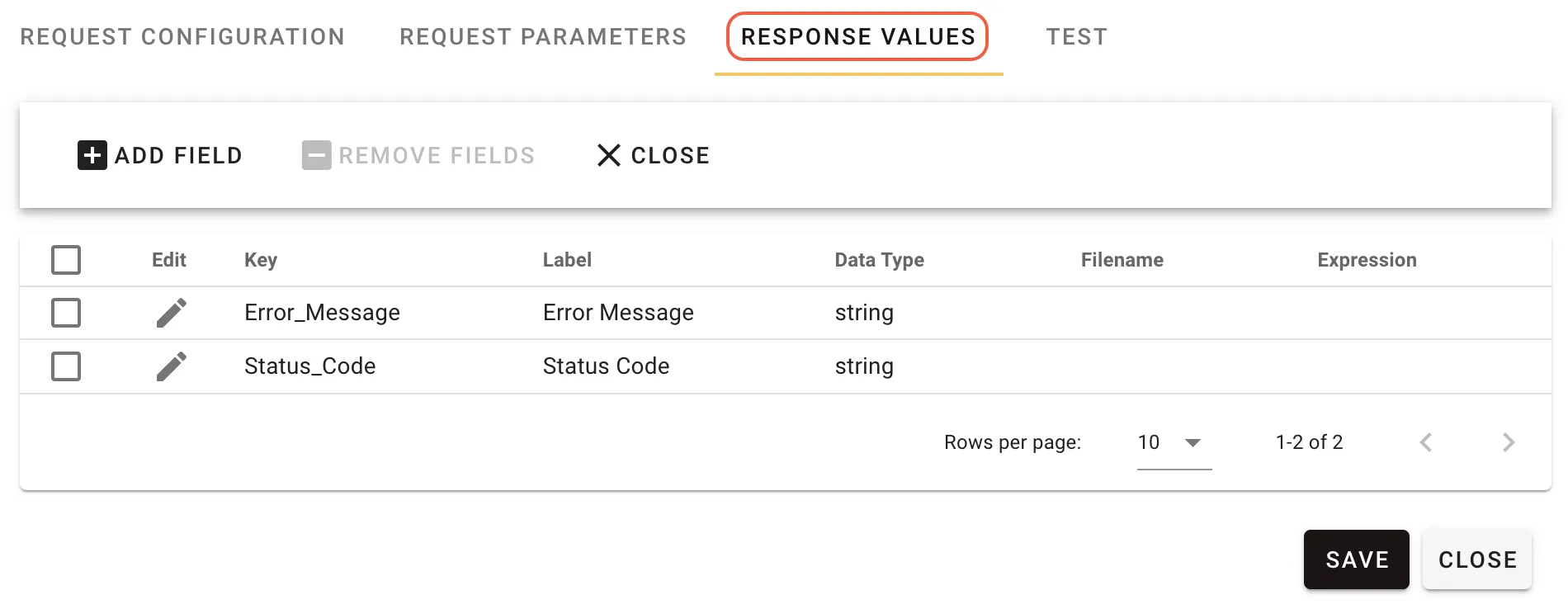
Configure subsequent milestones to receive the error codes. The following example shows the 400 error milestone configuration. Configure the other error codes in a similar manner.
Test
This tab enables you to validate and test your configuration based on the settings you have saved. Be sure to click the Save button in the lower-right corner on each tab prior to running your test. Below is a screenshot of a test:
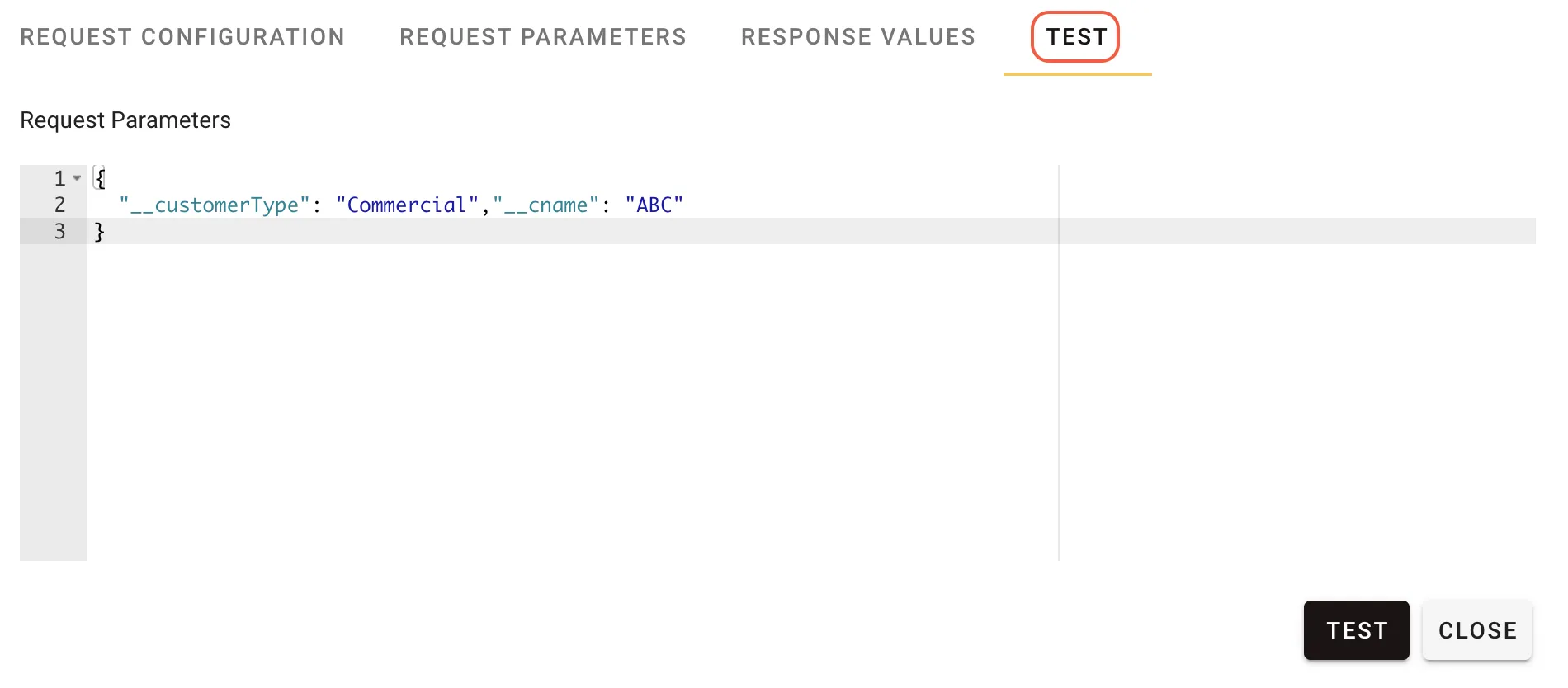
This tab automatically generates the configuration for the Request Parameters. Enter values for each parameter before testing. If the task uses a stored JWT credential, the test request generates the JWT token the same way runtime execution does.
For the supplier onboarding examples, the Test tab prompts for __supplierName, __supplierType, and __contactEmail. Credential Center supplies __supplierApiToken. A successful test returns a 2xx status and a response body such as {"id":"sup_12345","status":"created"}. The response mappings store sup_12345 in supplierId and the HTTP status code in statusCode.
Clicking the Test button sends the request and processes the response based on the Response Values configuration. In the supplier onboarding example, the configuration defines a Response value with the expression body.id. The raw response body appears in the test results.
The expression body.id extracts only the supplier identifier from the response. The test returns results in an array of JSON objects, including the key, label, type, and the value that the JSON-Query expression retrieves.