Process Builder overview
The Process Builder serves as the primary tool for viewing process structures and configuring tasks within Nutrient Workflow Automation. This section covers the following topics:
- Process builder canvas and navigation
- Tasks menu
Process Builder canvas and navigation
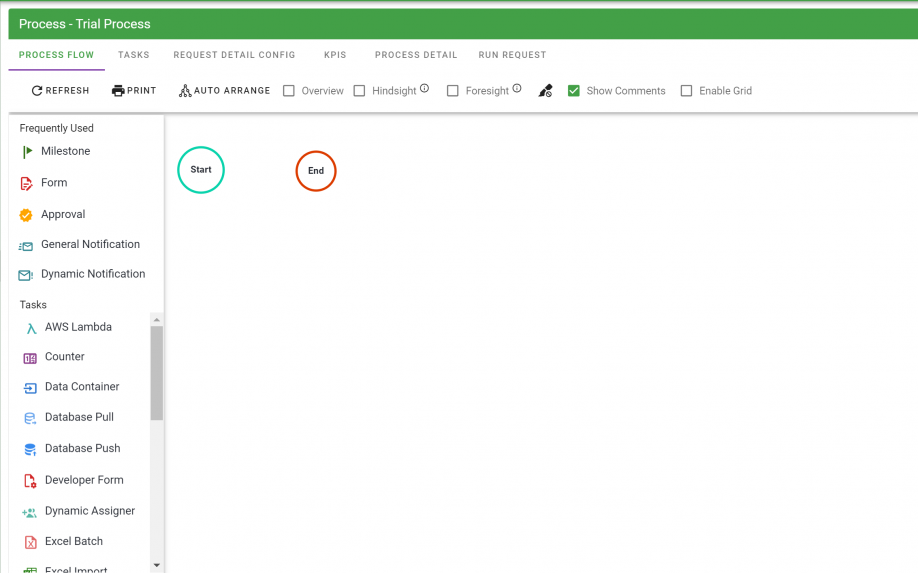
The Process Builder provides a canvas to build your process. When you first create a process, a blank canvas appears with default Start and End tasks:
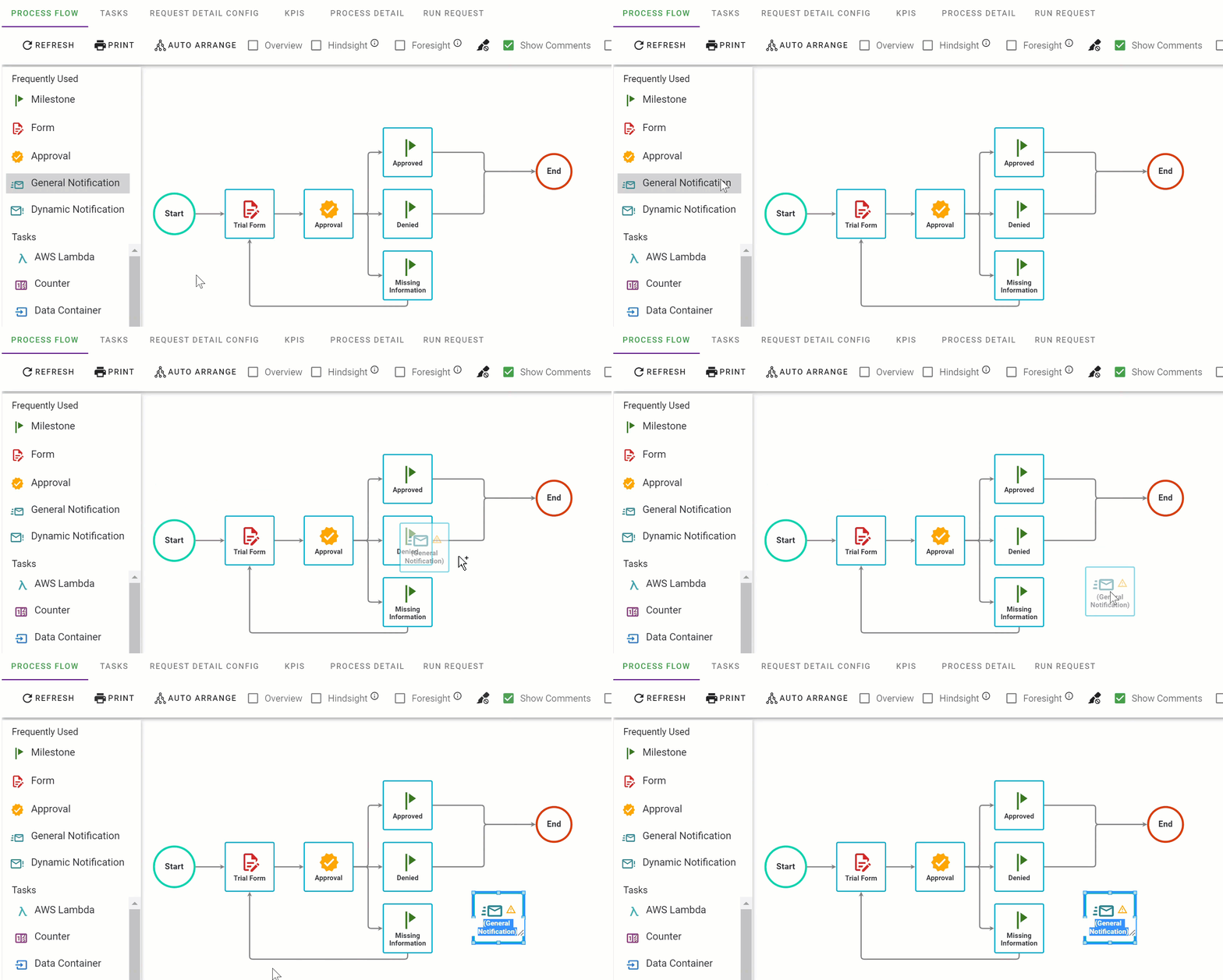
Interact with the canvas by dragging and dropping options from the Tasks menu.
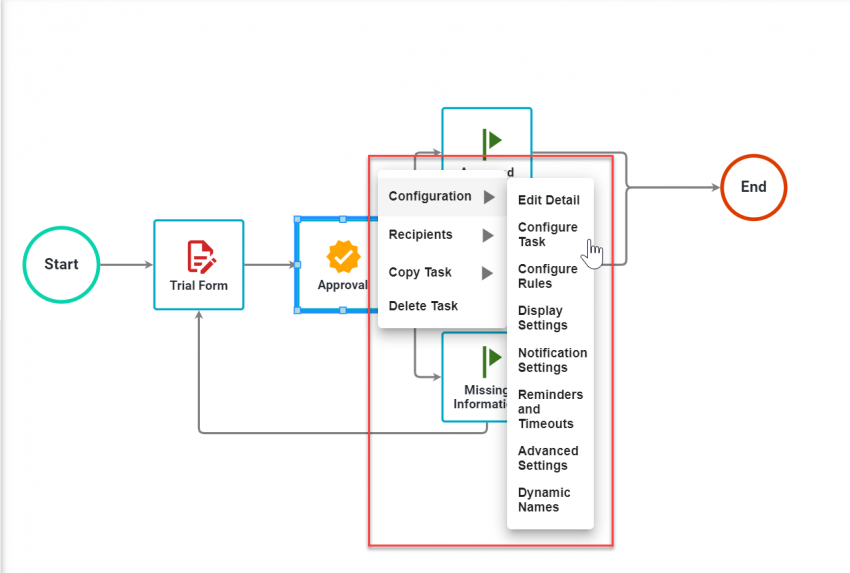
Alternatively, you can use the context-sensitive menus for each task:
As you add more tasks, the canvas extends beyond the visible browser window. Use the right and bottom scroll bars to view additional tasks.
- Refresh — Use this when multiple administrators modify the process flow simultaneously. If another admin makes a change while you have the process open, select Refresh to update your view.
- Print — Opens a new window to print the process view.
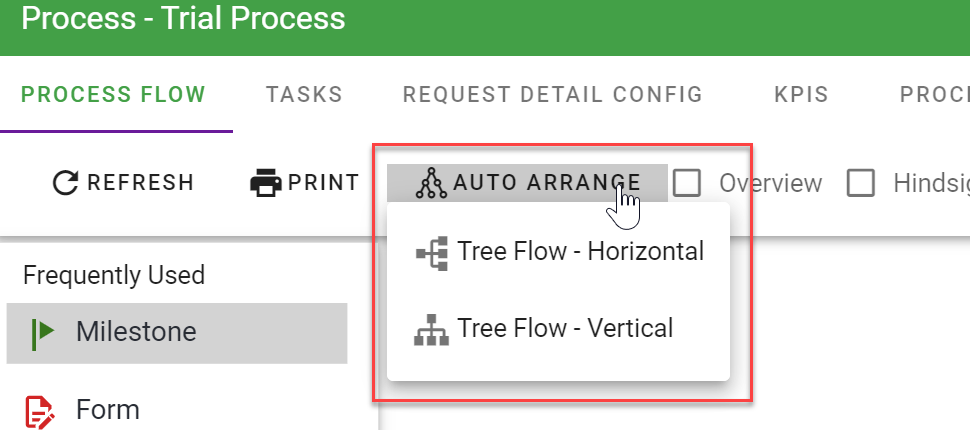
- Auto Arrange — Rearranges the flow into a horizontal or vertical hierarchical layout using built-in algorithms.
You can’t revert to a previous flow design after using Auto Arrange. Consider this before you select either the horizontal or vertical option.
Task status indicators
The canvas displays visual indicators on tasks to alert you to configuration issues:
- Yellow warning icon — Appears when a task lacks required configurations, such as task setup or recipients, or when the task has invalid rules. Hover the pointer over the task to view a tooltip with details. This indicator also appears on the End task when it has invalid rules.
Tasks menu
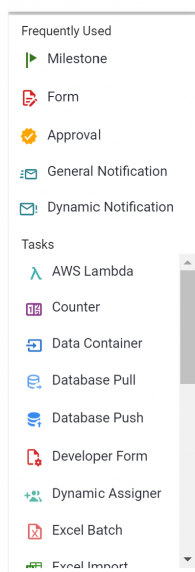
The Tasks menu is available in the left panel of the Process Builder canvas. To add a new task, perform the following steps:
Click and drag a task from the menu.
Drop the task at your preferred position on the canvas.
Enter a name for the task after placing it on the canvas.
Refer to the task overview guide for more information on adding tasks to a process, task configurations, and task types.