Use the Excel Batch task in a workflow
Use the Excel Batch task to launch one request per row in an Excel spreadsheet. When someone starts a process that includes this task, the form prompts them to attach a file.
Excel Batch configuration
- Add the Excel Batch task onto the canvas in the process editor.
- Navigate to Configuration > Configure Task.
The Settings tab will then open.
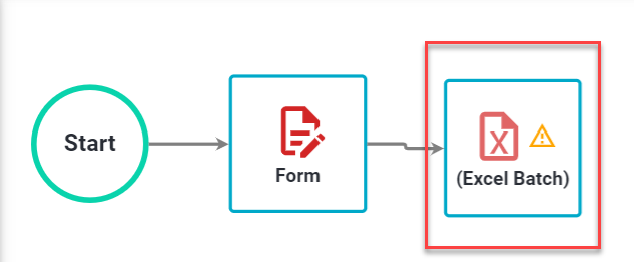
Configure the following required settings:
- Sample Spreadsheet in Format to be uploaded — Upload a sample or template spreadsheet.
- Process to launch — Select the process to launch for each row.
- Form task in launched request to receive data — Select the form task that receives mapped values. In most cases, this is the first form task.
- Requester of launched process — Choose who becomes the requester for child requests:
- This request’s requester — Uses the parent request’s requester.
- This request’s client — Uses the parent request’s client.
- Select User — Uses a specific user.
- Client of launched process — Choose who becomes the client for child requests:
- This request’s client — Uses the parent request’s client.
- This request’s requester — Uses the parent request’s requester.
- Select User — Uses a specific user.
- Parent view options — Control visibility between parent and child requests.
- Child and parent requests can’t see each other’s details — No links in either direction.
- Parent can see child request’s details, but child can’t see parent’s — Parent links to child requests; child requests don’t link to parent.
- Child can see parent request’s details, but parent can’t see child’s — Child requests link to parent; parent doesn’t link to children.
- Parent and child requests can see each other’s details — Links appear in both directions.
- Child view options — Control visibility between sibling child requests.
- Siblings can’t see this launched request — Sibling requests can’t view each other.
- Siblings can see this launched request — Sibling requests can view each other.
Additional settings
- Skip the first row of the spreadsheet — Skip request creation for the first row. Enable this unless your spreadsheet has only one row and no headers.
- Prefer formatted cell values — Use display-formatted values (for example,
1,234.50,12.30%) instead of raw numeric values (for example,1234.5,0.123). This setting is off by default for backward compatibility. - Name of launched request — Set the child request name. This field is required and must have a value.
- Set requester to the following user — If you choose Select User for the Requester of launched process, select the user in this field.
- Set client to the following user — If you choose Select User for the Client of launched process, select the user in this field.
Click Save.
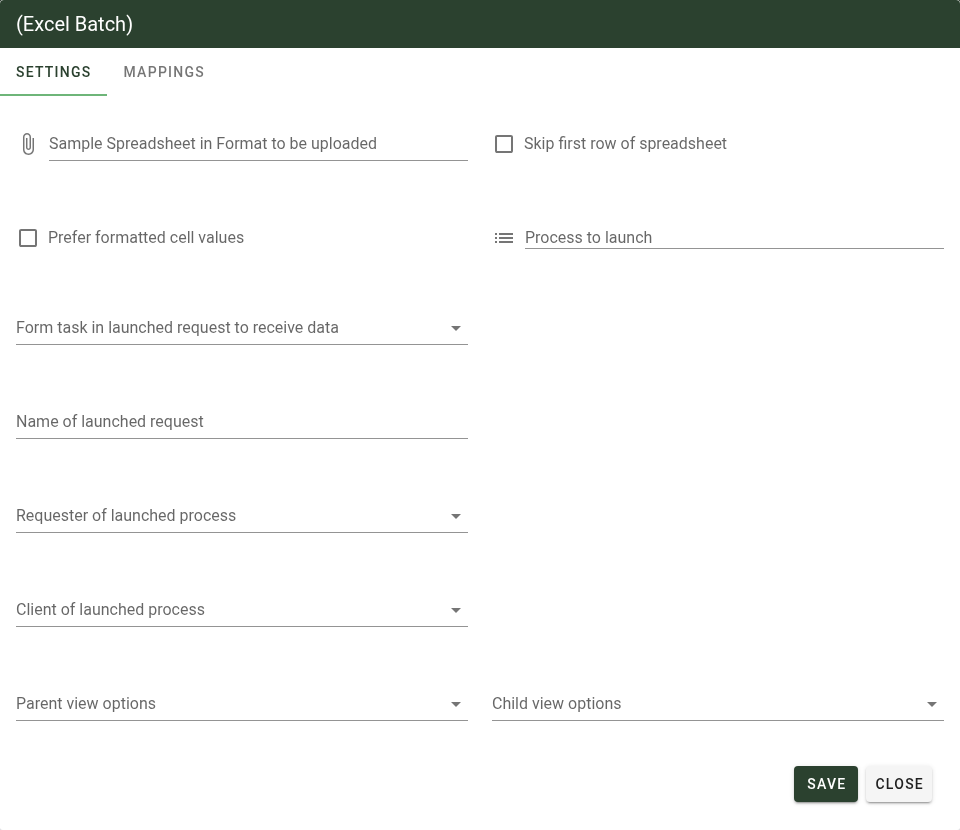
Click the Mappings tab to view a list of questions from Form task in launched request to receive data.
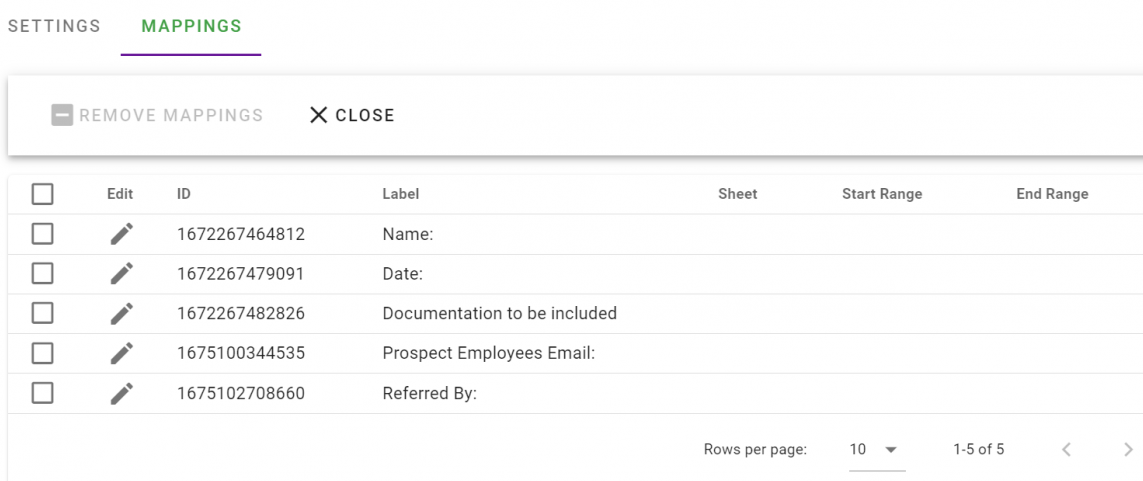
Map each form question to spreadsheet data:
- Sheet — Select the worksheet in the uploaded sample file.
- Start Range — Set the first cell for the mapped value. If you process one line at a time, use row
1even when “Skip the first row” is enabled. - End Range — Set the last cell for the mapped value.
In most configurations, Start Range and End Range are the same cell. If you map multiple cells, the task writes a comma-separated list to the target question. See the training example below.
Click Close to finish configuration.
Form task auto-complete settings
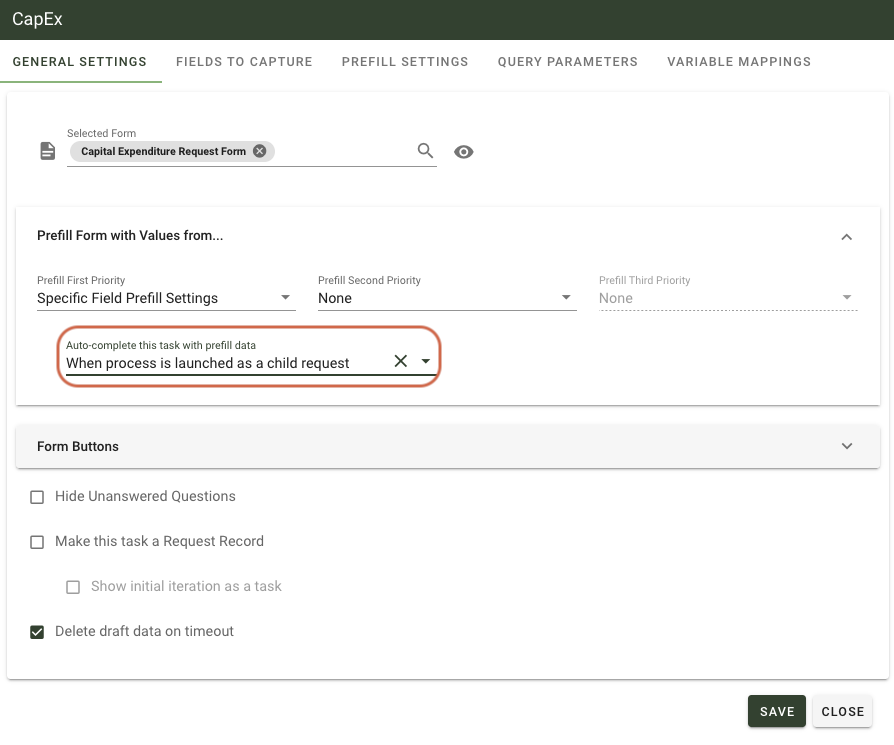
After you configure Excel Batch, review the Form Settings tab for the selected form task. You can auto-complete that task when Excel Batch prefills it.
- Open the form task in the child process.
- Select Configuration > Configure Task.
- In Auto-Complete this task with pre-fill data, select When process is launched as a child request.
Training example
This example uses a spreadsheet of employee changes. Each row creates a child request in an Employee Change process. The first form in that process receives mapped values and later tasks route by change type.
The Excel Batch process includes only this task:
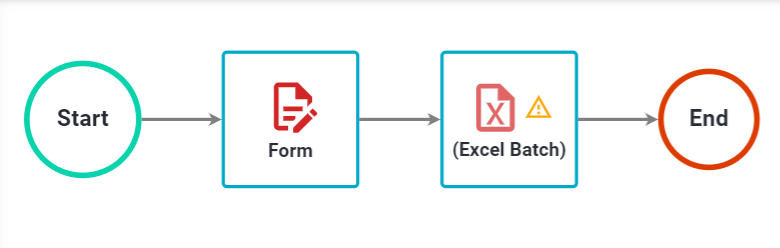
Uploaded spreadsheet data:
| Employee Name | Current Position | New Position | New Department | New Supervisor | New Location | Benefits Change? | Salary Change? |
|---|---|---|---|---|---|---|---|
| Kent Garbee | Account Manager | Account Director | Sales | Joe Green | Chicago | no | yes |
| Cole Buchman | Director of Sales | VP of Sales | Sales | Will Smith | Dallas | yes | yes |
| John Smith | Support Rep | Support Rep | Support | Kathy Bates | New York | no | no |
| Elena Osuna | Level I Accountant | Level II Accountant | Finance | John Isod | Chicago | no | yes |
| June Taylor | Accounts Payable Rep | Accounts Payable Manager | Finance | John Isod | Chicago | yes | yes |
Task configuration:
- Upload the Employee Changes spreadsheet as the sample file.
- Select the Employee Change process as Process to Launch.
- Select the first form in that process as Form task in launched request to receive data.
- Enable Skip the first row of the spreadsheet, since the file includes headers.
- Click Save to enable the Mappings tab.
- Map each question to the correct worksheet and cell range.
Use row 1 instead of row 2 in the cell range, even when skipping the header row. The selected value appears in a pop-up during configuration.
Click Close when you finish mappings.
You can also route tasks in child requests by using mapped spreadsheet values.
- Add recipients to the Approval task as usual.
- Add a rule for each recipient with Source = Data.
- Select the mapped form, set the field to Benefits Change, and set the value to Yes.
This routes child requests with a benefits change to the designated approver.