Add tasks to your workflow process
To add a new task to a process within Nutrient Workflow Automation, open a process and navigate to the Process Flow tab.
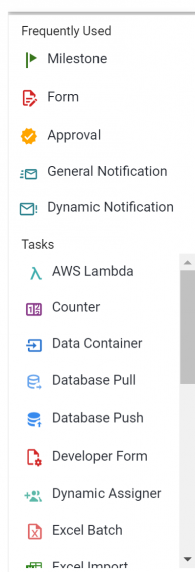
Select the task from the Tasks Menu.
Click and drag the task type onto the process canvas. Drop the task in your preferred location.
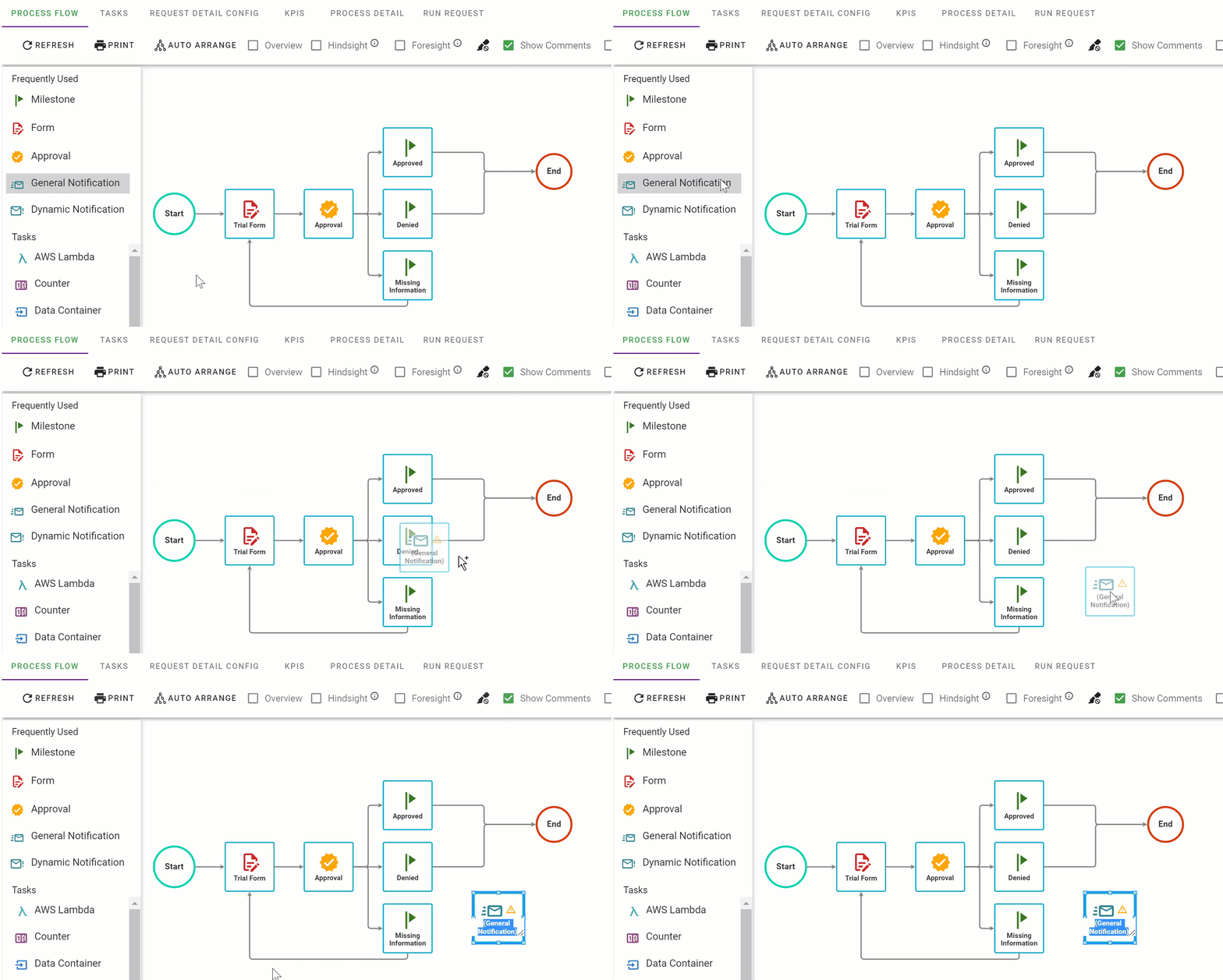
Enter a name for the task.
Use a name relevant to the task and task type. For example, use “Vacation Request Form” for a Form task or “Manager Approval” for an Approval task. End users see these names when they view the history of their requests.
The Process Flow displays the structure of your process and provides indicators for task configurations within Nutrient Workflow Automation.
A yellow triangle with an exclamation point indicates that you haven’t set the required configurations for the task to execute. To resolve this, perform the following steps:
- Hover the pointer over the task.
- Configure the task settings.
- Add recipients.
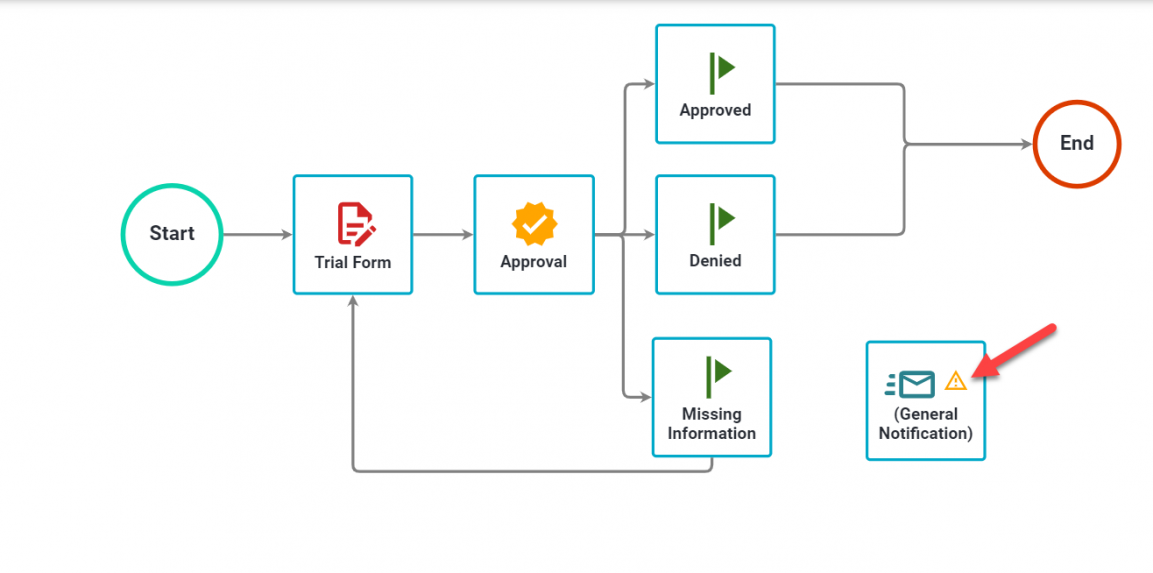
Required configurations vary by task type. Refer to the task configuration guide for details on specific requirements.
Invalid rules warning
The same warning icon appears on tasks, including the End task, when start rules become invalid. This occurs if:
- You delete a transition line referenced by a rule from the canvas.
- You remove a task referenced by a rule from the process.
- Rule grouping parentheses are unbalanced, such as an opening parenthesis without a matching closing parenthesis.
Hover the pointer over the task to confirm the issue; the tooltip displays Rules valid: false. To resolve this:
- Right-click the task.
- Select Configuration > Configure Rules.
- Correct or remove the invalid rules.

Repeat these steps to add more tasks to your process.