Customize task menu email notifications
Email notifications keep users informed about task assignments, reminders, and request updates in Nutrient Workflow Automation. This guide explains how to customize the format, subject line, body content, and advanced settings for task notification emails.
Prerequisites
Before you begin, ensure you have:
- Administrator or process editor permissions in Nutrient Workflow Automation
- Access to the process you want to configure
- Basic familiarity with the process design interface
Accessing notification settings
Nutrient Workflow Automation communicates with your users primarily through email notifications.
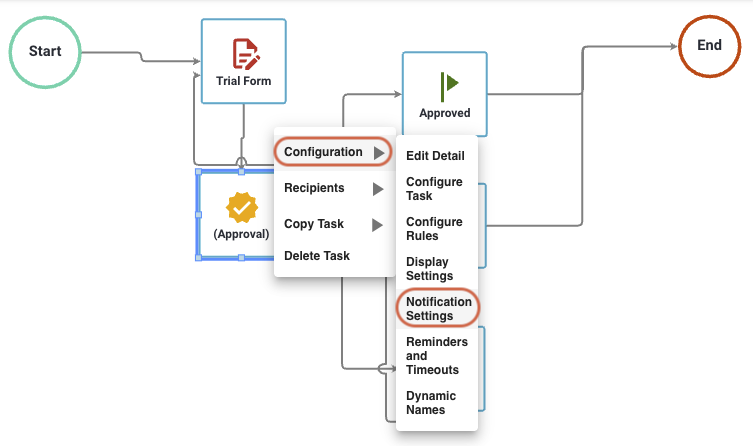
To alter the subject, body, or format of emails sent to a user when the system assigns a task or sends a reminder, right-click the task, and then click Configuration, followed by Notification Settings.
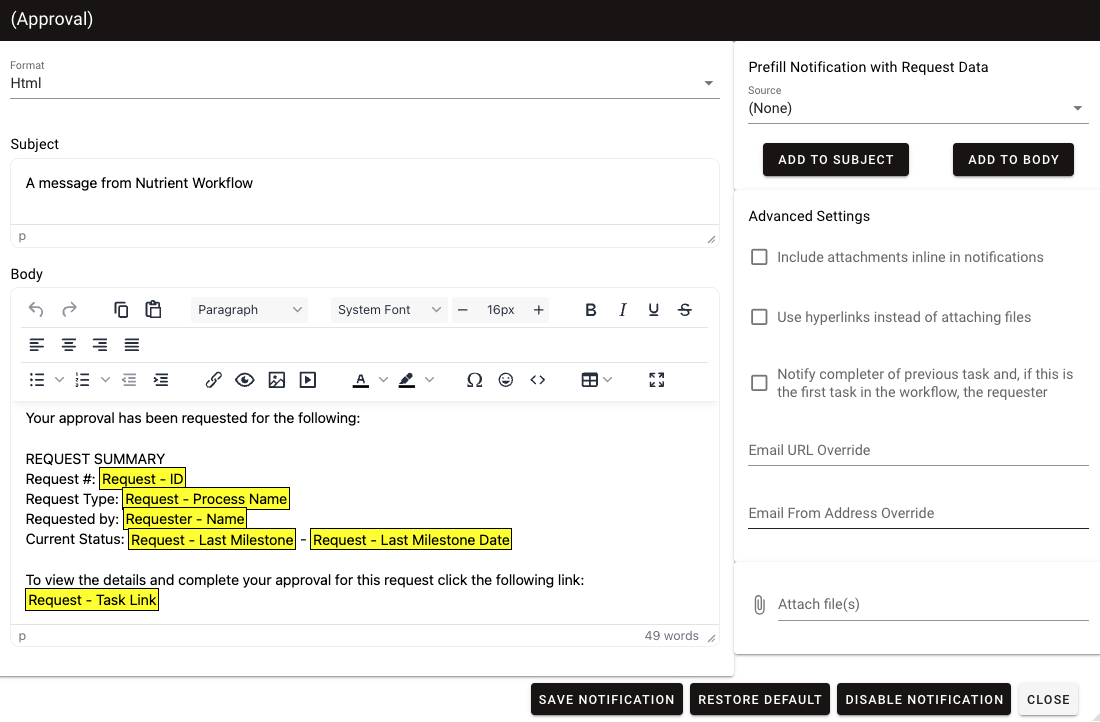
The Notification Settings dialog contains the following sections:
- Format — HTML and text options.
- Prefill Notification with Request Data — Provides the ability to select specific data from within the request to include in your email.
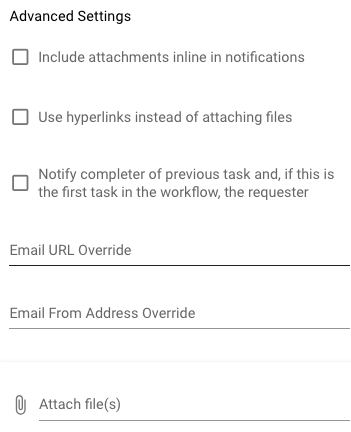
- Advanced Settings — Enables you to include file attachments from form tasks in your email notification. You can also define the email
fromaddress and how the system notifies recipients. - Attach File(s) — Enables you to include static file attachments with the notification.
- Subject — Displays in the subject line of the email notification.
- Body — Displays in the body section of the email notification.
Notification format
The Format option determines whether the system sends the email as HTML or (plain) text. By default, the system selects the HTML option, as this generally provides better formatting.
The system also loads a default template for the email message containing a generic Subject and Body for the email.
The highlighted boxes indicate the dynamic request information that the system pulls into the email.
For instance, the default email body always includes the Request Summary.
After the “Request #:” text, you see highlighted text with the Request – ID inside of it. What this indicates to Nutrient Workflow Automation is that when the system sends that email, it adds the unique Request – ID of the request containing the currently executing task.
The same logic also applies to items:
- Request – Process Name
- Requester – Name
- Request – Last Milestone
- Request – Last Milestone Date
When the system sends the email, the body of the email looks similar to the following:
The system requests your approval for the following:
REQUEST SUMMARYRequest #: 12345Request Type: The Process NameRequested by: Jon DoeCurrent Status: Started - 12:00 PM 01/12/2026
To view the details and complete your approval for this request click the following link:Request - Task Link
Within the formatting area, you can optionally select either HTML or text as the format of the email. If HTML is chosen, you can also edit the font, size, color, and more of your email notification.
Prefill notification with request data
In addition to the default values you can insert into the body and subject of the email text, you can also include other process-specific data.
The Prefill Notification with Request Data area enables you to select data from a Form task, a Requester’s name, the name of the Request, etc.
By selecting an option from the Source list, such as Data, the Task and Field lists appear with a list of tasks in your process. Then, based on any task you select, it displays a list of attributes for that task.
Once you’ve filled out Prefill Notification with Request Data, choose Add to Body. The system adds the field to the body section at the cursor position. When the system sends the email, it automatically retrieves the value for fields from the form and inserts it into the email.
Advanced settings
With Advanced Settings, you can:
- Include files that a user attaches in a file attachment question from within a form task. This is done in three phases.
- First, select the file attachment question from the form task using Prefill Notification with Request Data. This adds File name only into the notification.
- Next, you must select Include attachments inline in notifications. This includes the files as attachments to the notification.
- At this point, you can then optionally choose to include those file attachments as hyperlinks in the body of the email instead of sending the email notification with the attached files. To do this, select Use hyperlinks instead of attaching files. Note that Include attachments inline in notifications must be selected to use this option.
- Notify completer of previous task and, if this is the first task in the workflow, the requester — By default, this isn’t selected, meaning that if a user completes a task and they’re a recipient of the next task in the process, they won’t receive an email notification of the new task (they go to the next task immediately after completing the previous task). If selected, you can force this email notification to be sent to that user, in addition to any other recipients you defined for the task.
Attach file(s)
You also have the option to include static files as attachments to the email notification. For example, you may want to send an email to a recipient with attached documents that aren’t attached to any of the forms in the process.
Save, restore, or disable notification
With any task’s email notification, you can also disable the email notification by selecting Disable Notification. If you want to restore the default email notification, select Restore Default. Once you have completed editing the notification, select Save Notification.
What’s next
Now that you’ve configured email notifications, you might want to:
- Configure reminder and timeout settings for overdue tasks
- Customize form task settings to collect additional data
- Explore other task menu configuration options