Manage your organization’s password settings
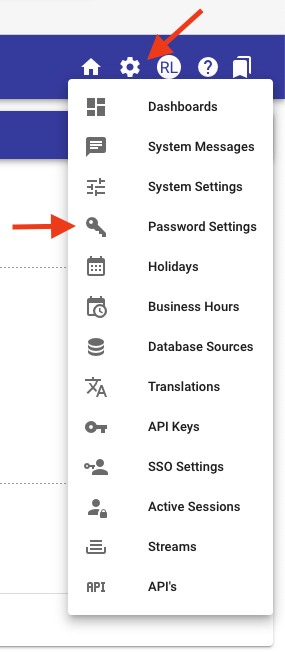
To access password settings, hover over the Settings icon in the upper-right corner and select Password Settings. This opens a window where you define password policies for your organization.
From this window, you can manage Password Expiration Settings and Password Strength Settings.
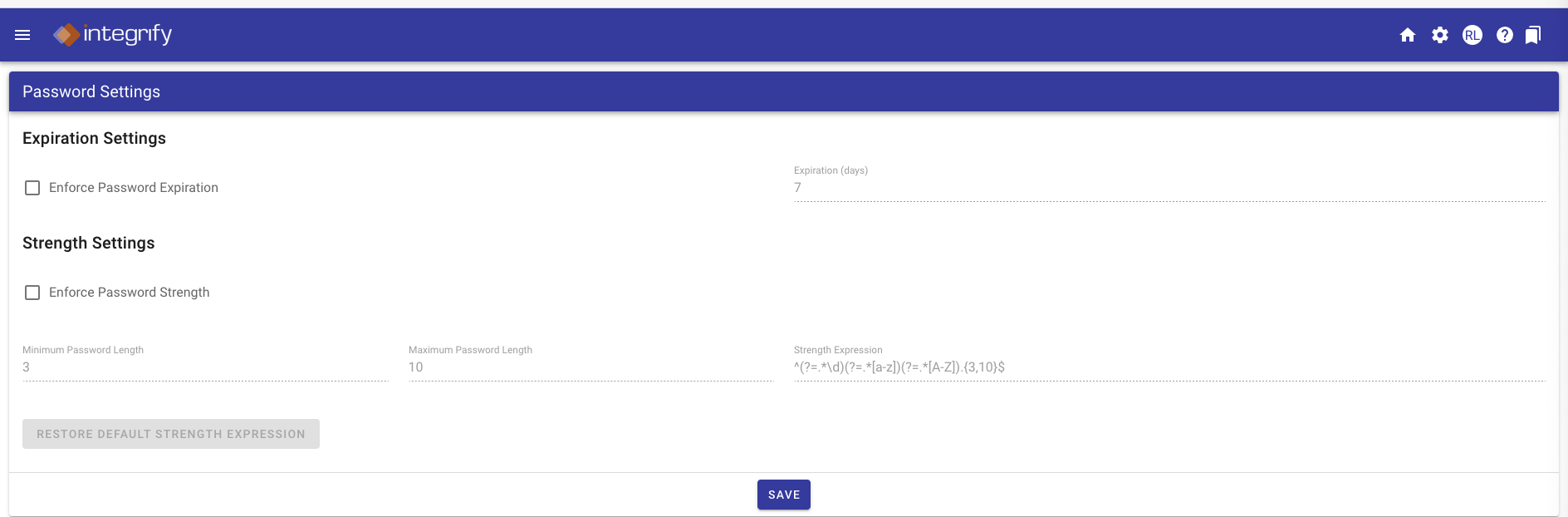
Password Expiration Settings
- Optionally select Enforce Password Expiration. This enables you to:
- Set the time (in days) that a user’s password expires by entering a number of days in the Expiration (days) field.
Password Strength Settings
- Optionally select Enforce Password Strength. This enables you to:
- Set a numeric value for Minimum Password Length.
- Set a numeric value for Maximum Password Length.
- Define what values the password must include using a regular expression.
To restore all Password Settings to their default values, click the RESTORE DEFAULT STRENGTH EXPRESSION button.
Policy enforcement
When enabled, Nutrient Workflow uniformly applies password policies across all password operations, including:
- Initial password creation
- Password changes initiated by users
- Password resets (including self-service and administrator-initiated resets)
This ensures you maintain consistent security standards throughout your organization.
Account lockout notifications
The system provides clear visual feedback when accounts are locked due to failed login attempts. When a user’s account is locked:
- The login screen displays appropriate lockout messages.
- Users are notified of their lockout status through the user interface.
This transparent feedback helps users understand why they cannot access their account and reduces confusion during failed authentication attempts.
The lockout mechanism itself functions based on your configured security policies, and the messaging ensures users are informed when lockout occurs.
Inactivity logout and redirect
The system includes an automatic logout feature based on inactivity timeouts to maintain session security. Key aspects of this feature include:
- Users are automatically redirected to the login screen when the inactivity timeout expires.
- The logout and redirect sequence activates once the specified inactivity threshold is reached.
- This functionality applies to both standard user accounts and guest sessions.
- The automatic redirect ensures compliance with session security requirements.
Administrators can configure inactivity timeout settings through the system configuration to align with organizational security policies.
Related information
For information on how to force a user to change their password on the next login, refer to the force password change guide.
For information about account lockout rules configuration, refer to the configure account lockout rules FAQ.