View, edit, and search users
Use the users list to view profiles, edit user details, filter results, and check group membership.
Navigate to the users list
To open the users list:
- Navigate to the Users tab under Administration in the left navigation menu.
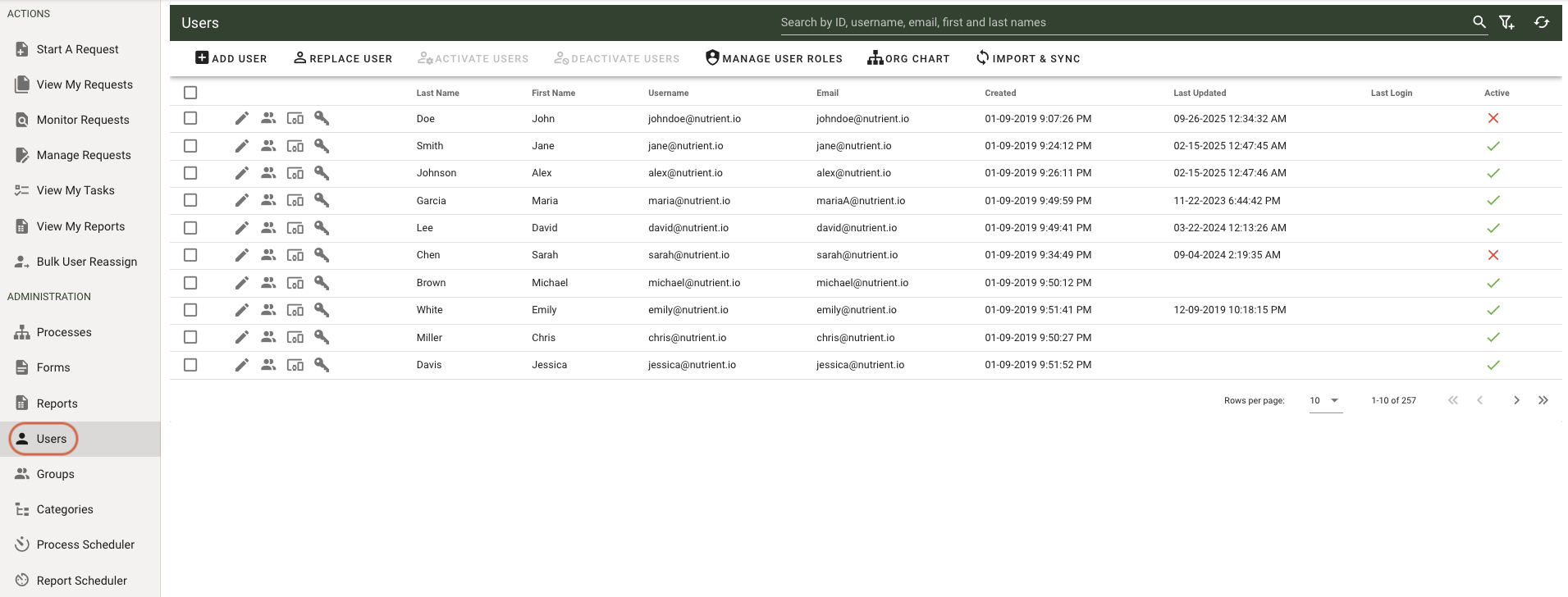
The Last Login column shows the most recent sign-in time for each user through the application or the API.
Edit a user profile
To edit a user profile:
- Find the user in the list.
- Click Edit (Pencil icon) in that user’s row.
- Update the profile fields.
- Save your changes.
Search and sort users
Use the user list tools to find specific records:
- Click Search to filter users.
- Add one or more filter values to narrow results.
- Click a column (up arrow) to sort that column.
View a user’s groups
To view group membership for a user:
- Find the user in the list.
- Click the Show Groups icon in that user’s row.
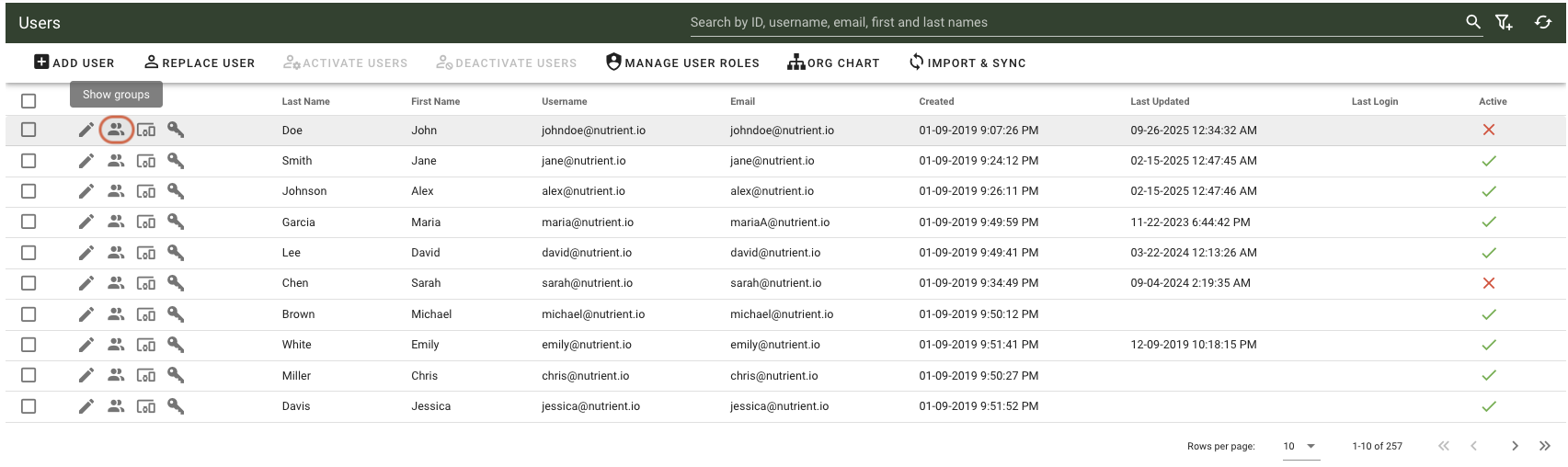
A pop-up window opens and shows all groups the user belongs to.
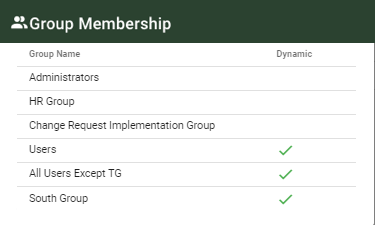
In the Dynamic column:
- A green checkmark means the group is dynamic.
- A red X means the group isn’t dynamic.
View a user’s permissions
To view all permissions for a specific user across item types (such as processes, forms, and dashboards), click View Permissions (Key icon) in that user’s actions column.
This opens the User Permissions List, where permissions are grouped by item type and support filtering and CSV export.
Only system administrators can access the permissions view. For more information, refer to the permissions overview guide.