Build your first approval workflow
This guide walks you through creating your first approval workflow in your trial account.
Keep this guide open in another window as you walk through the steps.
Build a form
The approval process begins with a form that employees fill out to start the request process.
Step 1: Create a new form
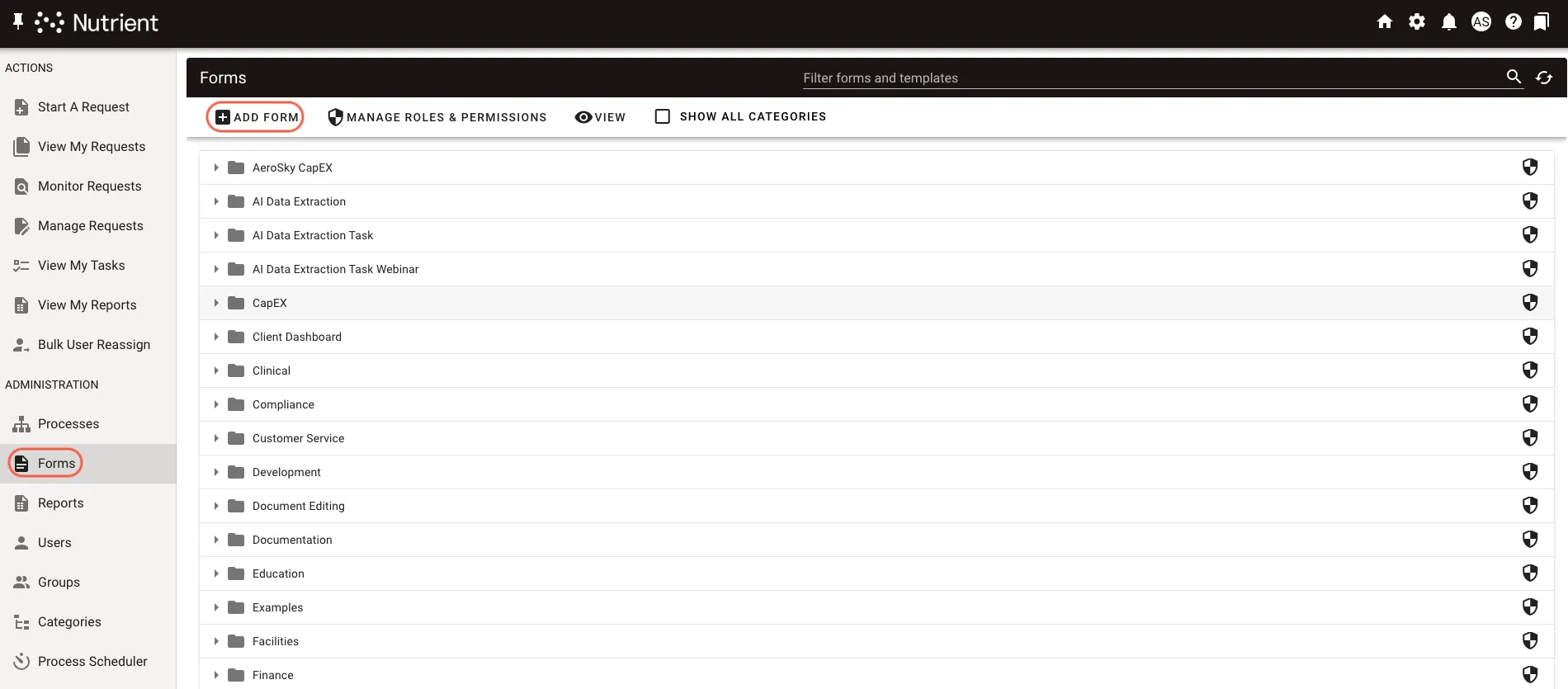
Select Administration from left navigation panel (if you can’t see the left navigation panel, click the hamburger menu in the upper-left corner to open it).
Select Forms.
Select Add New Form > New.
Give the form a name.
Add it to a category so people can find it. Categories are similar to folders.
You can optionally add a description of the form.
Save the form. The Form Builder screen appears as shown below.
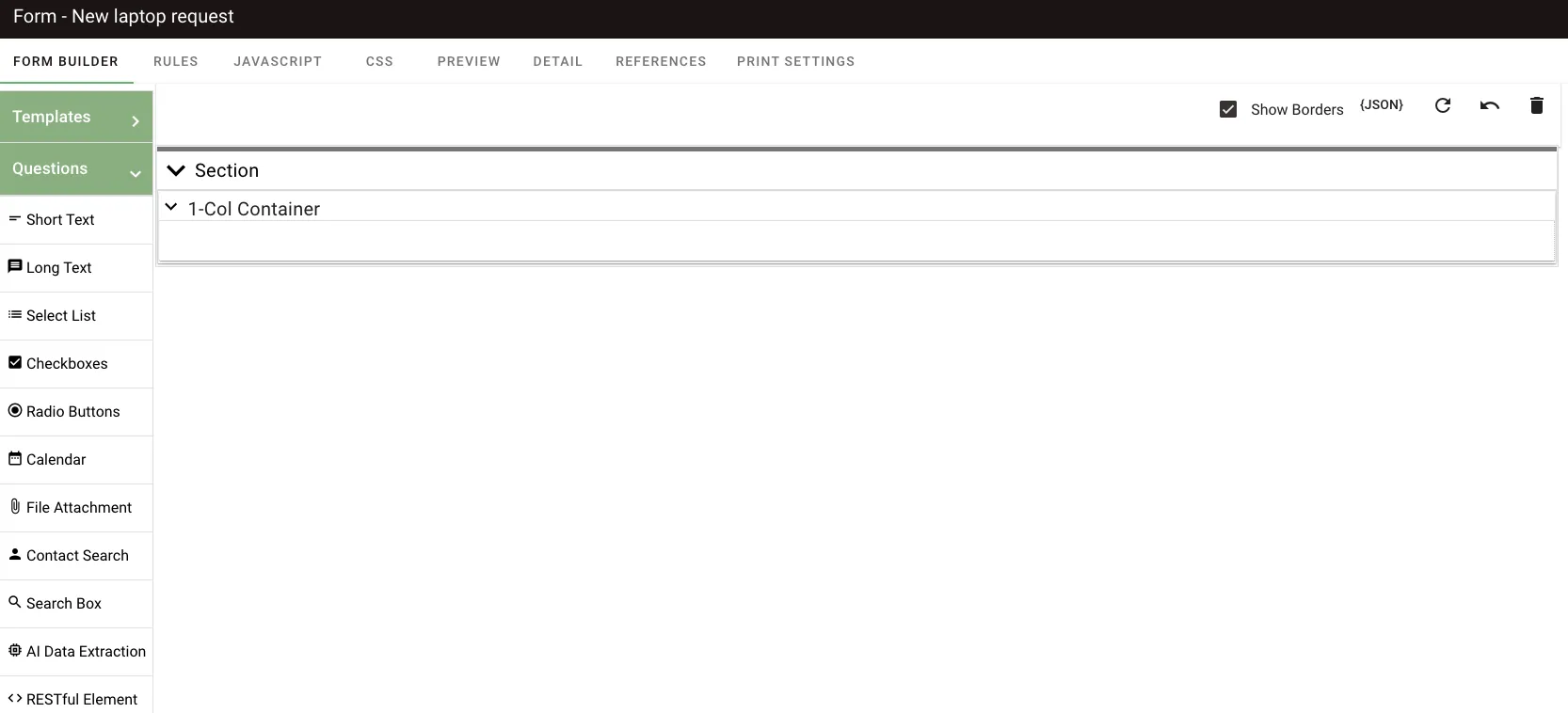
Step 2: Add questions to the form
Refer to the create form questions guide for instructions on how to add questions to a form.
You can preview your form by selecting the Preview tab. For more information, refer to the preview form guide. Refer to the forms documentation for more guides related to forms.
Add several question fields to the form.
Build a process
After building the form, build a process to manage it.
Step 1: Create a new process
Refer to the create a new process guide for detailed instructions.
Step 2: Building your process
A process is a series of tasks. Add tasks, connect them together, and then configure them.
Process building begins with the Process Flow canvas. Refer to the process flow workspace for more information. Refer to the create a task guide for instructions on adding tasks.
Add a form task that displays the new form you created. The system automatically creates a task called Start when you create a new process.
Drag and drop a Form task from the list of task types.
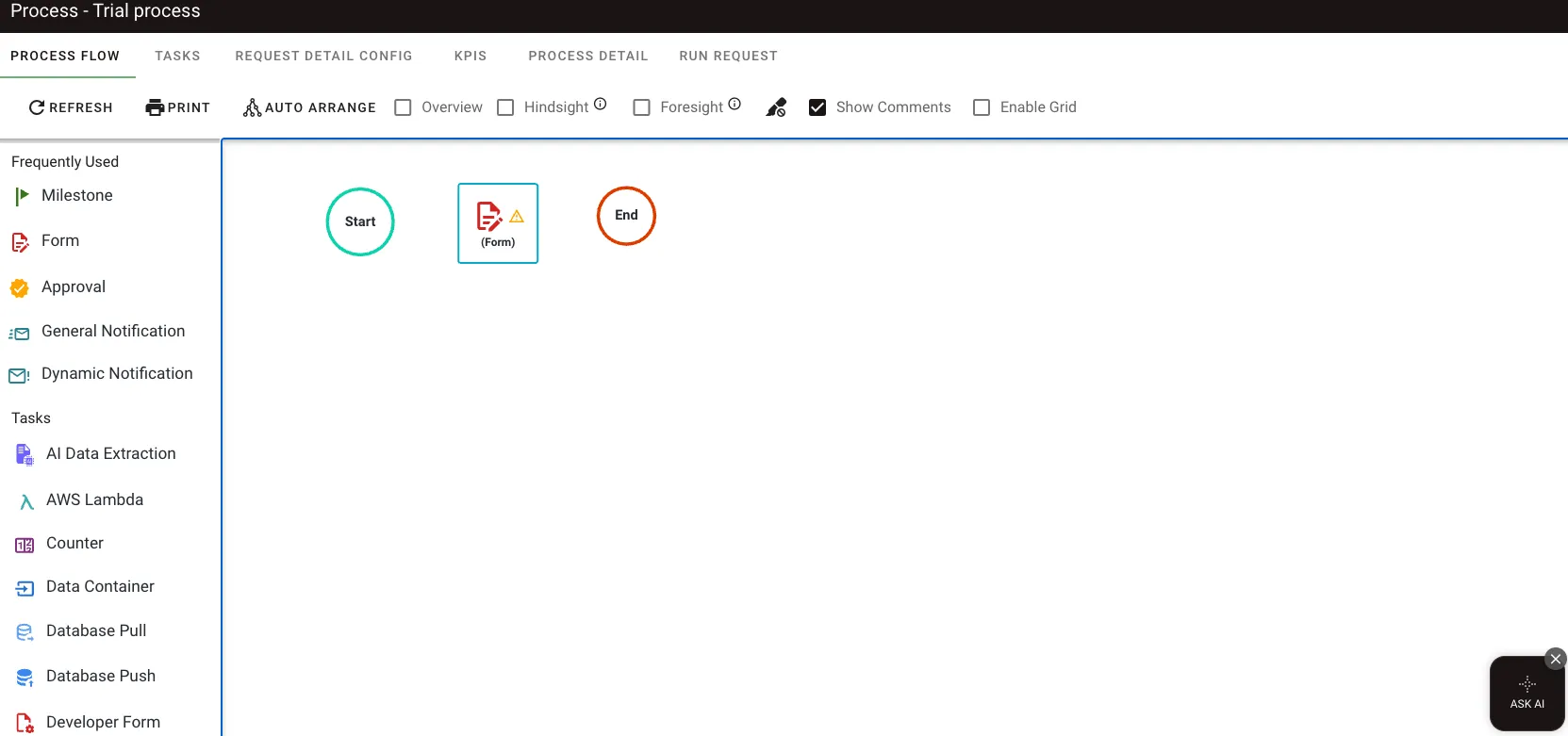
Then, give the Form task a name and click anywhere on the process flow canvas to save the name.
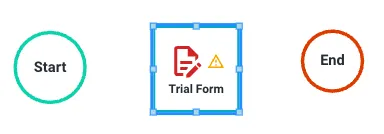
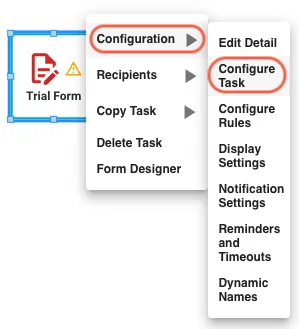
Right-click the Form task to display the task menu and select Configuration > Configure Task.
Click the Please select a Form field, search for your new form under its category, and select it.
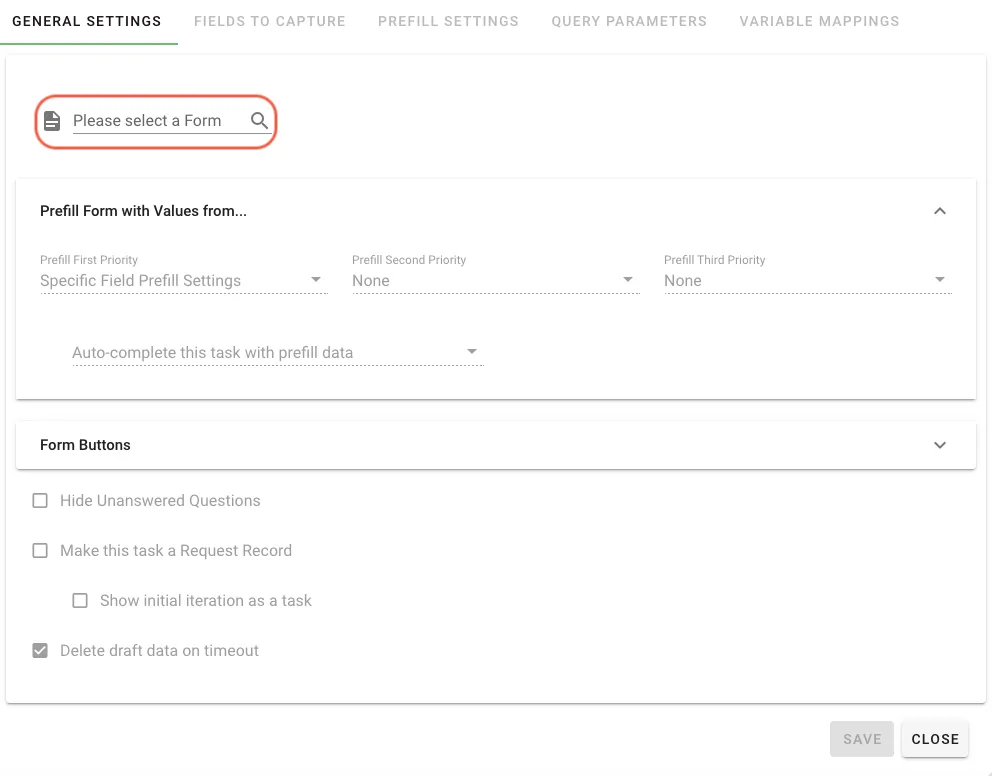
Click Save and then Close.
Now, drag a transition line from the middle of the Start task to the Form task. You’ll notice a pink bar appear when you hover over a task. Drag it to the tasks you’d like to connect. In this scenario, it’s Start and the Trial Form task.

You can also connect two tasks by dragging the new task onto an existing task.
Next, you need to add a recipient for this Form task. A recipient is a person who receives a given task assignment. Since the request form is the first task in this process, the recipient is the person who starts the request and completes the form. That means the recipient is the requester. For more on how these two roles differ, see the difference between a requester and a recipient. You’ll assign this first task to the requester. Right-click the Form task and select Recipients from the menu.
The recipient window enables you to select a dynamic recipient, which means the system will automatically assign the task to the appropriate person. In this case, you want to automatically assign the Form task to the requester. Select Dynamic and click the + icon to add the recipient.
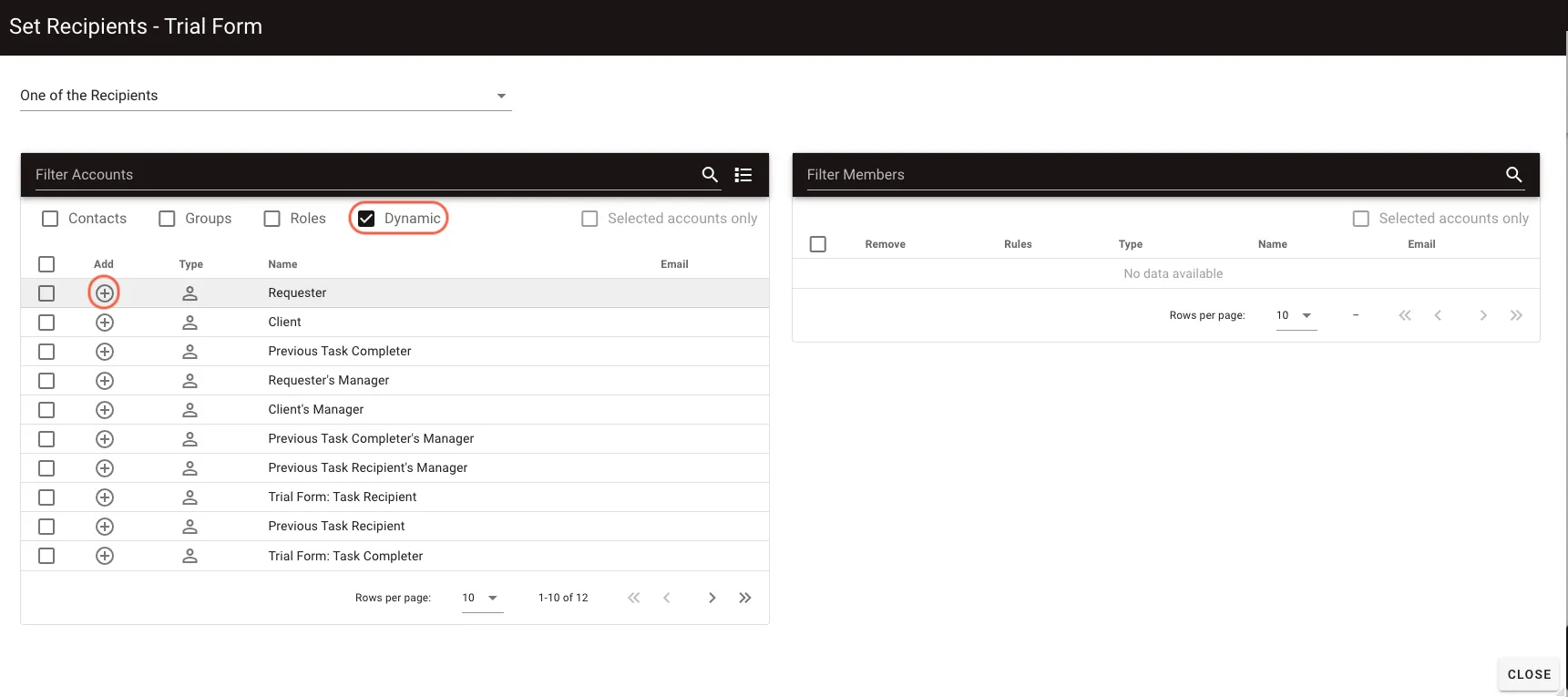
Once you’ve added the requester as the recipient, click Close.
Add the next task, which will be an Approval task. This will enable you to assign the completed form to someone to review it.
- From the list of tasks on the left, drag the Approval task into the Process Flow canvas and drop it below the Form task.
- Name the Approval task.
- Right-click the Approval task and select Configuration > Configure Task.
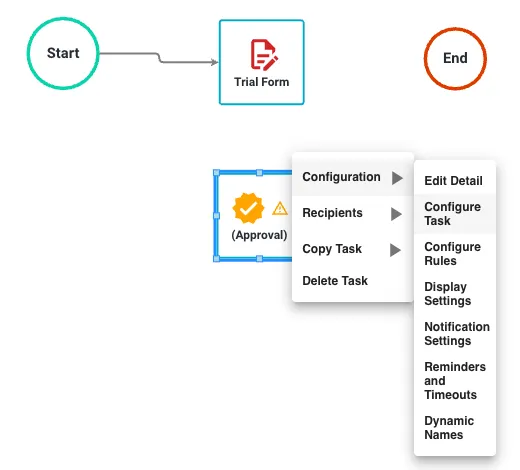
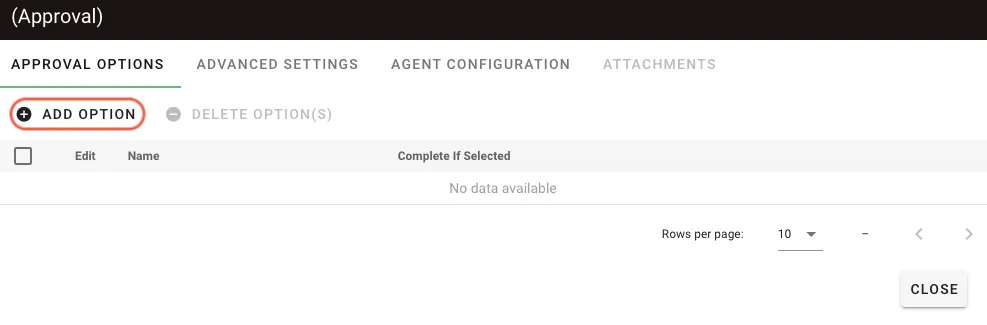
You can give the person reviewing the completed form some options to select. These could be options such as approved, denied, need more information, and so on. To do this, follow the steps below.
On the Configure Task screen of the Approval task, select Add Option.
You can give the person approving the request these options to choose from: Approved, Denied, More Information Needed.
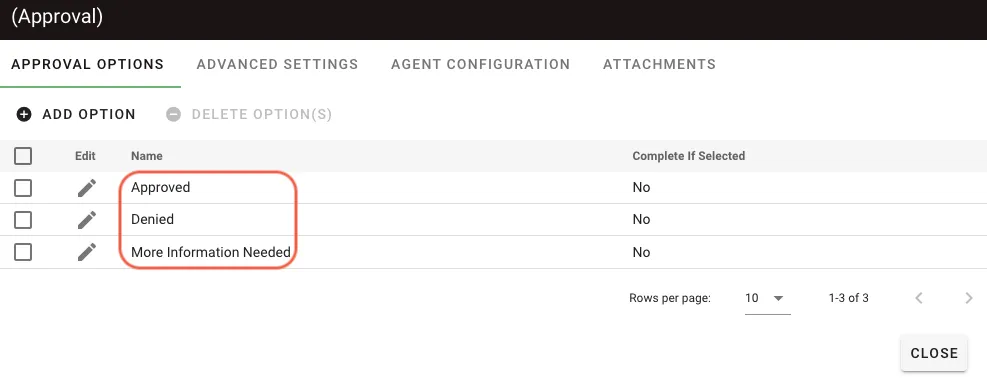
When you’re done creating the options, click Close.
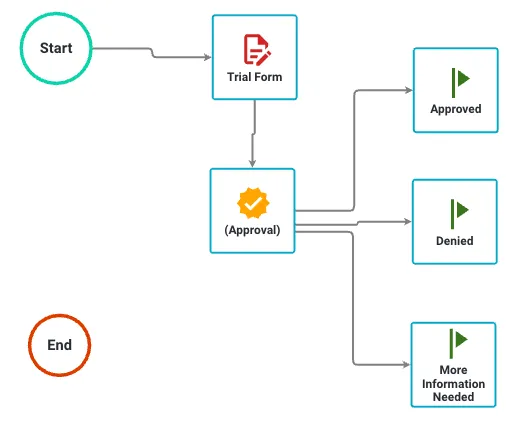
Next, connect the Form task to the Approval task by hovering over the Form task and dragging the arrow to the Approval task. This triggers the approval task when you complete the form.
To learn more about approval tasks, refer to the Approval task guide.
Assign an approver to the request.
- Right-click the Approval task and select Recipients.
- On the screen that appears, select the Contacts and Groups filter options.
- Click on the + icon next to a Contact or Group to add it to the window on the right side.
- Click Close.
Add milestones to track the request status. You use milestones to update the overall status of a request. Completed milestones also show up in reports and KPI dashboards.
- From the task list on the left, drag Milestone and drop it into the Process Flow canvas next to the Approval task.
- Name it Approved.
- Add another Milestone for Denied and More Information Needed.
- Connect the Approval task to the three milestones.
Step 3: Configuring rules
By default, when you connect one task to another, the second task starts when the previous task completes.
In this approval process, the Approved milestone triggers only when the approver selects Approved.
Right-click the Approved milestone and select Configuration > Configure Rules.
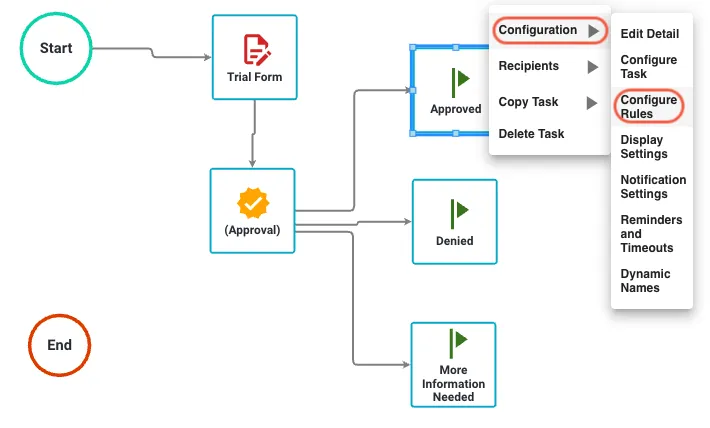
Select Add Rule.
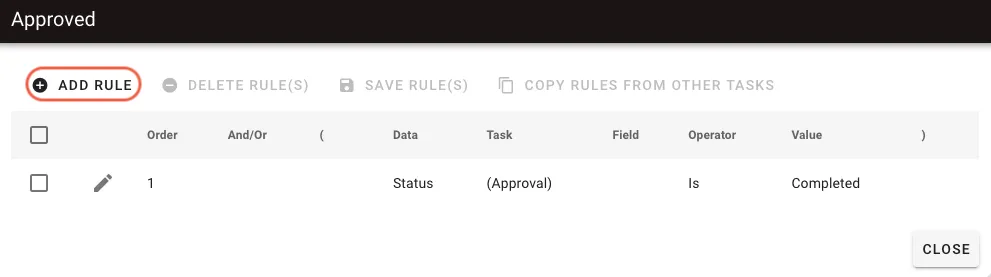
You’ll notice a default rule is already in place for when the Approval task is completed. Add an additional rule that looks at the Approval task and checks if the Approver selected Approved.
From the Source dropdown, select Data.
From the Task dropdown, select the Approval task you created.
From the Field dropdown, select Approval Choice.
From the Operator dropdown, select Is.
From the Value dropdown, select Approved.
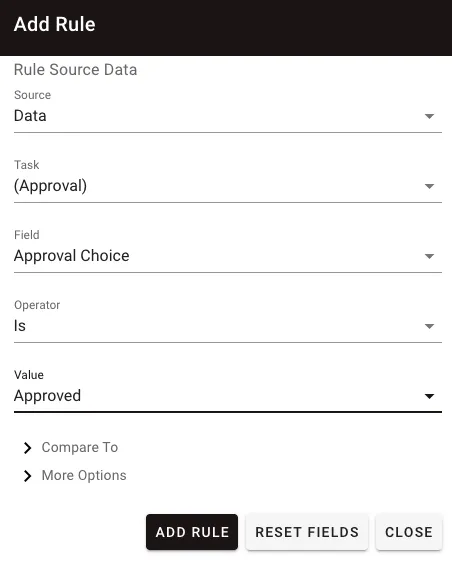
Click Add Rule, and then click Close.
Now repeat this process for the two other milestones (Denied and More Information Needed). Make sure to select the appropriate values for each.
The process ends when the Approver selects either the Approved or Denied milestones.
The End Process task marks the request as completed when the Approved or Denied milestones run.
Drag the arrow from the Approved milestone to the End task and do the same for Denied.
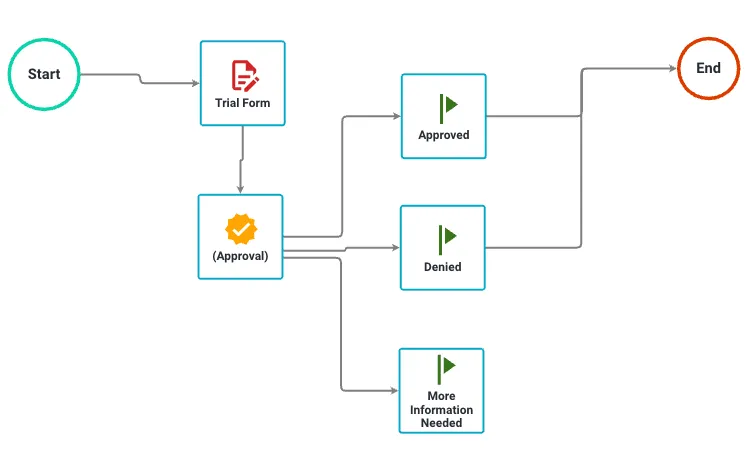
When the approver selects More Information Needed, the system routes the process back to the original form.
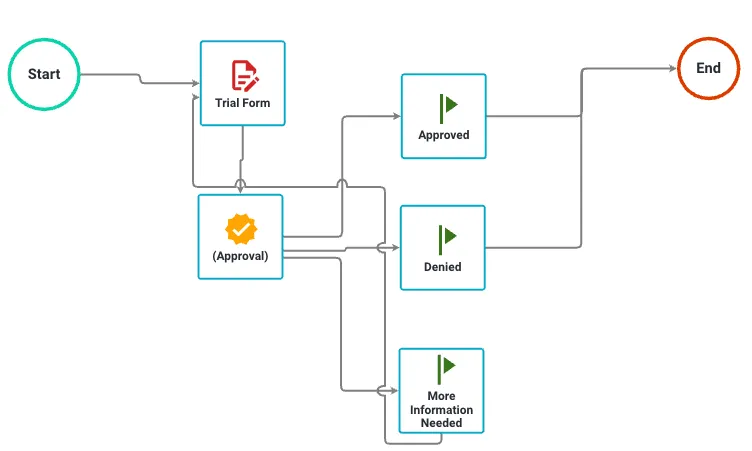
Configure the Form task to handle both new requesters and requesters who return to complete more information.
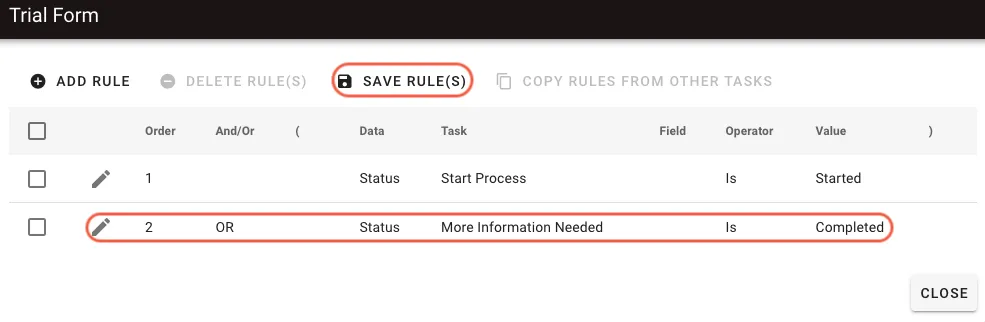
Right-click the Form task and select Configuration > Configure Rules. The window that appears shows two rules, one for people starting the process, and one for people for whom more information is needed. In these rules, change the AND operator to an OR.
Double-click AND to use the dropdown to click OR. This way, both situations become valid.
Click Save Rules and then Close.
To make the process visible to end users, move it into production as follows:
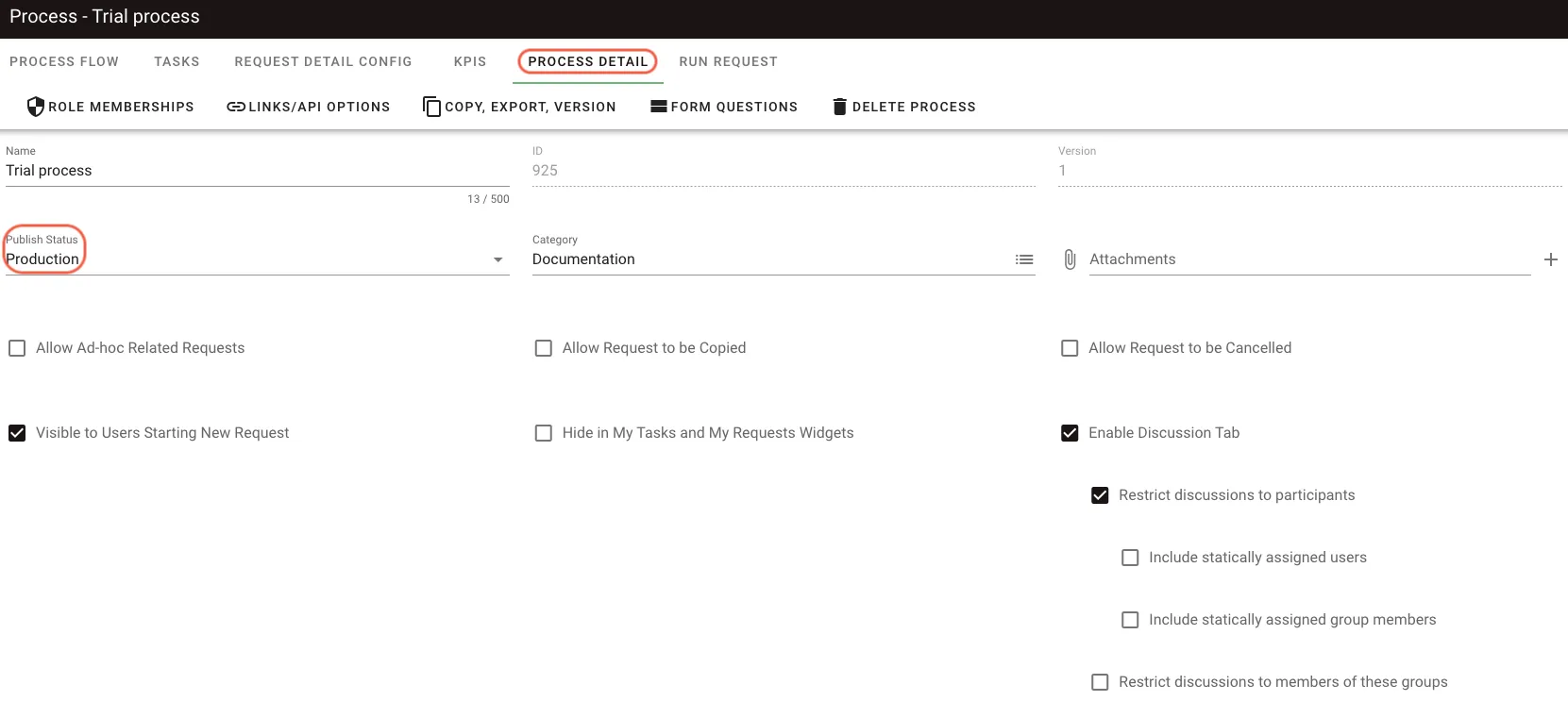
- Select the Process Detail tab in the top header.
- Select Production in the Publish Status dropdown.
- Scroll down to the end of the screen and click Save.
Testing your workflow
When users log in, they can only view the Actions tab in the left navigation panel.
From the Actions tab, end users can select Start A Request to locate and initiate the process you created.
Refer to the available task types guide for more information on task types.
Nutrient Workflow Automation supports different types of workflows, complex rules that start tasks, KPIs for processes, database and external application integrations, task escalations, due dates, and reminders.
Refer to the process documentation guides for more information.
More videos on getting the most out of your Nutrient Workflow Automation trial
Building your first approval workflow
Creating a process
Creating a form
Configuring an Approval task
Configuring a Form task
Watch a recorded demonstration of Nutrient Workflow Automation platform