Configure a Database Pull task
The Database Pull task runs custom, parameterized queries in a process and maps query results to a form.
After you map query results, other tasks in the same process can use that data for routing rules, task assignments, and form prefill.
Use this task to:
- Pull external data into a form in Nutrient Workflow Automation Platform.
- Define routing rules and task behavior based on platform or external data.
- Reduce manual review and data entry in your process.
Configure the Database Pull task
The following example uses a Database Pull task named Look up Application Data to retrieve an applicant’s contact information after the initial form submission.
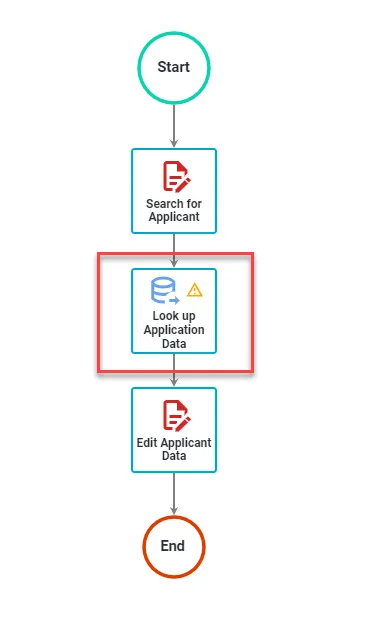
After the task retrieves and maps the data, the rest of the process can use it for business rules and task prefill.
To configure a Database Pull task:
- Right-click the task.
- Select Configuration > Configure Task.
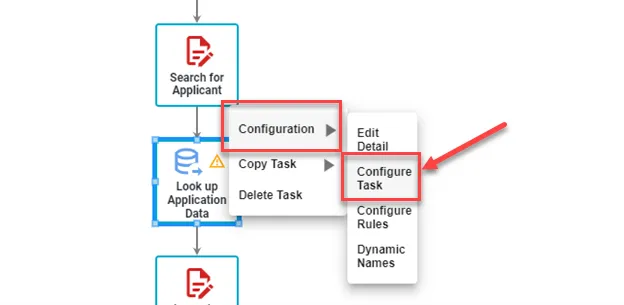
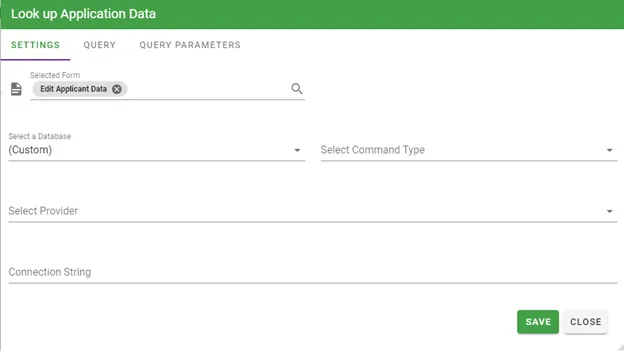
The Database Pull task configuration screen opens. On the Settings tab, configure the database connection, provider, and query.
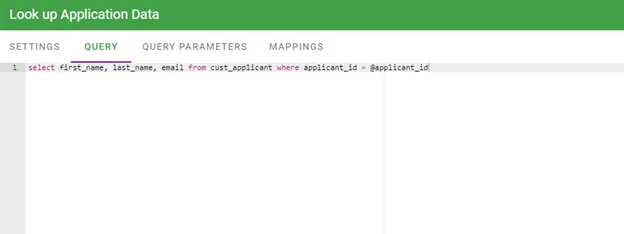
In the following example, the Query tab uses a SELECT statement to retrieve applicant data from a custom table. The query also uses a Query Parameter (@applicant_id). At runtime, the platform replaces that parameter with a value from a previous form.
Use the Query Parameters tab to capture values from the active request and pass them into your SQL statement.
In the following SQL statement, @applicant_id is part of the Database Pull configuration.
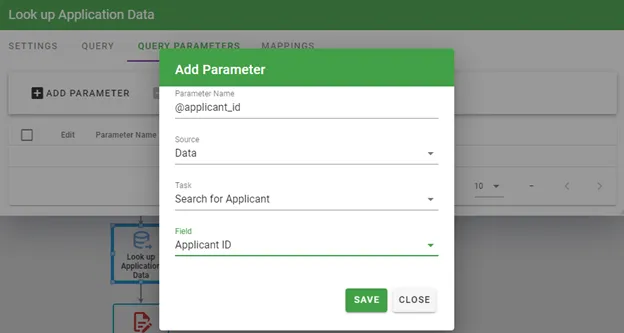
At runtime, Nutrient Workflow Automation Platform inserts a request value into the SQL statement before execution. In the following example, that value is the Applicant ID from the initial form.
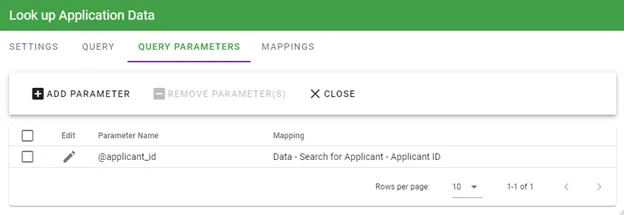
Click Add Parameters to add a parameter. The Query Parameters tab lists all parameters for the task. You can map values from form fields, requester metadata, and manager metadata.
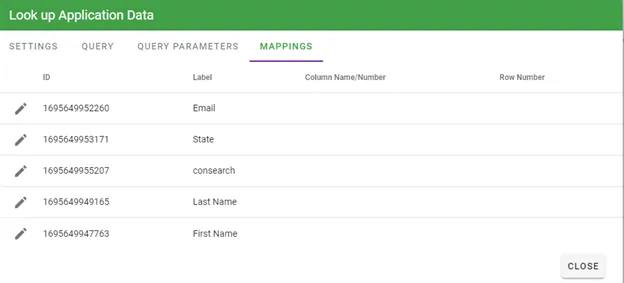
On the Mappings tab, you can map query results to a form so the platform can use those values in the process.
You can use one of the following:
- An existing form.
- A new form created for the Database Pull task.
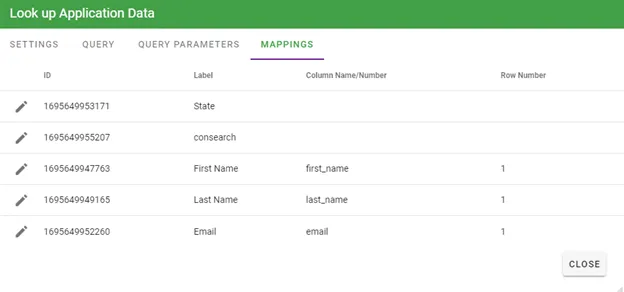
To map query results, select the Mappings tab. Based on the form selected on the Settings tab, the Mappings tab lists available form questions.
In the following example, the form has five questions:
- First Name
- Last Name
- State
- Consearch
The example assumes the query returns one row with two columns. To map a result to a form question, click the Edit icon for that question.
In the example, for the First Name question, the database column first_name is mapped explicitly.
Row numbers must be greater than or equal to one.
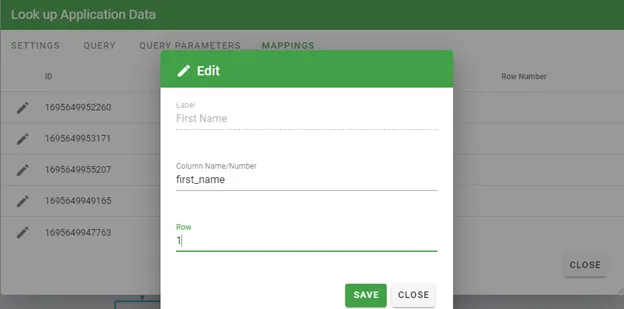
Set a row number for each mapped question. Click the Edit icon for each question, and enter the row where the expected query result appears.
A query can return one to many rows. If you want to map 100 rows with one column, create a form with 100 questions.
Once you finish mapping, click Close.
Searching configuration tables
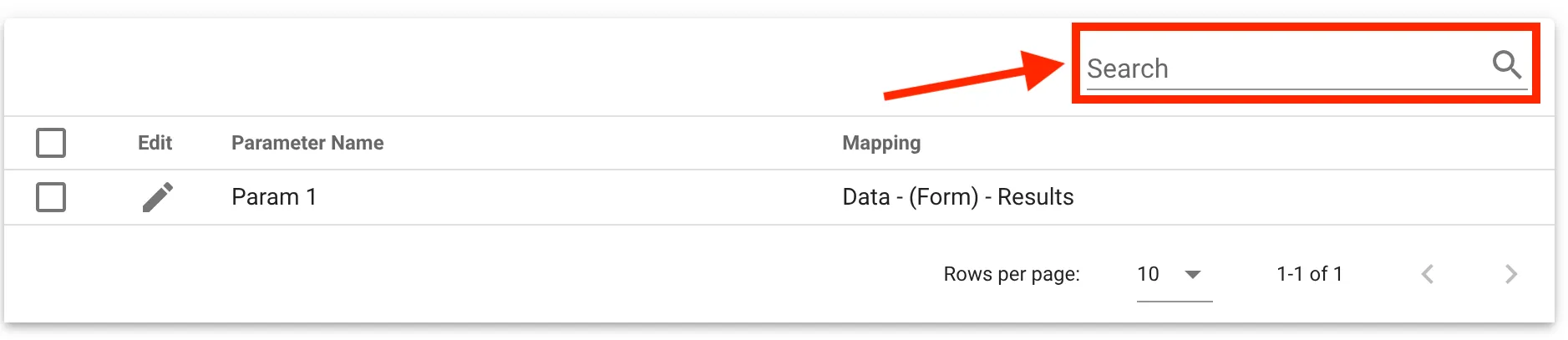
Each configuration table includes a Search field at the top. Use it to filter entries by keyword. If the table has many entries, search instead of scrolling. Click X to clear the filter.
Call a stored procedure
You can call a stored procedure in a Database Pull task. The main differences are the SQL syntax and the Command Type setting.
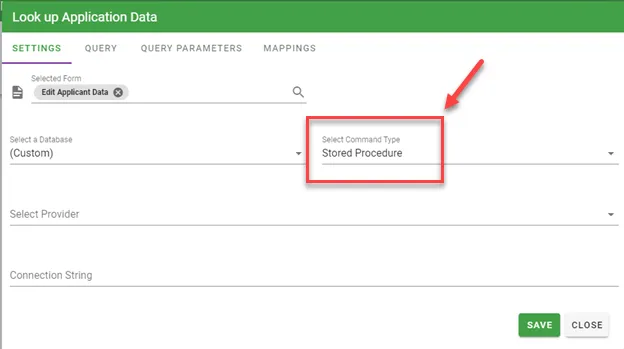
In this example, the task calls the SQL Server stored procedure spRetrieveBudget with one parameter. The Command Type is set to Stored Procedure.
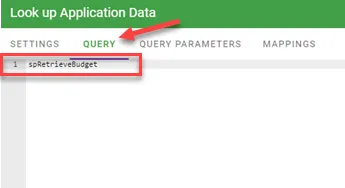
If you set Command Type to Stored Procedure for a Database Push or Pull task, enter only the procedure name in the text field. The task passes listed parameters by name at execution time. For SQL Server, you can also set the command type to Text and execute an inline statement with parameters (for example, “exec sp_myproc @p1, @p2”).
If you use an Oracle stored procedure, keep parameters in the correct order. For example:
spInsertSalesForecast @request_id, @sales_forecast, @close_date
Create parameters in that same order in Query Parameters (@request_id first, then @sales_forecast, and so on). This requirement comes from an Oracle provider constraint. SQL Server doesn’t require this order.