Configure a Database Push task
The Database Push task sends process data to a relational database while a request runs.
Use this task to:
- Insert or update data in external systems, such as HR or payroll databases.
- Send form values from a process into a target table.
- Reduce manual data transfer between systems.
In the following example, a sales process collects estimated sales and close date values, and then inserts those values into a custom reporting table.
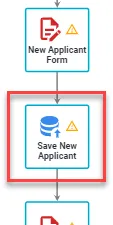
The highlighted task is the Database Push task. It runs after the Sales Follow-Up form task completes, executes a SQL statement, and inserts data into the target database server.
Configure the Database Push task
To configure a Database Push task:
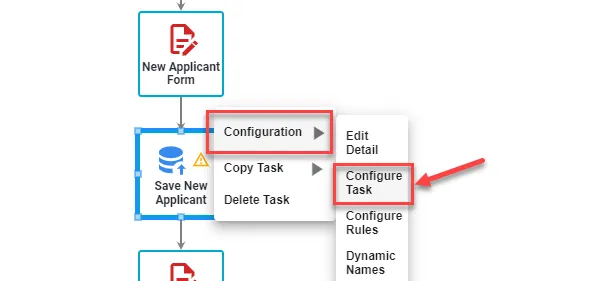
- Right-click the task.
- Select Configuration > Configure Task.
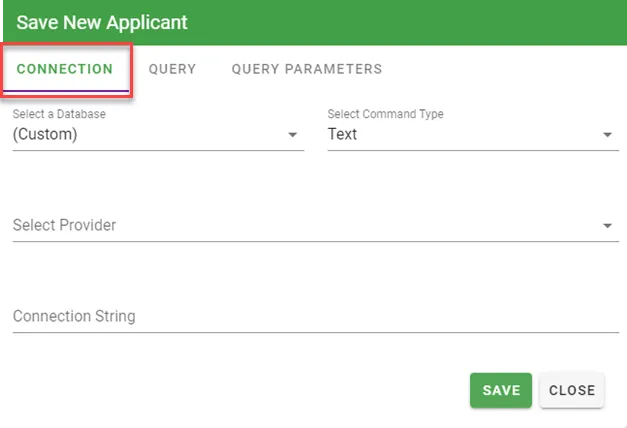
On the Connection tab, configure:
- How the task inserts data (
SQL StatementorStored Procedure). - The database server connection.
- The database provider type.
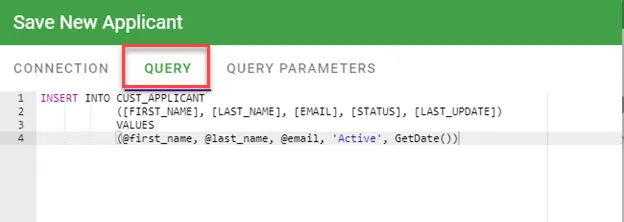
In the following example, the Query tab contains an INSERT statement that uses Query Parameters mapped to request data. A database connection string is also configured so the task can connect to a remote database at runtime.
Use the Query Parameters tab to capture values from the active request and pass them into the SQL statement.
In the SQL statement below, the Database Push configuration includes @first_name, @last_name, and @email parameters.
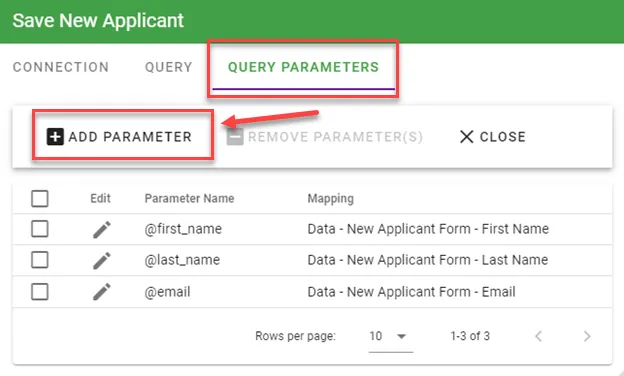
At runtime, Nutrient Workflow Automation Platform inserts request values into the SQL statement before execution. In this example, those values are First Name, Last Name, and Email from a form in the process.
To add a parameter:
- Select the Query Parameters tab.
- Select Add Parameter.
Like transition rules, the parameter dialog lets you define the parameter name and Source (Data, Requester, Client, and others). The next selection lists change based on the source you choose.
In the following example, the Source is request data (the First Name value from the New Applicant Form task). When the Database Push task runs, the platform replaces @first_name with that value.
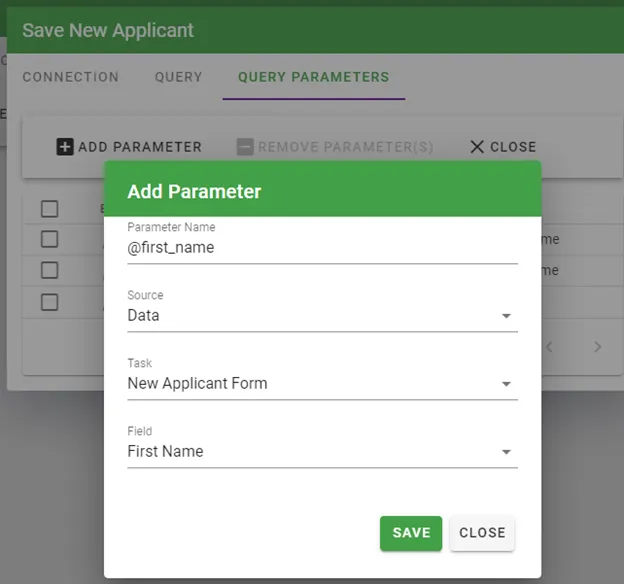
You can use multiple parameters in one SQL query, and you can reuse the same parameter multiple times.
Searching configuration tables
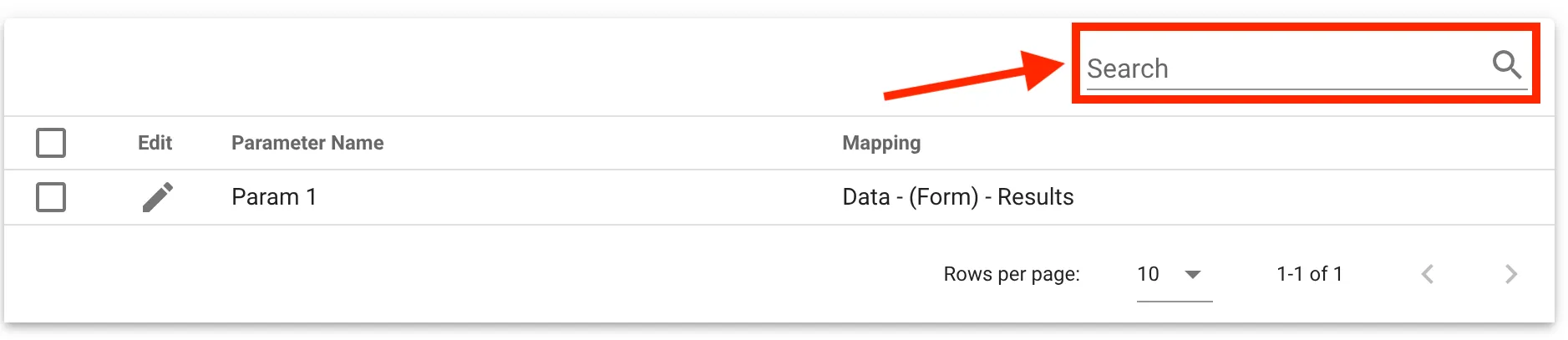
Each configuration table includes a Search field at the top. Use it to filter entries by keyword. If the table has many entries, search instead of scrolling. Click X to clear the filter.
Call a stored procedure
You can use a stored procedure for database actions in a Database Push task. The main differences are the SQL syntax and the Command Type setting.
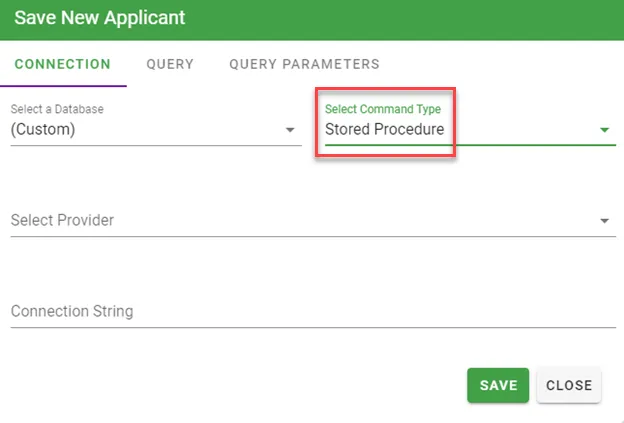
In this example, the task calls the SQL Server stored procedure, spInsertSalesForecast, and passes three parameters. The Command Type is set to Stored Procedure.
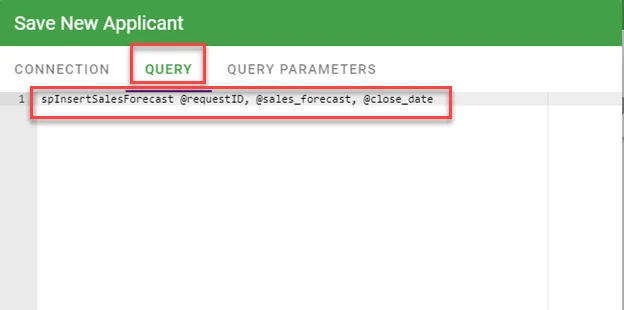
SQL Server update (7/15/2016): This configuration can return a misleading “procedure not found” error. This may relate to parameter definition order, as noted in the Oracle guidance below. To avoid this issue, set Command Type to Text and prefix the procedure name with the T-SQL EXEC command.
If you use an Oracle stored procedure, keep parameters in the correct order. For example:
spInsertSalesForecast @request_id, @sales_forecast, @close_date
Create parameters in that order in the Query Parameters tab (@request_id at the top, then @sales_forecast, and so on). This requirement comes from an Oracle provider constraint. SQL Server doesn’t require this order.