Create and manage reports
This guide explains how to:
- Create a new report.
- Copy, delete, and export a report.
- Use Links/API options.
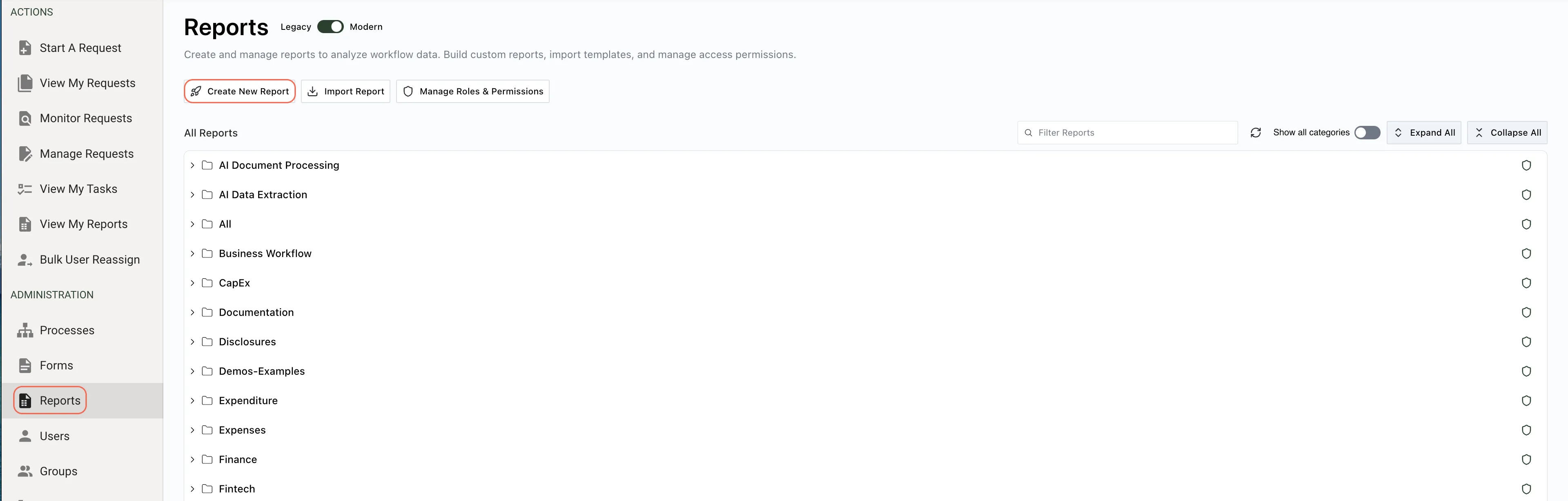
To create a new report, navigate to Reports in the administration menu and click Create New Report.
The following screen appears:
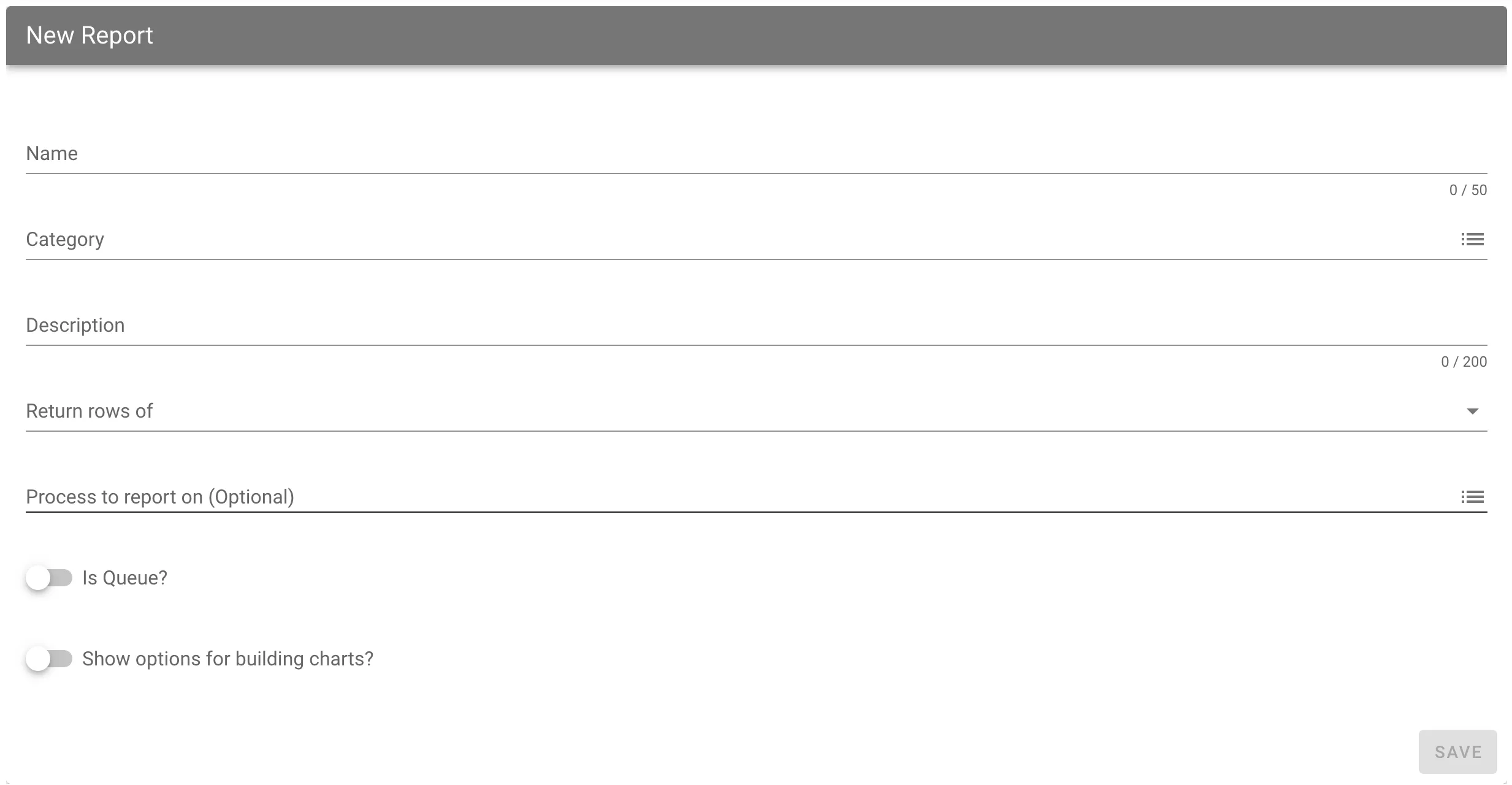
Once you complete all required fields, select Save. The following table lists each attribute and its purpose:
| Attributes | Options | Required | Description |
|---|---|---|---|
| Name | Free Text | Yes | This name displays to your end users. |
| Category | Any Category | Yes | This category determines where end users find the report under the My Reports menu. |
| Description | Free Text | No | This description appears to end users when they view the report under My Reports. |
| Return rows of | Requests, Tasks or Custom | Yes | If you’re summarizing form-specific data (like the project cost that users entered on the form), you can summarize the data at the Request level or the Task level. With Request level summarization, you sum the values for a single form input by one user. If three people complete a form task on the same task and you want to summarize all three values, select Task. This report type — and only this type — offers the ability to report data based on currently assigned tasks, including recipients, assignment dates, and similar data. If you need to build a report that queries the internal or an external database, choose Custom. |
| Process to Report On | Select the workflow you would like to report against. | No | Select the specific workflow you want to report against. You can leave this empty if you want to create a report using data from more than one process. If you change the process a report uses, you need to refresh each column and filter definition to ensure the report functions correctly, even if the two processes are copies of one another. |
| Is Queue? | Binary | Yes | If you don’t select this option, the report retrieves any task or request information regardless of the user’s involvement in that particular process you’re reporting against. If you select it, the report only retrieves task information based on open tasks for the user running the report for that particular process. Additionally, the report provides a link directly to the open task for that user to complete. If you want to build a report that includes a user’s personal requests regardless of task status, use the Only report data attached to current user (Requests, Assigned Tasks) report limit option instead. Choosing this option overrides the selection of report type to return rows of tasks if you chose a return rows of requests type report. |
| Show options for building charts? | Binary | Yes | If you want to display either a line, column, or pie chart with the report, select this option. |
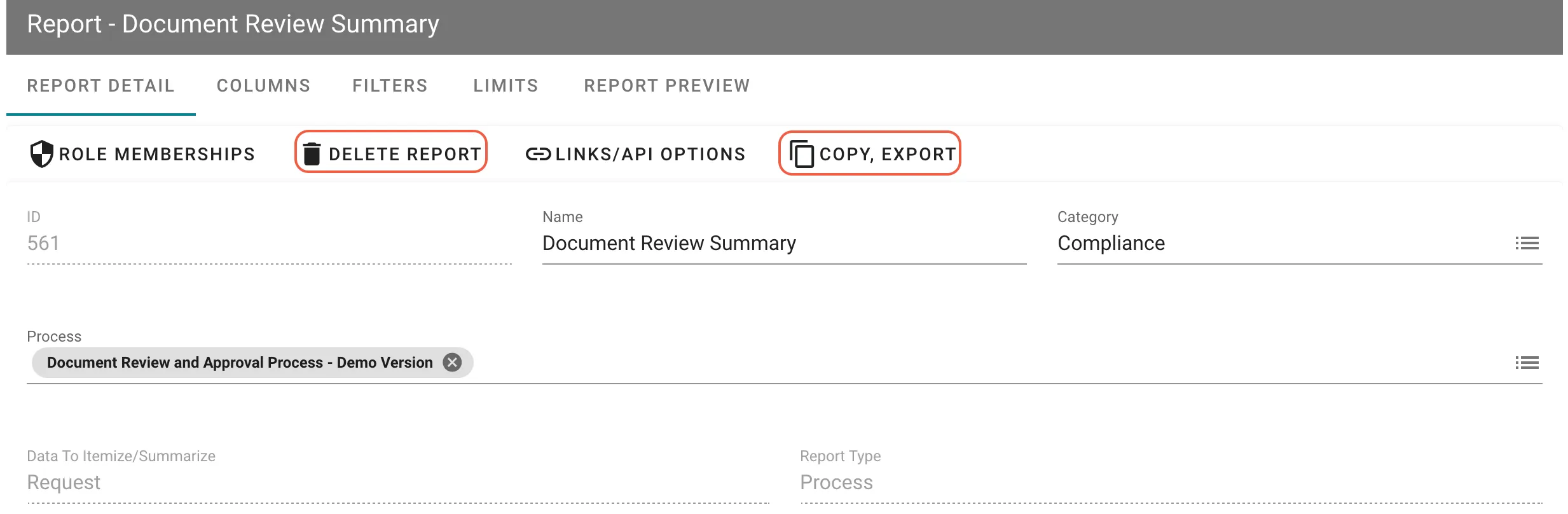
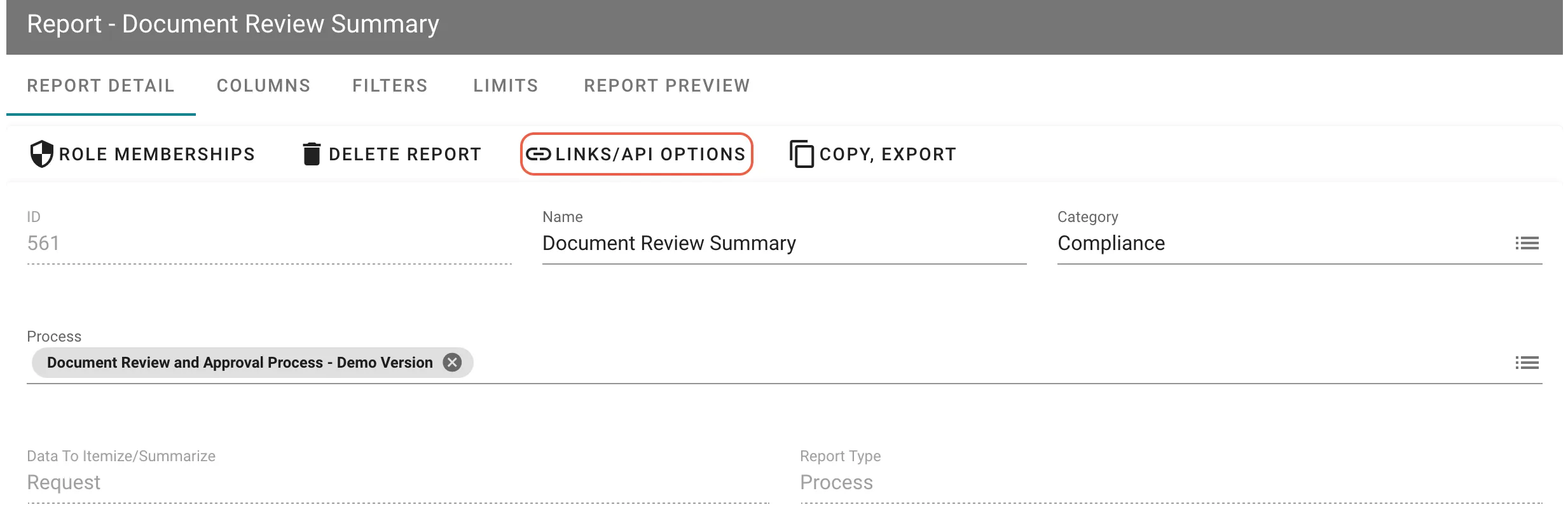
Once you add a report, the Report Details tab displays. From here, you can Delete, Copy, or Export the report:
Links/API options
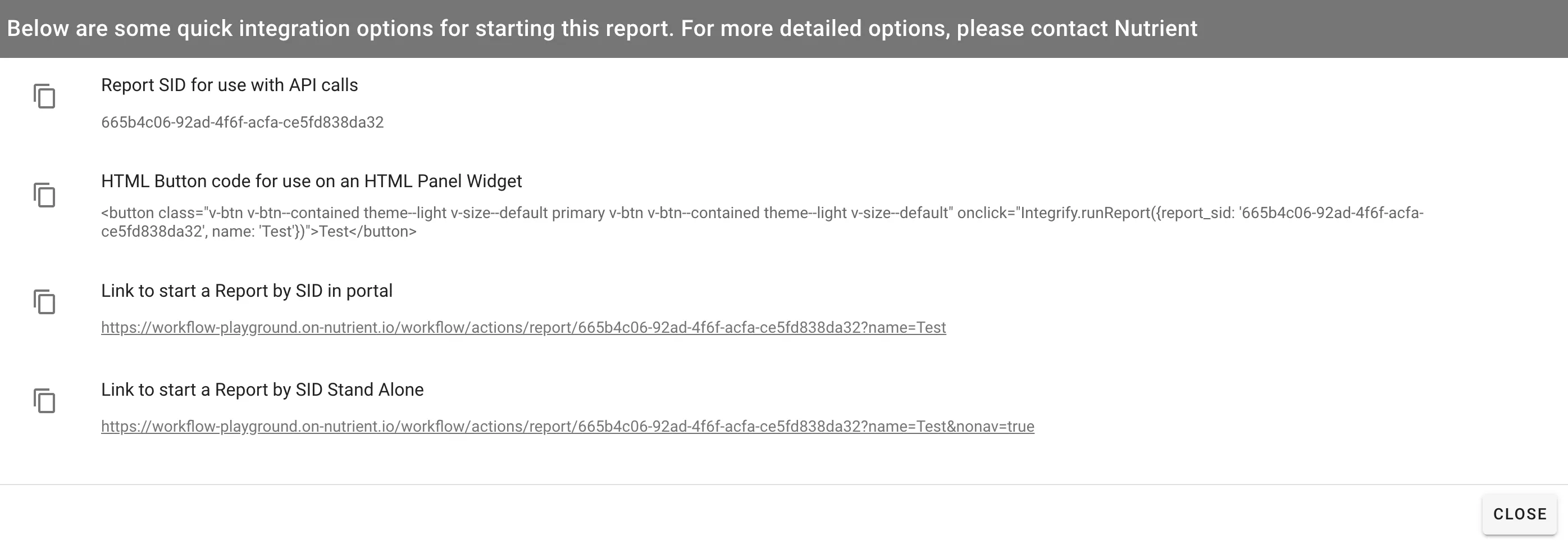
For customers with the Workflow Automation API, administrators can select the Links/API Options button to view linking options for the report. This enables you to link the report from external webpages and/or within an HTML Panel widget.
Copy the code from the Links/API Options display:
Reporting and canceled requests
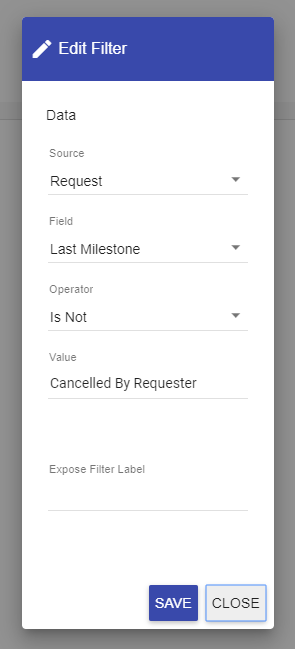
Reports can include canceled requests. To remove canceled requests from a report, add a report filter as follows:
- Source — Request
- Field — Last Milestone
- Operator — is not
- Value — Cancelled By Requester
Refer to the example below.
Watch the video tutorial