Reports library overview
The Reports library is the central hub for managing all reports in Nutrient Workflow Automation. Use it to create, import, edit, and organize your reports, as well as to configure user roles and permissions.
To access the Reports library, select Administration > Reports in the left navigation panel.
The library displays a list of all reports, organized into categories. It also provides tools to find, edit, create, or import reports.
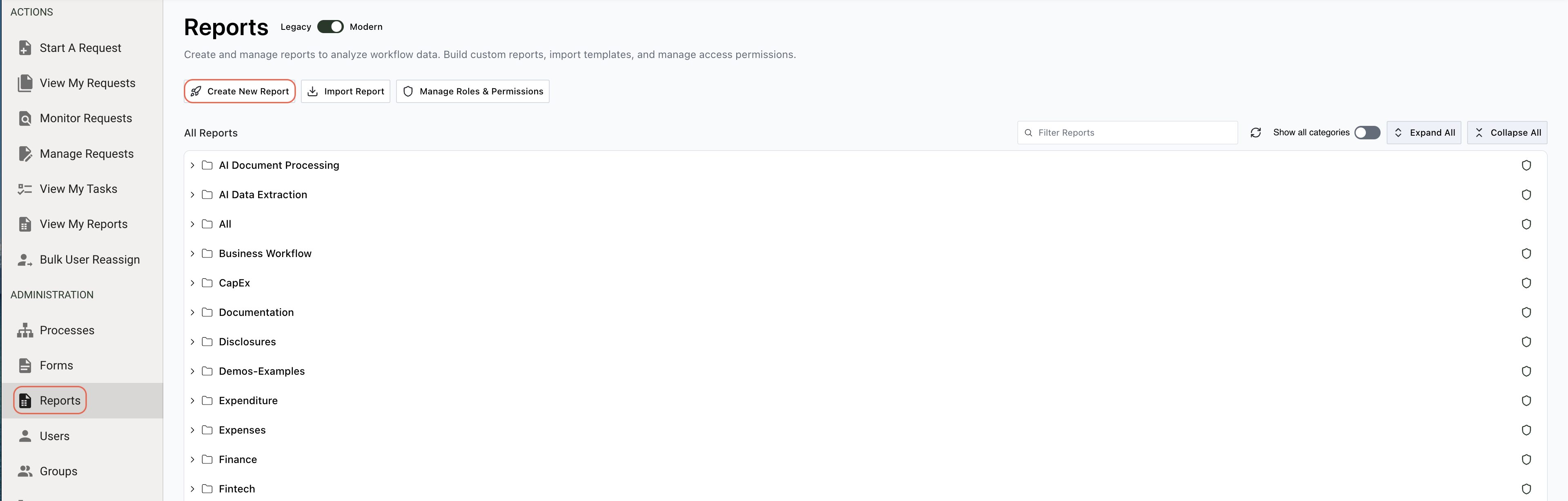
Actions
- Create New Report — Create a new report from scratch.
- Import Report — Import a report template to edit or use.
- Manage Roles & Permissions — Manage permissions and members of different roles (administrators, process testers, process users).
Recently opened
The Recently Opened section provides quick access to reports you’ve recently worked on. It appears automatically once you’ve opened at least one report.
Collapsing and expanding
Click the section header to collapse or expand the Recently Opened section. Your preference is saved, and the collapse state is remembered when you navigate away and return to the page, or when you refresh the browser. Each admin page (Processes, Forms, Reports) remembers its collapse state independently.
When you type in the search field, the Recently Opened section automatically collapses to give you more screen space for search results. When you clear the search, it restores to your previously saved collapse state.
Filter reports
The filter option enables you to find reports by name. Use the search field above the report list to narrow results.