Org chart
This guide explains how to use the org chart feature to visualize and navigate your organization’s reporting structure.
The org chart feature in Nutrient Workflow Automation enables administrators to visualize the reporting structure of users within the organization.
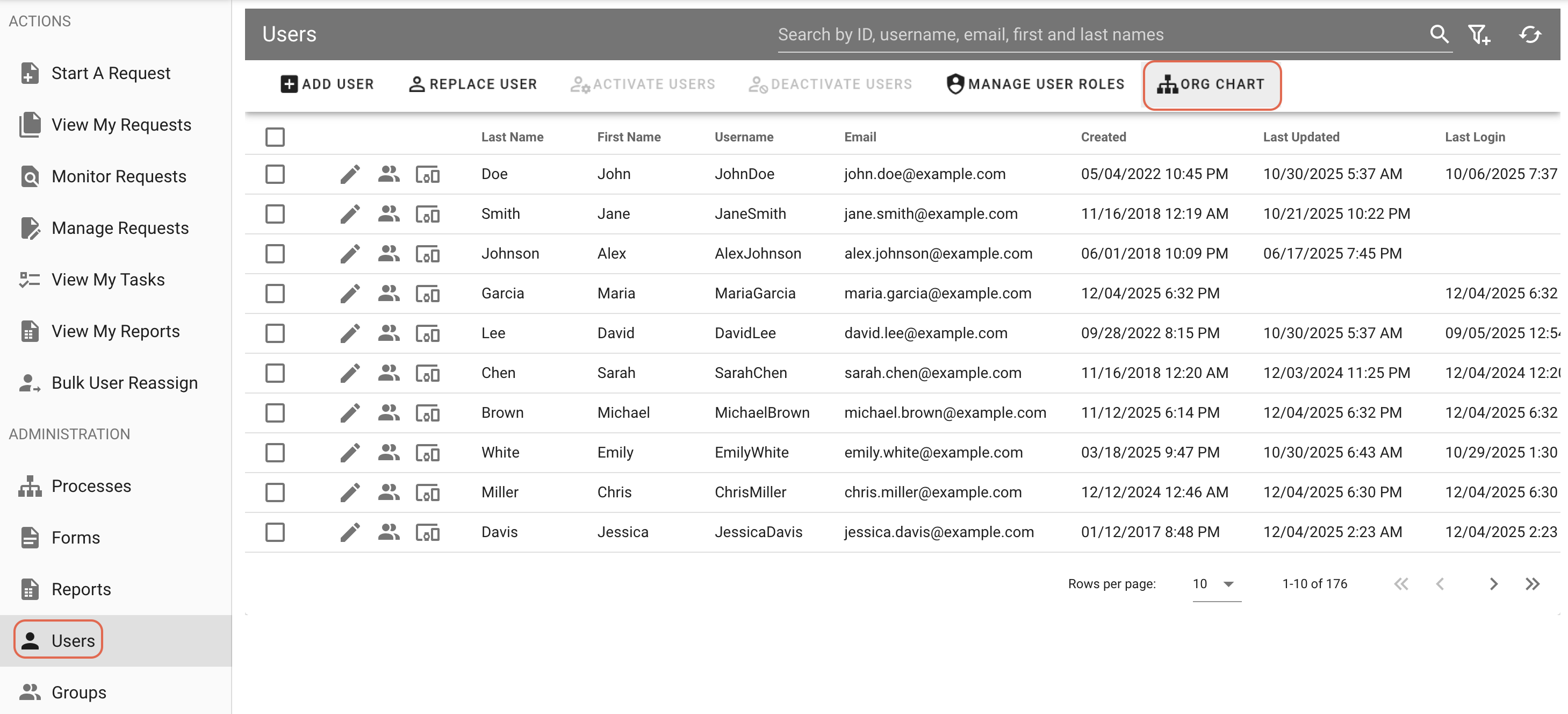
To access the org chart, navigate to the Users tab in the left navigation panel and select the Org Chart icon at the top of the user list.
Features
- Hierarchical view — Displays users in a tree structure based on their reporting relationships.
- Hide unlinked users — Limits the chart to only users who have defined managers or direct reports.
- Expand/collapse nodes — Select the arrow of a user to expand or collapse their direct reports.
- Search functionality — Locate users within the org chart using the search bar. You can search by name, email, title, or department.
- Select a user — Select a user node to limit the org chart to their direct reports. A filter appears above the org chart. Select the X icon to remove the filter and return to the full org chart.
- Download option — Select the download link in the top right of the organization chart bar. This downloads a PNG image of the current org chart view.