Forms in the mobile app
Beta feature — Forms support in the mobile app is currently in beta. If you need a question type or feature that isn’t listed here, contact our Support team(opens in a new tab) — your feedback directly influences our development priorities.
Forms are the primary way to collect information during workflow processes. The Nutrient Workflow Automation mobile app enables you to complete forms directly on your mobile device, keeping your workflows moving even when you’re away from your desk.
To learn more about forms in general, refer to the forms overview in the admin guide.
Prerequisites
Before completing forms in the mobile app, you need to:
- Install the Nutrient Workflow Automation mobile app for iOS or Android.
- Have tasks assigned to you that contain forms.
- Have an active internet connection for form submission.
How forms work in the mobile app
Forms appear as part of tasks assigned to you. When you open a task that includes a form, you can fill it out directly in the mobile app.
Accessing forms
- Open a task from your dashboard or task list.
- Complete the required fields and tap Complete to submit.
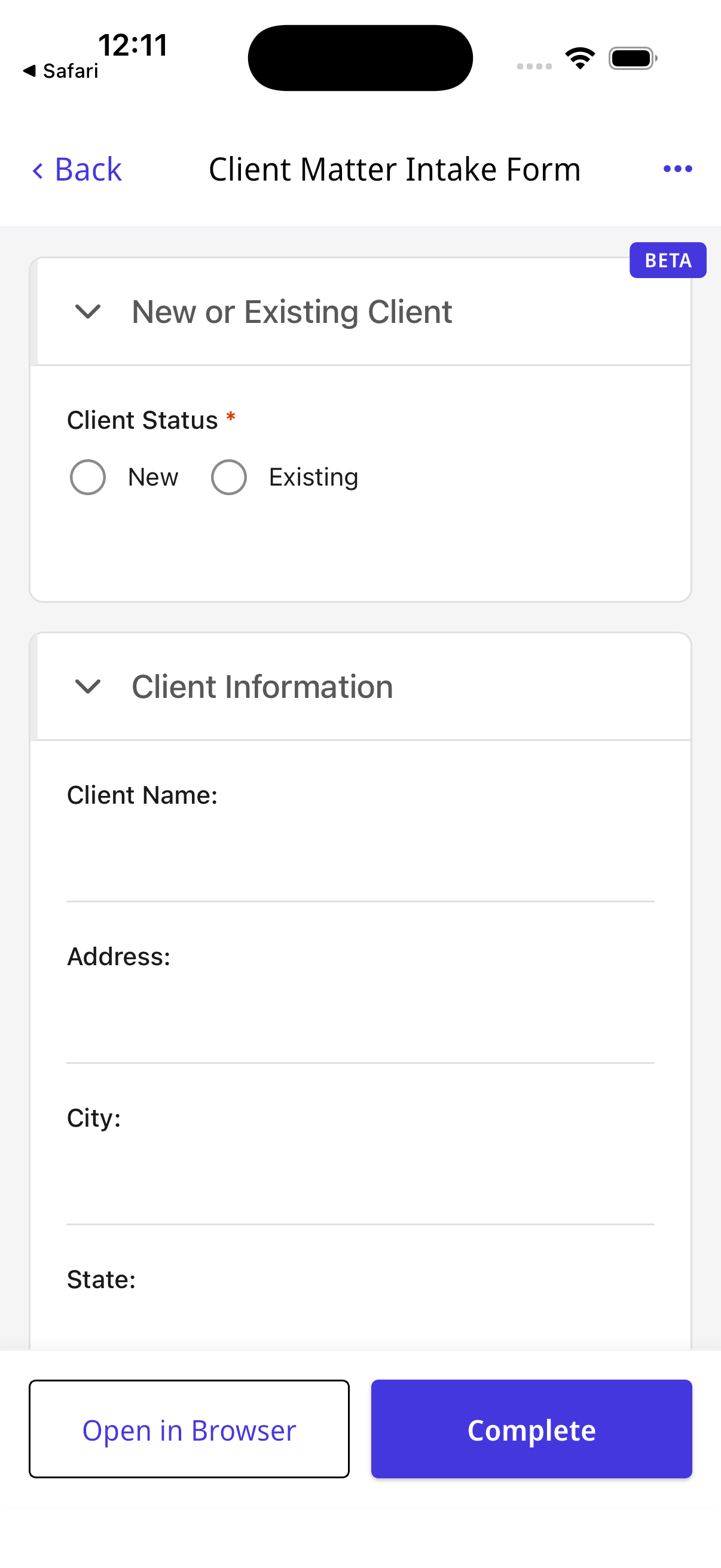
Forms display a BETA badge indicating this feature is in active development. You can always tap Open in Browser to complete the form in your web browser if you prefer.
Completing forms
When filling out a form on the mobile app, you’ll see:
- Required fields — Fields marked with an asterisk (*) must be completed before submission.
- Collapsible sections — Tap section headers to expand or collapse form sections.
- Attachments — Upload files from your device or capture photos directly using your camera.
- Open in Browser — Tap this button to complete the form in your web browser instead.
- Complete — Tap this button when you’re ready to submit the form.
Supported question types
The following form question types are fully supported in the mobile app.
Text input
| Question type | Description |
|---|---|
| Short text | Single-line text input field |
| Long text | Multiline text area |
| Link | URL input field |
| Email address input | |
| Password | Masked password input field |
| Number | Numeric input field |
Selection
| Question type | Description |
|---|---|
| Select list | Dropdown with predefined options |
| Radiobuttons | Radio button group for single selection |
| Checkboxes | Checkbox group for multiple selections |
Date and time
| Question type | Description |
|---|---|
| Calendar | Date picker field |
| Time zone | Timezone selection dropdown |
Files and people
| Question type | Description |
|---|---|
| File attachment | Single file upload or capture |
| Contact search | Contact or user selection field |
Layout and display
| Question type | Description |
|---|---|
| Section | Collapsible form section container |
| Container | Layout container with columns |
| Display label | Read-only display text |
| Form text | Static informational content |
| Horizontal line | Visual separator |
| Blank space | Spacing element |
Unsupported features
Forms containing dynamic features open in your web browser instead of the native app. This includes forms with:
- Dynamic logic — Rules or custom scripts that change form behavior based on user input. Learn more about form rules.
- Database queries — Questions that fetch data from databases.
- REST API calls — Questions that retrieve data from external APIs. For more information, refer to the RESTful data elements guide.
- Custom code execution — Questions with executable code blocks.
For forms with these features, use the Open in Browser button to complete the form in your web browser where full functionality is available.
Need a feature that’s not supported? Nutrient is actively expanding mobile form capabilities. If your workflow requires a question type or feature not listed here, contact our Support team(opens in a new tab). Your feedback helps shape our roadmap.
Troubleshooting
Form opens in browser instead of the app
Forms with dynamic features (rules, database queries, REST API calls, or custom code) automatically open in your browser where full functionality is available.
Can’t submit the form
Ensure all required fields (marked with *) are completed before tapping Complete.
Next steps
- Task management — Learn how to review and complete tasks.
- Request details — View comprehensive request information.
- Forms overview — Understand how forms work in Nutrient Workflow Automation.