Start a process with QR code
The Nutrient Workflow Automation mobile app includes a built-in QR code scanner that enables you to start workflow processes by scanning QR codes.
Prerequisites
Before scanning QR codes:
- Install the Nutrient Workflow Automation mobile app for iOS or Android.
- Have QR codes generated by an administrator.
- Grant camera permissions to the mobile app when prompted.
How it works
Administrators can generate QR codes for specific processes. When you scan one of these QR codes with the mobile app, it automatically opens that process for you to complete.
To scan a QR code
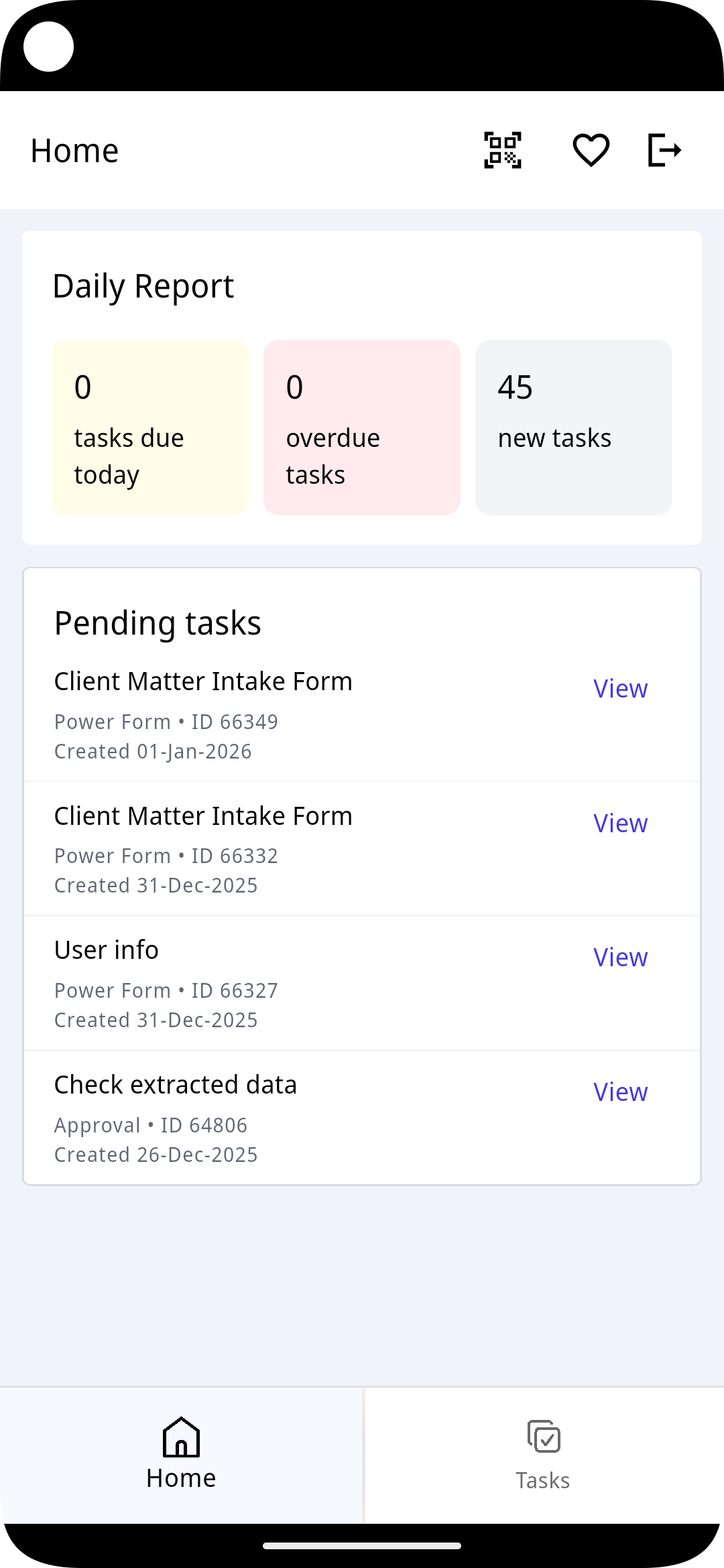
- Tap the QR code icon in the upper-right corner of the Home screen.
- Point your camera at the QR code.
- The associated process starts automatically.
Common use cases
QR code scanning is useful for:
- Physical locations — Scan codes posted on equipment, at workstations, or throughout facilities to start maintenance requests or inspections.
- Events — Register attendees on the fly or start checkin processes.
- Documents — Attach QR codes to physical documents to initiate digital workflows.
- Asset management — Scan asset tags to start service requests or inventory updates.
Troubleshooting
QR code doesn’t scan
Ensure the QR code is clearly visible and well-lit. Move closer or adjust the angle of your device.
Camera doesn’t open
Check that camera permissions are enabled for the Nutrient Workflow Automation app in your device settings.
Process doesn’t start after scanning
Verify the QR code was generated for your organization. Contact your administrator if the issue persists.
Next steps
- Dashboard — Learn about the Home screen and task overview.
- Task management — Review and complete tasks on your mobile device.