Define your organization's business hours easily
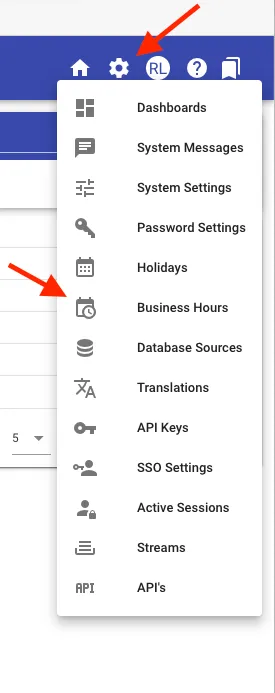
By selecting Business Hours from the Settings gear icon in the upper right-hand corner, you can define business hours for the organization:
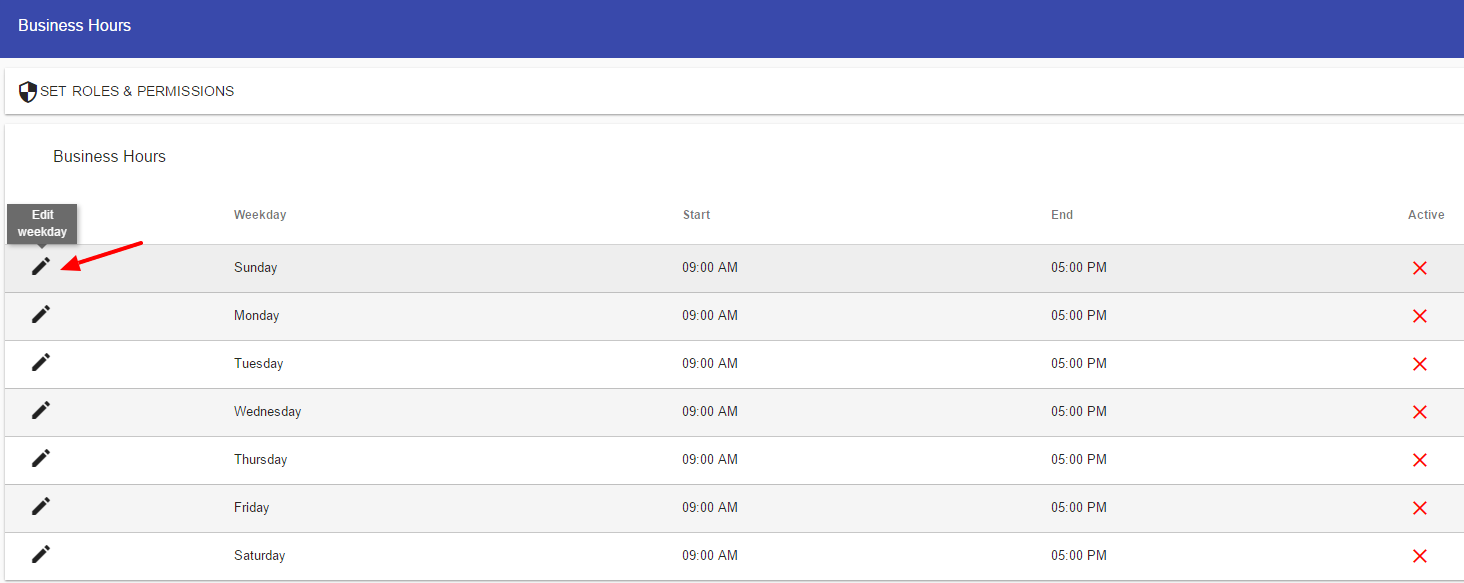
Select the Edit pencil icon to define your hours:
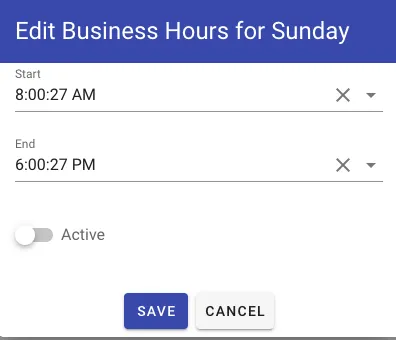
Check Active and the Start and End times to set the hours for the day of the week that you want to account for:
By doing so, you can account for your defined business hours when defining a task’s timed-based settings (reminders, due dates and task timeouts).
For example, you might not want task reminders to occur during non-working days (Saturday, Sunday).
By selecting the ‘Account for business days’ option under a task’s Reminders and Timeouts option, the task reminders will not trigger during the inactive hours as defined in your Business Hours.
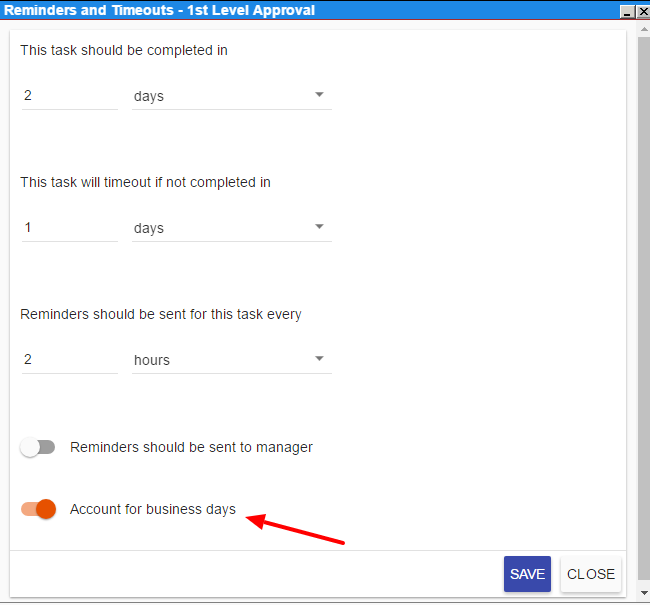
Note: When you select a timeout setting (for example, 2 days) and check the business hours box, that means it will time out in 48 business hours. If you have 8 hours of business defined in your application that is 6 actual days.