The Nutrient Workflow Automation AI assistant is a conversational assistant in the portal. It answers questions about a user’s forms, processes, requests, tasks, files, and users by using live workflow data instead of generic product documentation.
When you enable the AI assistant for a tenant, it replaces the existing Ask AI chatbot button in the portal. Tenants that don’t use the AI assistant continue to show the existing Ask AI widget.
The AI assistant is in beta. It’s read-only in this release — it can search and explain data, but it can’t create, edit, or delete records.
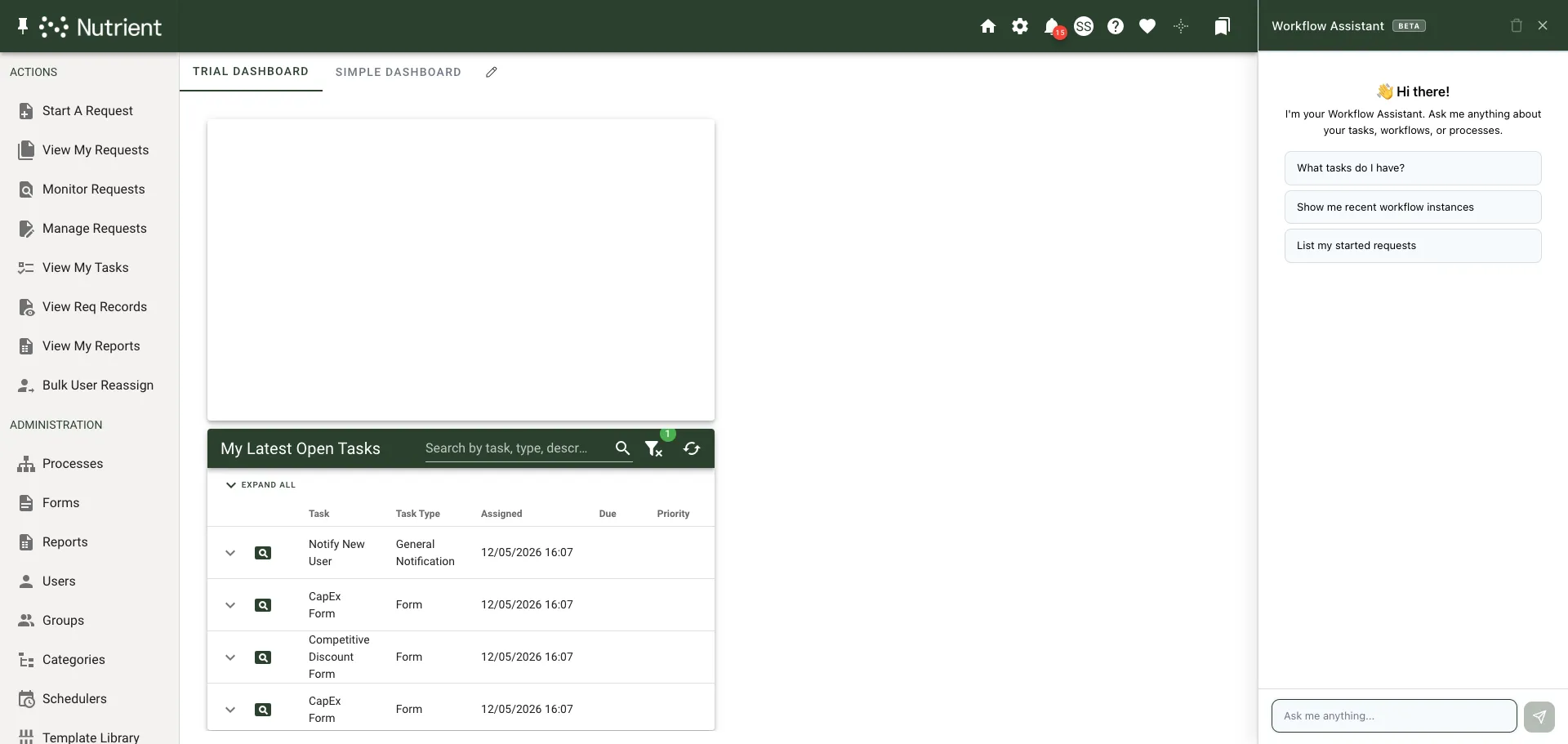
The following image shows the chat sidebar’s empty state.
What the AI assistant can do today
The AI assistant can answer questions across several workflow areas. The following table shows representative prompts.
| Category | Example prompts |
|---|---|
| Tasks | “What tasks do I have?”, “Show my overdue tasks” |
| Requests | “Show request 762,” “List my in-progress requests” |
| Search | “Find processes about onboarding,” “Search forms about leave” |
| Reports | “Run the monthly summary report” |
| File analysis | “Read the term sheet attachment on request 762” |
File-analysis capability (PDFs, images) varies by model. If a user asks the assistant to read a file type the selected model doesn’t support, the assistant tells the user to ask their administrator to switch models.
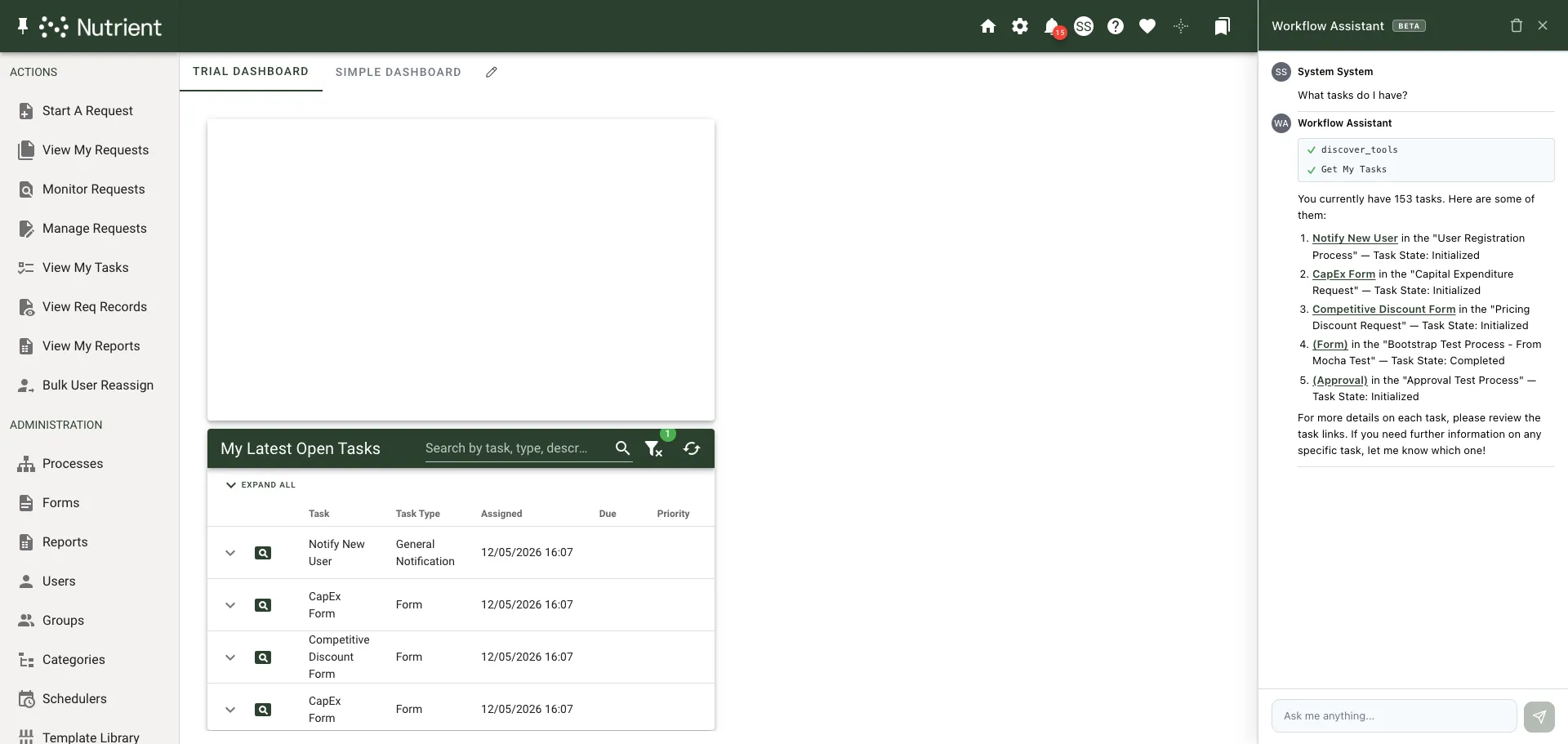
The following image shows a task response.
What the AI assistant can’t do yet
The current release has these limits:
- It can’t create, edit, or delete workflow records.
- It can’t approve, reject, or otherwise transition tasks on the user’s behalf.
- It can’t return data that the calling user isn’t permitted to see in the UI. Every assistant action runs in the user’s security context.
Enabling the AI assistant for your tenant
The AI assistant is in beta and is available only if your license includes the AI assistant module. To add the AI assistant module to your license, contact Nutrient Support(opens in a new tab).
The AI assistant is currently available to administrators. If you’d like it to be available to all users in your tenant, contact Nutrient Support(opens in a new tab) to register your interest.
After your license includes the AI assistant module, configure the AI source that the assistant should use. Until you configure an AI source, the assistant tells users to contact their administrator.
Selecting the assistant AI source
The AI assistant uses an AI connection that you control, just like other AI features in Workflow Automation. Use the dedicated setting to choose the connection.
Before you start, make sure you’ve set up at least one AI connection. If you haven’t, refer to the common AI configurations guide.
- Open Settings → System Config.
- Locate the AssistantAISource row. This row is visible only when your license includes the AI assistant module.
- Select the AI connection that you want the AI assistant to use.
- Save your changes.
The following image shows the AssistantAISource setting.

Troubleshooting
If the AI assistant doesn’t behave as expected, use the following table to identify the cause and next step.
| Symptom | Likely cause | What to do |
|---|---|---|
| The AI assistant icon doesn’t appear in the portal | Your license doesn’t include the AI assistant module | Contact Nutrient Support(opens in a new tab) to add the module to your license |
| AssistantAISource row is missing from System Config | Your license doesn’t include the AI assistant module | The row is shown only when your license includes the AI assistant module. Contact Nutrient Support(opens in a new tab) if you expect it to be available |
| Assistant replies “no AI source configured” | The assistant is enabled, but no AI connection has been selected as the source | In Settings → System Config, select an AI connection as AssistantAISource |
| Assistant says it can’t read an attached file | The selected AI model doesn’t support that file type | Select a model that supports the file type as the assistant source |