Excel Import task configuration
Use the Excel Import task to read values from Excel spreadsheets in Nutrient Workflow Automation.
You can use this task to:
- Upload a spreadsheet as part of a request.
- Map spreadsheet cells to form fields.
- Build routing rules from spreadsheet values.
- Assign approvers from imported values.
- Include imported values in reports.
To configure an Excel Import task:
- Add the task to your Process Flow.
- Select Configure Task from the task menu.
- Upload the sample spreadsheet format that requesters will use.
- Map spreadsheet cells to fields in an existing form.
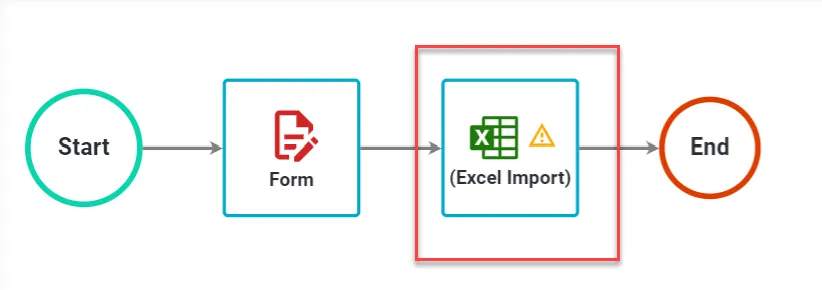
When users complete this task, they get a file attachment question. They should attach the same spreadsheet format you configured here.
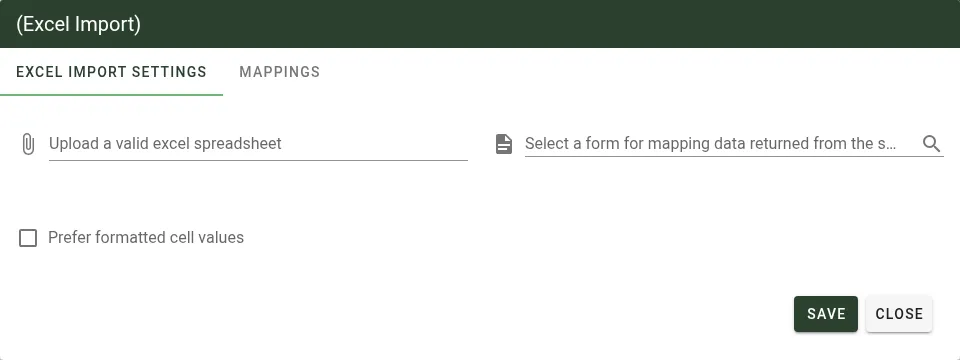
Prefer formatted cell values
The task includes a Prefer formatted cell values setting.
If this setting is off (default), the task imports raw values. For example, a cell displayed as 1,234.50 imports as 1234.5.
If this setting is on, the task imports display-formatted values exactly as shown in Excel, including currency symbols, percent signs, and thousand separators.
This setting is off by default to preserve backward compatibility. Existing Excel Import tasks that don’t have this setting configured will continue to use raw cell values.
Preview imported values
Use the Value(s) column on the Mappings tab to preview each mapped value.
- In Mappings, find the row you want to check.
- Click the View icon in Value(s).
- Confirm the previewed value before you save.
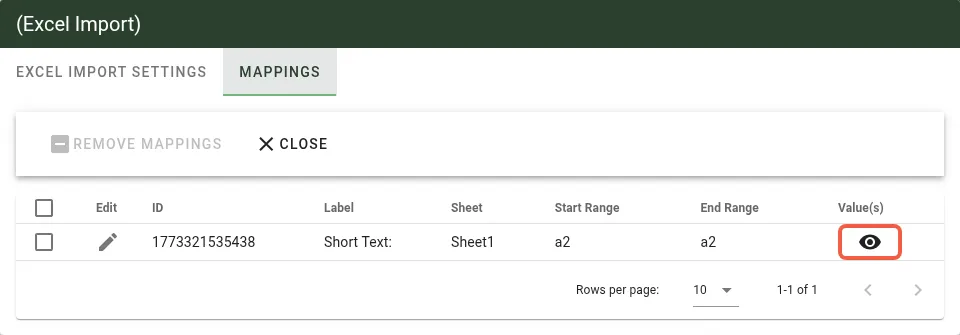
The preview reflects Prefer formatted cell values:
If the setting is off, the preview shows raw values.
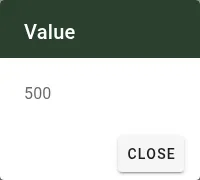
If the setting is on, the preview shows formatted values.

Date column handling
The task supports date-formatted columns. It parses and imports the original date values from Excel.
When you import date columns:
- Format source columns as dates in Excel.
- Imported date values match what appears in the file.
- You don’t need post-import date conversion.
- This behavior applies to Excel-supported date formats, including
MM/DD/YYYY,DD/MM/YYYY, andYYYY-MM-DD.